How to Create and Run an Office Script in Excel

An Office Script is a short program, written in TypeScript, that does things in an Excel workbook for you: fill cells, add rows, format a table. You write it once in Excel's Code Editor, give it a name, and run it whenever you need it.
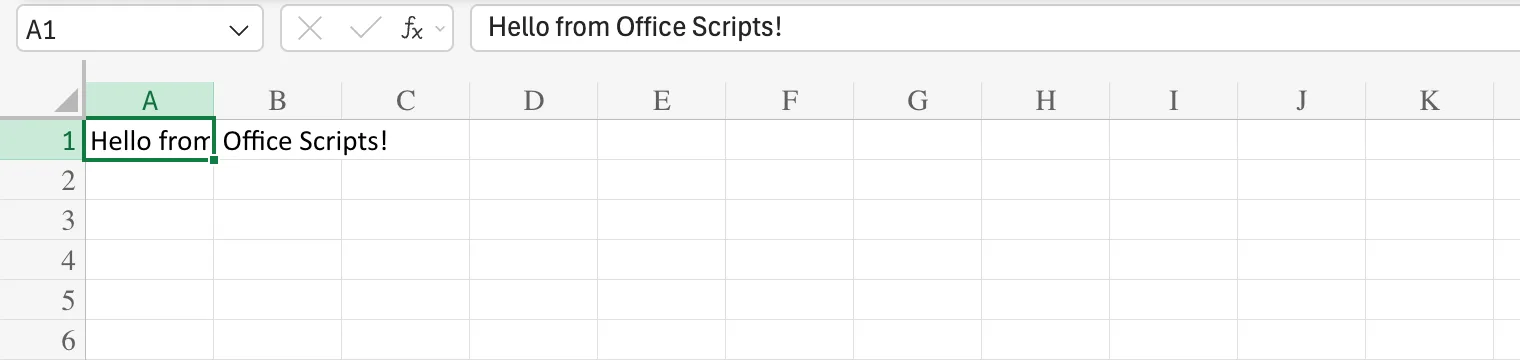
This guide creates the smallest useful script: Say Hello writes Hello from Office Scripts! in cell A1. Everything happens in Excel for the web, in a blank workbook.
Prerequisites
- A Microsoft 365 work or school licence that includes Office Scripts, such as Office 365 E3 or E5. Microsoft lists them in Platform limits and requirements. Without one, Excel has no Automate tab.
Step 1: Open the Code Editor
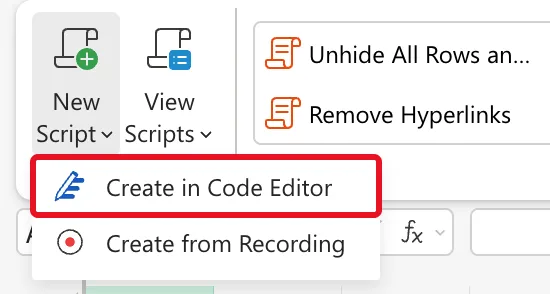
Open the workbook in Excel for the web and select the Automate tab. Its first group, Office Scripts, has New Script:

Select New Script, then Create in Code Editor. The other choice, Create from Recording, records what you click instead.
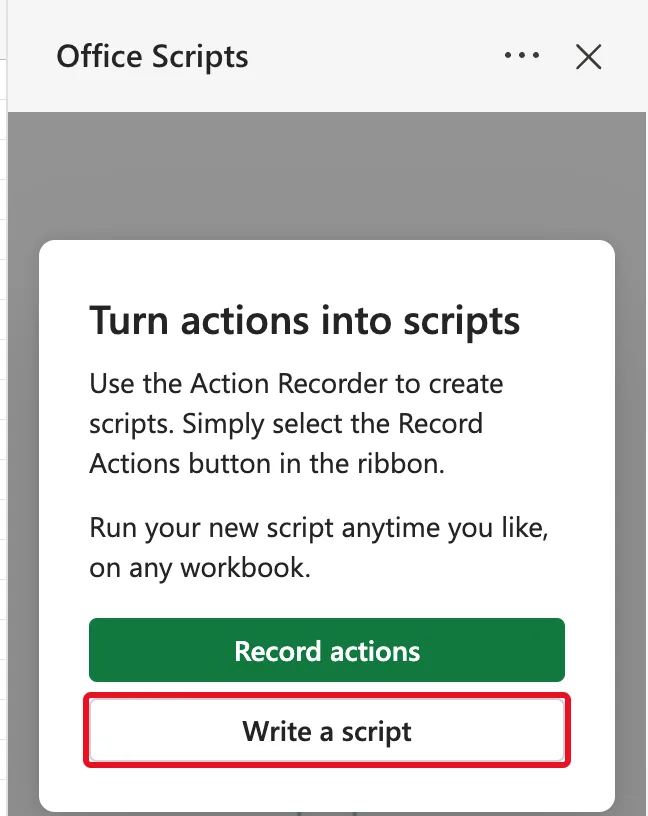
The first time, the Office Scripts pane says Turn actions into scripts and offers Record actions or Write a script. Select Write a script:
Step 2: Write the Script
The editor opens with a new script called Script and some starting code that colours the selected cell yellow:
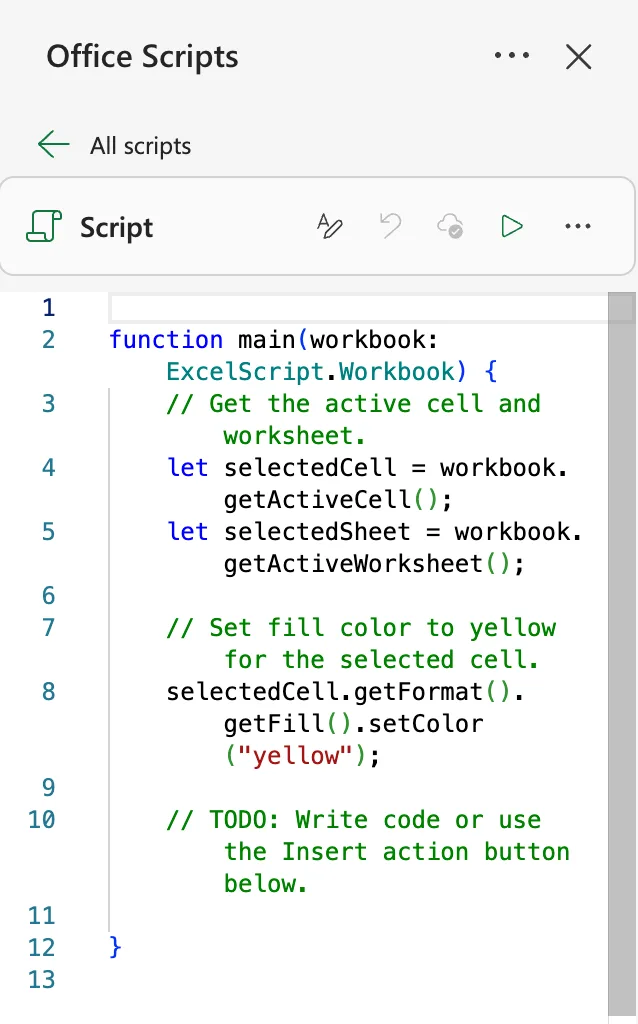
Select all the code and replace it with this:
function main(workbook: ExcelScript.Workbook) {
    // Write a greeting in cell A1 of the open sheet.
    const sheet = workbook.getActiveWorksheet();
    sheet.getRange("A1").setValue("Hello from Office Scripts!");
}
function main(workbook: ExcelScript.Workbook)is where every Office Script starts. Excel runsmainand hands it the workbook the script runs on.workbook.getActiveWorksheet()is the sheet that's open.getRange("A1")is one cell, andsetValue(...)writes into it.- The line that starts with
//is a comment, a note for people that the script ignores.
Step 3: Name the Script
Select the name Script at the top of the pane, type Say Hello and press Enter. Renaming saves the script:
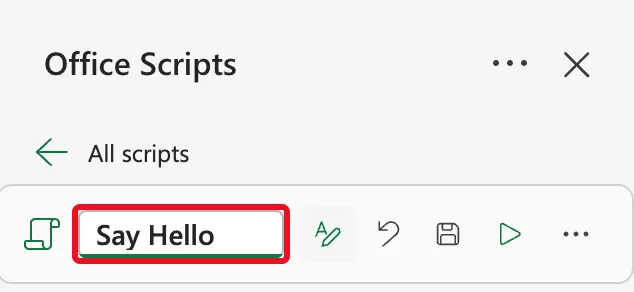
When it saved, the editor also tidied the code, putting four spaces at the start of each line inside main.
Step 4: Run It
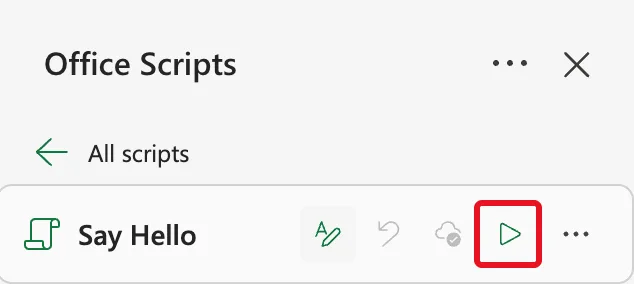
Select Run, the triangle to the right of the name:
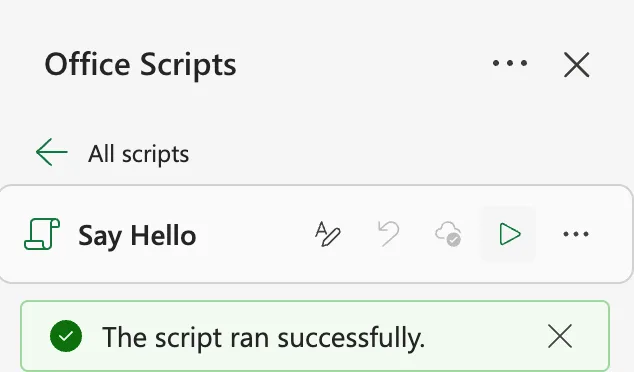
A message under the name says The script ran successfully.:
And cell A1 holds the text:
Step 5: Run It Again Later
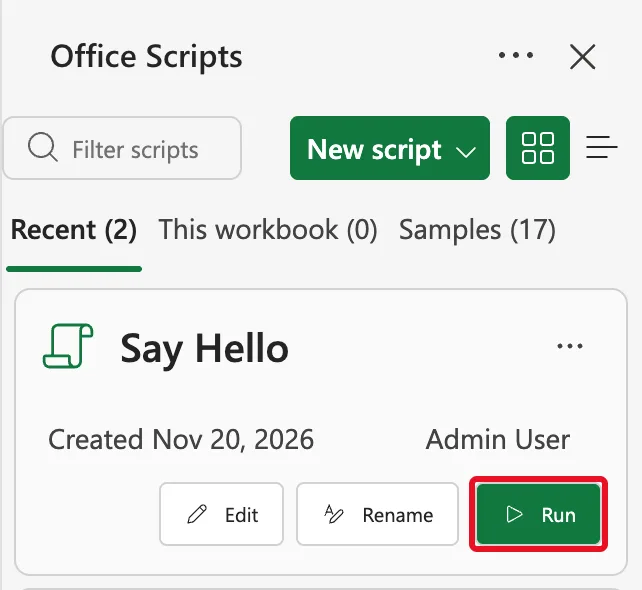
Close the pane, and next time open it with Automate, View Scripts. Back on All scripts, the Recent tab lists the script, with Edit, Rename and Run:
A script isn't part of the workbook: Excel saves it as a file of its own, Say Hello.osts, in the Documents/Office Scripts folder of your OneDrive, and you can run it on any workbook you open. Microsoft explains this in Office Scripts file storage and ownership. To keep a script with a team instead, see How to Save an Office Script to SharePoint.
Common Mistakes
| Mistake | What happens | Do this instead |
|---|---|---|
Renaming main | Excel can't find where the script starts | Keep function main(workbook: ExcelScript.Workbook) |
| Pasting new code under the starting code | Two main functions, and the editor shows errors | Select all the starting code first, then paste |
| Expecting the script to be inside the workbook | Sending the workbook to someone doesn't send the script | It's a file in your OneDrive; share it or save it to SharePoint |
| Running it with the wrong sheet open | getActiveWorksheet() writes on whichever sheet is open | Open the right sheet first, or get a sheet by its name |
Troubleshooting
| Symptom | Likely cause | Fix |
|---|---|---|
| No Automate tab | The licence doesn't include Office Scripts, or an admin turned them off | Microsoft's Automate tab not appearing steps |
| Run shows an error | A typing mistake in the code | Read the message: it names the line |
| The text is in the wrong cell | Another cell address in getRange | Check the address in quotes |
FAQ
Do I need to know TypeScript?
Not for small scripts like this one. TypeScript is JavaScript with types; a script is a few lines that call Excel's own commands, such as getRange and setValue.
Can I record a script instead of writing it?
Yes: Create from Recording turns what you click into code, which you can then edit in the same Code Editor.
Can other people run my script?
Not straight away: it's in your OneDrive. Microsoft's sharing guide shows how to share one with a workbook, and a script saved in SharePoint is shared with the people who can open that library.
Conclusion
Automate, New Script, Create in Code Editor opens a new script. Its code goes inside function main(workbook: ExcelScript.Workbook), renaming it saves it, and Run runs it on the open workbook. From here, a script can write many cells at once, add table rows, or be run by Power Automate.
Additional Resources
- Office Scripts in Excel
- Fundamentals for Office Scripts in Excel
- Platform limits and requirements with Office Scripts
