How to Create and Manage a .slnx Solution File with the .NET CLI

A solution file lists the projects that belong together, so one dotnet build builds them all and Visual Studio opens them as a set. Since .NET 10, dotnet new sln creates the newer .slnx format, a short XML file you can read and review, instead of the old .sln. This guide creates one, adds projects in two ways, lists them, and converts an existing .sln.
Prerequisites
- The .NET 10 SDK. Check with
dotnet --version; this guide used10.0.403. How to Check Which .NET SDKs and Runtimes Are Installed covers the details. - A terminal, in the folder where the solution should live: bash or zsh on macOS and Linux, PowerShell on Windows. The commands are the same in all of them.
Step 1: Create the Solution File
In an empty folder:
dotnet new sln --name Demo
The template "Solution File" was created successfully.
dotnet new creates files from a template; sln is the solution template, and --name names the file. The result, Demo.slnx, starts empty:
<Solution>
</Solution>
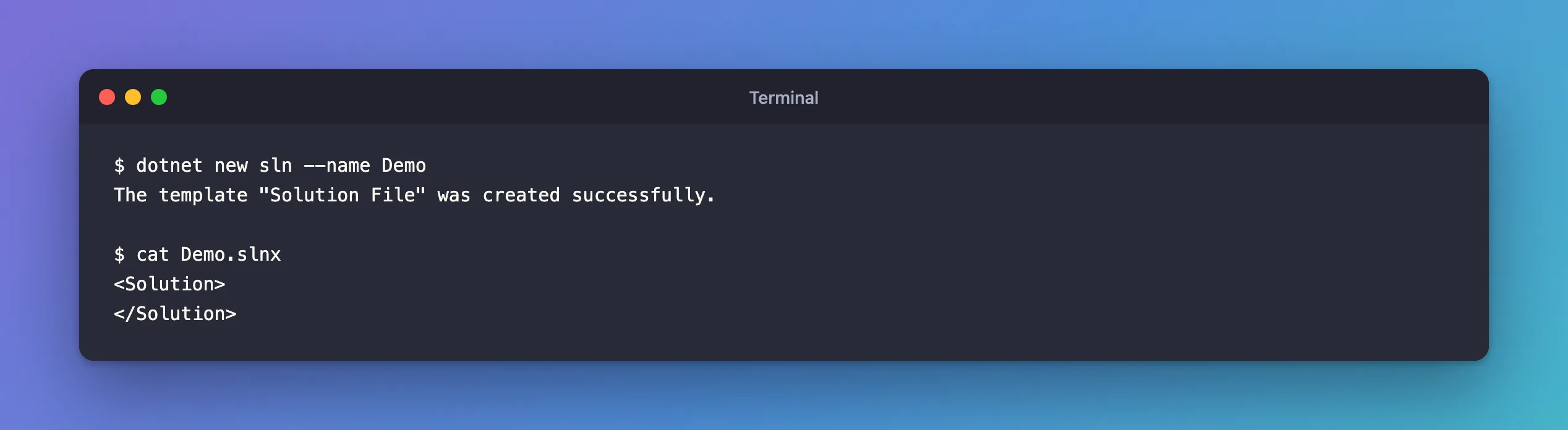
Microsoft's breaking change notice for .NET 10 explains the switch: "In .NET 10, dotnet new sln generates an SLNX-format solution file instead of an SLN-formatted solution file." And why: "The .NET SDK added support for SLNX files in version 9.0.200, and it's proven to be a stable, understandable format for developers."
Step 2: Add Projects
dotnet sln add adds one or more projects. In a solution with a web API and a class library, both under src:
dotnet sln add src/Dewiride.Inventory.Api/Dewiride.Inventory.Api.csproj src/Dewiride.Inventory.Data/Dewiride.Inventory.Data.csproj
Project `src/Dewiride.Inventory.Api/Dewiride.Inventory.Api.csproj` added to the solution.
Project `src/Dewiride.Inventory.Data/Dewiride.Inventory.Data.csproj` added to the solution.
<Solution>
  <Folder Name="/src/">
    <Project Path="src/Dewiride.Inventory.Api/Dewiride.Inventory.Api.csproj" />
    <Project Path="src/Dewiride.Inventory.Data/Dewiride.Inventory.Data.csproj" />
  </Folder>
</Solution>
Each project is one <Project> line with a relative path. The <Folder Name="/src/"> is a solution folder, a grouping that Visual Studio's Solution Explorer shows. The dotnet sln reference explains where it came from: "If PROJECT_PATH includes folders that contain the project folder, that portion of the path is used to create solution folders."
To add a project without a solution folder, use --in-root, which "Places the projects in the root of the solution, rather than creating a solution folder":
dotnet sln add --in-root src/Demo.Lib/Demo.Lib.csproj
<Solution>
  <Project Path="src/Demo.Lib/Demo.Lib.csproj" />
</Solution>
Solution folders change only how the IDE groups projects; the files on disk stay where they are.
Step 3: List the Projects
dotnet sln list
Project(s)
----------
src/Dewiride.Inventory.Api/Dewiride.Inventory.Api.csproj
src/Dewiride.Inventory.Data/Dewiride.Inventory.Data.csproj
With no file name, dotnet sln uses the only solution file in the current folder. The reference: "If unspecified, the command searches the current directory for an .sln, .slnx, or .slnf file and, if it finds exactly one, uses that file."
Step 4: Use the Old Format When You Need It
Some tools only read .sln. The docs give the option: "If you desire an SLN-formatted solution file, pass the --format sln option to the command". I created one in a separate folder, with one class library added:
dotnet new sln --name Legacy --format sln
The template "Solution File" was created successfully.
A .sln is a text file in Visual Studio's own format. Its first lines:
Microsoft Visual Studio Solution File, Format Version 12.00
# Visual Studio Version 17
VisualStudioVersion = 17.0.31903.59
MinimumVisualStudioVersion = 10.0.40219.1
After them come Project(…) lines, each with two generated GUIDs, and a Global section listing every build configuration for every project. This one has 39 lines for one project. That's the reason for .slnx: the same solution reads in a few lines of XML, and a change shows up in a review as one added line.
Step 5: Convert an Existing .sln
dotnet sln migrate "Generates an .slnx solution file from an .sln file":
dotnet sln Legacy.sln migrate
.slnx file /Users/you/projects/sln-migrate/Legacy.slnx generated.
<Solution>
  <Configurations>
    <Platform Name="Any CPU" />
    <Platform Name="x64" />
    <Platform Name="x86" />
  </Configurations>
  <Folder Name="/src/">
    <Project Path="src/Legacy.Core/Legacy.Core.csproj" />
  </Folder>
</Solution>
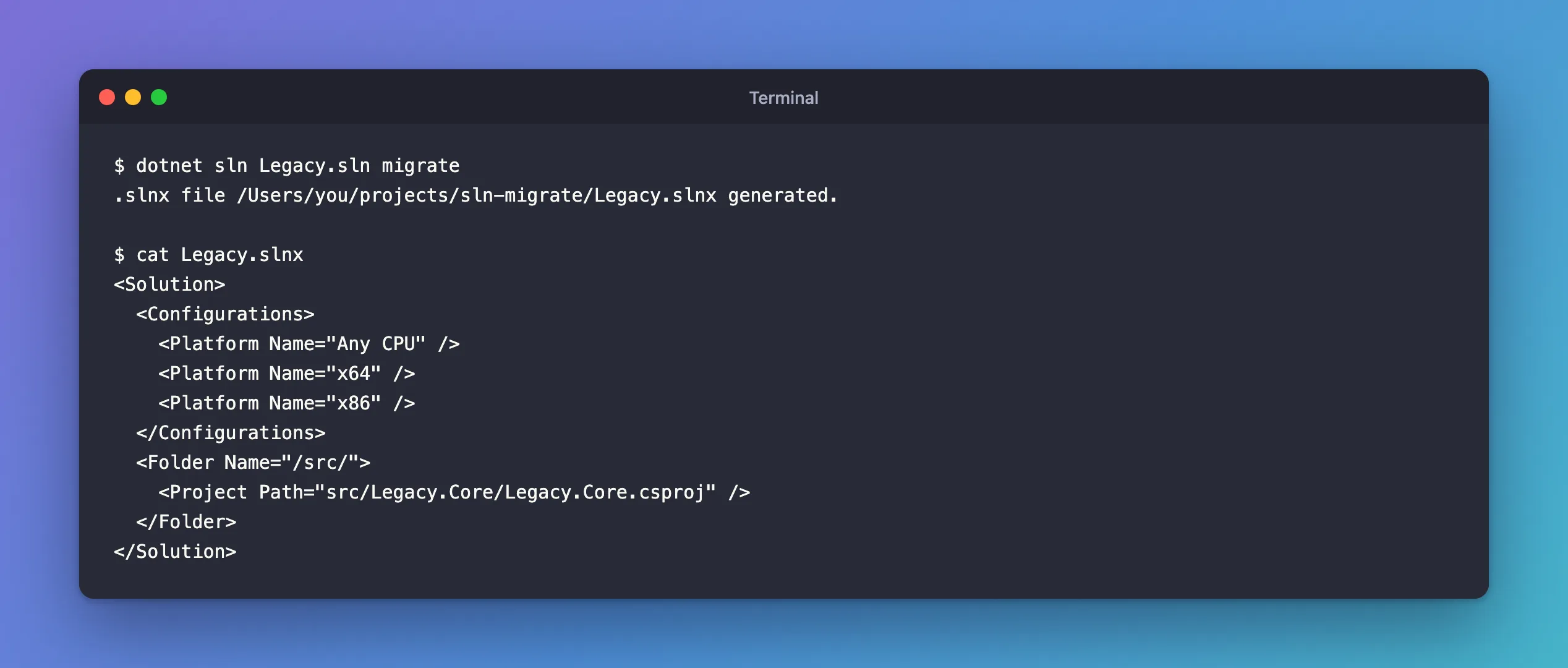
The platforms from the old file came along, in a <Configurations> section, and the project kept its solution folder.
The command leaves the .sln where it is. Decide what to do with it next, because two solution files in one folder break plain dotnet build:
MSBUILD : error MSB1011: Specify which project or solution file to use because this folder contains more than one project or solution file.
Either name the file every time, dotnet build Legacy.slnx, or keep only one solution file in the folder. Fixed: "MSB1011: Specify which project or solution file to use" shows both.
Common Mistakes
| Mistake | What happens | Do this instead |
|---|---|---|
Keeping the .sln and the .slnx side by side | dotnet build stops with MSB1011 | Keep one, or name the file in every command |
Running dotnet sln migrate twice | The docs: if an .slnx "with the same file name … already exists in the directory, the command fails" | Migrate once, then edit the .slnx |
| Adding a project path with a typo | Could not find project or directory `src/Demo.Lb/Demo.Lib.csproj`., and the solution stays as it was | Copy the path from ls or your editor |
| Expecting solution folders to move files | They only group projects in the IDE | Move the project folders yourself, then update the paths |
FAQ
Does Visual Studio open .slnx files?
Yes. Visual Studio 2026 can even make it the default for new solutions: its options list "XML Solution File Format (.slnx)" next to "Visual Studio 2010 - 2022 Solution File Format (.sln)".
Can I edit the .slnx by hand?
Yes. It's plain XML: adding a <Project Path="…" /> line does the same as dotnet sln add. The CLI is still handy, because it checks the path for you.
Does dotnet build need a solution file at all?
No. In a folder with exactly one project file, dotnet build builds that project. A solution matters when there are several projects to build together.
Conclusion
dotnet new sln creates an .slnx in .NET 10: an XML list of projects that's easy to read and review. Add projects with dotnet sln add, which turns their parent folders into solution folders unless you pass --in-root, check them with dotnet sln list, and convert older solutions with dotnet sln <file>.sln migrate. Then keep a single solution file per folder, so plain dotnet build keeps working.
Additional Resources
- dotnet sln command — add, list, remove and migrate.
- Breaking change: dotnet new sln defaults to SLNX file format
