How to Create an Instant Cloud Flow Inside a Solution in Power Automate

A flow that has to move to another environment with its app belongs inside a solution. This guide creates an instant cloud flow, one that someone starts by hand, inside a solution, and then opens it in the new designer, which takes one extra step.
What You Will Create
Microsoft calls a flow you create inside a solution a solution-aware cloud flow. It's exported and imported with the solution, and its connections go through the solution's connection references, so whoever imports it can connect it to their own accounts.
The example is the setup flow from Part 11 of the Career Development Plan series: Create Career Development Plan Lists, in the solution Career Development Plan Setup. It asks for a SharePoint site's address and creates the app's lists on that site.
Prerequisites
- An environment with Dataverse. Solutions are stored in Dataverse. See How to Add a Dataverse Database to the Default Power Platform Environment.
- A solution. See How to Create a Solution and Publisher in Power Apps.
- That solution as your preferred solution. Anything you create inside one solution is added to your preferred solution too, if that's a different one. See Change the Preferred Solution Later. I skipped this step, and my flow ended up in two solutions: Fixed: A New Cloud Flow Shows Up in Two Solutions.
- A connection reference for each connector the flow will use, created in the same solution first. See How to Create a Connection Reference in a Solution.
- A license that includes Power Automate. Microsoft 365 licenses include creating and running cloud flows with standard connectors, such as SharePoint (Power Automate seeded licenses). Premium connectors need a paid Power Automate license.
Step 1: Open the Solution in Power Automate
Sign in to Power Automate, check the environment in the top-right corner, and select Solutions on the left. Select your solution. It opens on Overview: select Objects to see what it contains and the commands to add more.
Step 2: Choose New, Automation, Cloud Flow, Instant
In the command bar, select New → Automation → Cloud flow → Instant:
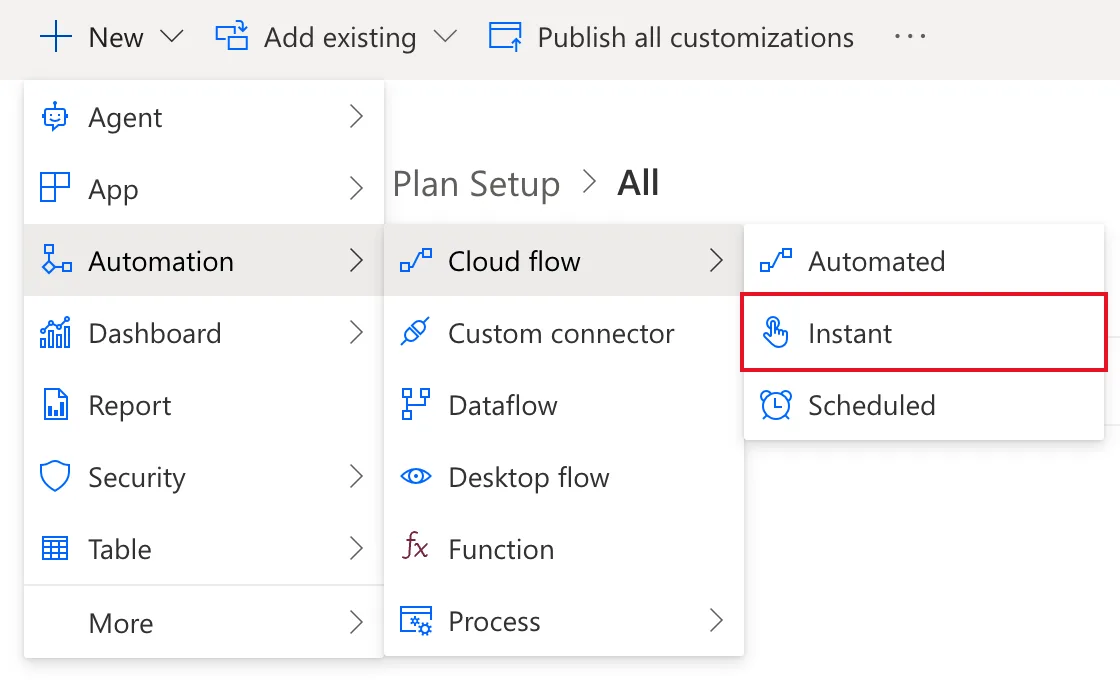
The three choices are the three kinds of cloud flow in Microsoft's flow types: Automated runs when something happens, such as an email arriving, Instant runs when someone starts it, and Scheduled runs at set times. Microsoft's own example uses Automated. The steps are the same.
Step 3: Name the Flow and Choose Its Trigger
The Build an instant cloud flow dialog opens. Fill it in:
| Field | Example | Notes |
|---|---|---|
| Flow name | Create Career Development Plan Lists | Say what the flow does: it's how you'll find it in My flows and in the solution |
| Choose how to trigger this flow | Manually trigger a flow | Starts when someone runs it. When Power Apps calls a flow (V2) is for a flow that an app starts |
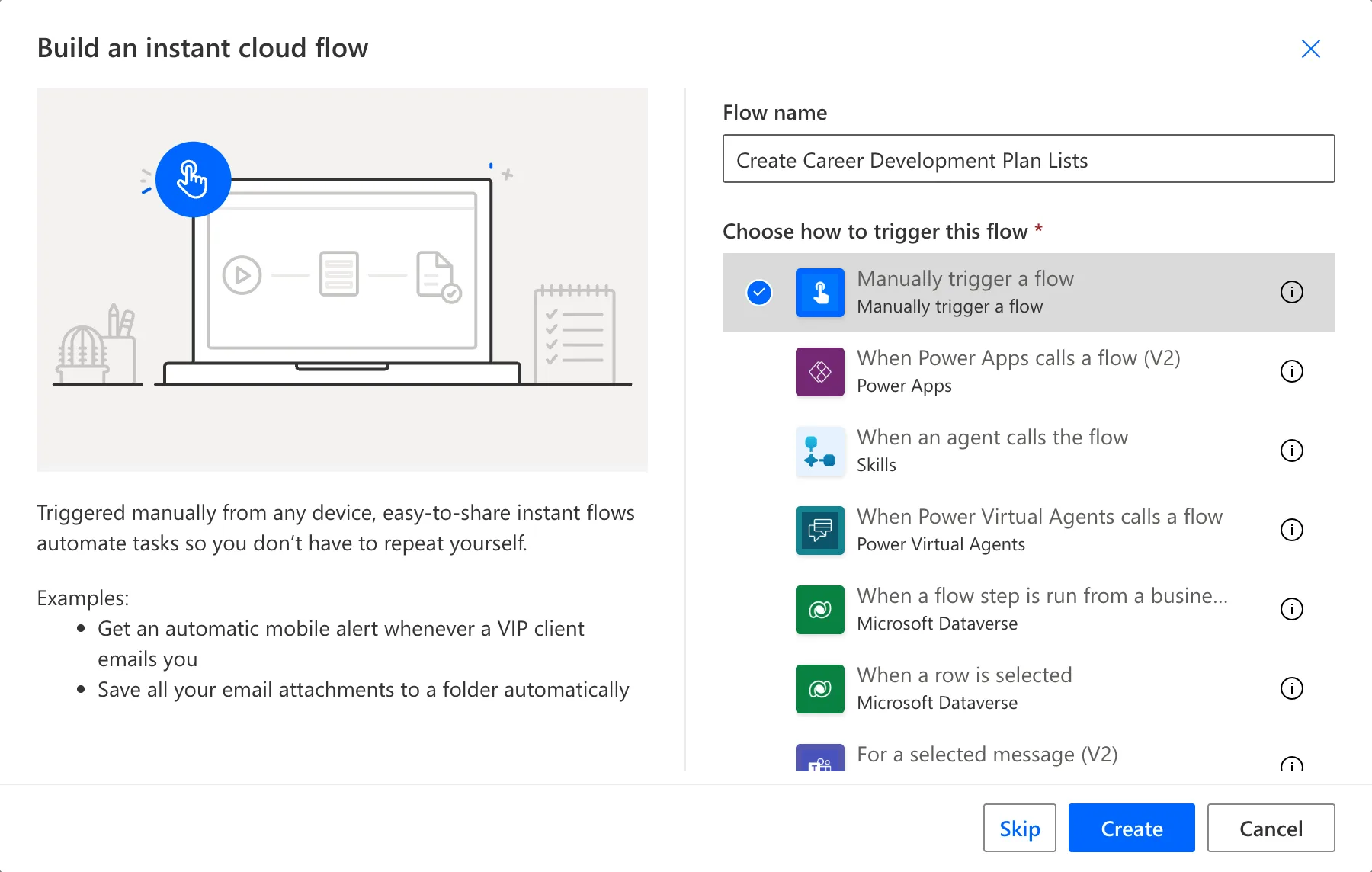
Select Create.
Step 4: Build the First Steps and Save
The flow opened in the classic designer, inside the solution's page, with the Manually trigger a flow card ready. There was no New designer toggle in its top-right corner, the switch Microsoft's article Classic designer vs. new designer describes. Microsoft's designer overview explains it: the new designer isn't available yet in places such as Solution Explorer, and you open those flows from their details page or the Power Automate portal to get it.
I added the trigger's Site URL input there (How to Add a Text Input to a Manually Triggered Flow) and a first action, a Compose called List definitions (How to Use the Compose Action), then selected Save:
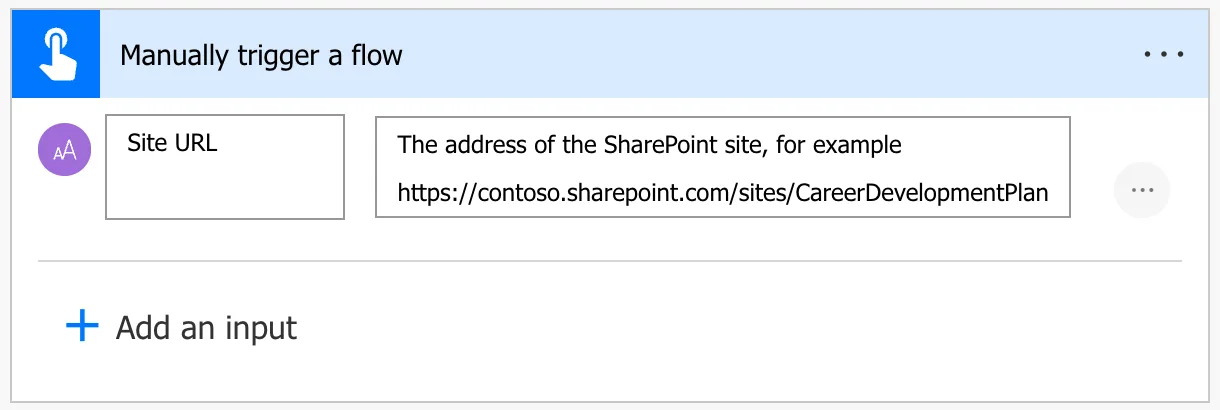
After saving, the flow was in the solution's Objects with its status On.
Step 5: Open It in the New Designer
Leave the designer and select My flows on Power Automate's left menu. Microsoft's article says a solution-aware flow you own is always on the Cloud flows tab. Select the flow's name:
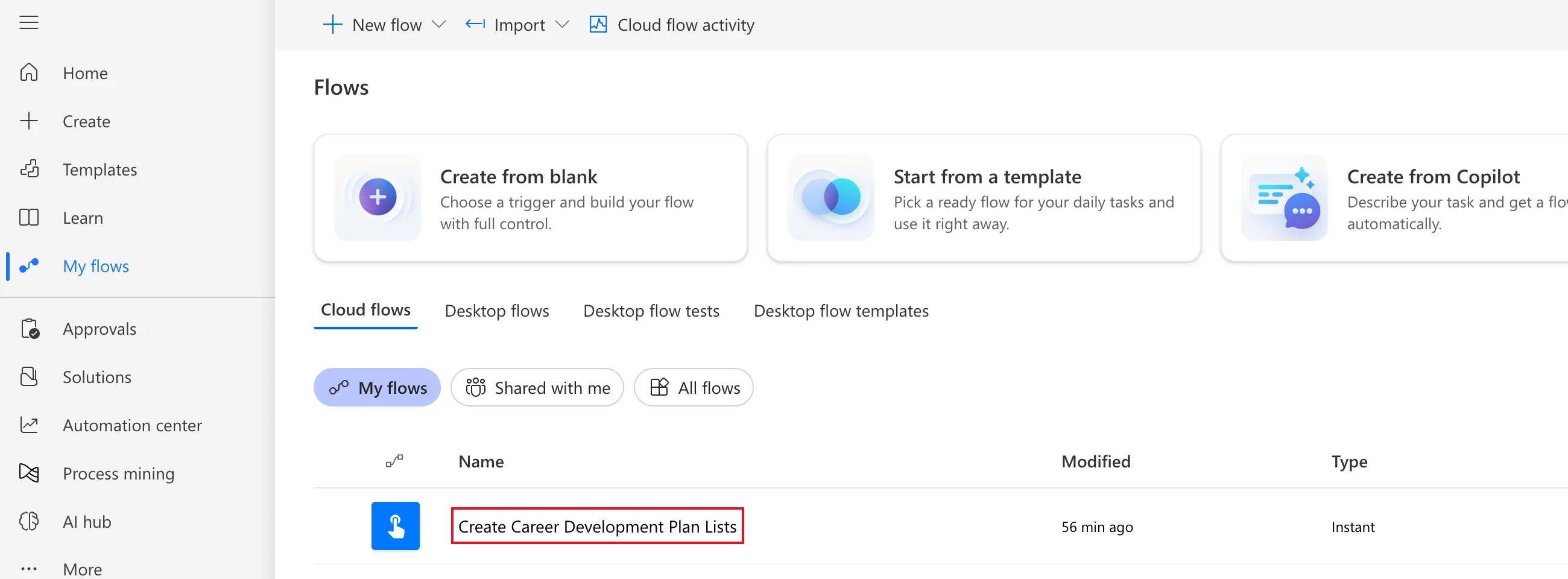
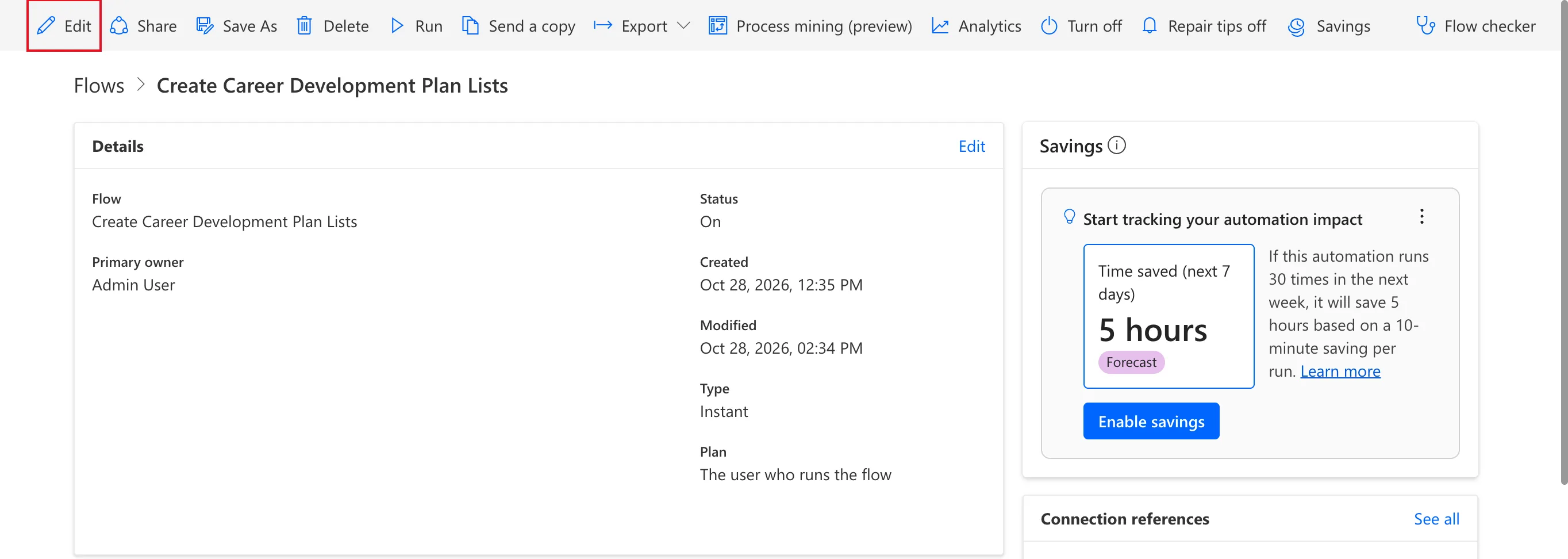
The flow's details page opens. Select Edit in the command bar:
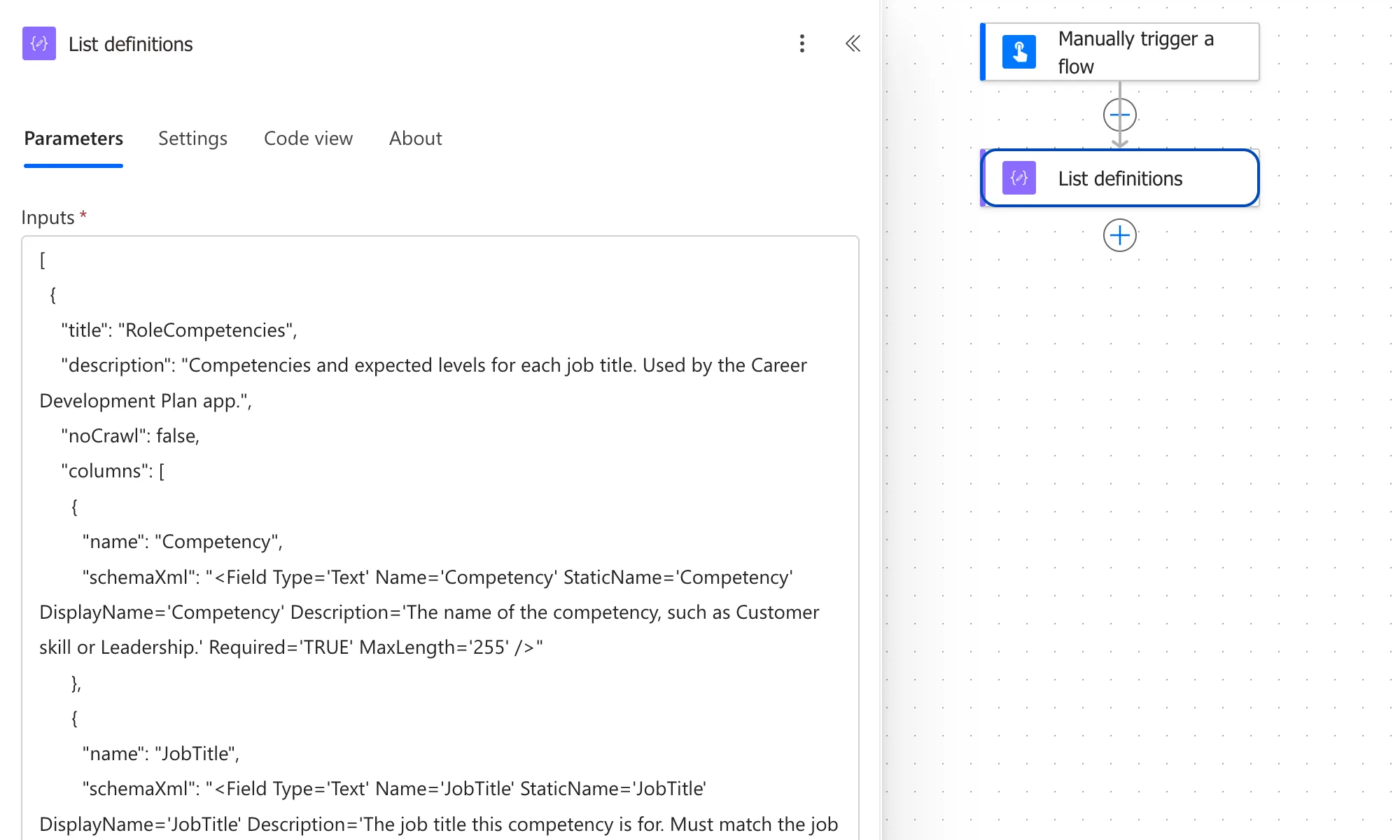
This time the flow opens in the new designer: the steps are cards from top to bottom, with a + between them to add more. The first time, it showed a few tips, which I dismissed, and a Copilot pane on the right, which I closed with its X. Closing the pane only hides it.
Selecting a card opens its settings beside the canvas. Here's the flow with the trigger and List definitions, ready for the next steps:
From here on, open the flow from My flows whenever you edit it.
Check Which Solutions It's In
A solution-aware flow's details page has a Solutions card listing every solution the flow is part of. Scroll down to it. It should list only your solution:
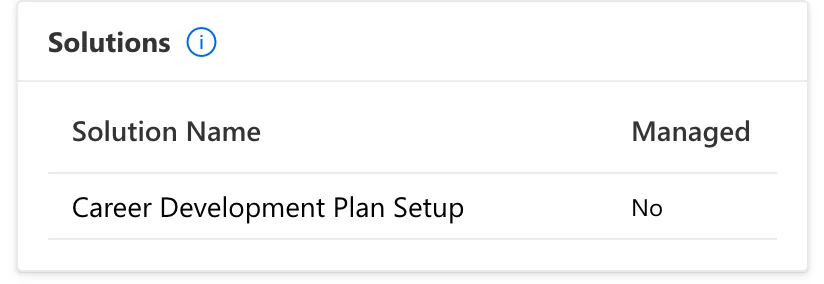
If it lists another solution too, Fixed: A New Cloud Flow Shows Up in Two Solutions moves it without deleting anything.
In the solution, the flow is under Objects, next to the connection reference it uses:

Next, test it: How to Test a Cloud Flow Manually.
Common Mistakes
| Mistake | What happens | Do this instead |
|---|---|---|
| Another solution is still your preferred one | The flow is added to both solutions | Make this solution your preferred one first |
| Looking for the New designer toggle in the solution | It isn't there | Open the flow from My flows → Edit |
| Creating the flow from My flows → New flow | It may not be in your solution | Create it from the solution's Objects, or add it later with Add existing |
| A vague flow name | It's hard to find later | Say what the flow does |
Troubleshooting
| Symptom | Likely cause | Fix |
|---|---|---|
| The flow opens in the classic designer with no New designer toggle | It was opened from the solution | Open it from My flows, then select Edit |
| The details page lists two solutions | Your preferred solution is a different one | See Fixed: A New Cloud Flow Shows Up in Two Solutions |
| The flow isn't on My flows → Cloud flows | You co-own it rather than own it | Look under Shared with me, or open it from the solution |
FAQ
Can I put a flow I already made into a solution?
Yes. In the solution, select Add existing → Automation → Cloud flow and choose it. Microsoft notes that some flows created outside solutions can't be added.
Can I keep building in the classic designer?
You can. Microsoft says both designers work on the same flow definition, and that the classic designer is in maintenance mode: it gets fixes, but new features go to the new designer only. The rest of the setup flow was built in the new one.
Why give a flow its own solution?
So it can be installed on its own. In the Career Development Plan series, the app's solution holds the app, and the setup flow has a solution of its own: it's run once, to create the lists, before the app is imported.
Conclusion
Make the solution your preferred one, then create the flow from it with New → Automation → Cloud flow → Instant, name it, choose Manually trigger a flow, and save it. To keep building in the new designer, open it from My flows and select Edit.
Additional Resources
- Create a cloud flow in a solution: creating, finding and adding solution-aware flows.
- Classic designer vs. new designer for cloud flows: how to tell them apart and switch.
- Cloud flow designer overview: where the new designer isn't available yet.
- Set the preferred solution: what the preferred solution captures.
