How to Create an Environment Variable for a SharePoint Document Library in Power Apps

An environment variable can point at a SharePoint document library as well as at a list. There's no separate Library type: you choose List, and the site's libraries are offered alongside its lists. Here's the whole thing, using a payroll library as the example.
What You Will Create
A data source environment variable tells apps and flows where their SharePoint data is. When the solution moves to another organization, the installer gives each variable that organization's own site, list or library, and nothing else has to change. If environment variables are new to you, How to Create Environment Variables for a SharePoint Site and List in Power Apps explains them from the start.
This guide adds one variable for the Payroll Exports library of the Overtime Timesheet series, where a flow later saves each month's payroll workbook:
| Field | Value |
|---|---|
| Display name | Payroll Exports |
| Name | dewiride_PayrollExportsLibrary |
| Parameter Type | List |
| Site | Overtime Timesheet Site, an existing site variable |
| Current list | Payroll Exports |
Prerequisites
- A solution with your own publisher: How to Create a Solution and Publisher in Power Apps.
- A site variable for the library's site, and a SharePoint connection: How to Create Environment Variables for a SharePoint Site and List in Power Apps creates both.
- The library itself: How to Create a Document Library in SharePoint Online.
Step 1: Start a New Environment Variable
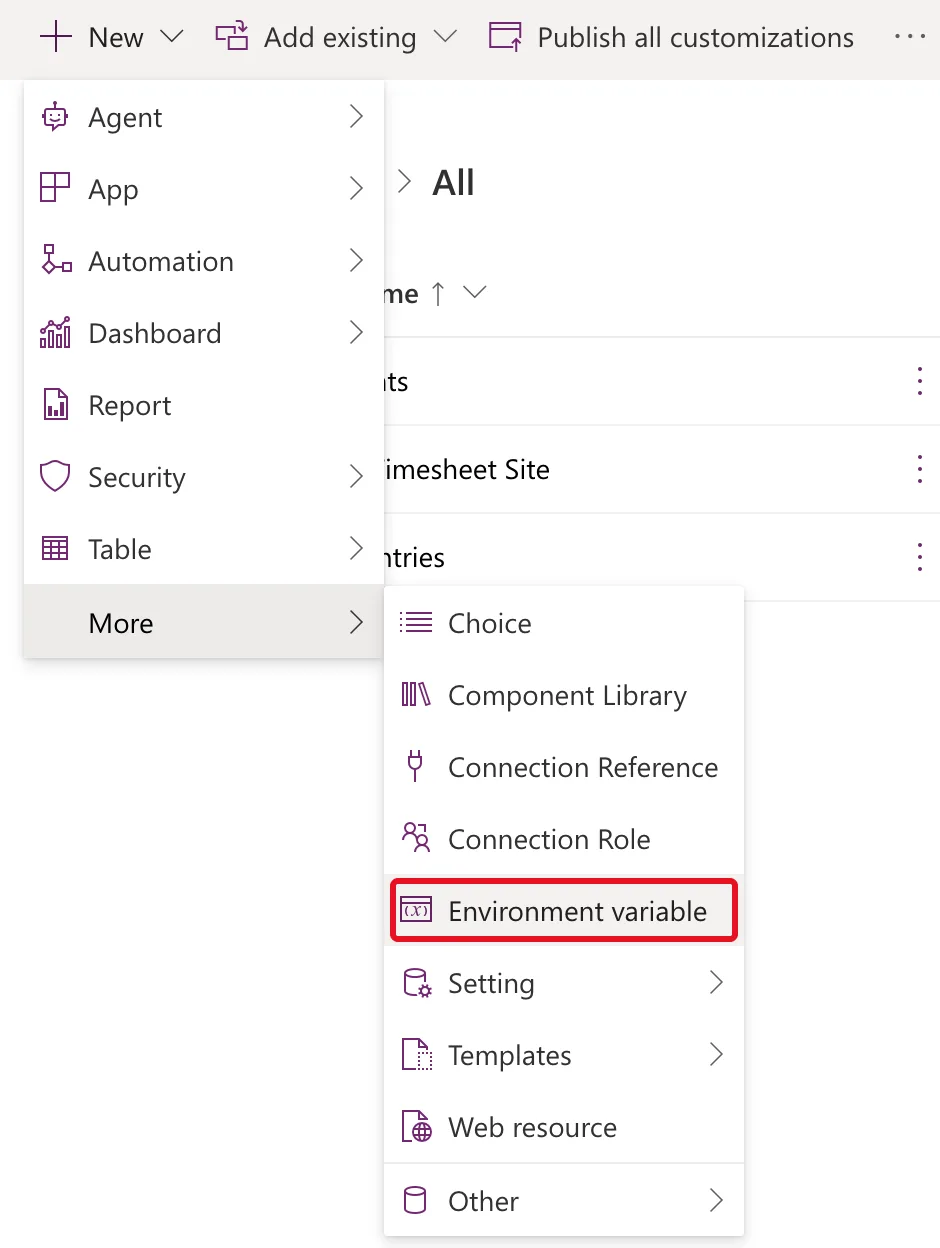
Open your solution and select New → More → Environment variable:
Step 2: Name It
| Field | Value | Why |
|---|---|---|
| Display name | Payroll Exports | The library's own name. A canvas app that adds the library through this variable names its data source after the display name |
| Name | Type PayrollExportsLibrary after the dewiride_ prefix | Ending in Library tells it apart from the list variables at a glance |
| Description | The SharePoint document library for the monthly payroll workbooks. | Says what the library is for |
The prefix comes from your solution's publisher, and the Name can't be changed after you save.
Step 3: Choose Data Source, SharePoint and Your Connection
Set Data Type to Data source and Connector to SharePoint. Power Apps fills in Connection with your SharePoint connection if you have one. It uses the connection only to list your sites and libraries while you fill in the form.
Step 4: Set Parameter Type to List
Open Parameter Type. It offers just two choices, Site and List:
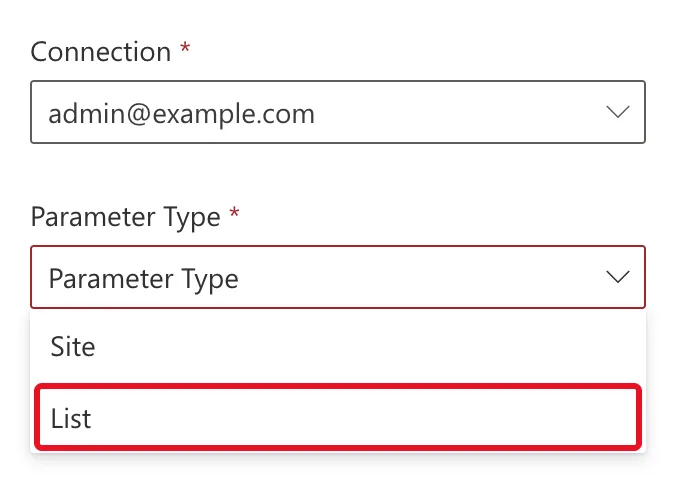
Choose List. In SharePoint, a document library is a special kind of list, and the variable treats it as one.
Step 5: Link the Site Variable
Site appears. It asks for a site variable, not an address, and lists every site variable in the environment, including ones from other solutions. Choose the one for the library's site, here Overtime Timesheet Site. That link is what makes the library follow the site when the solution is installed elsewhere.
Step 6: Choose the Library
Under Current list value, select + New list value, then open Current list. It lists the site's lists and libraries together:
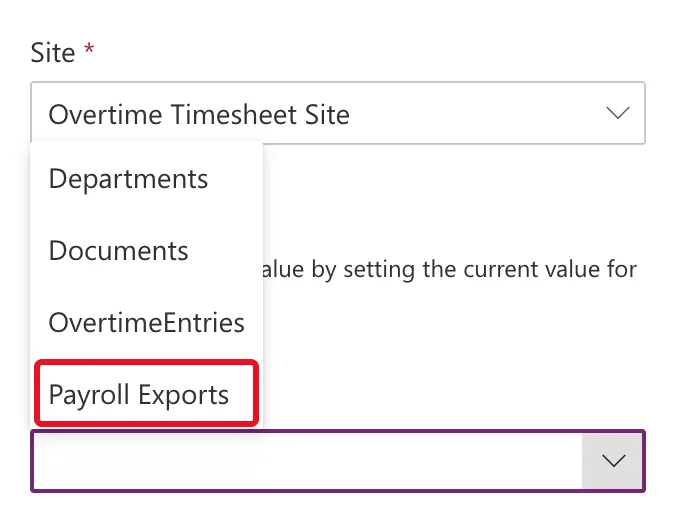
Departments and OvertimeEntries are lists. Documents, the library every site starts with, and Payroll Exports are libraries. Choose Payroll Exports.
Step 7: Leave the Default Value Empty and Save
Open Advanced. Export value is No and Default Value is empty. Leave both:
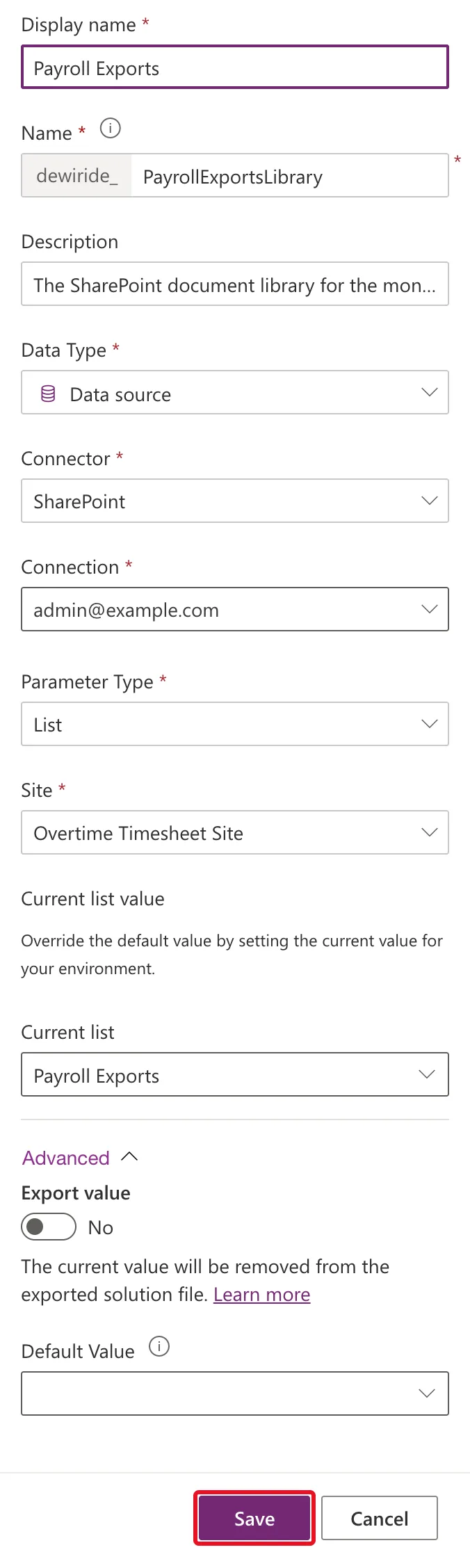
The current value is this environment's library. A default value would travel inside the solution, and someone installing it in another organization should choose their own library instead. Export value: No is meant to keep the current value out of exported solutions, but it hasn't been reliable: see Fixed: Environment Variable Export Value Switches Back to Yes.
Select Save.
Step 8: Check the Solution
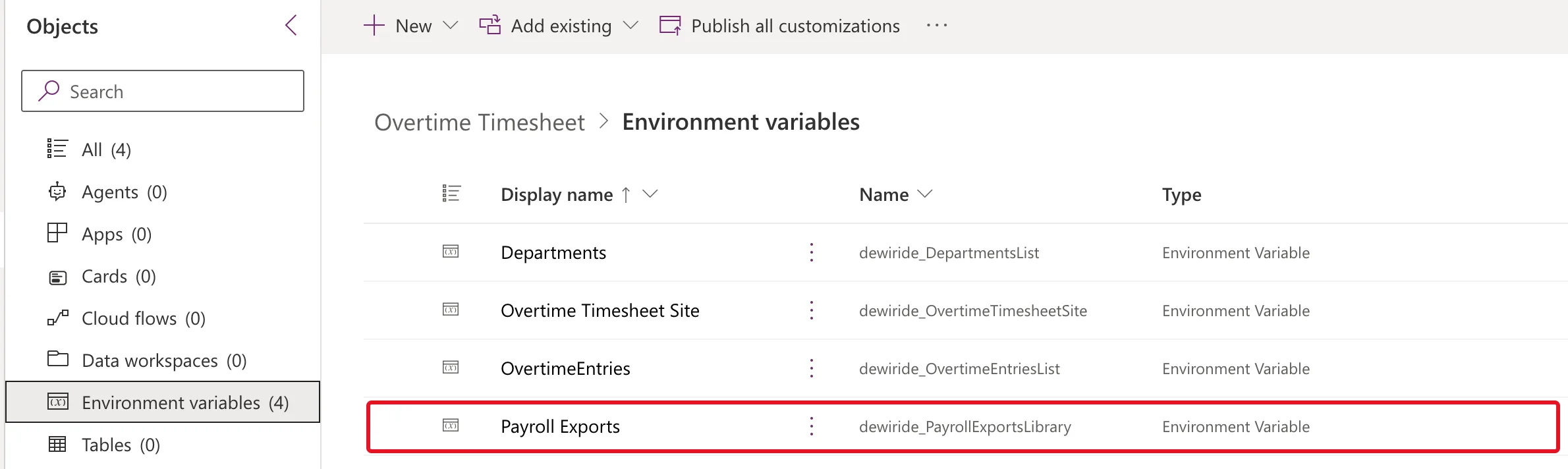
Select Environment variables in the Objects pane. The library variable is there with the site and list variables:
Where It Shows Up
Microsoft's environment variables overview says they can be used as inputs to canvas apps and Power Automate flows. In Power Apps Studio, the library variable appears on the Advanced tab of Choose a list next to the list variables, with a library icon instead of a list icon. Screen readers announce it as a document library:
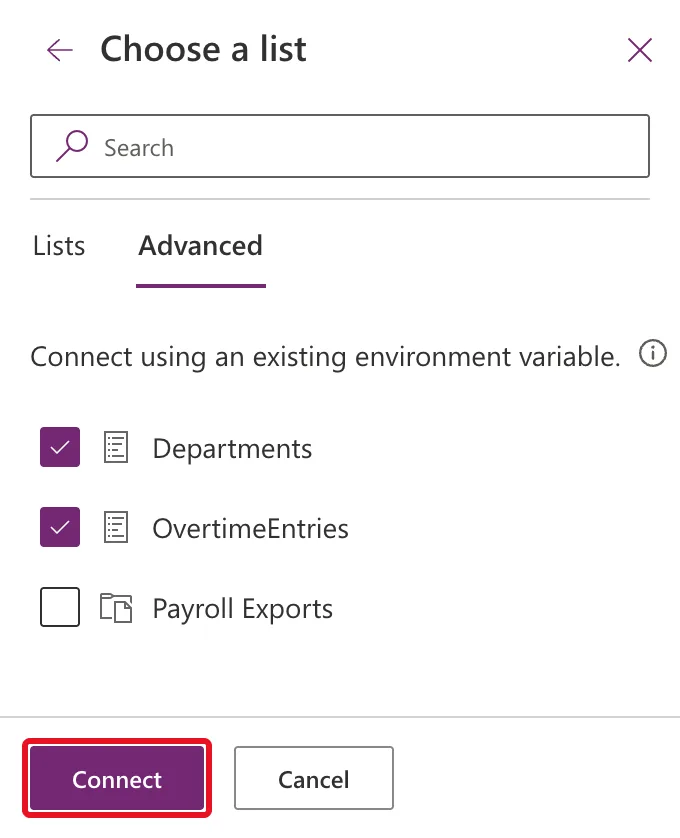
How to Connect a Canvas App to SharePoint Lists with Environment Variables walks through that pane.
Common Mistakes
| Mistake | What happens | Do this instead |
|---|---|---|
| Looking for a Library parameter type | There isn't one | Choose List |
| Choosing another solution's site variable | The library is looked up on the wrong site | Pick the site variable for the library's site |
| Filling in Default Value | Your library goes into the solution, and installers aren't asked | Leave it empty |
| One variable for several libraries | A variable holds one library | One variable per library |
Troubleshooting
| Symptom | Likely cause | Fix |
|---|---|---|
| The library isn't in Current list | Your connection's account can't open it, for example because the library has its own permissions | Use an account that can open the library, such as a site owner |
| Site is empty | No site variable exists yet | Create the site variable first |
| We are unable to find the list when editing it later | A known problem with editing list variables | Fixed: "We Are Unable to Find the List" |
FAQ
Does the variable store the library's name?
No. Microsoft's documentation says a list variable holds the list's unique identifier, its GUID, not its display name. Renaming the library doesn't break the variable.
Does it need a premium license?
No. Microsoft's environment variables FAQ says premium licenses aren't required to use them.
Can I point it at a folder inside the library?
No. A variable of this type points at a list or library. Folders are a matter for whatever uses it, such as a flow's file path.
Conclusion
To point an environment variable at a SharePoint document library, create a Data source variable with Parameter Type set to List, link it to the site variable, and choose the library under Current list. Leave the default value empty so installers choose their own library.
Additional Resources
- Use environment variables in Power Platform solutions: data types, values and the FAQ.
- Use data source environment variables in canvas apps: how list variables are picked and what they hold.
