How to Create an AWS Organization (Step-by-Step with Screenshots)

Creating an AWS organization takes about thirty seconds and two clicks. Deciding which account you click those two buttons from is permanent. This guide covers both — the decision first, then every screen in order.
What an Organization Actually Is
An AWS organization is a container that groups AWS accounts under one billing relationship and one policy hierarchy. Creating one converts the account you are signed in to into the management account and gives you a root to hang everything else from.
| Piece | What it is | Created now? |
|---|---|---|
| Organization | The container itself, ID o-xxxxxxxxxx | Yes |
| Root | The top of the hierarchy, ID r-xxxx. Exactly one, forever. | Yes, automatically |
| Management account | Pays every bill, owns the organization, is immune to service control policies | Yes — it is the account you are in |
| Member accounts | Accounts you create or invite later. They build the workloads. | No |
| OUs | Folders for grouping member accounts so one policy governs many | No |
Nothing runs inside an organization and it costs nothing. It exists so you can bill once, govern once, and deploy once across many accounts.
Prerequisites
| Item | Detail |
|---|---|
| An AWS account | It must not already be a member of another organization. If it is, it has to leave that one first. |
| Sign-in identity | An IAM user, an assumed IAM role, or the root user. AWS recommends not using the root user for this. |
| Permissions | organizations:CreateOrganization and iam:CreateServiceLinkedRole. For the console's default controls, also organizations:EnablePolicyType, organizations:CreatePolicy and organizations:AttachPolicy. |
| Access to the email | AWS may send a verification link to the management account's email address. You need to be able to open it within 24 hours. |
Don't have an AWS account yet? Start with How to Create an AWS Account (Step-by-Step with Screenshots), then come back.
Decide This Before You Click
Three decisions get made the moment you press the button. Two of them are hard to undo.
1. The management account is permanent
The account you are signed in to becomes the management account and cannot be swapped later. Changing your mind means deleting the entire organization and starting again from the account you actually wanted.
Create the organization from a clean account with no resources and no workloads — ideally a fresh account whose only job is billing, identity and governance. Service control policies never apply to the management account, so anything running in it has no guardrails at all.
If your current account is full of production resources, the better move is: create a brand-new AWS account, make that the management account, then invite your existing account in as a member.
2. The AWS Free Plan is forfeited
If your account is on the AWS Free Plan, enrolling in AWS Organizations upgrades it to a Paid Plan immediately. Your remaining free-tier credits expire on the spot — they are not carried over — and the account can never earn free-tier credits again.
If you are still using free-tier credits for learning, spend them first, or create the organization from a different account.
3. All features vs. consolidated billing only
The console defaults to all features, which is what you want in almost every case.
| Capability | All features | Consolidated billing only |
|---|---|---|
| One bill for every account | Yes | Yes |
| Shared volume discounts and Reserved Instances | Yes | Yes |
| Create member accounts from the console | Yes | Yes |
| Organizational units (OUs) | Yes | Yes |
| Service control policies (SCPs) | Yes | No |
| Other policy types (tag, backup, AI opt-out) | Yes | No |
| Integration with CloudTrail, Config, GuardDuty, Security Hub, Control Tower, IAM Identity Center | Yes | Limited or none |
| Management account controls member account exit | Yes | No |
Pick all features. Consolidated-billing-only exists mainly for legacy setups. You can upgrade later, but it requires every single member account to accept a handshake — trivial with two accounts, painful with forty.
Step 1: Sign In to the Future Management Account
Sign in to the AWS Management Console with the account you have decided will own the organization.
AWS Organizations is a global service. The Region selector will show Global and the console URL points at us-east-1 regardless of where you work. That is expected — you do not need to change Regions.
Step 2: Open AWS Organizations
Two routes get you there. The fastest is the account menu:
- Click your account name in the top-right corner.
- Click Organization.
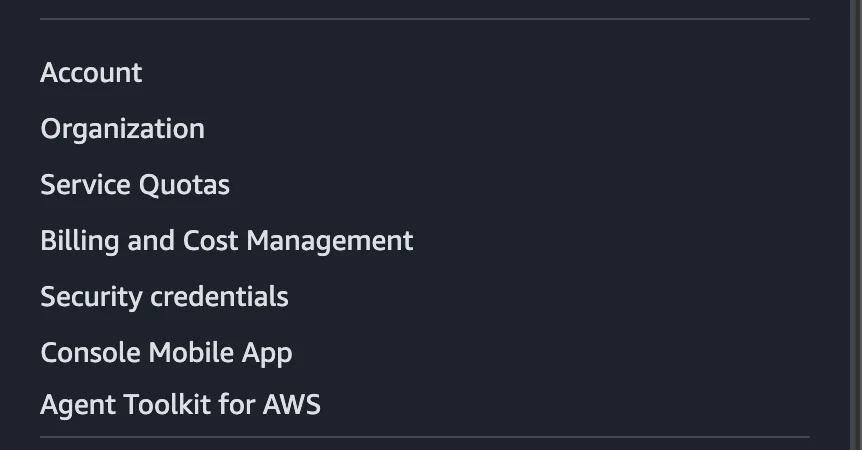
Alternatively, type Organizations into the console search bar and open AWS Organizations, or go straight to console.aws.amazon.com/organizations/v2.
Step 3: Click Create an Organization
You land on the AWS Organizations introduction page. The left nav shows only Invitations at this point — there is no organization yet, so there is nothing else to manage.
On the right, the panel says: "This creates an organization with all features enabled."
- Click Create an organization.
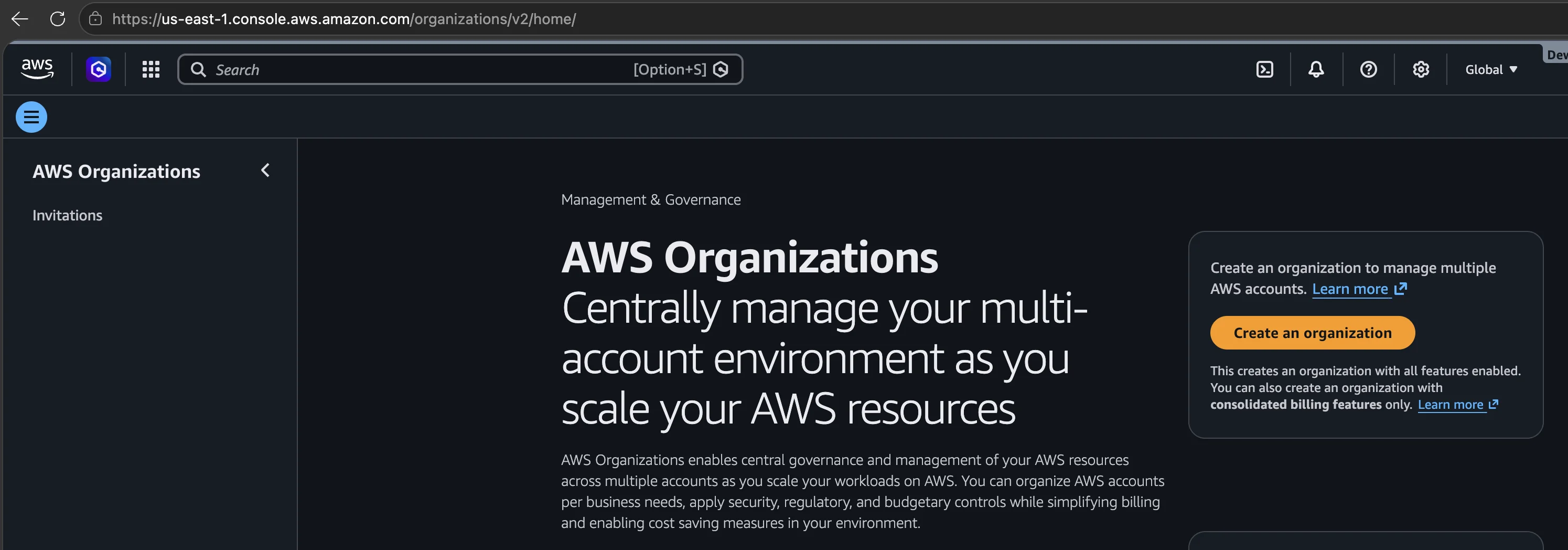
Want consolidated billing only? Do not click the orange button. Click the consolidated billing features link in the smaller text underneath instead, then confirm. Re-read the comparison table above before you do.
Step 4: Confirm the Management Account
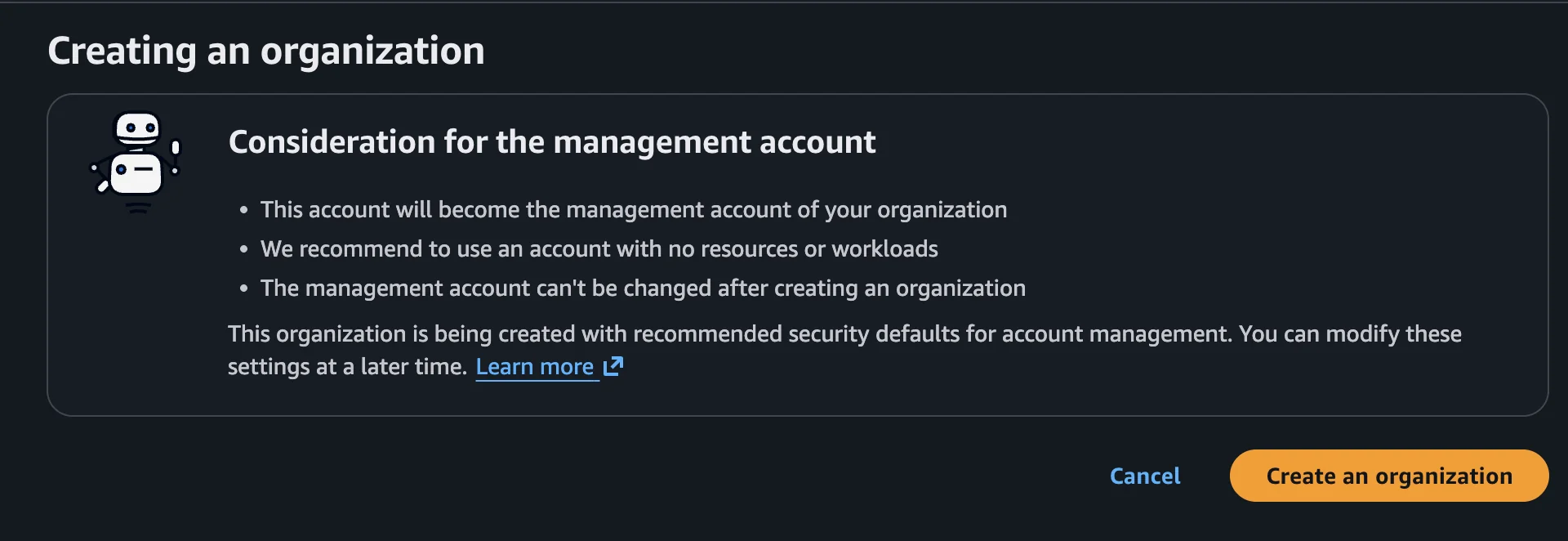
A confirmation panel appears titled Creating an organization, restating the consequences one last time:
- This account will become the management account of your organization.
- AWS recommends using an account with no resources or workloads.
- The management account can't be changed after creating an organization.
It also notes that the organization is being created with recommended security defaults for account management, which you can modify later.
- Read the three bullets. If the account you are in is the wrong one, click Cancel now — this is the last exit.
- Click Create an organization.
Step 5: Confirm It Worked
You get a green banner — "You successfully created an AWS organization." — and land on the AWS accounts page.
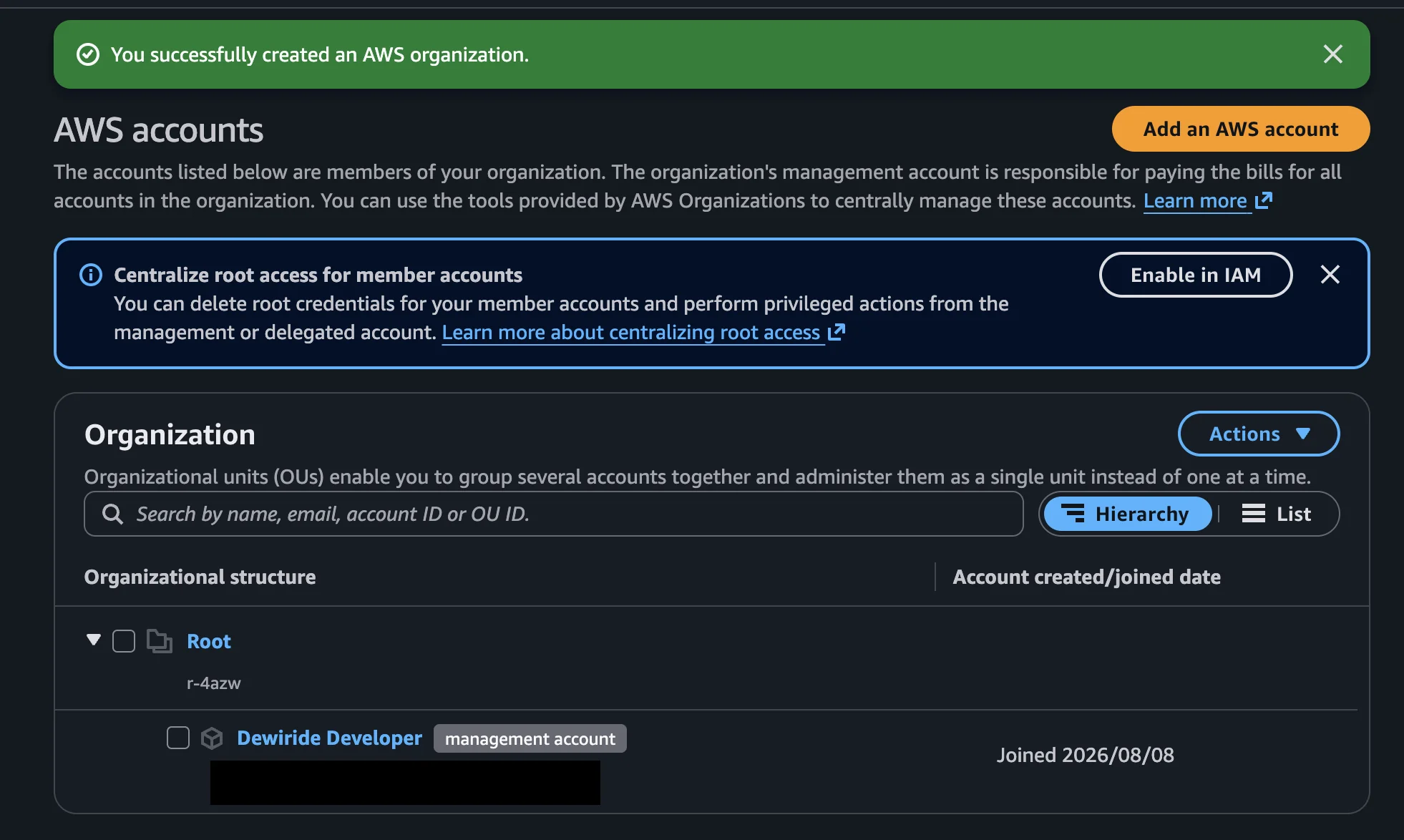
Read the Organizational structure panel and you can see exactly what AWS built:
- Root with an ID like
r-4azw— the top of your hierarchy. - Your account directly underneath it, badged management account, with today's date under Account created/joined date.
Use the Hierarchy / List toggle to switch between the tree view and a flat table. The search box accepts a name, email, account ID or OU ID.
You will also see a blue Centralize root access for member accounts banner with an Enable in IAM button. Ignore it for now — it becomes useful once you actually have member accounts. It is worth turning on later, from IAM → Root access management.
Step 6: Verify the Management Account Email
If AWS sends a verify your email address message, open it and click the link within 24 hours.
| What you want to do | Email verification required? |
|---|---|
| Create new member accounts | No |
| Invite existing AWS accounts to join | Yes |
If this account verified its email address at some point in the past, AWS skips this step entirely and you will not receive anything.
What AWS Just Created for You
| Thing | Detail |
|---|---|
| Organization | ID o-xxxxxxxxxx, feature set ALL |
| Root | ID r-xxxx. You cannot create, rename or delete it. |
| Management account | Your account, sitting directly in the root |
| Service-linked role | AWSServiceRoleForOrganizations in your account |
| Service control policies | Enabled as a policy type, with FullAWSAccess attached to the root |
| A default SCP on the root | Denies member accounts from leaving the organization or closing themselves — see below |
The Default Security Controls
Organizations created from the console on or after 10 July 2026 get a security baseline attached to the root automatically:
{
  "Version": "2012-10-17",
  "Statement": [
    {
      "Sid": "DenyLeaveOrganizationAndCloseAccount",
      "Effect": "Deny",
      "Action": ["organizations:LeaveOrganization", "account:CloseAccount"],
      "Resource": "*"
    }
  ]
}
In plain terms: a member account cannot quietly walk out of your organization or close itself. Only the management account or a delegated administrator can do either.
This is the console-only behaviour. If you create an organization with the CreateOrganization API, the AWS CLI, the SDKs or CloudFormation, you get none of it — you must enable the SCP policy type, write the policy and attach it yourself. Existing organizations created before July 2026 are also unaffected.
You can modify this SCP or move it elsewhere, but AWS recommends leaving it attached at the root so it covers every member account you add from now on.
Do It with the AWS CLI
# AWS Organizations is global and lives in us-east-1
export AWS_REGION=us-east-1

# Create the organization with all features (the default)
aws organizations create-organization --feature-set ALL

# Consolidated billing only — read the comparison table first
aws organizations create-organization --feature-set CONSOLIDATED_BILLING

# Confirm what you created
aws organizations describe-organization

# Get the root ID you will need for every OU and policy command
aws organizations list-roots --query 'Roots[0].{Id:Id,Name:Name,PolicyTypes:PolicyTypes}'

# List accounts in the organization (just the management account for now)
aws organizations list-accounts --output table
describe-organization returns the pieces you will reference constantly:
{
  "Organization": {
    "MasterAccountArn": "arn:aws:organizations::111111111111:account/o-exampleorgid/111111111111",
    "MasterAccountEmail": "bill@example.com",
    "MasterAccountId": "111111111111",
    "Id": "o-exampleorgid",
    "FeatureSet": "ALL",
    "Arn": "arn:aws:organizations::111111111111:organization/o-exampleorgid",
    "AvailablePolicyTypes": [
      {
        "Status": "ENABLED",
        "Type": "SERVICE_CONTROL_POLICY"
      }
    ]
  }
}
MasterAccountId is the old name for the management account in the API. The console says "management account", the API still says "master account". Same thing.
If you went the CLI route, add the security baseline yourself:
ROOT_ID=$(aws organizations list-roots --query 'Roots[0].Id' --output text)

aws organizations enable-policy-type \
  --root-id "$ROOT_ID" \
  --policy-type SERVICE_CONTROL_POLICY

# create-policy returns the new ID at Policy.PolicySummary.Id
POLICY_ID=$(aws organizations create-policy \
  --content file://deny-leave-close.json \
  --name DenyLeaveOrganizationAndCloseAccount \
  --type SERVICE_CONTROL_POLICY \
  --description "Prevent member accounts from leaving or closing themselves" \
  --query 'Policy.PolicySummary.Id' --output text)

aws organizations attach-policy \
  --policy-id "$POLICY_ID" \
  --target-id "$ROOT_ID"
What to Do Next
You have an organization with exactly one account in it. The next three moves, in order:
- Create OUs. Never leave accounts sitting in the root. Tick the checkbox next to Root → Actions → Create new, and start with
Security,WorkloadsandSandbox. - Create member accounts. On the AWS accounts page, click Add an AWS account → Create an AWS account. No credit card, no phone verification — charges roll up to this management account automatically.
- Enable IAM Identity Center and set a budget before anyone spends anything. Give your team group-based access to the member accounts rather than IAM users, and put a monthly budget alert on the organization on day one.
Move nothing into the management account. Its job is billing, identity and governance — permanently.
Common Mistakes
| Mistake | Consequence | Fix |
|---|---|---|
| Creating the organization from your busy production account | Production now runs in an account no SCP can restrain | Create a clean account, make it the management account, invite the old one in |
| Doing it on a Free Plan account mid-learning | Credits expire instantly and cannot be earned again | Spend the credits first, or use a different account |
| Choosing consolidated billing only | No SCPs, no policy types, limited service integrations | Choose all features; upgrading later needs every member to accept a handshake |
| Creating it with the CLI and assuming you got the guardrails | No SCPs enabled, no default policy attached | Enable the policy type and attach the policy manually |
| Ignoring the verification email | You cannot invite existing accounts | Click the link within 24 hours, or resend it from the console |
| Leaving accounts in the root | They inherit root policies only and get forgotten | Create OUs on day one |
Troubleshooting
| Problem | Cause | Fix |
|---|---|---|
AlreadyInOrganizationException | The account already belongs to an organization | Check Organizations in the console. Leave the existing organization first, or use another account |
AccessDeniedException when creating | Missing organizations:CreateOrganization or iam:CreateServiceLinkedRole | Attach both permissions, or sign in as an administrator |
ConstraintViolationException | The account has no valid payment method, or contact details are incomplete | Complete billing and contact information, then retry |
| Clicked the wrong feature set | Consolidated billing only when you wanted all features | Immediately go to Settings → Delete organization, then create it again |
| Created it from the wrong account | Management account cannot be changed | Delete the organization, sign in to the correct account, create it there |
| Verification email never arrived | Spam filter, or the address was already verified previously | Check spam. If previously verified, no email is sent — this is normal |
| No SCP visible after creating with the CLI | Default controls are console-only, from 10 July 2026 | Enable SERVICE_CONTROL_POLICY and attach the policy manually |
AWSOrganizationsNotInUseException in later CLI calls | Signed in to a member account, or no organization exists | Sign in to the management account |
| Free tier credits vanished right after creating | Expected — the Free Plan converts to a Paid Plan | Not reversible. Set a budget so spend does not surprise you |
FAQ
Does AWS Organizations cost anything? No. The organization, OUs, SCPs and consolidated billing are all free. You pay only for what the accounts consume.
Can I change the management account later? No. It is fixed at creation. The only path is deleting the organization and recreating it from the account you want.
Can I delete an organization? Yes. Remove every member account first, then go to Settings → Delete organization from the management account. A brand-new organization with no members can be deleted immediately.
Does creating an organization affect my running resources? No. Nothing is stopped, moved or deleted. Only billing ownership and the policy hierarchy change.
Do I need to be the root user? No, and AWS recommends against it. An IAM user or role with the required permissions is enough.
Which Region should I be in?
It does not matter. Organizations is a global service; the console always talks to us-east-1.
Can I move my existing AWS account into someone else's organization instead? Yes — they invite you from their management account, and you accept from Organizations → Invitations. Your billing then rolls up to them.
What is the difference between the management account and the root?
The root is the top container in the hierarchy (r-xxxx). The management account is an actual AWS account that owns the organization. Confusingly, neither is the "root user", which is the email-based login of an individual account.
How many accounts can I have? The default quota on a new organization is low. Check Service Quotas → AWS Organizations and request an increase before you need it — approval is not instant.
Conclusion
Two clicks, but the account you make them from is a one-way door. Use a clean account with nothing running in it, take all features, let AWS attach the default guardrail, and verify the email. Then immediately build the OU structure — an organization with every account sitting in the root gives you the billing benefit and none of the governance.
