How to Create a User-Defined Function in Power Apps

A user-defined function is a formula with a name and parameters. You write it once in App.Formulas, then call it from any control, exactly like a built-in function: ShiftMinutes(Date(2026, 10, 24), Time(22, 0, 0), Time(6, 0, 0)) returns 540. Change the function, and every control that calls it changes with it.
The example is the Overtime Timesheet app. The hours line, the problem message and the Save button on its Log overtime screen all need the start and finish of a shift, so the app works them out in four functions instead of repeating the formulas.
What They Are
Microsoft's App object page says to think of user-defined functions as an extension to named formulas that adds parameters and supports behavior formulas. They live in the same place as named formulas: the app's Formulas property (How to Use Named Formulas in Power Apps).
The syntax:
FunctionName(Parameter1: Type1, Parameter2: Type2): ReturnType = Formula;
- Every parameter has a type, such as Date, Time, Number or Text, and so does the result. Microsoft: you must type each parameter and the output.
=separates the signature from the formula, and;ends the definition.- Recursion isn't yet supported: a function can call other functions, but not itself.
Prerequisites
- App.Formulas: How to Use Named Formulas in Power Apps.
Step 1: Check the Setting
In Studio, open Settings → Updates → New. New analysis engine and User defined functions must be On. In this app it already was:
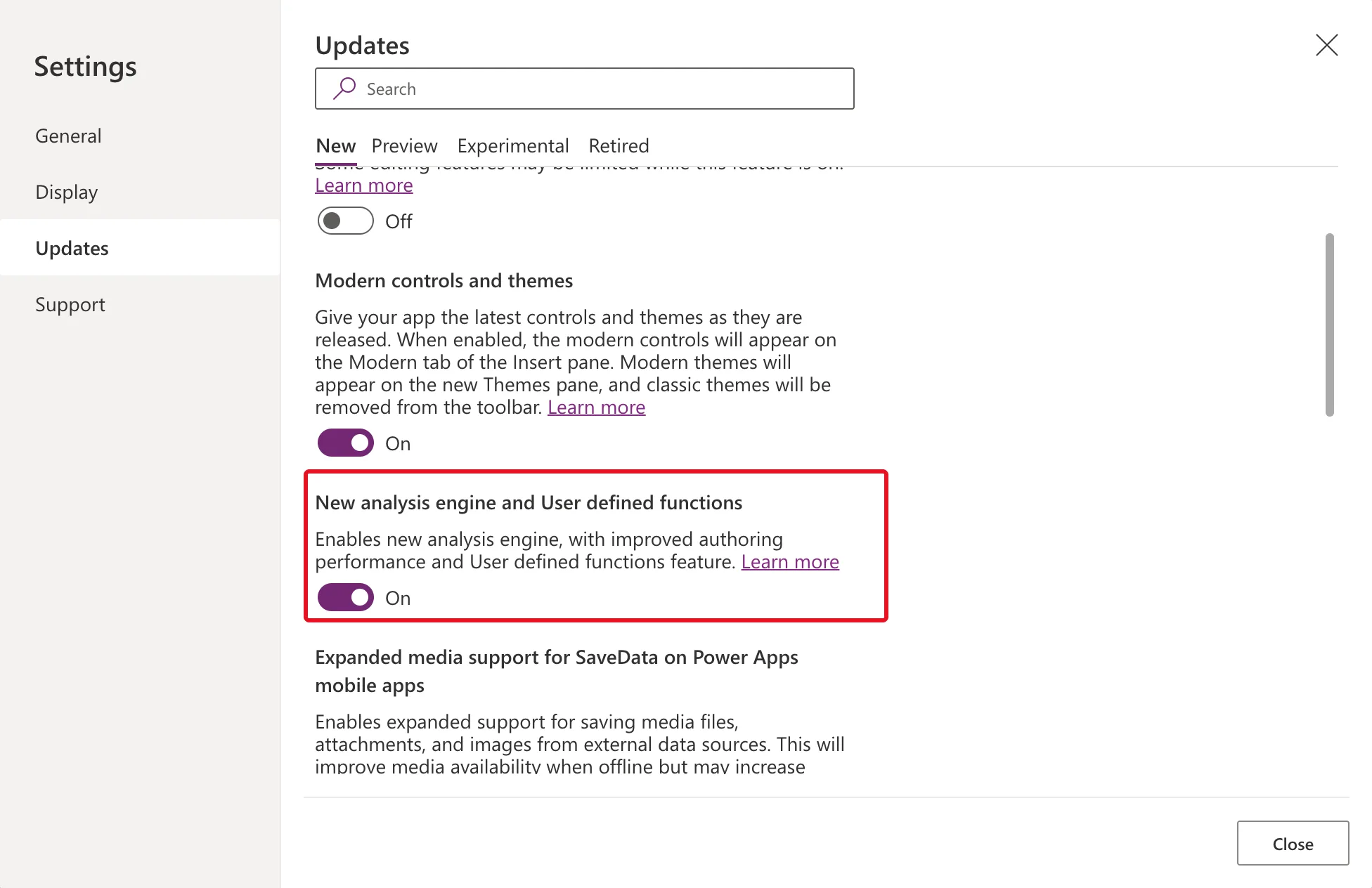
Microsoft announced user-defined functions as generally available in September 2025. Since version 2508.3 they've been part of the new analysis engine switch, which is enabled by default for new apps (Power Apps' User defined functions GA).
Step 2: Write a Function
Select App in the Tree view, choose Formulas in the property list, and add the function after any named formulas already there:
ShiftStart(ShiftDate: Date, StartAt: Time): DateTime =
    DateTime(Year(ShiftDate), Month(ShiftDate), Day(ShiftDate), Hour(StartAt), Minute(StartAt), 0);
ShiftStartis the name you call it by.ShiftDate: DateandStartAt: Timeare its two parameters, with their types.: DateTimeafter the brackets is the type it returns.- After
=is the formula, which can use the parameters by name. This one puts the start time on the shift's date (How to Combine a Date and a Time in Power Apps with DateTime).
Step 3: Build Functions on Functions
A function can call another one. ShiftEnd puts the finish on the next day when it's earlier than the start (How to Calculate Hours for an Overnight Shift in Power Apps), and ShiftMinutes counts the minutes between the two:
ShiftEnd(ShiftDate: Date, StartAt: Time, EndAt: Time): DateTime =
    With(
        {EndDate: If(EndAt < StartAt, DateAdd(ShiftDate, 1, TimeUnit.Days), ShiftDate)},
        DateTime(Year(EndDate), Month(EndDate), Day(EndDate), Hour(EndAt), Minute(EndAt), 0)
    );
ShiftMinutes(ShiftDate: Date, StartAt: Time, EndAt: Time): Number =
    DateDiff(ShiftStart(ShiftDate, StartAt), ShiftEnd(ShiftDate, StartAt, EndAt), TimeUnit.Minutes);
In the formula bar, after the TimeChoices named formula:

Step 4: Call It
I put the call into a text control's Text for a moment, so Studio's preview strip shows the result:
ShiftMinutes(Date(2026, 10, 24), Time(22, 0, 0), Time(6, 0, 0))
22:00 on 24 October to 06:00 the next morning, the night the UK clocks went back, is 540 minutes:

Step 5: Return Text
A function can return any type. The app's fourth function, ShiftProblem, takes the shift and its break and returns the first thing wrong with them as a sentence, or empty text when there's nothing wrong (How to Validate a Form Without an Edit Form in Power Apps):

How the Example Calls Them
| Where | Calls | For |
|---|---|---|
| The hours line | ShiftMinutes | The minutes worked, before the break |
| The problem message | ShiftProblem | The first problem, or nothing |
| The Save button | ShiftStart and ShiftEnd | The start and finish it saves to SharePoint |
Each call passes the controls' values, for example:
ShiftMinutes(dpWorkDateLO.SelectedDate, cmbStartLO.Selected.Value, cmbEndLO.Selected.Value)
Functions That Do Things
The functions above only calculate. Microsoft's page says named formulas and most user defined functions don't support behavior functions with side effects, such as Set or Notify. To write one that does, wrap the body in curly braces; if it returns nothing, its return type is Void:
Spend( Amount: Number ) : Void = {
    If( Amount > Savings,
        Error( $"{Amount} is more than available savings" ),
        Set( Savings, Savings - Amount );
        Set( Spent, Spent + Amount)
    );
}
Common Mistakes
| Mistake | What happens | Do this instead |
|---|---|---|
| A parameter or the result without a type | Microsoft requires a type for each | Name: Type, and : Type after the brackets |
No ; between definitions | The definitions don't follow Microsoft's syntax | End each with ; |
| Set or Notify in an ordinary function | Microsoft: most functions don't support them | Wrap the body in { } and return Void |
| A function that calls itself | Recursion isn't supported yet | Use a loop such as ForAll |
| Copying the same formula into every control | A change has to be made in every copy | Put it in a function and call it |
Troubleshooting
| Symptom | Likely cause | Fix |
|---|---|---|
| An error when a record is passed in | Microsoft: the fields of a record value must be a proper subset of the type definition and can't include extra fields | Pass only the fields the type defines |
| The function isn't in the Variables pane | In this app, the pane listed named formulas such as TimeChoices, but not the functions | Read them in App → Formulas |
FAQ
What's the difference from a named formula?
Parameters. A named formula is one value, such as TimeChoices, the list of times people pick from. A function works out a value from what you pass it, so ShiftMinutes gives a different answer for every shift.
Can a function use the app's named formulas and data?
Yes. ShiftProblem uses the named formula MyEmail and looks up the OvertimeEntries list to find a shift that overlaps: How to Check for Overlapping Times in Power Apps.
Conclusion
Write Name(Parameter: Type, …): ReturnType = Formula; in App.Formulas, check that New analysis engine and User defined functions is on, and call the function wherever you need it. One definition, one place to change it.
Additional Resources
- App object: user-defined functions: syntax, types, behavior functions and limits.
- Code optimization: user defined functions: Microsoft's coding guidance.
