How to Create a Teams App Package for a Bot

Teams installs a bot from an app package: a zip file with a manifest.json and two icons. The manifest tells Teams the app's name and which registered bot to talk to. Three files, one zip, and Teams can install your bot.
Microsoft's documentation describes what's inside: an app package that contains only a configuration file (also known as an app manifest) and your app's icons. The app's logic and data storage are hosted elsewhere. Your bot's code keeps running where it is; the package only introduces it to Teams.
The Example
The bot is Echo Bot, already registered in the Teams Developer Portal. Its bot ID appears as 33333333-3333-3333-3333-333333333333 here. Replace it with your own bot's ID everywhere it appears. The package will let one person chat with the bot privately.
Prerequisites
- A registered bot and its bot ID. The package points Teams at the bot by this ID.
Step 1: Create a Folder for the Package
Make a folder called appPackage. It holds exactly the three files that go into the zip:
appPackage/
├── manifest.json
├── color.png
└── outline.png
Step 2: Write the Manifest
Create manifest.json in the folder:
{
  "$schema": "https://developer.microsoft.com/json-schemas/teams/v1.30/MicrosoftTeams.schema.json",
  "manifestVersion": "1.30",
  "version": "1.0.0",
  "id": "33333333-3333-3333-3333-333333333333",
  "developer": {
    "name": "Contoso",
    "websiteUrl": "https://www.example.com",
    "privacyUrl": "https://www.example.com/privacy",
    "termsOfUseUrl": "https://www.example.com/terms"
  },
  "name": {
    "short": "Echo Bot",
    "full": "Echo Bot"
  },
  "description": {
    "short": "Repeats what you send.",
    "full": "Echo Bot answers every message with the same text. A sample bot for testing a Teams app package."
  },
  "icons": {
    "color": "color.png",
    "outline": "outline.png"
  },
  "accentColor": "#5B5FC7",
  "bots": [
    {
      "botId": "33333333-3333-3333-3333-333333333333",
      "scopes": [
        "personal"
      ],
      "supportsFiles": false,
      "isNotificationOnly": false
    }
  ]
}
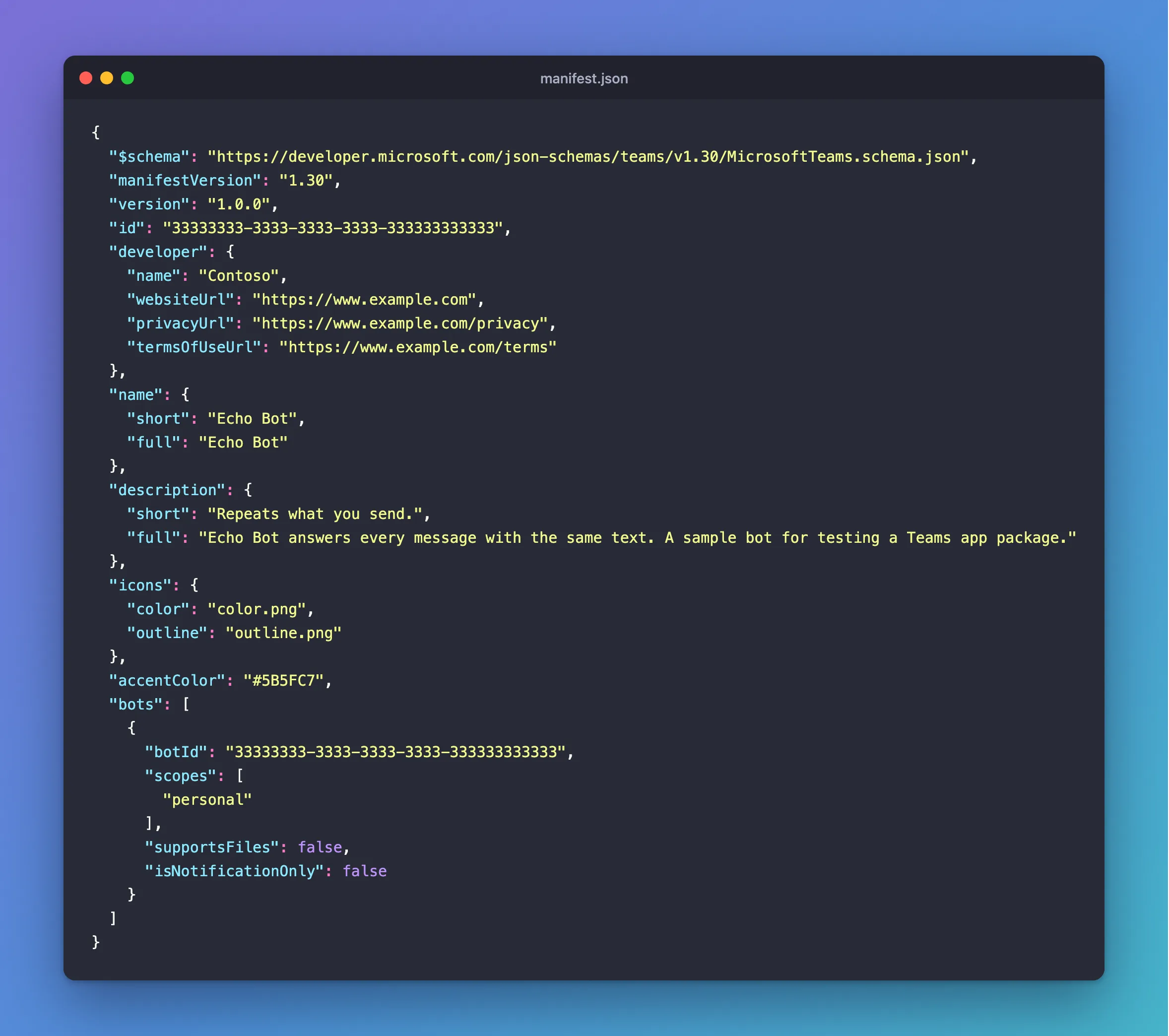
What each part does:
| Field | What it is |
|---|---|
$schema, manifestVersion | The manifest schema version, 1.30, the newest one Microsoft lists as generally available. $schema points to the schema file itself, which editors that understand JSON Schema use to check the manifest |
version | Your app's own version. Raise it whenever you change the package, so Teams replaces the old one |
id | The Teams app's ID, a GUID. Any new GUID works. I reused the bot ID, as the Teams developer CLI does for the apps it creates |
developer | Who publishes the app, with HTTPS links to a website, a privacy statement and terms of use. Users see them in the app's details |
name.short, name.full | The app's name: up to 30 characters for short, up to 100 for full |
description.short, description.full | Up to 80 and 4,000 characters. Microsoft's reference says the two must be different |
icons | The two icon files, by their names inside the zip |
accentColor | A hex color Teams uses with the outline icon |
bots[].botId | The bot this app talks to: your registered bot's ID |
bots[].scopes | Where people can use the bot: personal (a one-to-one chat), team, groupChat or copilot |
supportsFiles, isNotificationOnly | Whether the bot handles files, and whether it only sends notifications. Both default to false |
Microsoft's reference also says The values of short and full must be different for the name. This package uses Echo Bot for both, and Teams accepted it as a custom app. Before you submit an app to the Teams Store, whose validation checks these rules, give full a longer name.
Step 3: Add the Two Icons
Teams needs both icons, as PNG files:
| File | Size | What Microsoft requires |
|---|---|---|
color.png | 192 x 192 pixels | A full color 192x192 PNG icon. The symbol must sit on a solid or fully transparent square background, inside the central 120 x 120 safe area, without rounded corners |
outline.png | 32 x 32 pixels | A transparent 32x32 PNG outline icon: a white symbol on a transparent background, with no extra padding around it |
Echo Bot's color icon is a white speech bubble on a solid purple square (#5B5FC7, the same as accentColor), and its outline icon is the same bubble in white on transparency. Any image editor can make them; check the size in pixels before saving.
Step 4: Zip the Files
Zip the three files, not the folder: Teams looks for manifest.json at the root of the zip. From inside appPackage:
- macOS / Linux
- Windows (PowerShell)
cd appPackage
zip ../EchoBot.zip manifest.json color.png outline.png
  adding: manifest.json (deflated 54%)
  adding: color.png (deflated 26%)
  adding: outline.png (stored 0%)
zip creates EchoBot.zip in the parent folder (../) and adds the three files to it by name, so they sit at the zip's root. Deflated means compressed; stored means zip kept the file as it was, because compressing it wouldn't have made it smaller.
cd appPackage
Compress-Archive -Path manifest.json, color.png, outline.png -DestinationPath ../EchoBot.zip
Compress-Archive puts the files named in -Path into the zip given in -DestinationPath, here one folder up. It prints nothing when it succeeds. Add -Force to replace an existing zip.
EchoBot.zip lands next to the appPackage folder.
Step 5: Check the Zip
List what's inside, to make sure the files are at the root:
- macOS / Linux
- Windows (PowerShell)
unzip -l lists a zip's contents without extracting anything:
unzip -l ../EchoBot.zip
Archive:  ../EchoBot.zip
  Length      Date    Time    Name
---------  ---------- -----   ----
      932  11-26-2026 06:10   manifest.json
     1232  11-26-2026 06:10   color.png
      305  11-26-2026 06:10   outline.png
---------                     -------
     2469                     3 files
Add-Type -AssemblyName System.IO.Compression.FileSystem
$zip = [System.IO.Compression.ZipFile]::OpenRead((Resolve-Path ../EchoBot.zip))
$zip.Entries.FullName
$zip.Dispose()
manifest.json
color.png
outline.png
ZipFile.OpenRead opens the zip for reading, Entries.FullName lists the path of every file inside it, and Dispose() closes the file again.
Three names, and none of them starts with appPackage/: the package is ready to upload to Teams.
Common Mistakes
| Mistake | What happens | Do this instead |
|---|---|---|
Zipping the appPackage folder itself | manifest.json ends up inside a subfolder instead of at the zip's root | Zip the three files from inside the folder |
Leaving an example bot ID in botId | The app points at a bot that isn't yours | Use your registered bot's ID |
Changing the manifest without raising version | Microsoft's reference says a new version is what makes the new manifest replace the installed one | Raise version, rebuild the zip and upload it again |
| Icons in the wrong size | The Teams Store's validation lists it as a must-fix | 192 x 192 for color, 32 x 32 for outline |
Troubleshooting
| Symptom | Likely cause | Fix |
|---|---|---|
unzip -l shows appPackage/manifest.json | The folder was zipped instead of its files | Zip again from inside appPackage |
| The bot never answers in Teams | botId doesn't match the registered bot, or the bot's endpoint isn't reachable | Compare the IDs, and check the bot's endpoint |
FAQ
Can the Developer Portal make the package for me?
Yes. The Teams Developer Portal can create an app, edit its manifest in a form and download the package. Writing the three files yourself keeps the package in your project folder, under version control, next to the bot's code.
Which scope should I use?
personal for a bot people chat with one to one. Add team and groupChat when the bot should work in channels and group chats too; your bot's code then has to handle those conversations as well.
Do I need to change the package when my bot's endpoint changes?
No. The endpoint lives in the bot's registration, not in the manifest. The package only names the bot ID.
Conclusion
A Teams app package for a bot is a zip with three files at its root: a manifest.json on schema 1.30 that names your bot ID and its scopes, a 192 x 192 color icon and a 32 x 32 outline icon. Zip the files, not the folder, and check the listing before you upload.
Additional Resources
- Teams app package — what a package contains.
- App manifest schema reference — every field and its limits.
- Teams app icon for the Teams Store and app bar — icon design rules.
