How to Create a Table in Power Apps with the Table Function

Table builds a table right inside a formula, from records you write out: a quick list of options, sample rows for a gallery, or a small lookup. Here's its general form and a gallery of three days and their hours.
Syntax
Table( RecordOrTable1 [, RecordOrTable2, ... ] )
From Microsoft's Table function reference:
RecordOrTable1,RecordOrTable2, ...: the records, or tables, to put in the result. The first is required. A record is written in braces, with each column's name and value:{Day: "Monday", Hours: 2}.- The result is a table whose columns are the union of all the columns from all the argument records and tables. The reference adds: A blank value is added to any column for which a record doesn't include a value.
- It's temporary. Table doesn't create a permanent table; it returns one for the formula that uses it, such as a gallery's Items.
The reference also describes a second form, Table( Dynamic ), which turns a dynamic value holding an array, such as one from ParseJSON, into a one-column table of dynamic values.
The example is a gallery whose rows come from a Table of three days and the hours worked on each.
Step 1: Add a Gallery
Insert a Vertical gallery (How to Add a Vertical Gallery in Power Apps and Connect It to a SharePoint List). When the Select a data source flyout opens, close it: the rows come from a formula instead.
Step 2: Set Items to a Table
With the gallery selected, choose Items in the property list and enter:
Table(
    {Day: "Monday", Hours: 2},
    {Day: "Tuesday", Hours: 3.5},
    {Day: "Wednesday", Hours: 1}
)
- Each pair of braces is one record, one row of the table.
DayandHoursare the columns, a text and a number.
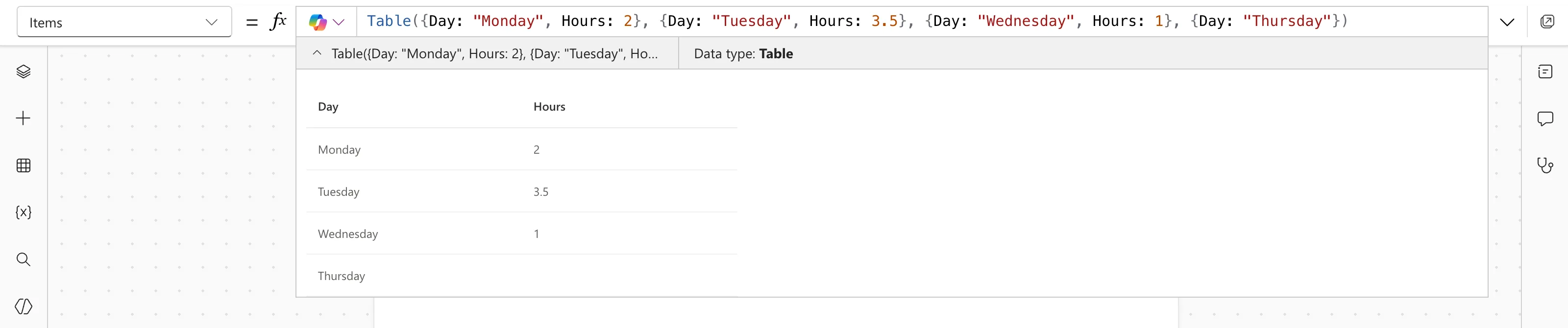
The preview strip under the formula bar says Data type: Table (How to See What a Formula Returns in Power Apps Studio). Expanding it shows the table, with its Day and Hours columns:

Step 3: Show the Columns in the Gallery
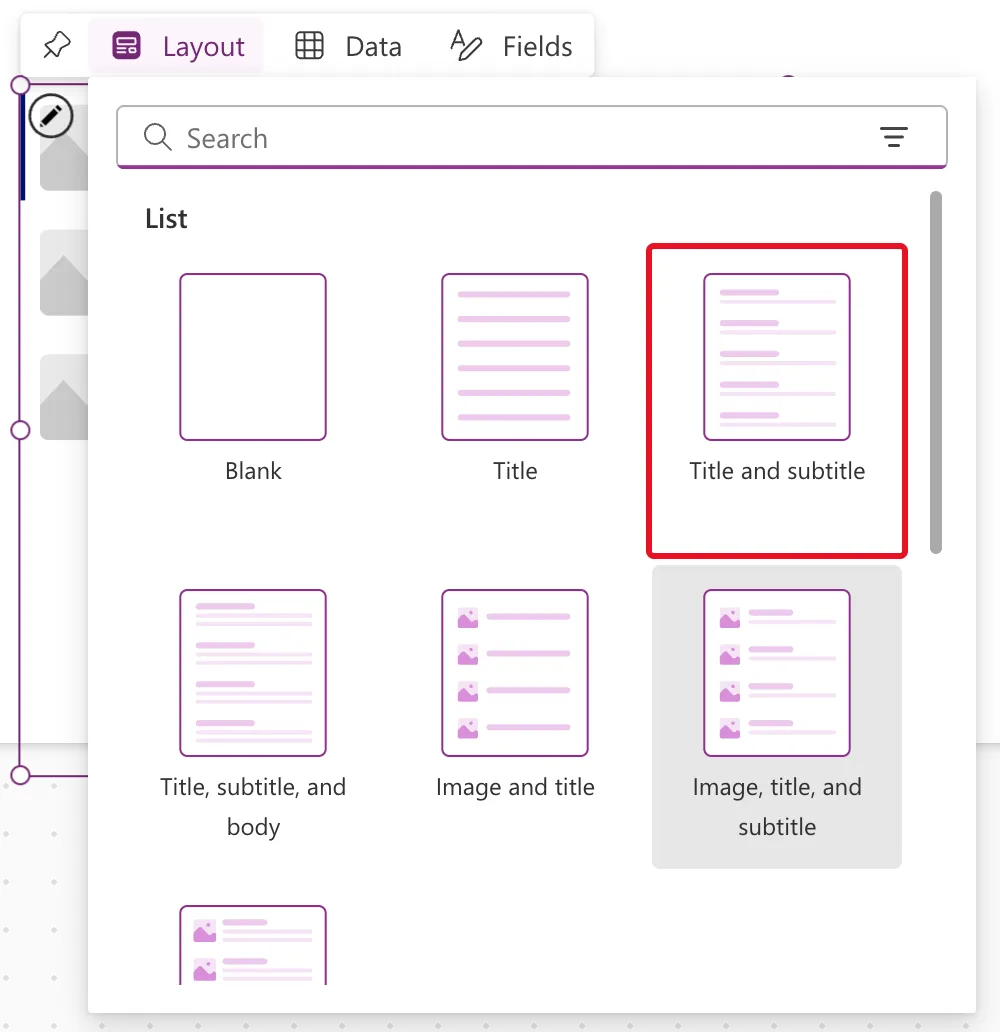
The gallery's default layout showed the day twice, as both title and subtitle. On the gallery's floating toolbar, select Layout, then Title and subtitle:
Then select Fields. Its drop-downs list the table's columns, Day and Hours; set Subtitle2 to Hours:
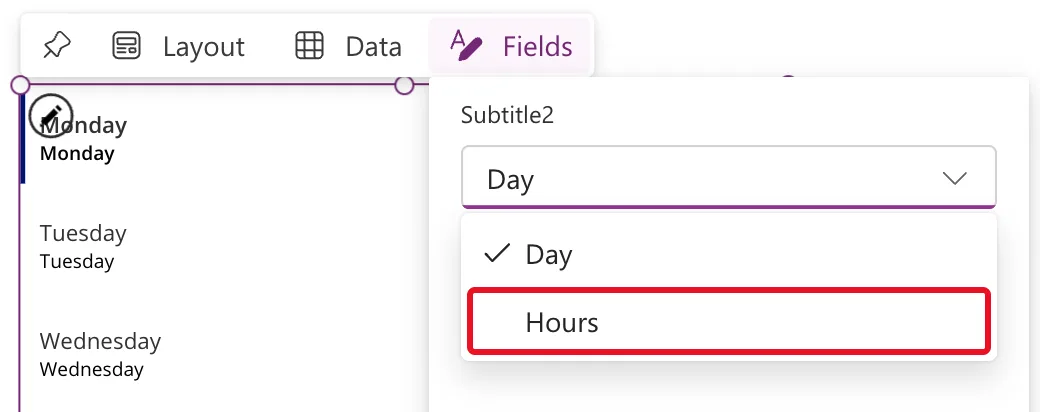
Title2 stays on Day. The subtitle label's Text becomes ThisItem.Hours, the Hours of each row (How to Use ThisItem in a Power Apps Gallery).
Step 4: Check the Result
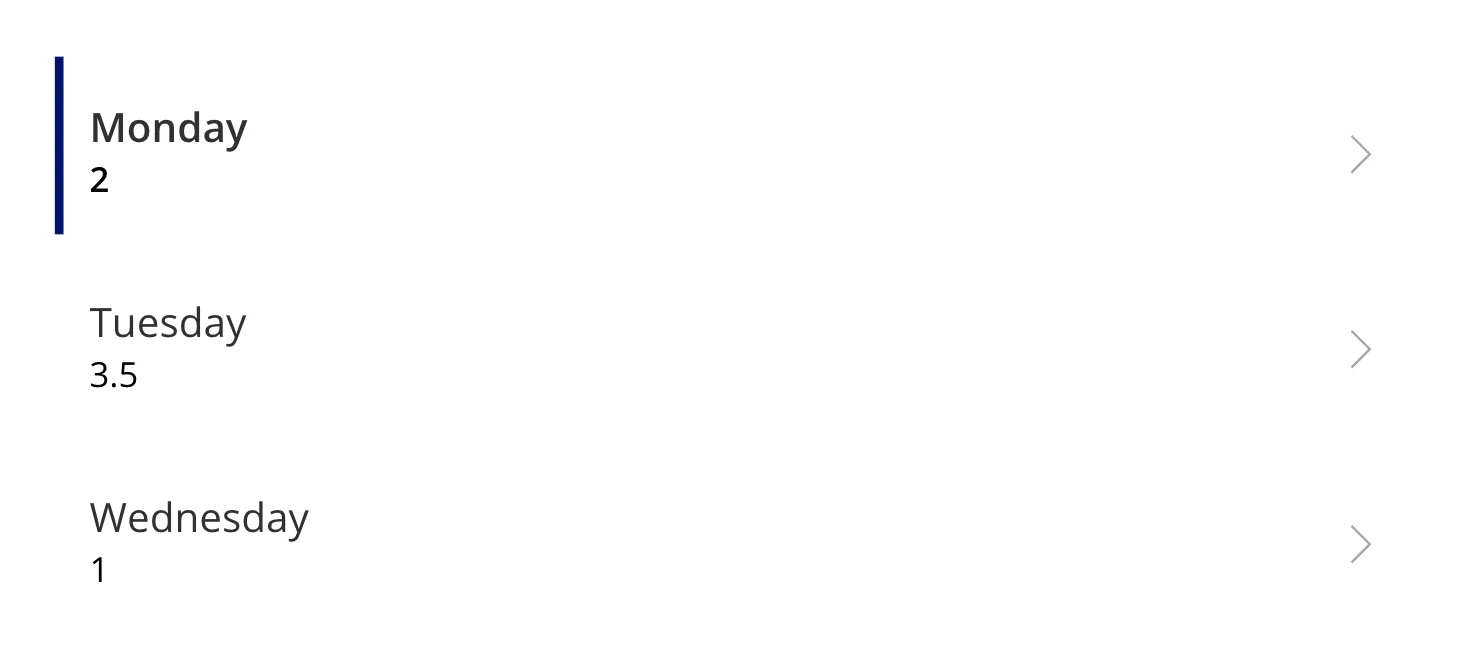
In Preview, the gallery shows one row per record:
A Record Without a Column
Add a fourth record that leaves out Hours:
Table(
    {Day: "Monday", Hours: 2},
    {Day: "Tuesday", Hours: 3.5},
    {Day: "Wednesday", Hours: 1},
    {Day: "Thursday"}
)
The table still has both columns, and Thursday's Hours is blank, as the reference describes:
Common Mistakes
| Mistake | What happens | Do this instead |
|---|---|---|
| Spelling a column differently in one record | Two columns, each half blank | Copy the column names exactly |
| Expecting changes to the table to be saved | Table is temporary | Use a collection or a data source for data that changes |
Troubleshooting
| Symptom | Likely cause | Fix |
|---|---|---|
| The gallery's labels show errors | They refer to a column the table doesn't have | Match the labels to the table's columns |
| A column is blank on some rows | Those records leave it out | Give every record the column |
| The gallery still shows Lorem ipsum rows | Items is still CustomGallerySample | Set Items to the Table formula |
FAQ
Is there a shorter way to write a one-column table?
Yes. The reference says you can also create a single-column table with the [ value1, value2, ... ] syntax. In Studio, ["S", "M", "L"] gave a table with one column, named Value.
When should I use a collection instead?
When the app adds, changes or removes rows while it runs. Table suits fixed data written in the formula (How to Create a Collection in Power Apps with ClearCollect).
Can I turn JSON into a table with Table?
Table(ParseJSON(...)) gives a one-column table of dynamic values, each in a column named Value, which still needs each field converted (How to Turn JSON Text into a Table with ParseJSON in Power Apps).
Conclusion
Table({...}, {...}) makes a temporary table from the records you write. The example's three days and their hours filled a gallery, and a record that left out Hours got a blank in that column.
