How to Create a Solution and Publisher in Power Apps

A solution is the box you build a Power Apps app in, so that the app and everything it needs can move to another environment together. Every solution belongs to a publisher, and the publisher's prefix ends up in the name of everything you create. Ten minutes spent on both now saves renaming later, which often isn't possible.
What You Will Create
A solution holds the parts of an app: canvas apps, environment variables, flows, tables and more. You develop in an unmanaged solution, then export it to install somewhere else.
A publisher says who made the solution. Its prefix is added to the internal name of every new component, such as dewiride_RoleCompetenciesList for an environment variable. That keeps your names apart from Microsoft's and other vendors'.
This guide creates the publisher and solution for the Career Development Plan series:
| Item | Display name | Name | Prefix or version |
|---|---|---|---|
| Publisher | Dewiride | Dewiride | dewiride |
| Solution | Career Development Plan | CareerDevelopmentPlan | 0.1.0.0 |
Use your own organization's or product's name for the publisher.
Why Not Use the Default Publisher?
Every environment already has a CDS Default Publisher, with a randomly generated prefix. Microsoft's guidance is that "you should create your own publisher rather than use the default". Your prefix appears in every name you create, and can't be changed once those names exist. A readable prefix like dewiride tells anyone who sees a component where it came from. A random one tells them nothing.
Prerequisites
- An environment with Dataverse. Solutions are stored in Dataverse. See How to Add a Dataverse Database to the Default Power Platform Environment.
- The Environment Maker role or higher in that environment. In the Default environment, Microsoft assigns it automatically.
Step 1: Open Solutions
Sign in to Power Apps, check the environment in the top-right corner, and select Solutions on the left. Select + New solution.
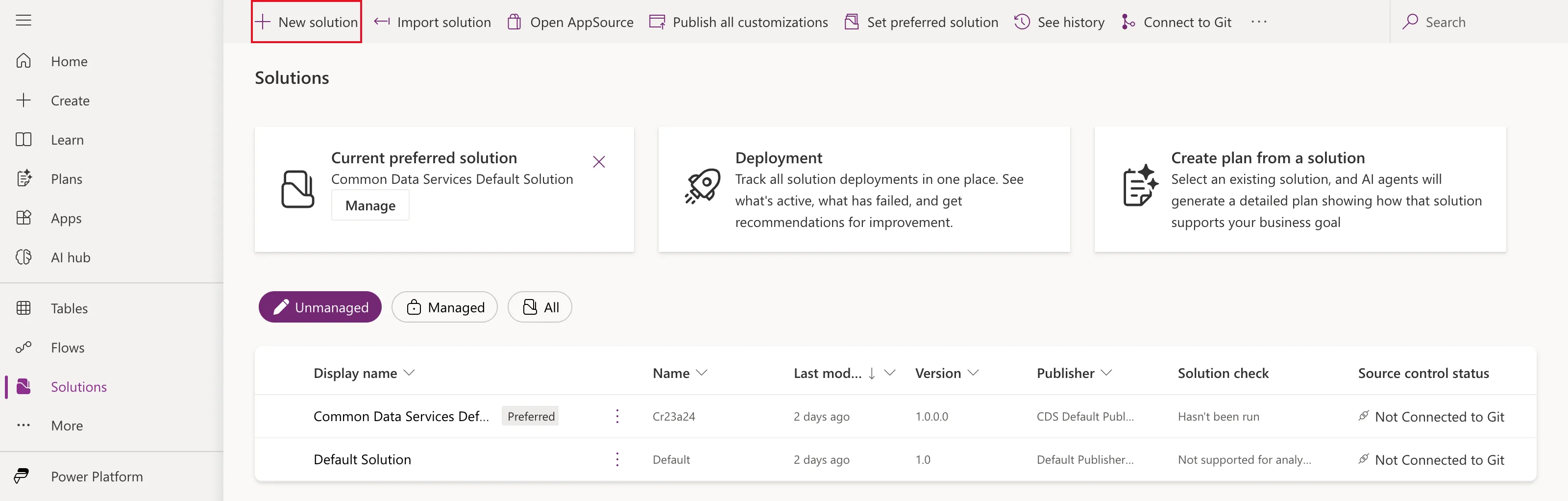
The two solutions already listed belong to the environment. Leave them alone: you'll build in your own.
Step 2: Start a New Publisher
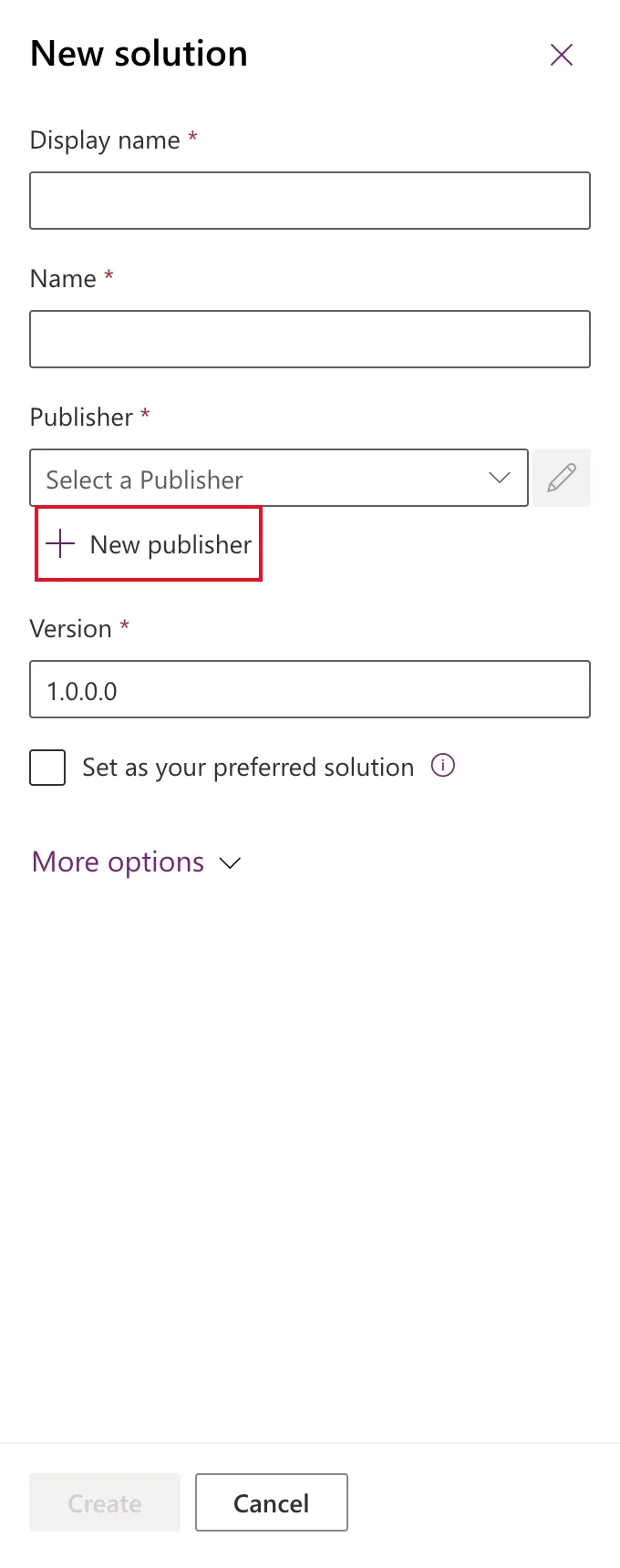
The New solution panel opens. Before filling it in, create the publisher: select + New publisher under Publisher.
Step 3: Fill In the Publisher
On the Properties tab of New publisher, enter:
| Field | Example | What it is |
|---|---|---|
| Display name | Dewiride | The name people see |
| Name | Dewiride | The unique name. Letters and numbers |
| Description | Publisher of Dewiride solutions for Microsoft Power Platform. | Optional, for the next admin |
| Prefix | dewiride | Added to every component's internal name |
| Choice value prefix | Filled in for you | The number range for options you add to choice columns |
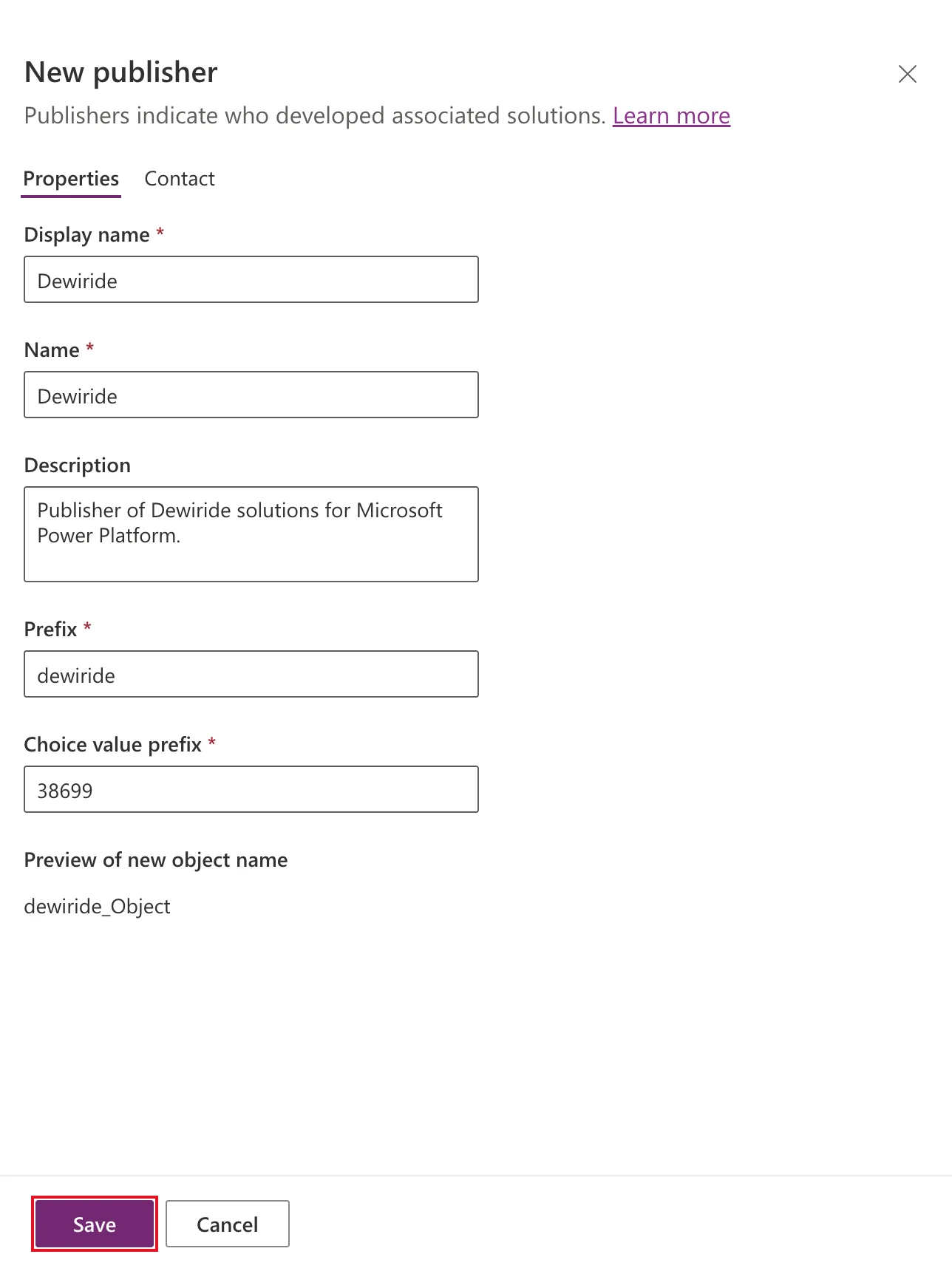
As you type the prefix, Preview of new object name shows what names will look like, here dewiride_Object, and Choice value prefix changes from 10000 to a number based on your prefix (38699 in the example). Keep that number.
Choosing a prefix: Microsoft's rules are 2 to 8 letters and numbers, starting with a letter, and not starting with mscrm. Make it short, lowercase and recognizably yours.
The Contact tab is optional. Select Save. You're back on New solution, with Publisher set to your new publisher.
Step 4: Fill In the Solution
| Field | Example | Notes |
|---|---|---|
| Display name | Career Development Plan | What people see |
| Name | CareerDevelopmentPlan | Filled in from the display name. Letters, numbers and underscores; it can't change later |
| Publisher | Dewiride (Dewiride) | The publisher from Step 3 |
| Version | 0.1.0.0 | See below |
| Set as your preferred solution | Ticked | See below |
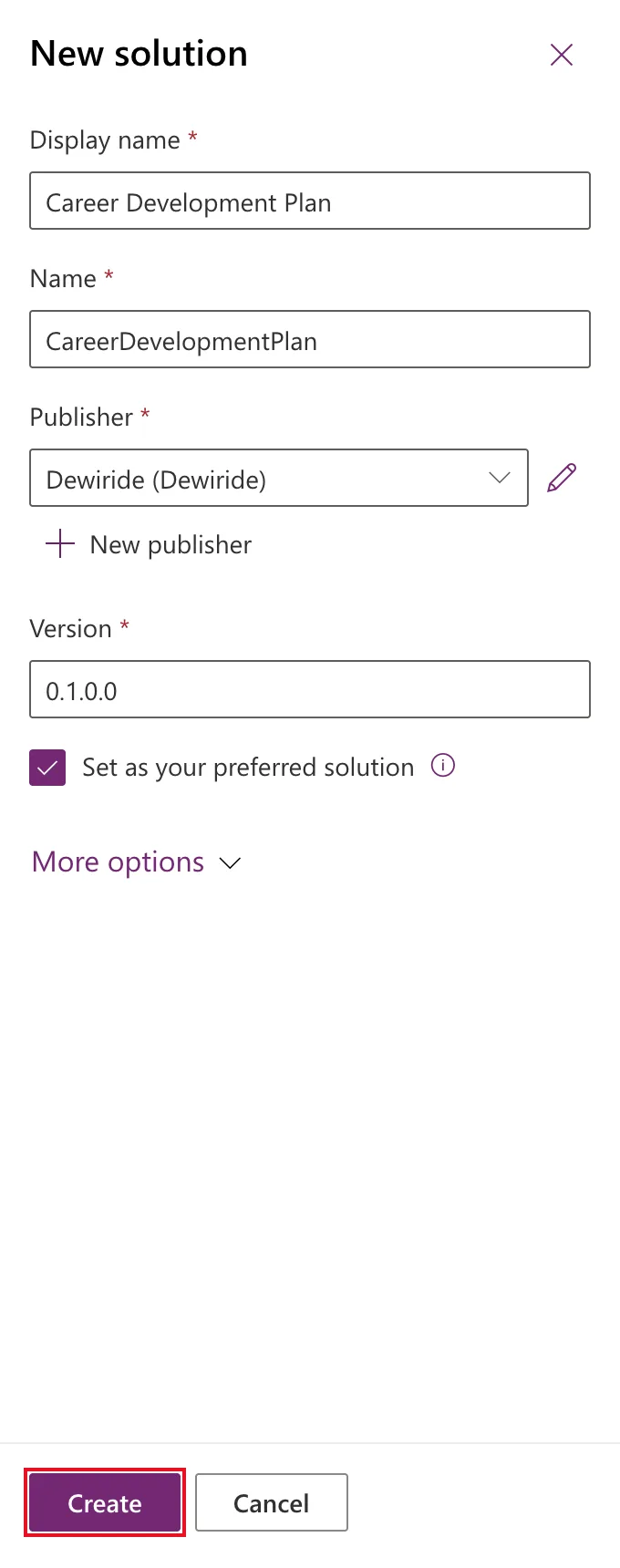
Version has four numbers: major, minor, build and revision. It goes into the file name when you export the solution, and an environment can tell which version of a solution it has installed. The panel suggests 1.0.0.0. The example starts at 0.1.0.0 while the app is being built, and sets 1.0.0.0 for its first release.
Set as your preferred solution decides where Power Apps puts components you create outside a solution. Without it, they go into the environment's default solution, where they're easy to lose. Microsoft notes it doesn't apply to connections, custom connectors and canvas apps created from an image or Figma.
Step 5: Add a Description
Select More options:
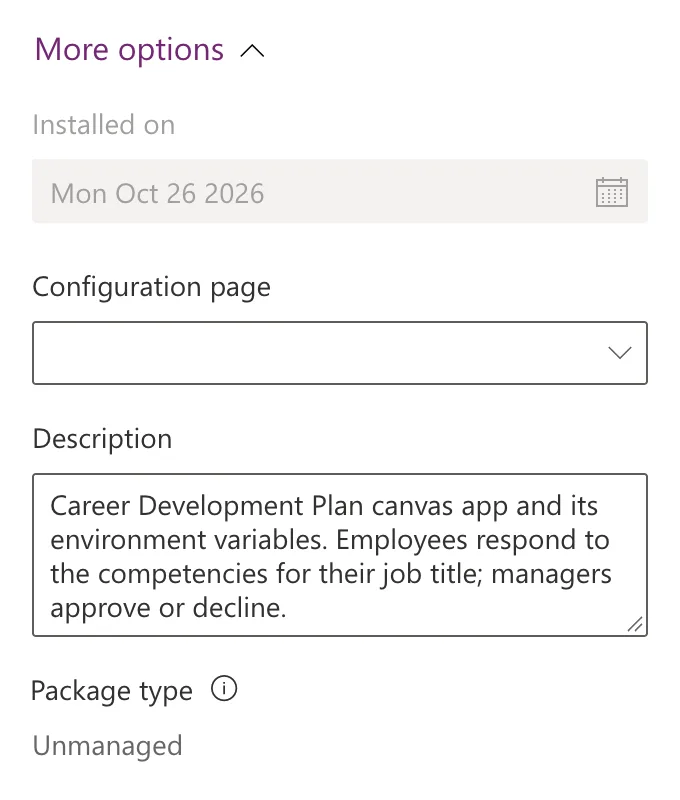
- Installed on is today's date, filled in for you.
- Configuration page is for solutions that ship a setup page. Leave it empty.
- Description: say what the solution is for. The example uses
Career Development Plan canvas app and its environment variables. Employees respond to the competencies for their job title; managers approve or decline. - Package type shows Unmanaged: a solution you can still change.
Select Create.
Step 6: Open Your Solution
Power Apps opens the new, empty solution. The Objects pane on the left groups what it will contain: Apps, Cloud flows, Tables and so on, all at (0).
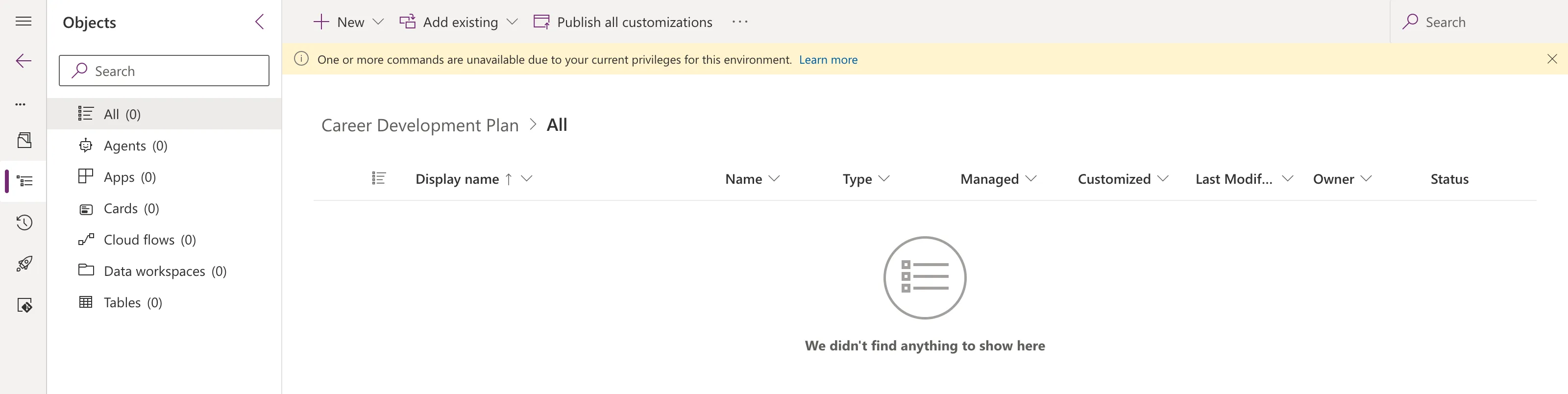
If you have only the Environment Maker role, a yellow bar says One or more commands are unavailable due to your current privileges for this environment. You can still add apps and environment variables. What's missing, and how to get it, is in Fixed: One or More Commands Are Unavailable Due to Your Current Privileges for This Environment.
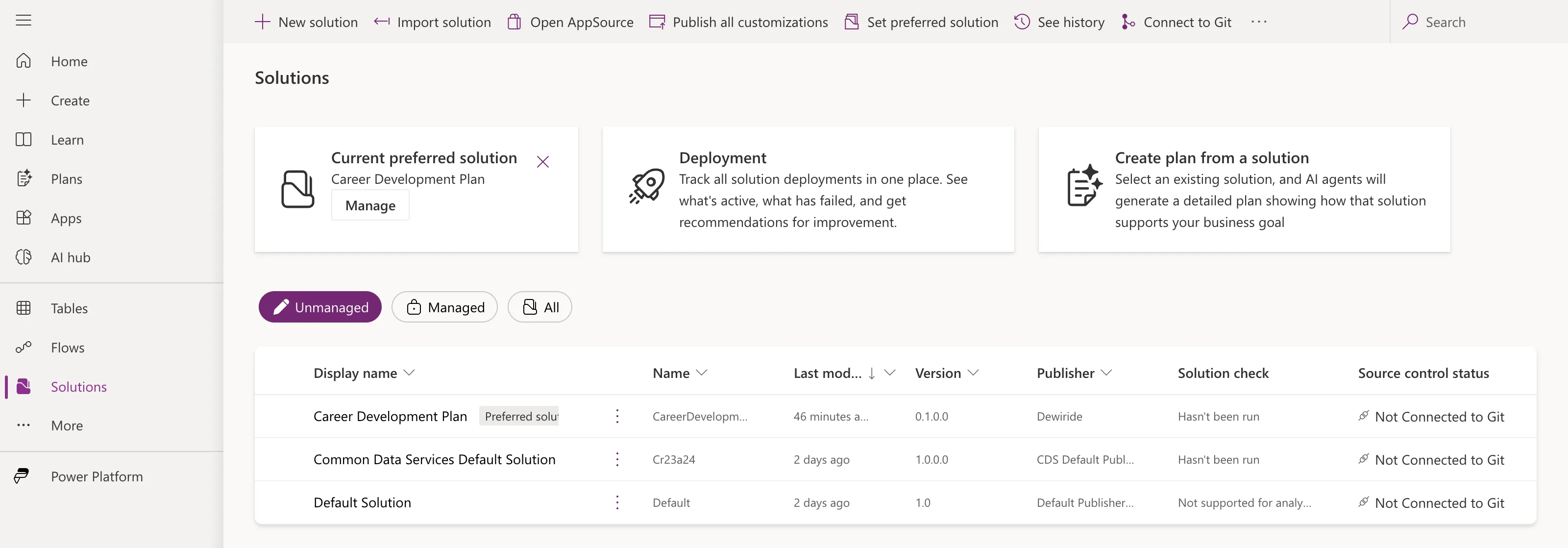
Back on Solutions, your solution is listed with its name, version and publisher, and marked Preferred solution:
Common Mistakes
| Mistake | What happens | Do this instead |
|---|---|---|
| Using CDS Default Publisher | Every name gets a random prefix | Create your own publisher first |
| A long or vague prefix | Long, unclear internal names everywhere | 2 to 8 letters, recognizably yours |
| Changing the prefix after building | Existing components keep the old prefix | Decide the prefix before you create anything |
| Leaving the preferred solution as the default | Components made outside your solution are hard to find | Tick Set as your preferred solution |
| Building in Default Solution | Nothing to export cleanly | Always work inside your own solution |
Troubleshooting
| Symptom | Likely cause | Fix |
|---|---|---|
| No database found on Solutions | The environment has no Dataverse | Add Dataverse first |
| We couldn't load your data on Solutions | Your Environment Maker role hasn't arrived yet | See Fixed: "We Couldn't Load Your Data" |
| Create stays disabled | A required field is empty | Fill in Display name, Name, Publisher and Version |
| The prefix is rejected | It breaks the prefix rules | Use 2 to 8 letters and numbers, starting with a letter |
FAQ
Can I rename a solution later?
You can change its display name. The Name can't change after you save, so choose it carefully.
Can two solutions share a publisher?
Yes, and they should if they come from the same maker. The Career Development Plan series uses this publisher for its app solution, and again for the setup solution it builds in Part 11.
What's the difference between managed and unmanaged?
You build in an unmanaged solution. When you export, you choose: managed for installing somewhere people shouldn't change it, unmanaged for another development environment. That's for later; creating the solution is the same either way.
Do I need System Administrator to create a solution?
No. Environment Maker is enough to create a publisher and a solution.
Conclusion
You have your own publisher, with a readable prefix, and an unmanaged solution that's also your preferred one. Everything you create from now on can live inside it and leave the environment together.
Next, give the solution the settings it needs to find its data: How to Create Environment Variables for a SharePoint Site and List in Power Apps.
Additional Resources
- Create a solution: the fields of New solution and New publisher.
- Solution concepts: publishers, prefixes, and managed and unmanaged solutions.
- Set the preferred solution: what the preferred solution does and doesn't capture.
- Update a solution: how solution version numbers work.
