How to Create a SharePoint List with the REST API in Power Automate

The SharePoint connector has no Create list action, but the REST API does it in one request. This guide creates a custom list from a flow with Send an HTTP request to SharePoint, and shows what a list created this way looks like, because it isn't quite the same as one created in SharePoint.
Prerequisites
- Send an HTTP request to SharePoint: see How to Use Send an HTTP Request to SharePoint.
- A check that the list doesn't exist yet, so the flow can run again safely: see How to Check Whether a SharePoint List Exists.
- Permission to create lists on the site, for the account behind the flow's SharePoint connection.
The example is Create the list in the setup flow from Part 11 of the Career Development Plan series. It runs in the True branch of If the list is missing, once per list.
Step 1: Set Up the Request
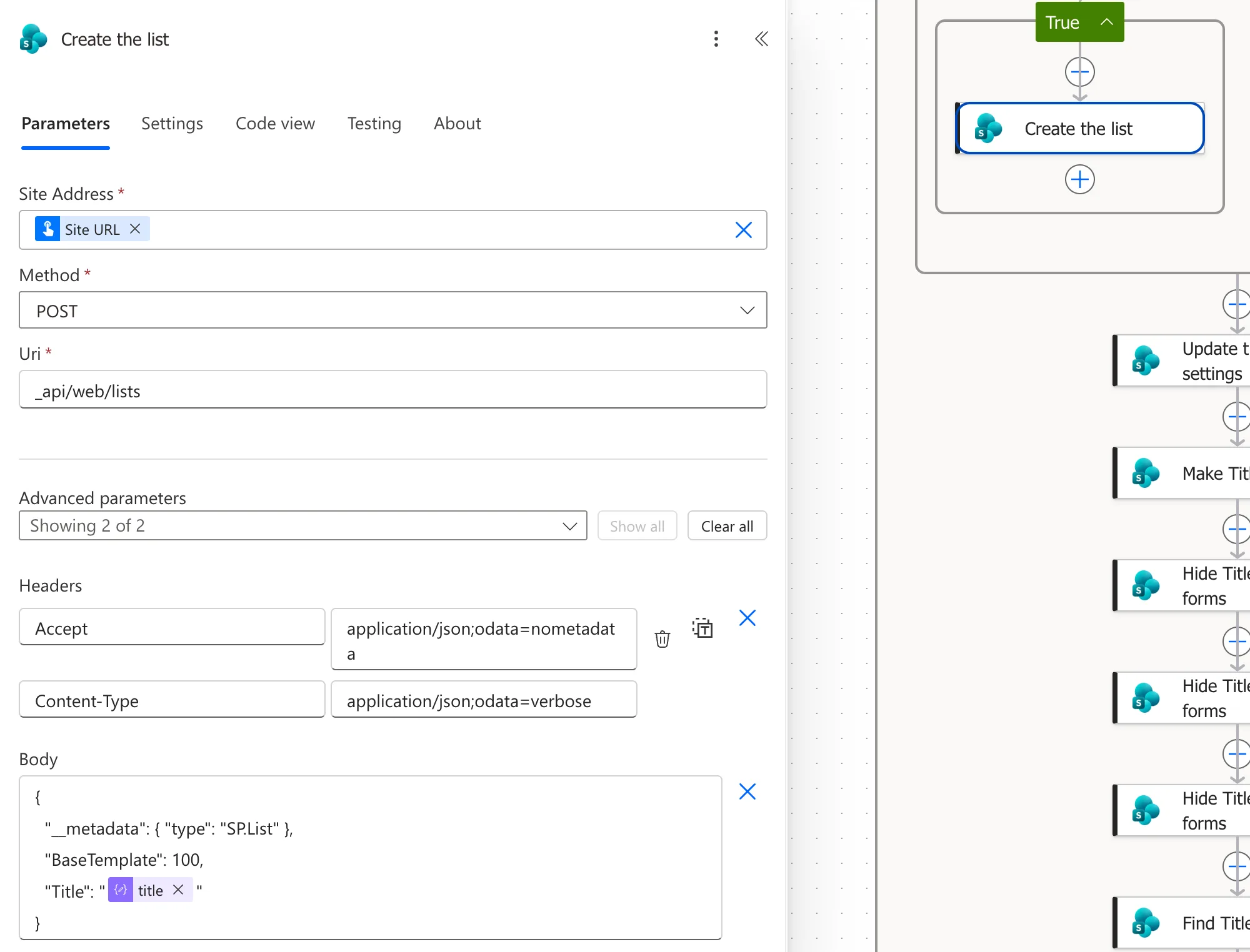
Add a Send an HTTP request to SharePoint action called Create the list:
| Field | Value |
|---|---|
| Site Address | The site, here the trigger's Site URL |
| Method | POST |
| Uri | _api/web/lists |
| Headers | Accept: application/json;odata=nometadata |
Content-Type: application/json;odata=verbose |
Microsoft's REST examples create a list with a POST to lists. The verbose content type lets the body say what it is with __metadata.
Step 2: Write the Body
{
  "__metadata": { "type": "SP.List" },
  "BaseTemplate": 100,
  "Title": "@{items('For_each_list')?['title']}"
}
| Property | Meaning |
|---|---|
__metadata | The object is an SP.List |
BaseTemplate | The list template: 100 is a custom list, the blank list you'd create in SharePoint |
Title | The list's name, here from the loop's current item |
Type the body, and insert the title through the expression editor (How to Add an Expression). In the designer it shows as a title token:
Step 3: Run It
On an empty test site, the flow's runs created both lists, and the site's Site contents page lists them:
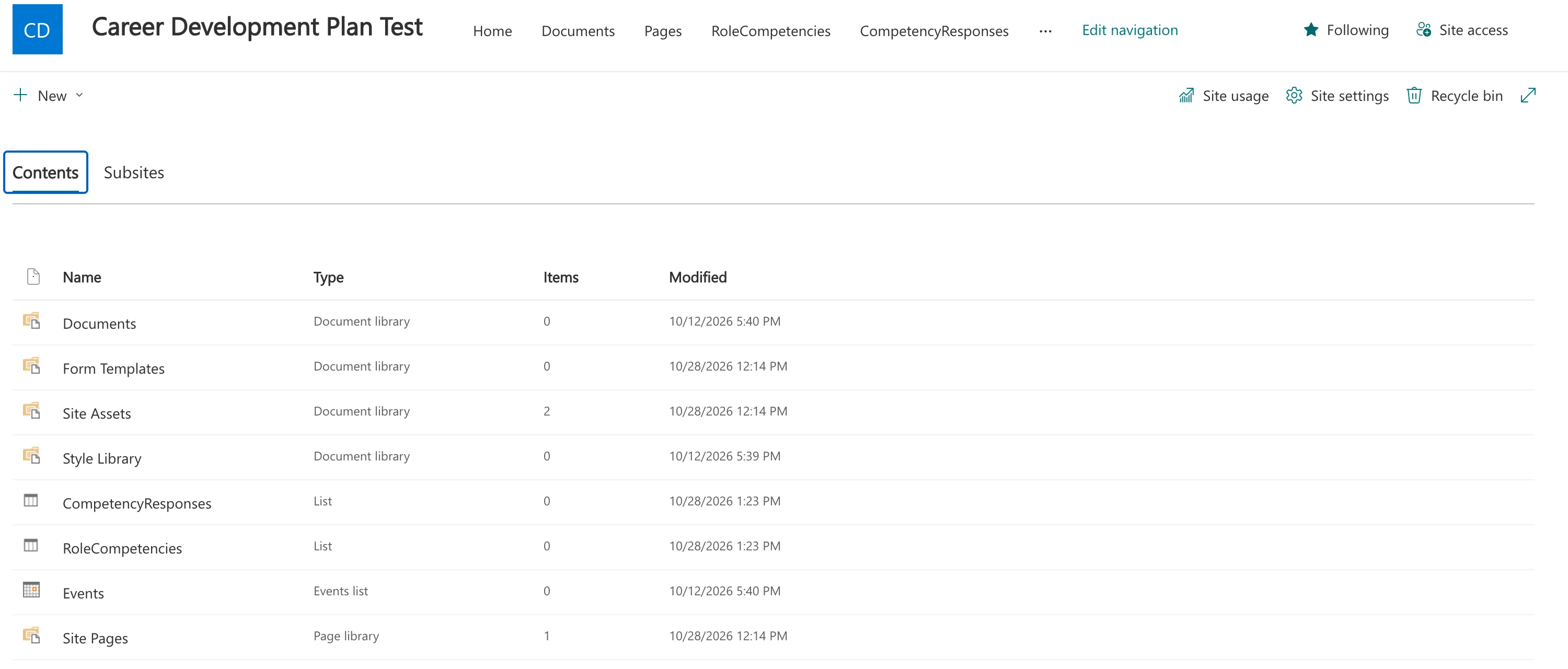
The navigation links in that screenshot came from a later step: a list created with this request isn't on the site's navigation.
What a REST-Created List Looks Like
I compared the new lists with the lists I had created by hand in Part 2 (How to Create a List and Add Columns). Straight after this request, three things differed:
| Setting | Hand-built list from Part 2 | List created with this request |
|---|---|---|
| Title column | Not required | Required |
| Default view | Its own columns, with Title hidden | Title only |
| Site navigation | Listed | Not listed |
Microsoft's REST article notes that properties you don't set in a POST get their default values. The setup flow sets what it needs right after creating each list:
- navigation and other list settings: How to Change SharePoint List Settings with the REST API;
- the Title column: How to Hide the Title Column of a SharePoint List with the REST API;
- the list's own columns: How to Add a Column with CreateFieldAsXml.
Common Mistakes
| Mistake | What happens | Do this instead |
|---|---|---|
No Content-Type: application/json;odata=verbose | SharePoint can't read __metadata | Add the header |
| Creating without checking first | A second run tries to create it again | Check, and create only when it's missing |
| Assuming it's the same as a list made by hand | Title is required and the list isn't in navigation | Set those afterwards |
Troubleshooting
| Symptom | Likely cause | Fix |
|---|---|---|
| The step fails with 403 | The connection's account can't create lists | Give it permission to manage lists, such as Edit, or use another connection |
| The list exists but has no columns | Only this step ran | Run the steps that add the columns |
FAQ
Can I set the description in the same request?
Yes, SP.List has a Description property. The setup flow sets it in its settings step instead, so a re-run updates it too.
Does this need a premium license?
No. It's the standard SharePoint connector.
Conclusion
POST to _api/web/lists with Content-Type: application/json;odata=verbose and a body of __metadata SP.List, BaseTemplate 100 and the Title. Check first that the list is missing, and set the title column, the view and the navigation afterwards, because a REST-created list starts with different defaults.
Additional Resources
- Get to know the SharePoint REST service: creating a list, with a sample body.
- Working with lists and list items with REST: creating and changing lists.
