How to Create a SharePoint Document Library with the REST API in Power Automate

A flow can create a document library with one request to SharePoint's REST API. Sending it to lists/add lets you give the library a friendly name, such as Team Invoices, and a separate web address without spaces, such as /TeamInvoices.
Syntax
The request goes through Send an HTTP request to SharePoint (How to Use Send an HTTP Request to SharePoint):
| Field | Value |
|---|---|
| Method | POST |
| Uri | _api/web/lists/add |
| Headers | Accept: application/json;odata=nometadata |
Content-Type: application/json;odata=verbose |
{
  "parameters": {
    "__metadata": { "type": "SP.ListCreationInformation" },
    "Title": "<name>",
    "Url": "<web address>",
    "TemplateType": <template number>,
    "Description": "<description>"
  }
}
parameters:lists/addis the REST form of theAddmethod of a site's lists, andparametersis the name of its one argument (ListCollection.Add).__metadata: says the object is anSP.ListCreationInformation. The verboseContent-Typeheader is what lets SharePoint read it.<name>: the name people see, in Site contents and at the top of the library. Spaces are fine.<web address>: the part of the library's address after the site's. Use letters and numbers without spaces. Renaming the library later doesn't change it.<template number>: the kind of list to create, a number without quotes.101is a document library and100is a blank list, from Microsoft's ListTemplateType list.<description>(optional): the text under the library's name in its settings.
The properties come from Microsoft's ListCreationInformation class. lists/add exists because the plainer request in Microsoft's REST examples, a POST to _api/web/lists with an SP.List, has no property for the address. The address then comes from the title (How to Create a SharePoint List with the REST API).
The Example
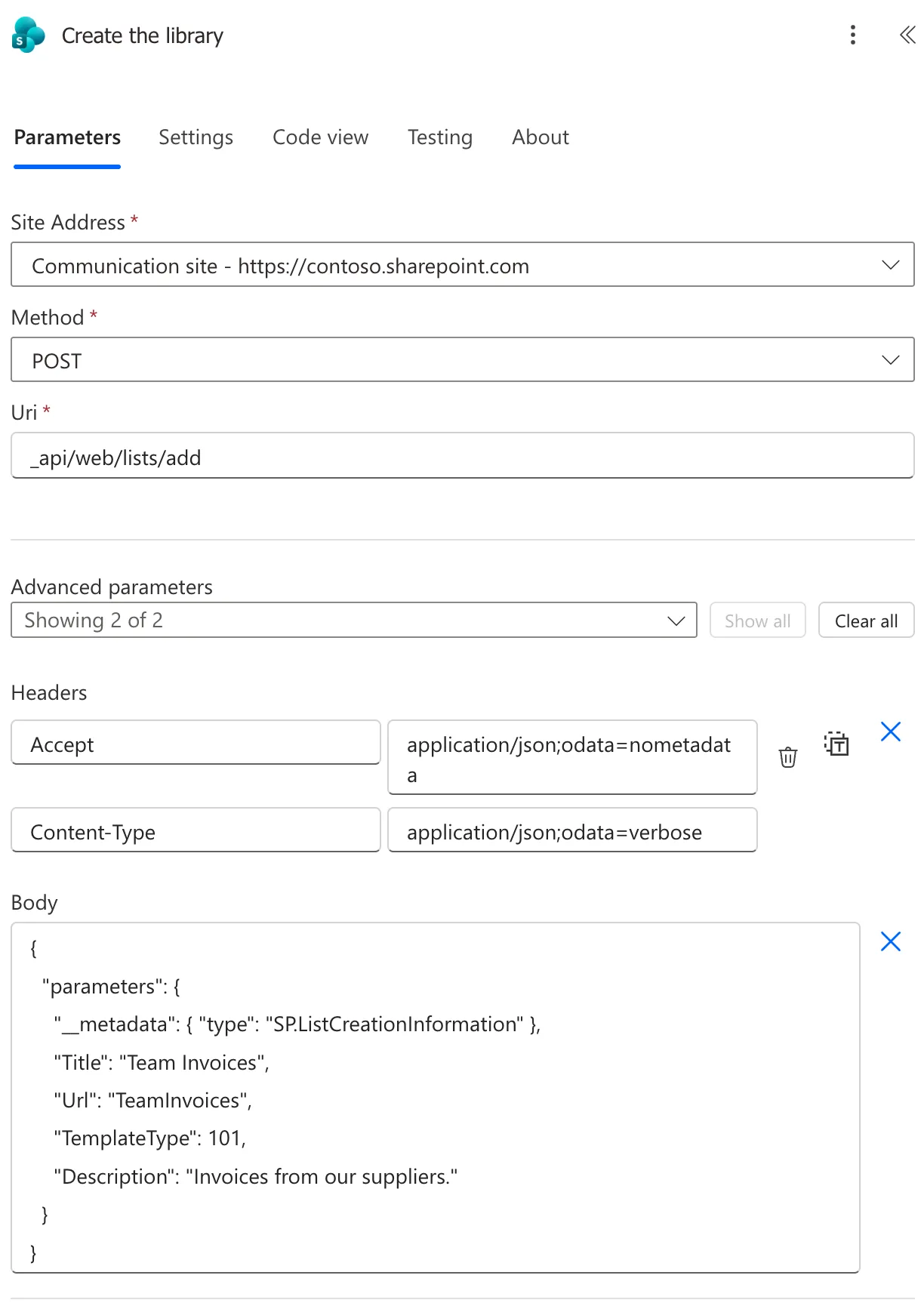
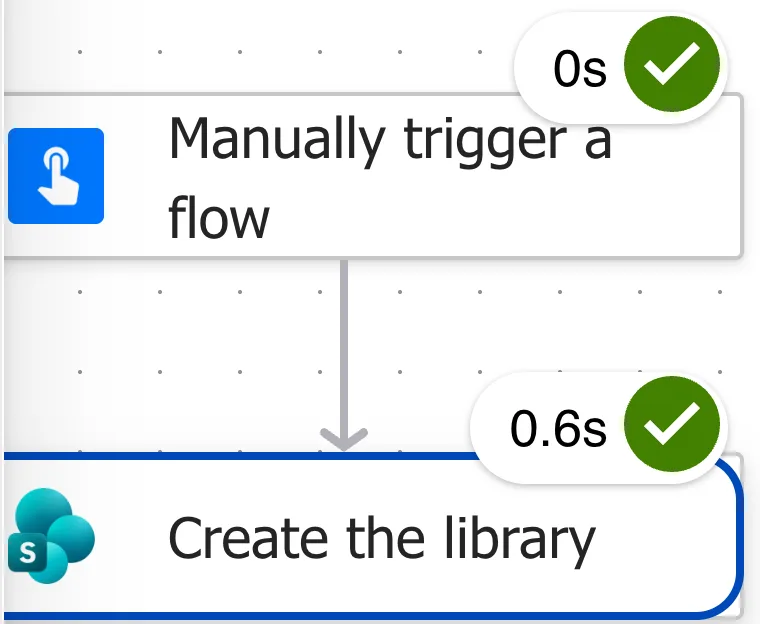
The example creates a library called Team Invoices, at the address /TeamInvoices, with the description Invoices from our suppliers., on a communication site. The flow has two steps: the trigger Manually trigger a flow and one Send an HTTP request to SharePoint called Create the library.
Prerequisites
- Permission to create libraries on the site, such as Edit or Full Control, for the account the flow's SharePoint connection uses.
Step 1: Add the Request
In a flow with Manually trigger a flow, add Send an HTTP request to SharePoint and rename it Create the library. Fill in its fields:
| Field | Value |
|---|---|
| Site Address | Your site, from the drop-down |
| Method | POST |
| Uri | _api/web/lists/add |
The two headers are under Advanced parameters: pick Headers there, then add Accept and Content-Type.
Step 2: Write the Body
In Body, type:
{
  "parameters": {
    "__metadata": { "type": "SP.ListCreationInformation" },
    "Title": "Team Invoices",
    "Url": "TeamInvoices",
    "TemplateType": 101,
    "Description": "Invoices from our suppliers."
  }
}
The action now looks like this:
Step 3: Run the Flow
Save the flow and test it manually (How to Test a Cloud Flow Manually in Power Automate). Create the library took 0.6 seconds:
The Result
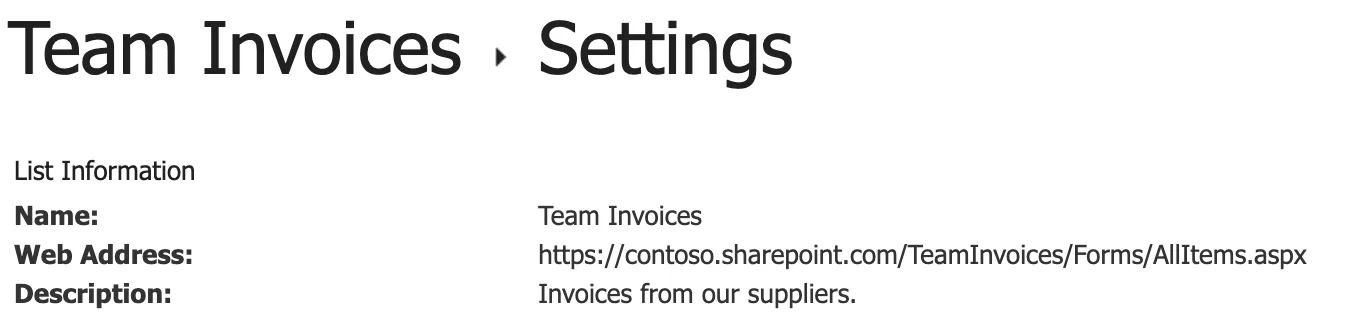
The site now has a Team Invoices library. Its settings page (Settings > Library settings > More library settings) shows the three values from the body, with the address the flow chose:
Create a List the Same Way
The same request creates a list with TemplateType 100. Put Lists/ in front of the address, where SharePoint keeps the lists you create in the browser: "Url": "Lists/Departments" puts a list at /Lists/Departments. The Overtime Timesheet setup flow creates its lists and its library this way.
Common Mistakes
| Mistake | What happens | Do this instead |
|---|---|---|
Using _api/web/lists when the address matters | The address comes from the title | Use _api/web/lists/add with Url |
TemplateType 100 for a library | You get a list | Use 101 |
| Quotes around the template number | It's text, not a number | Write 101 without quotes |
| Creating without checking first | A second run tries to create it again | Check that it's missing first |
Troubleshooting
| Symptom | Likely cause | Fix |
|---|---|---|
| The action fails with status 403 | The connection's account can't create libraries on the site | Give it Edit or Full Control, or use another connection |
| The action fails with status 400 | The body isn't what lists/add expects | Check the parameters wrapper, the Content-Type header and the commas |
| The library has a different address | The Url value had spaces or a typo | Delete the library and create it again with the right Url |
FAQ
Can I change the library's address later?
Not by renaming it: a new name keeps the old address (How to Rename a SharePoint Library Without Changing Its URL). That's why the address is worth choosing when you create the library.
How do I stop the flow creating it twice?
Look for it first and create it only when it's missing (How to Check Whether a SharePoint List Exists in Power Automate). Libraries are lists, so the same check works.
Does this need a premium licence?
No. Send an HTTP request to SharePoint is part of the standard SharePoint connector.
Conclusion
POST to _api/web/lists/add with a body whose parameters hold __metadata SP.ListCreationInformation, the Title, the Url, TemplateType 101 and an optional Description. The library gets the name you chose and the address you chose, and a list works the same way with 100 and a Lists/ address.
Additional Resources
- ListCreationInformation class: the properties in the body.
- ListTemplateType enumeration: the template numbers.
- Get to know the SharePoint REST service: how REST requests are built.
