How to Create a SharePoint Communication Site

A SharePoint site is where lists, libraries and pages live. When a site only needs to hold data or publish information, you don't want a Microsoft 365 group, a shared mailbox or a team created along with it. A communication site is that plain site, with nothing else attached.
What You Will Build
In this guide you'll create a communication site with these settings:
| Setting | Value |
|---|---|
| Site type | Communication site |
| Template | Blank |
| Site name | Career Development Plan |
| Site address | /sites/CareerDevelopmentPlan |
| Language | English |
| Time zone | (UTC) Coordinated Universal Time |
The site holds the two lists of the Career Development Plan app series. The steps are the same for any communication site, so use your own name and values.
Team site or communication site? SharePoint offers two kinds of site:
- A team site is for people working together. It's connected to a Microsoft 365 group, which brings a shared mailbox and calendar, and it can be connected to Microsoft Teams.
- A communication site is for sharing information with a wider audience, where most people only read. It isn't connected to a Microsoft 365 group. Access comes from the site's own three SharePoint groups instead: owners, members and visitors.
For a site that stores an app's data, the communication site is the lighter choice: nothing else is created alongside it.
Prerequisites
- A Microsoft 365 work account that's allowed to create sites. By default, everyone in an organization can create communication sites. A SharePoint admin can turn that off; see Troubleshooting if the option is missing.
- Nothing to buy. The site uses your organization's existing SharePoint storage.
Step 1: Open Build in SharePoint
Go to your SharePoint start page, https://<your-organization>.sharepoint.com, or pick SharePoint in the Microsoft 365 app launcher.
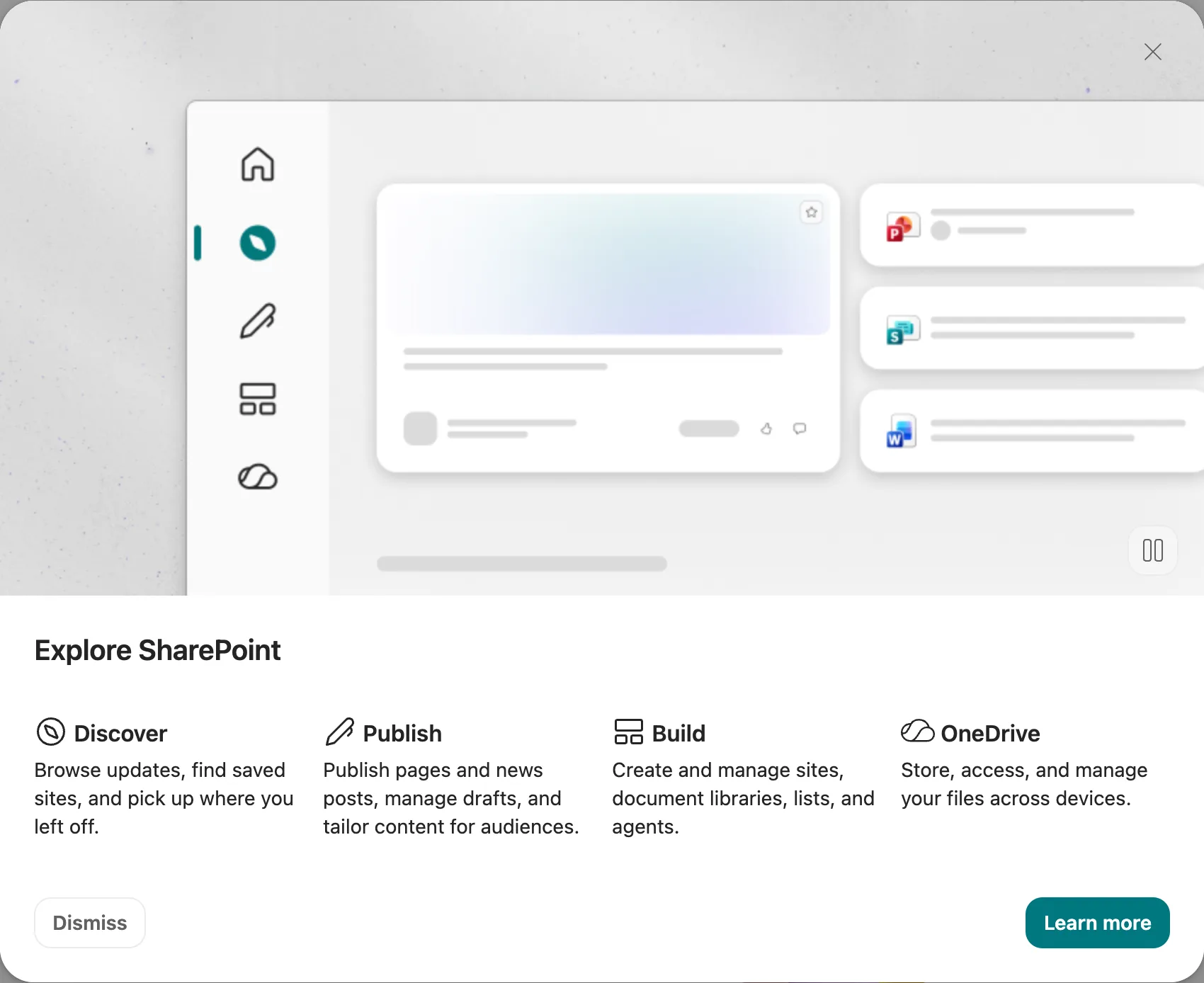
On your first visit, an Explore SharePoint window introduces the four areas in the left rail: Discover, Publish, Build and OneDrive. Select Dismiss.
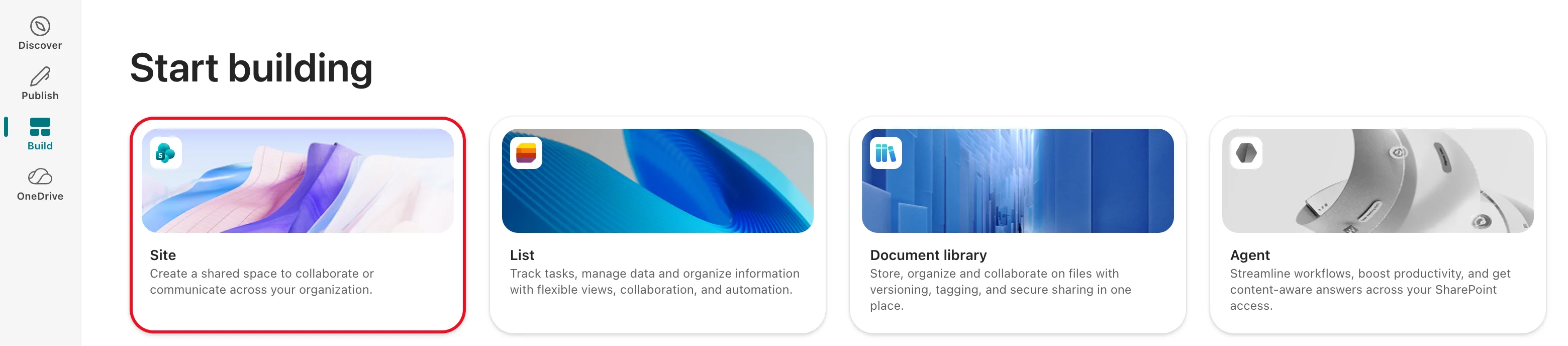
Select Build in the left rail. Under Start building, select Site.
Microsoft's older instructions start from a + Create site button at the top of the start page. If your start page shows that button instead of Build, select it and choose Communication site.
Step 2: Choose Communication Site
The Select a site template window opens with Team site selected. Select Communication site at the top.
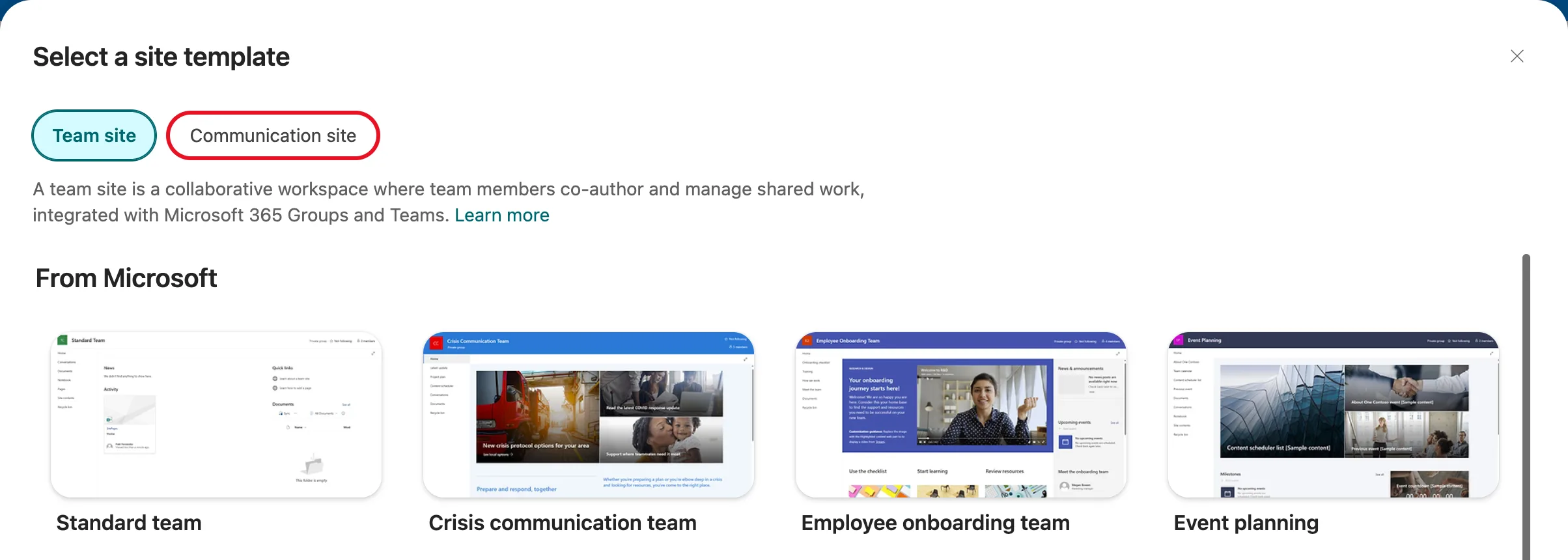
The window now lists the communication site templates, all of them from Microsoft.
Step 3: Pick the Blank Template
There are 13 communication site templates. They differ only in what the site starts with, mostly on its home page:
- Standard communication is the default. Its home page has a large hero area plus news, events and documents sections.
- Showcase is built around big images.
- Blank starts with an empty home page.
Scroll to the end and select Blank.
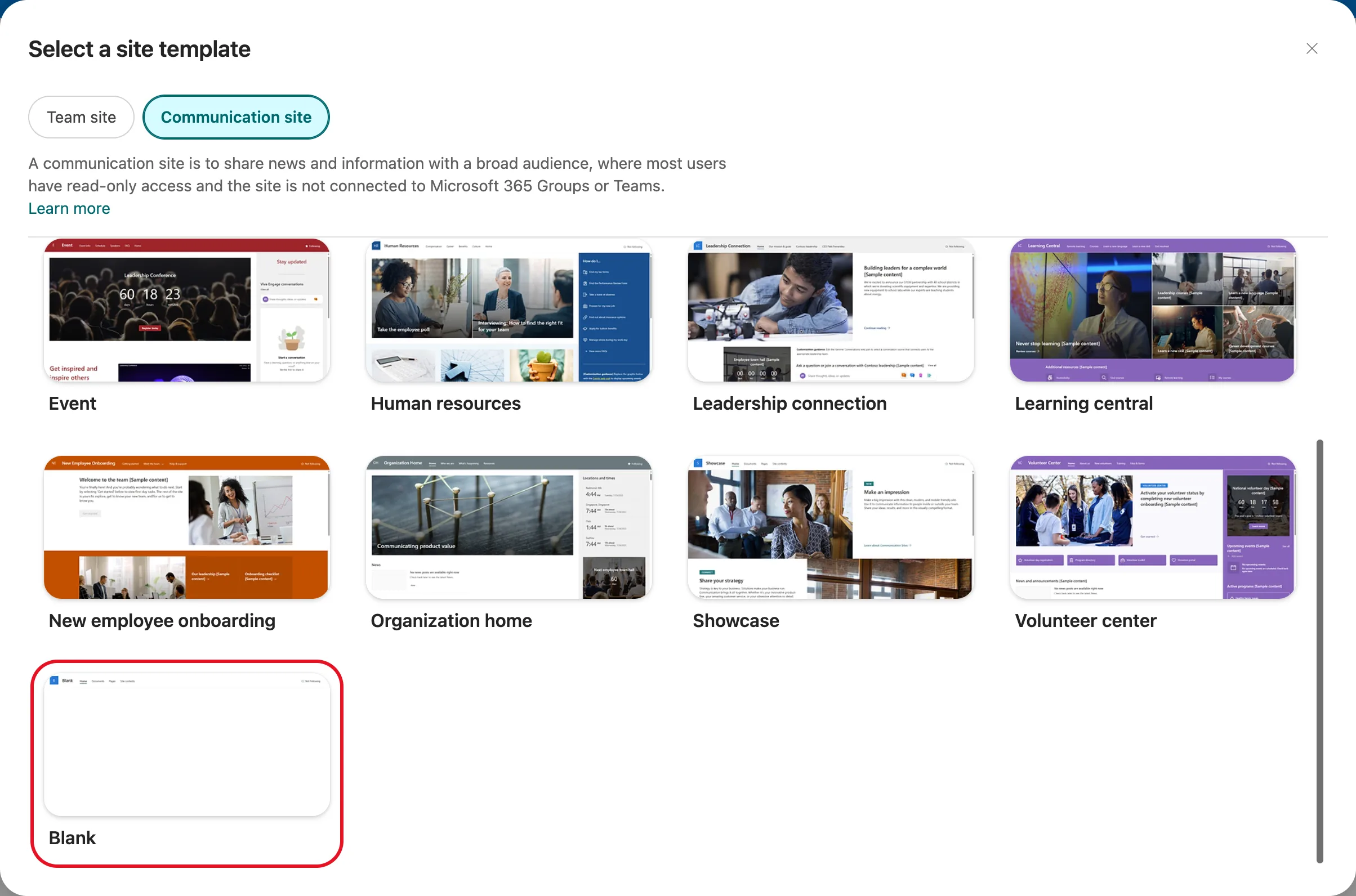
This site holds an app's lists, and nobody comes to read its home page, so there's no point filling that page with sample content. Choose a richer template for a site that people will read.
The Preview site template window shows what you get: one home page. Select Use template.
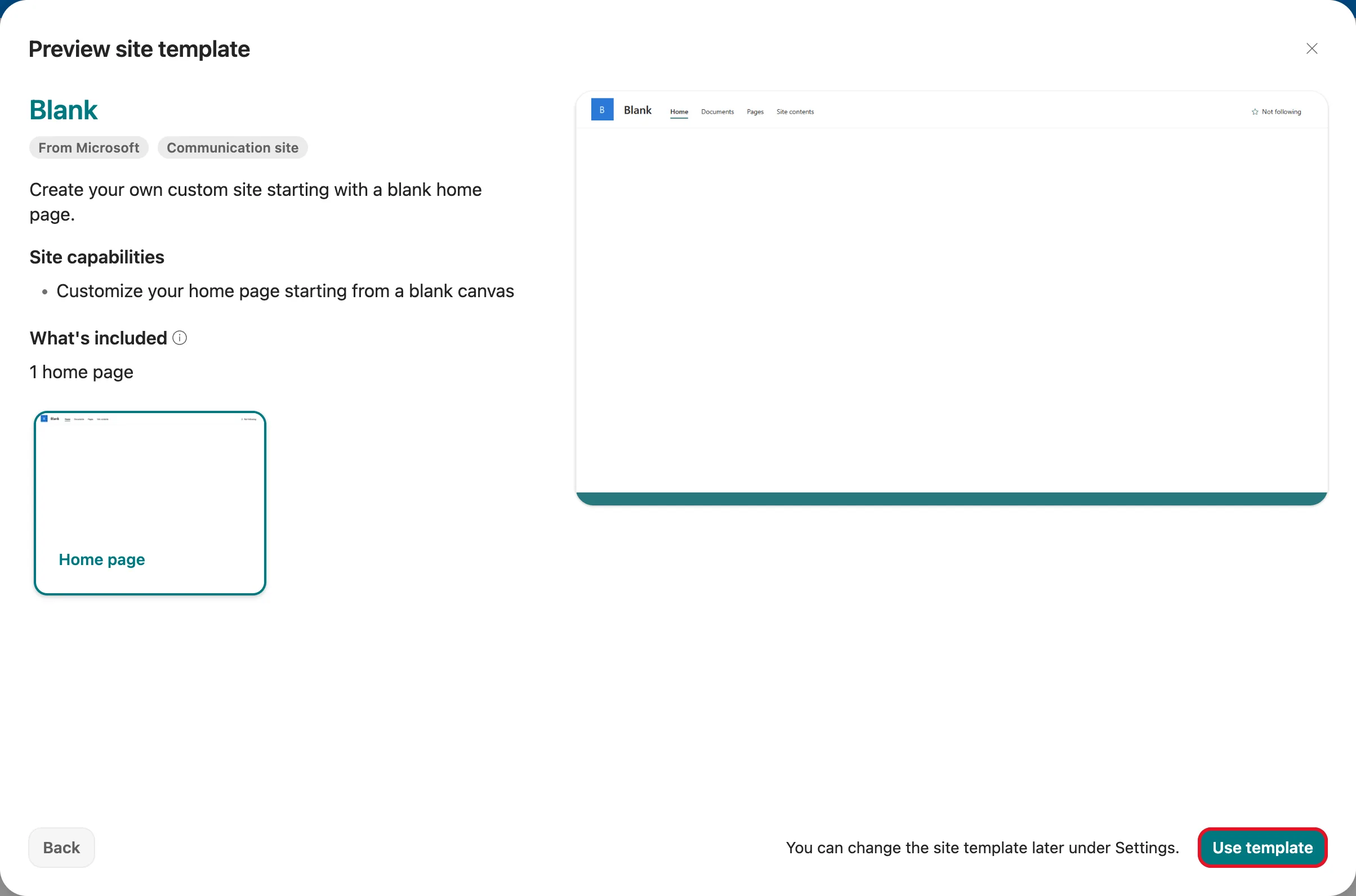
As the window says, you can change the site template later under Settings.
Step 4: Name the Site
Fill in Set up your site:
| Field | Value | Notes |
|---|---|---|
| Site name | Career Development Plan | Shown at the top of every page |
| Site description | Lists for the Career Development Plan app: competencies by job title and employee responses. | Optional, but it tells people what the site is for |
| Site address | CareerDevelopmentPlan | Filled in from the name, without the spaces |
| Select a language | English | Can't be changed later |
As you type, SharePoint checks both names and confirms The site name is available. and The site address is available.
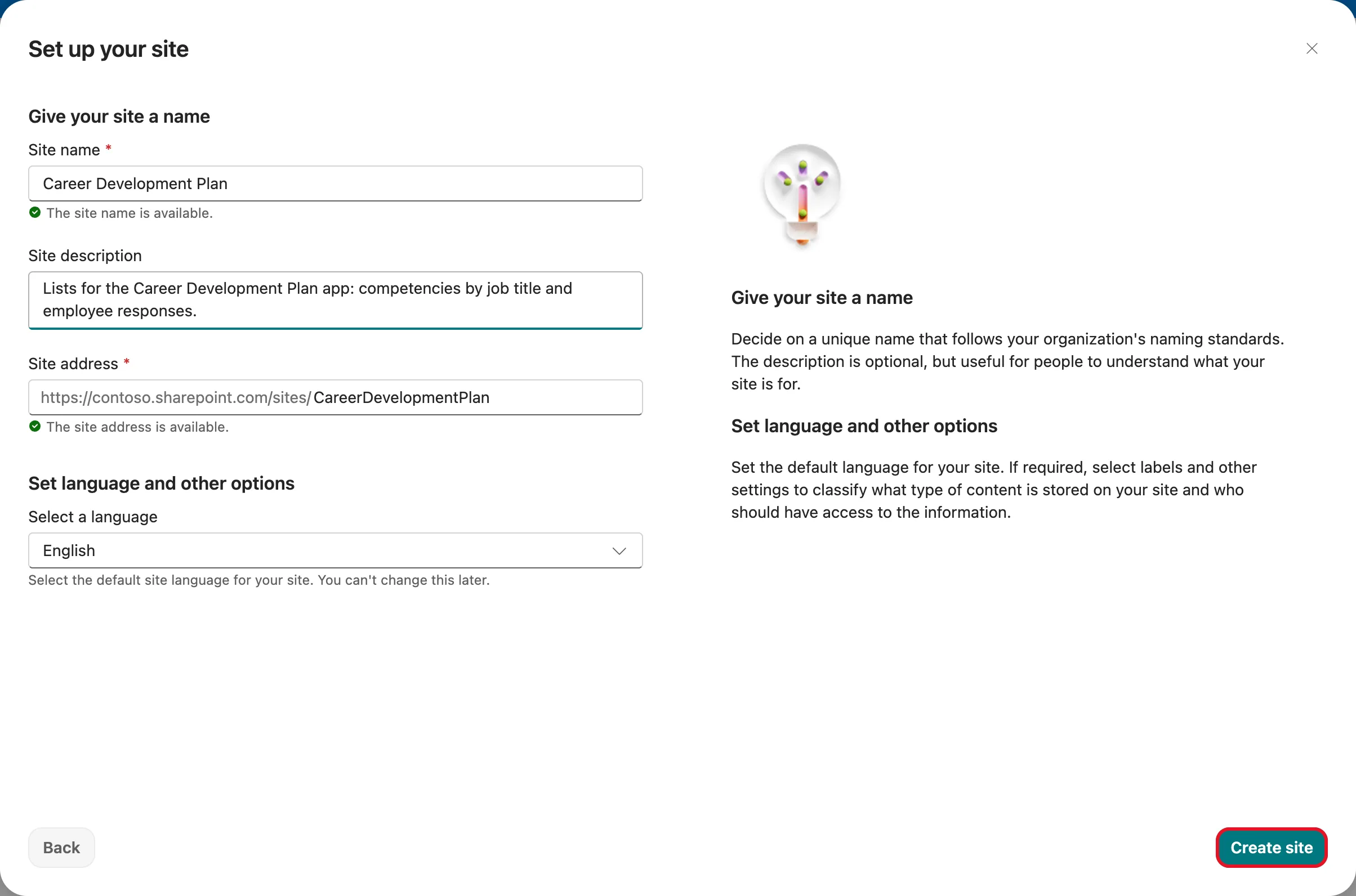
A few things are worth knowing before you select Create site:
- The address is permanent for practical purposes. It becomes the site's URL,
https://<your-organization>.sharepoint.com/sites/CareerDevelopmentPlan, and apps and flows that use the site store that address. Only a SharePoint admin can change it later, and the site is read-only while the change runs. - Keep the address simple. Besides letters and numbers, Microsoft allows only underscores, dashes, single quotes and periods, and an address can't start or end with a period.
- The language is fixed. The form says so under the language box: you can't change the site's default language after you create it.
- Sensitivity labels. If your organization uses them, this form also asks for one. This organization has none, so the form didn't show the option.
Select Create site.
Step 5: Open the New Site
SharePoint shows Applying template… for a few seconds and then Your site is ready! Select Go to site.
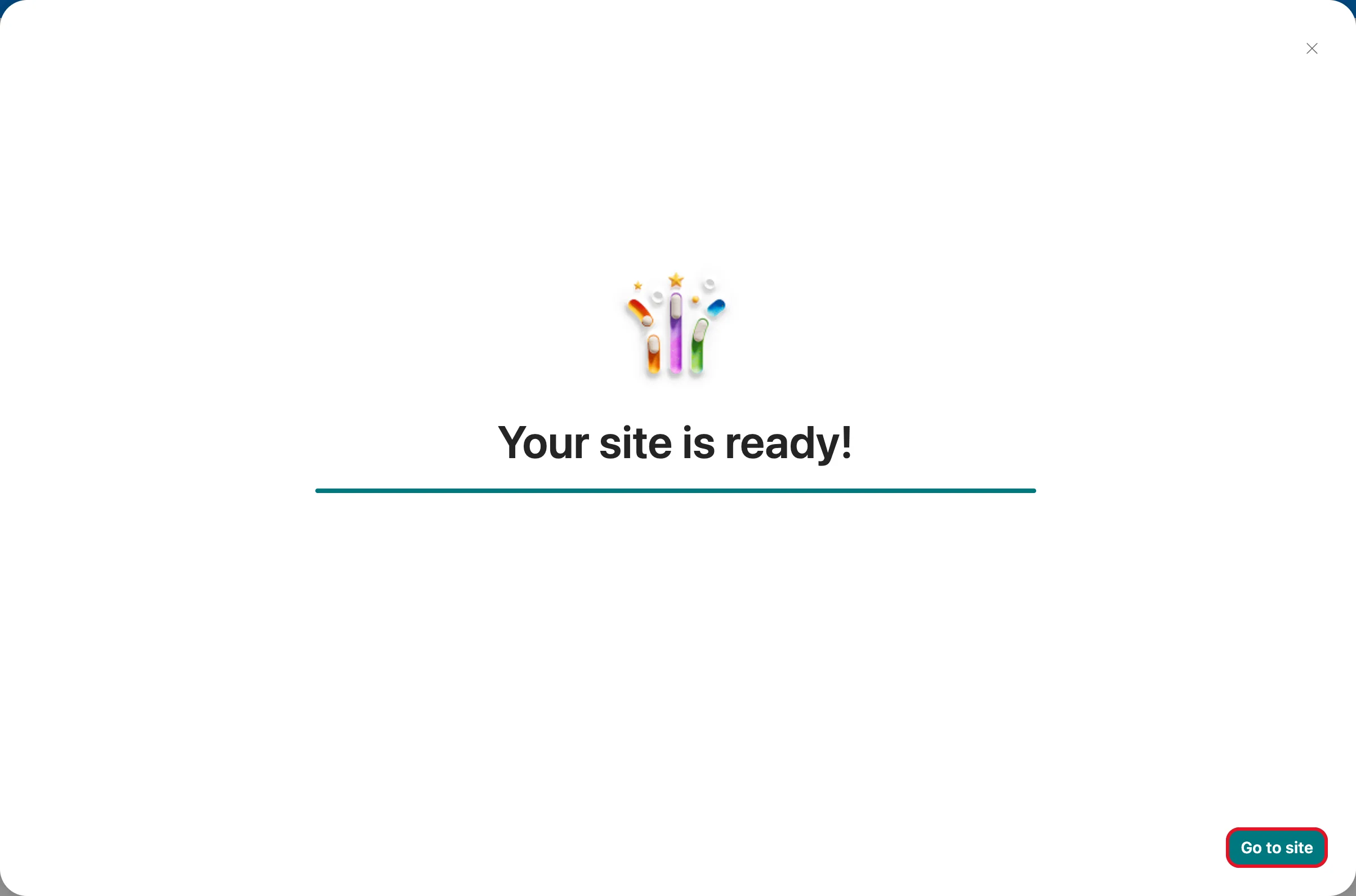
The new site opens. A Next steps panel may open on the right with suggestions such as sharing the site or posting news. Close it with its X.

You're the site's owner, and nobody else can open it yet: you're its only owner, and its members and visitors groups are empty. How to Give a Security Group Access to a SharePoint Site covers sharing it.
Step 6: Set the Site's Time Zone
A new site doesn't take your time zone, or your browser's. It takes the default time zone set in the SharePoint admin center, which is Pacific Time until an admin changes it. This site came up with (UTC-08:00) Pacific Time (US and Canada). Because SharePoint shows the dates and times in lists in the site's time zone, set it now.
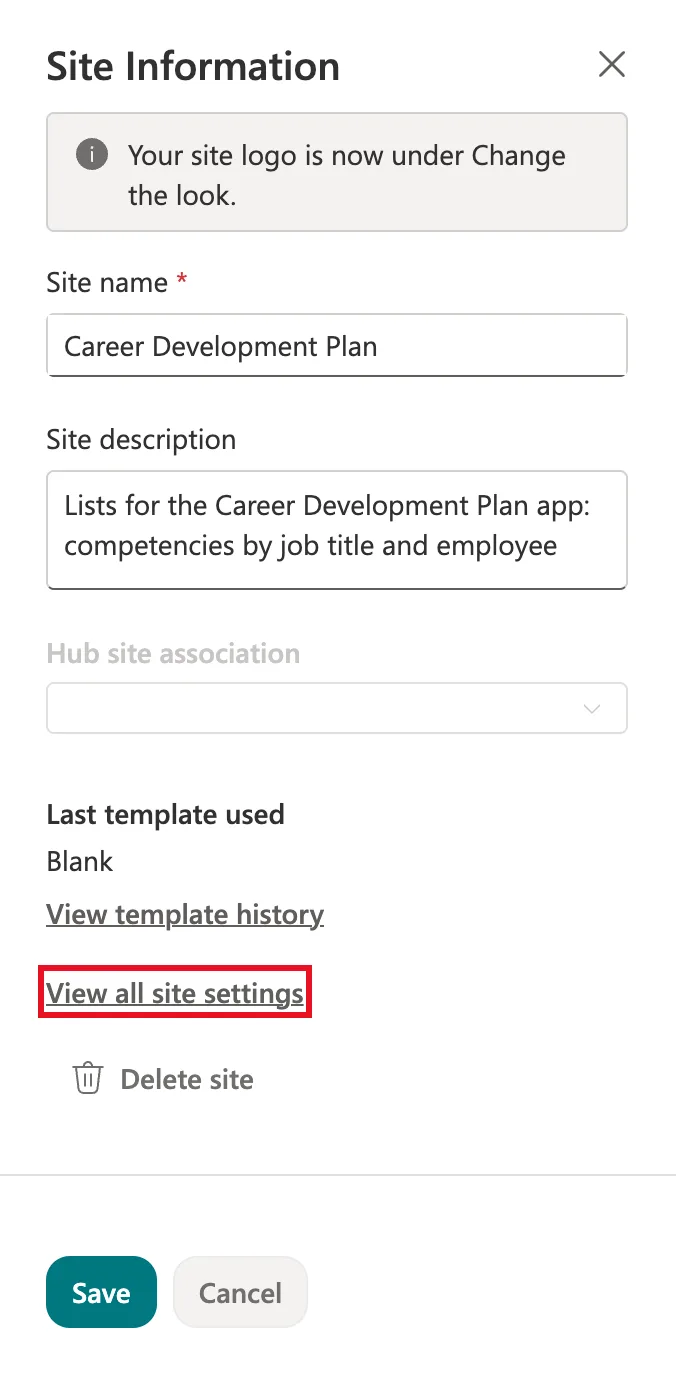
Select Settings, the gear at the top right, then Site information.
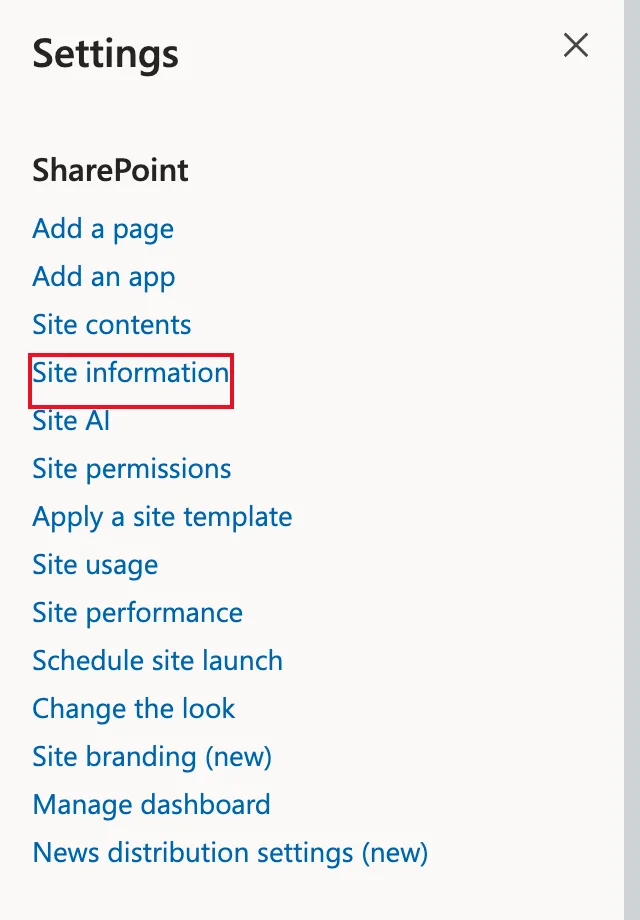
In the Site Information panel, select View all site settings. Delete site sits right below it, so take care.
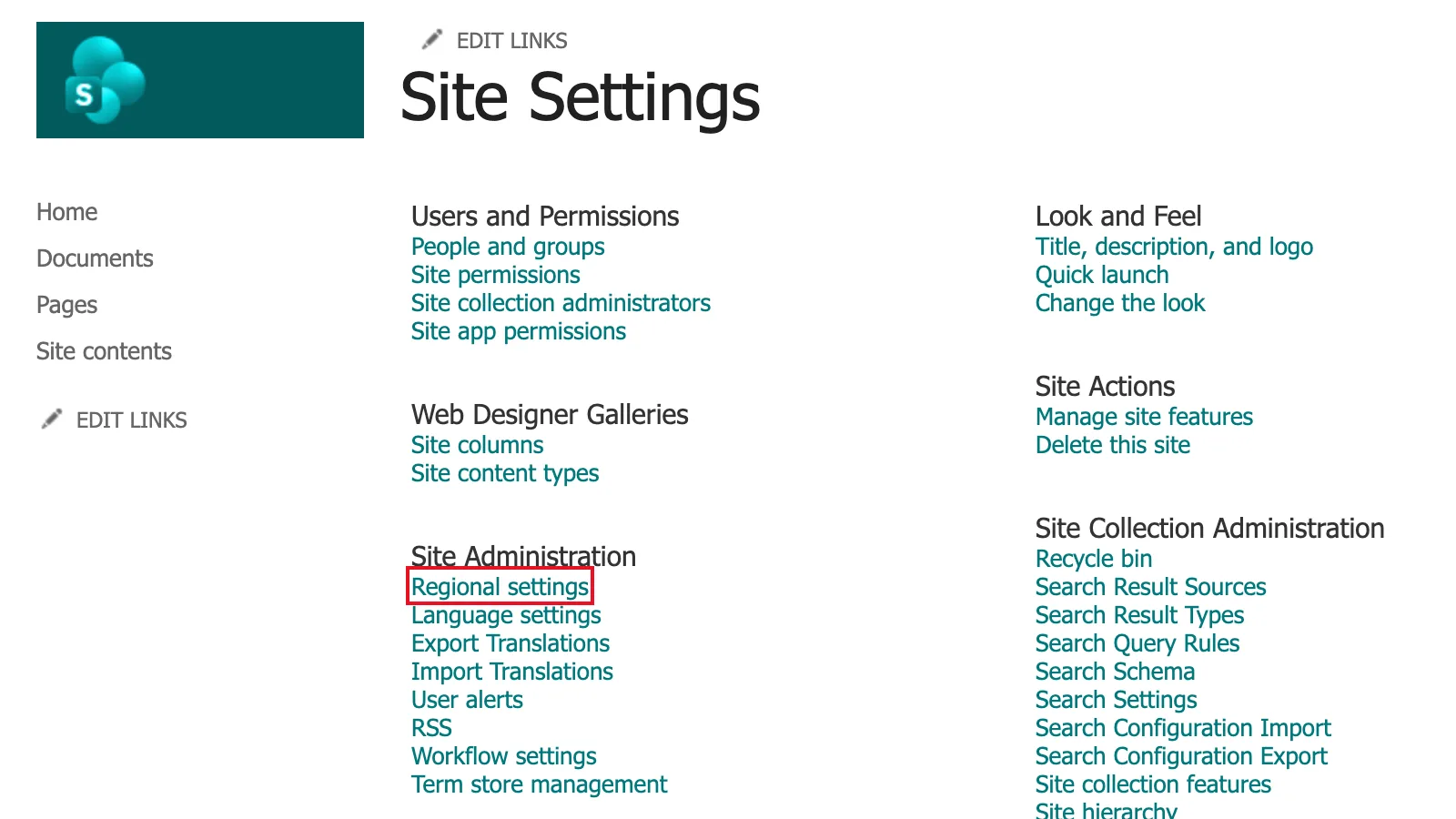
On the Site Settings page, under Site Administration, select Regional settings.
Choose your organization's time zone under Time zone, then select OK at the bottom of the page. This series uses (UTC) Coordinated Universal Time.
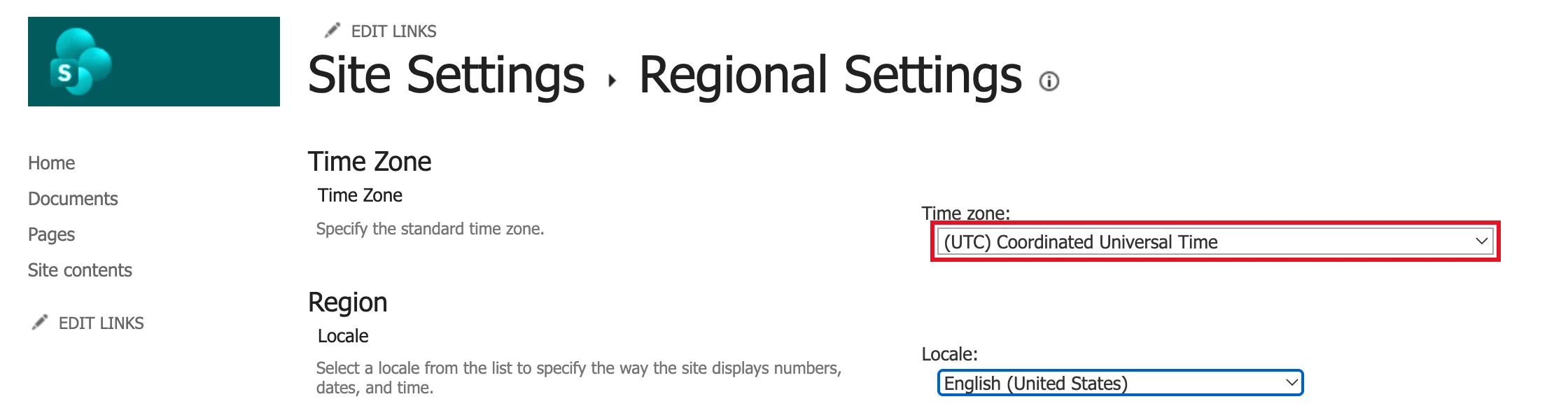
Locale, just below, is how the site formats numbers, dates and times. Leave it unless your organization uses a different format.
Common Mistakes
| Mistake | What happens | Do this instead |
|---|---|---|
| Creating a team site to hold app data | A Microsoft 365 group, mailbox and calendar are created that you don't need | Create a Communication site |
| Accepting the default template for a data site | The home page fills with sample hero, news and events sections | Pick Blank |
| Not checking the address before Create site | A long or odd address ends up in every app and link that uses the site | Edit Site address before you create the site |
| Picking the wrong language | It can't be changed later | Check Select a language before Create site |
| Leaving the default time zone | List dates and times show in Pacific Time | Set Regional settings → Time zone |
Troubleshooting
| Symptom | Likely cause | Fix |
|---|---|---|
| Site is missing on Build, or greyed out | Your admin has turned off site creation for users | Ask a SharePoint admin to create the site in the SharePoint admin center (Sites → Active sites → Create), or to allow it under Settings → Site creation |
| SharePoint says the address isn't available | Another site already uses it | Choose a different address |
| Dates in your lists are hours off | The site still uses the default time zone | Set the time zone as in Step 6 |
| Regional settings isn't there | You aren't an owner of the site | Ask the site's owner to change it |
| You can't find the site again | — | SharePoint adds the sites you create to the ones you follow: it shows Following in the site's header. Find it under Discover → Sites |
FAQ
Should I create a team site or a communication site?
Create a team site when a group of people will work together and want a shared mailbox, calendar or Teams team. Create a communication site to publish information, or to give an app somewhere to keep its data. It comes with nothing else attached.
Can I change the template later?
Yes. Site owners can select Settings → Apply a site template. Microsoft points out that your content isn't merged into the new template: SharePoint adds the template's pages and content, and your existing pages, lists and libraries stay in Site contents.
Can I change the site address later?
Only a SharePoint admin can, from the SharePoint admin center. The site is read-only while the change runs, and SharePoint leaves a redirect at the old address.
Can I change the site's language later?
No. Choose it when you create the site.
Who can see the new site?
Only you, until you share it. The person who creates a communication site is its owner, and its members and visitors groups start empty.
Can an admin create the site instead?
Yes. In the SharePoint admin center, Sites → Active sites → Create offers the same templates and lets the admin choose the owner.
Conclusion
A communication site gives you a plain SharePoint site with no group, mailbox or team attached. Create it from Build → Site → Communication site, pick Blank when the site only holds data, and check the address and language before you select Create site, because neither is easy to change afterwards. Then fix the time zone under Regional settings, so dates show the way your organization expects.
Next, give the people who need the site access to it: How to Give a Security Group Access to a SharePoint Site.
Additional Resources
- Build a Career Development Plan App in Power Apps — Part 1: the series this site belongs to.
- Create a communication site in SharePoint: Microsoft's steps, including the Build route.
- Use the SharePoint Standard communication, Showcase, and Blank communication site templates: what each template starts with.
- Manage site creation in SharePoint: the admin setting that allows or blocks site creation, and the default time zone for new sites.
- Change regional settings for a site: time zone, locale and the other regional options.
- Change a site address: how admins rename a site's URL, and what happens to the old one.
