How to Create a Semantic Model Without a Report in Power BI

When you get data in the Power BI service, the last step offers two ways out: Create a report or Create a semantic model only. The second saves the model and opens it in the model editor, so you can add relationships, measures and row-level security before anyone builds a report on it. Here's how.
Microsoft's Edit semantic models in the Power BI service says Create a semantic model only creates just the semantic model, without launching the report editor, and calls it ideal if you want to refine your semantic model, add relationships, create DAX measures, or configure row-level security before building reports. The example finishes three shaped queries, Expenses, Expense Categories and Category managers, into a model called Expenses (How to Get Data from a SharePoint List in Power BI in the Browser).
Step 1: Choose Create a Semantic Model Only
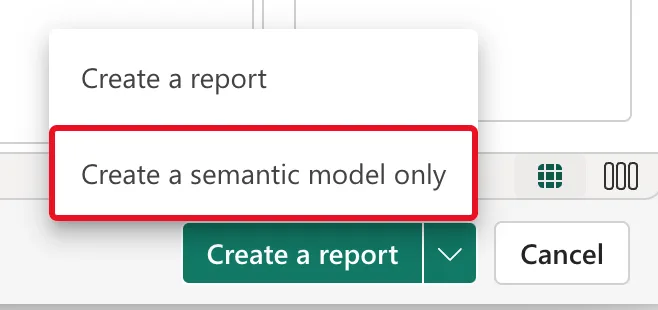
At the bottom right of Power Query, the green button reads Create a report. Select the arrow beside it and choose Create a semantic model only:
Step 2: Name the Model and Pick Its Workspace
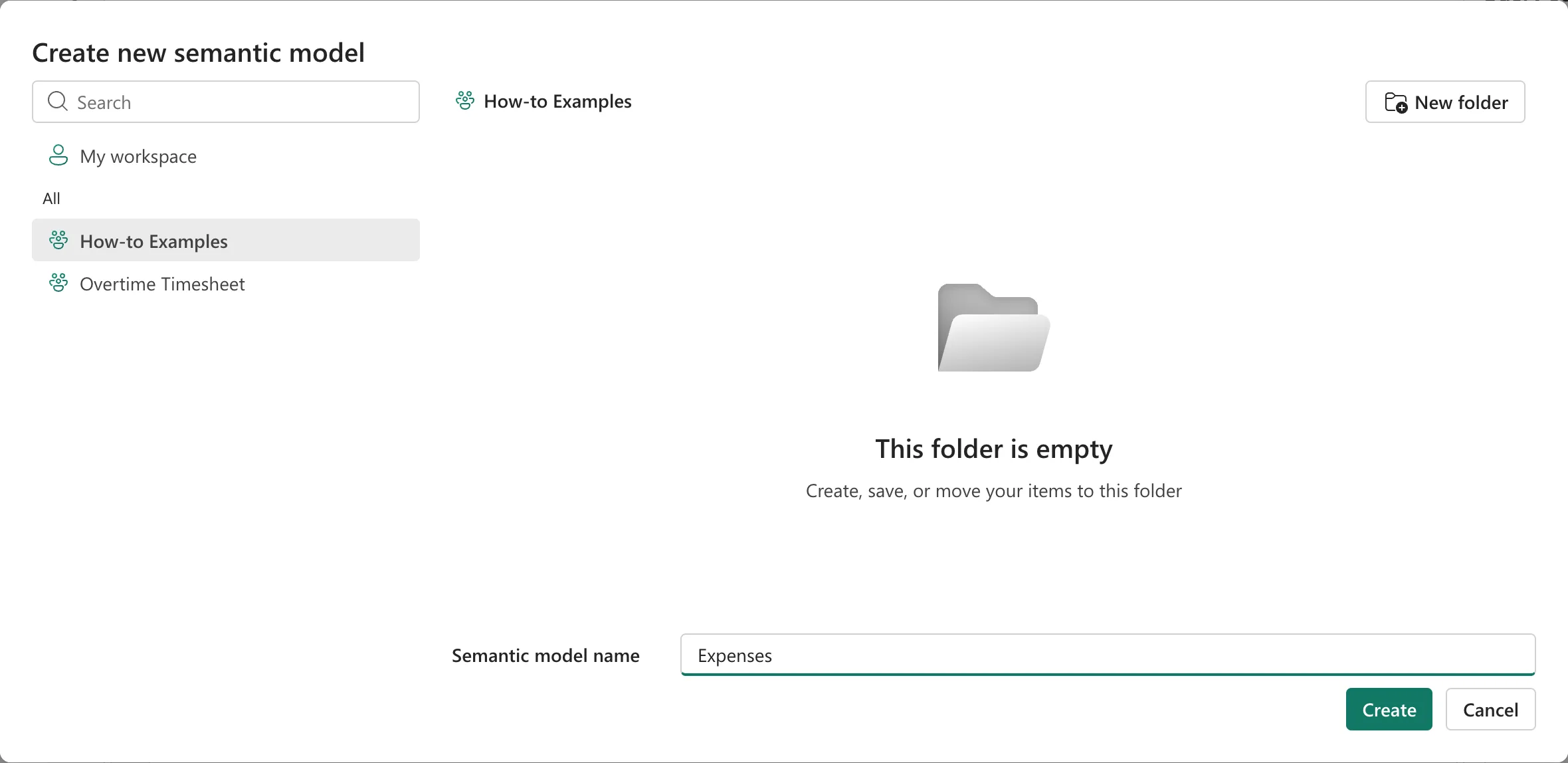
The Create new semantic model dialog lists My workspace and your workspaces. The workspace you started from is selected, here How-to Examples. Type the Semantic model name, here Expenses, and select Create:
Step 3: Check the Model
Power BI loads the data and opens the model editor in Model view, with a card for each table and its columns:
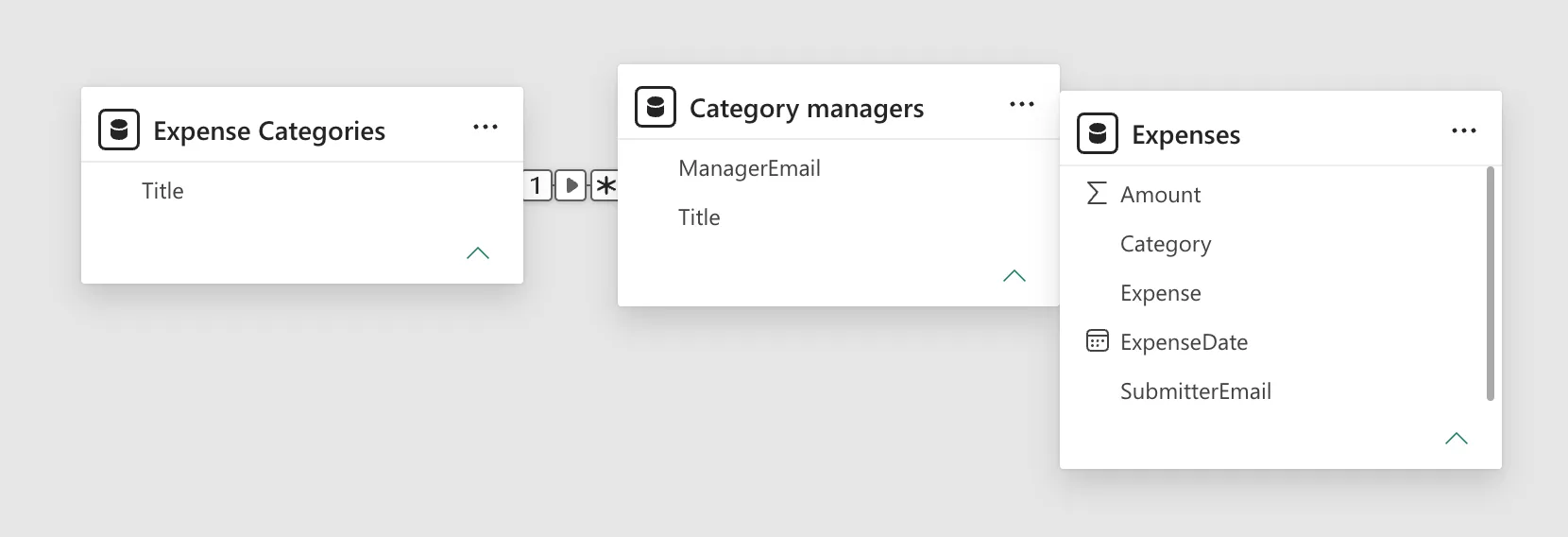
Power BI had already added a relationship between Expense Categories and Category managers, through their Title columns, but none to Expenses. Always check relationships Power BI made for you, and add the ones it missed (How to Create a Relationship Between Two Tables in Power BI).
Changes in the model editor save automatically. The model now appears in the workspace, ready for measures (How to Create a Measure in Power BI in the Browser) and a report (How to Create a Report from a Semantic Model in Power BI).
Common Mistakes
| Mistake | What happens | Do this instead |
|---|---|---|
| Selecting the green button itself | Power BI opens the report editor at once | The arrow, then Create a semantic model only |
| Saving to My workspace by habit | Nobody else can use the model | The shared workspace |
| Trusting the automatic relationships | A relationship can join the wrong columns | Check each one, and add the missing ones |
Troubleshooting
| Symptom | Likely cause | Fix |
|---|---|---|
| A table is missing from the model | Its query had Enable load off | Turn it on in Power Query and update the model |
| A column has the wrong type | Its type wasn't set in Power Query | Set it in Power Query or in the model's Properties |
| A relationship line joins unexpected columns | Power Query's names matched by chance | Edit or delete it in Manage relationships |
FAQ
Can I go back to Power Query later?
Yes. In the model editor, Transform data opens Power Query with the model's queries, as Microsoft's article describes.
Is there an undo?
No. The same article says changes are saved automatically and are permanent with no option to undo. It mentions the semantic model's version history for recovering the model to an earlier point.
Does the model refresh by itself?
Not until you schedule it (How to Schedule a Refresh of a Power BI Semantic Model).
Conclusion
In Power Query, select the arrow beside Create a report, then Create a semantic model only, name the model and pick the workspace. Power BI saves it and opens the model editor; the example's Expenses model had three tables and one automatic relationship to check.
