How to Create a Security Group in the Microsoft Entra Admin Center

Giving a team access to something one person at a time works until someone joins or leaves. Then you're editing access in five places. A security group fixes that: you give access to the group once, and from then on you only change who is in it.
What You Will Build
In this guide you will create a security group called Career Development Plan Users in the Microsoft Entra admin center:
- Owner: you, the admin. Owners manage the group.
- Members: Olivia Bennett and Daniel Brooks, added while creating the group. Aisha Khan and Leo Martin are added afterwards with Microsoft Graph PowerShell.
The group belongs to the Career Development Plan app series. Later parts share the Power Apps app and its SharePoint site with this group rather than with individual people. Microsoft recommends sharing with a security group, and calls it out specifically for apps shared with more than 100 users.
Two choices on the form decide what kind of group you get:
- Group type. A Security group is a list of people (or devices) that you give access to things. A Microsoft 365 group also comes with a shared mailbox, calendar and SharePoint site. To control who can open an app or a site, you want Security.
- Membership type. Assigned means you add and remove members yourself. Dynamic groups fill themselves from rules, such as "everyone whose department is Sales", and need a Microsoft Entra ID P1 or P2 license.
Prerequisites
- An admin account with at least the Groups Administrator or User Administrator role. Microsoft names those as the roles that can create groups. Global Administrator works too, but keep it for emergencies.
- The people you'll add already exist. For the demo team, see How to Add a User and Assign a License in the Microsoft 365 Admin Center and How to Set a User's Manager and Job Title in the Microsoft Entra Admin Center.
- For the PowerShell section only: PowerShell 7 and the Microsoft Graph PowerShell modules. The section installs the one it needs.
Security groups with assigned membership are free: they work with the Microsoft Entra ID Free edition that comes with every Microsoft 365 subscription.
Step 1: Open Entra ID Groups
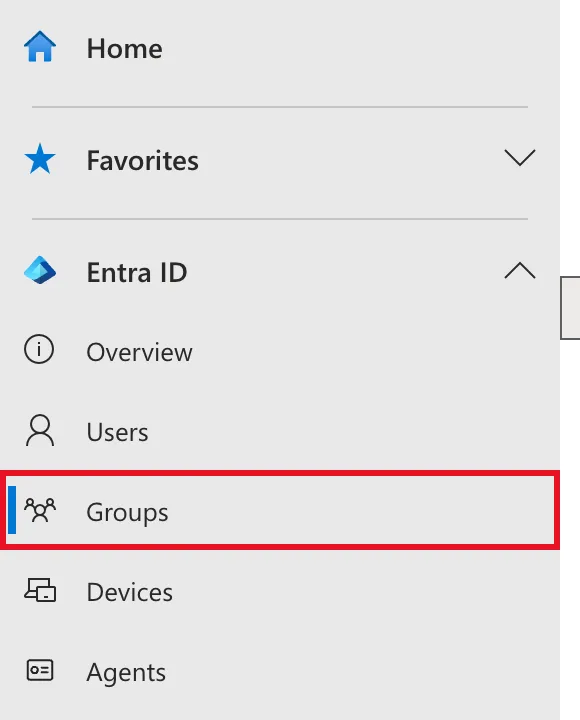
Sign in to the Microsoft Entra admin center and select Entra ID → Groups in the left-hand menu.
Step 2: Select New Group
Groups | All groups lists the groups that already exist in your organization. Select New group in the command bar.

Step 3: Describe the Group
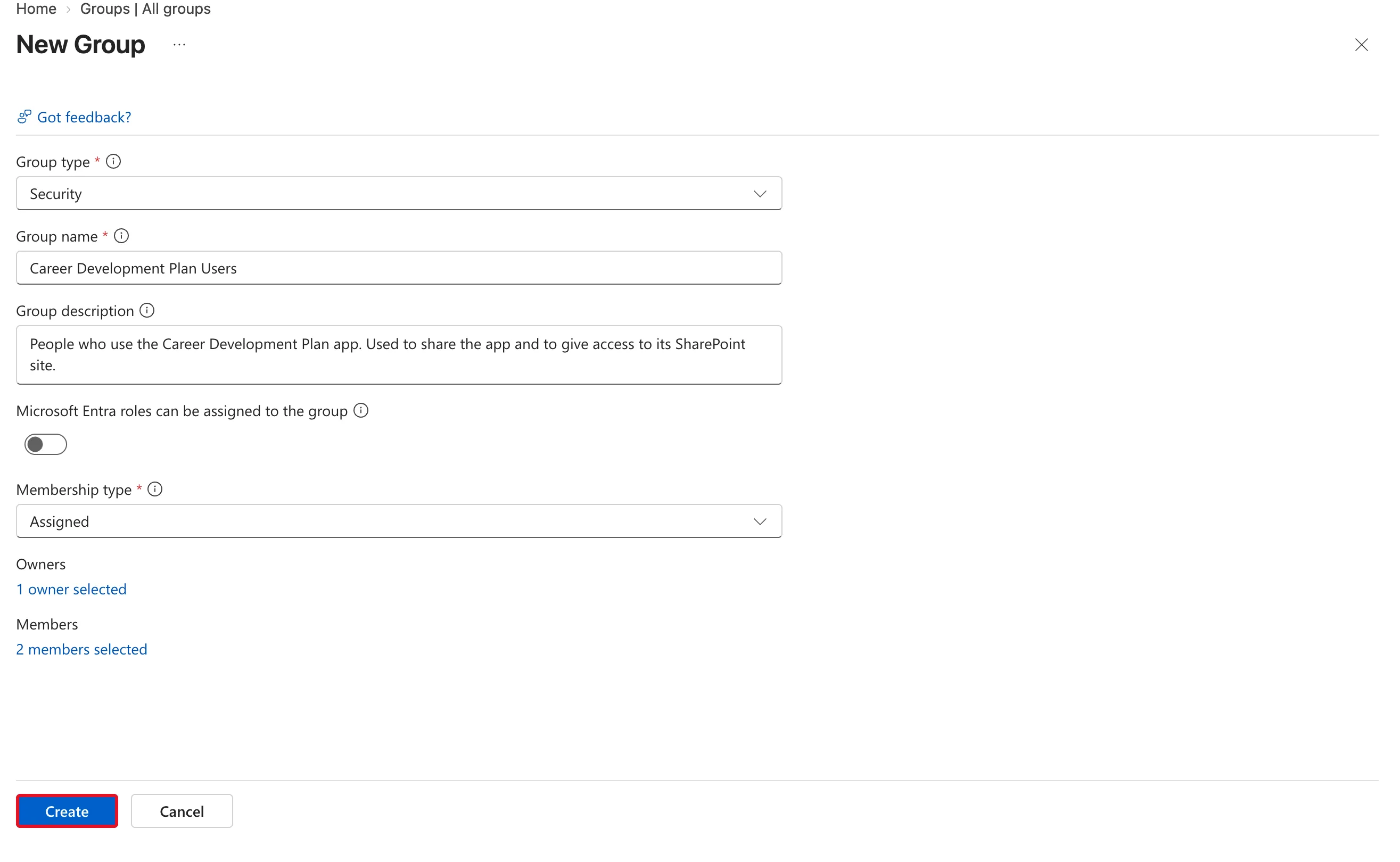
Fill in the New Group form:
| Field | Value | Why |
|---|---|---|
| Group type | Security (the default) | You only need a list of people to give access to |
| Group name | Career Development Plan Users | Name it after what it's for, so its purpose is obvious in every access list |
| Group description | People who use the Career Development Plan app. Used to share the app and to give access to its SharePoint site. | Tells the next admin why the group exists |
| Microsoft Entra roles can be assigned to the group | Off (the default) | Only needed to give admin roles through a group |
| Membership type | Assigned (the default) | You choose the members yourself |
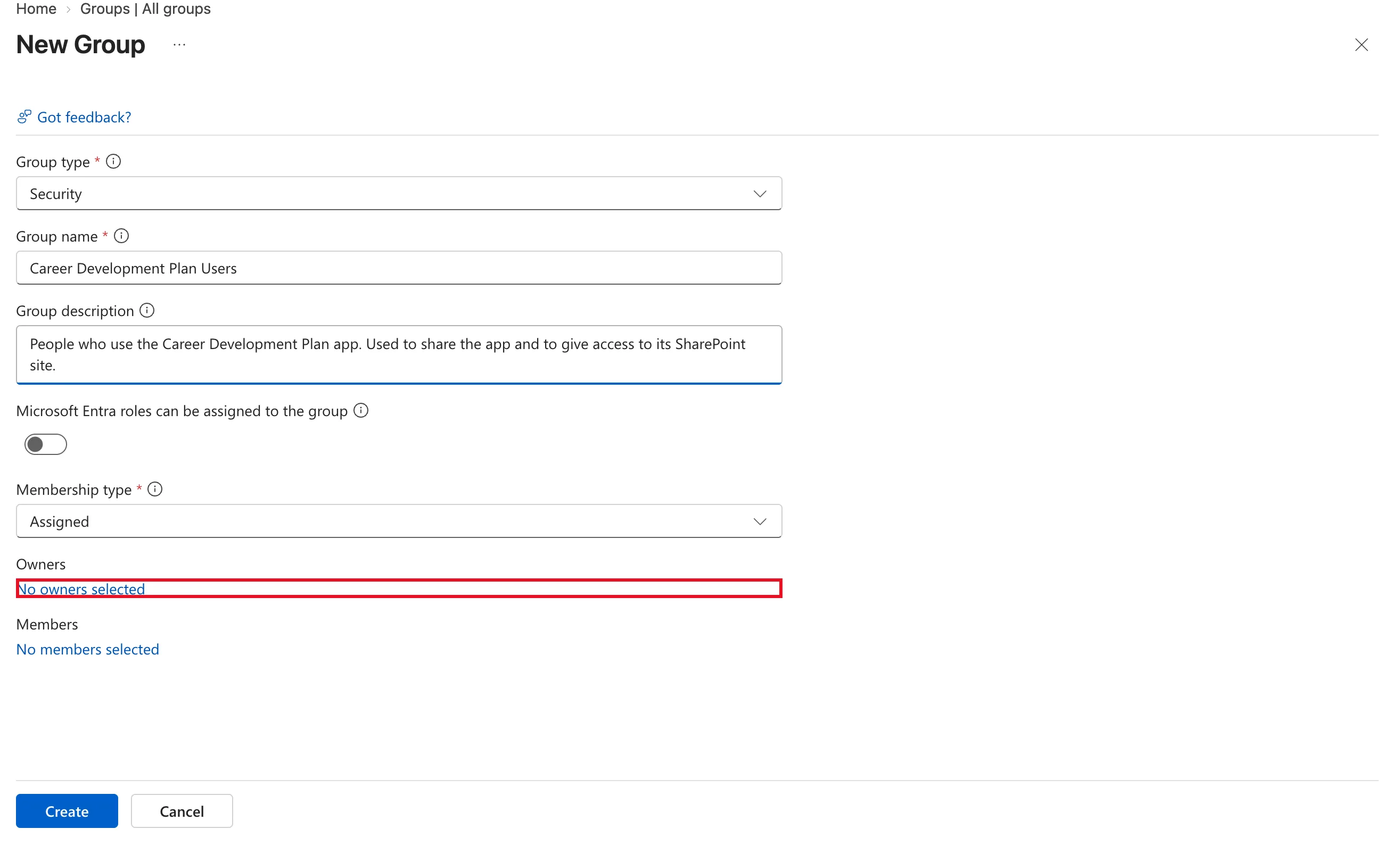
Leave the role toggle off unless you know you need it. Microsoft notes it needs a Microsoft Entra ID P1 or P2 license and at least the Privileged Role Administrator role, and it turns the group into one that can hold admin roles. That's more power than a group for sharing an app should have. Microsoft also warns that a group name mustn't start with a space, or the group won't show up in some pickers later.
Step 4: Add an Owner
Under Owners, select No owners selected. The Add owners panel lists the people in your directory. Tick yourself, shown here as Admin User, and select Select.
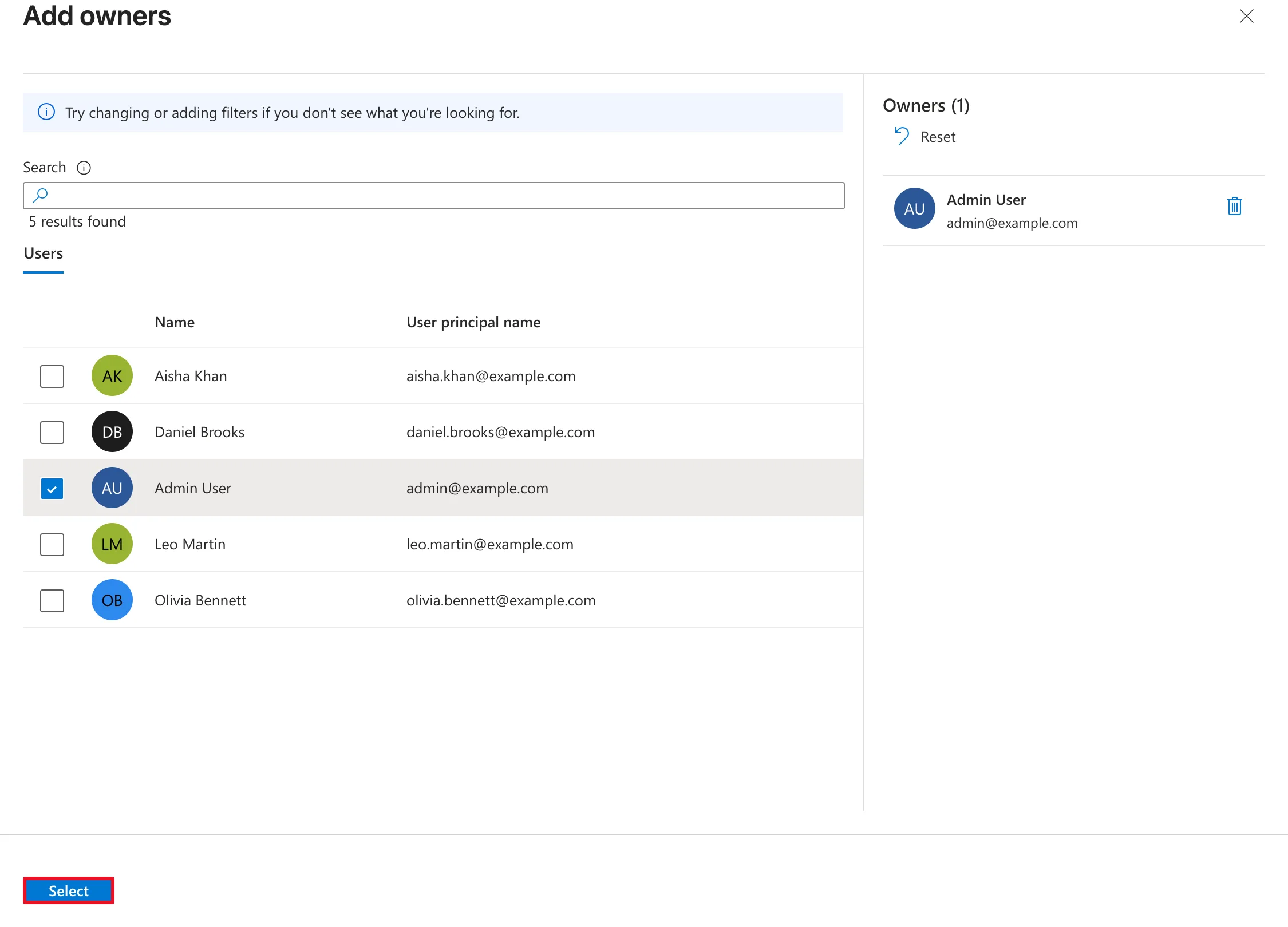
Owners can manage the group's members and settings without an admin role. A group with no owner can only be managed by admins.
Step 5: Add Members
Under Members, select No members selected. The Add members panel opens on its All tab, which mixes users with groups, devices and enterprise applications. Select the Users tab to see only people. Then tick Olivia Bennett and Daniel Brooks. Both appear under Selected (2). Select Select.
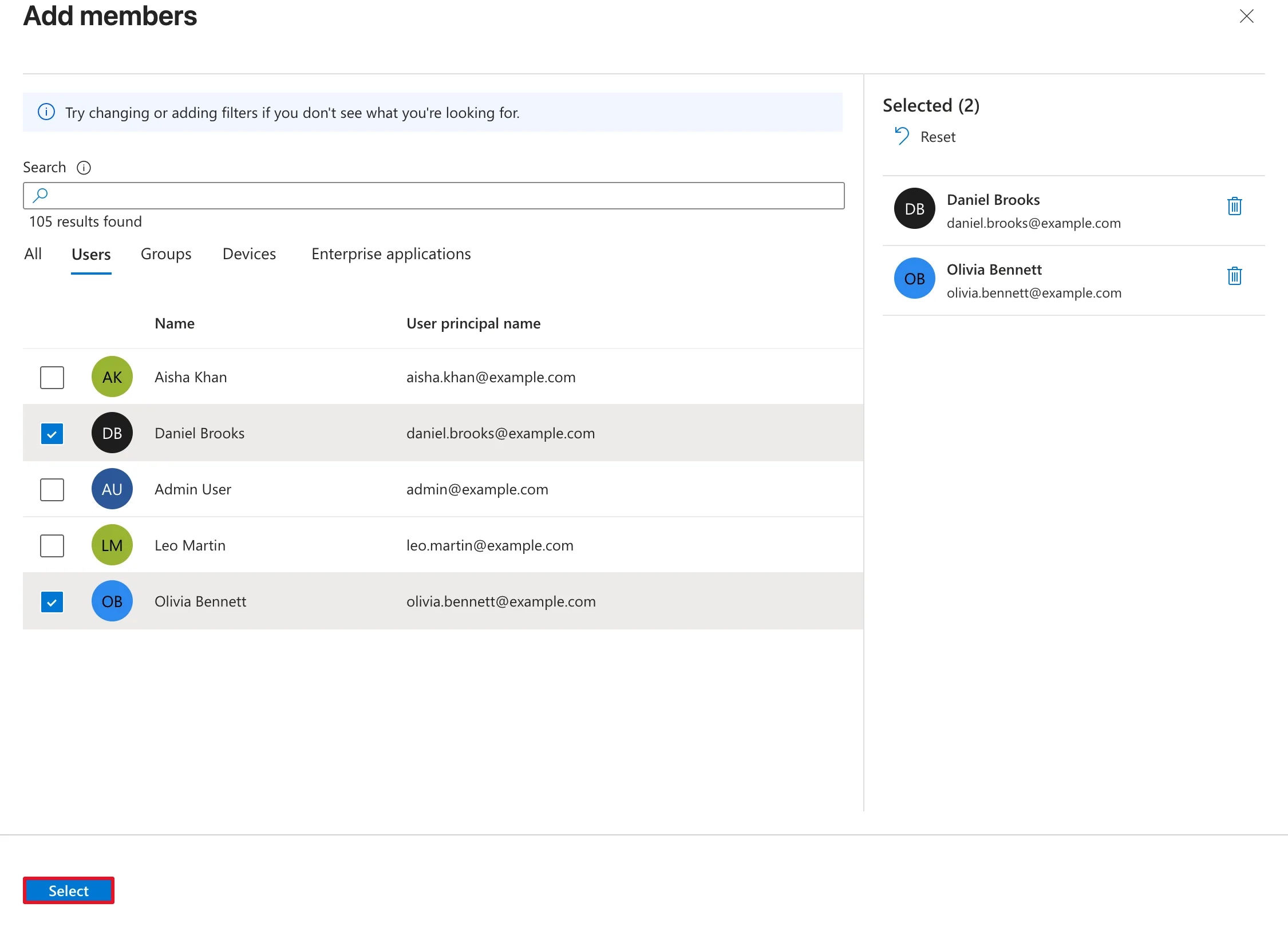
Owners and members are separate lists. Adding yourself as an owner doesn't make you a member. If owners should also get whatever the group gives access to, add them as members too.
Step 6: Create the Group
Back on the form, Owners now reads 1 owner selected and Members reads 2 members selected. Select Create.
Step 7: Find the New Group
You're taken back to All groups. The new group may not be in the list straight away: right after creating it here, the list still showed only the groups that existed before. Type Career in the Search box and select Refresh. The group appears with Group type Security and Membership type Assigned.
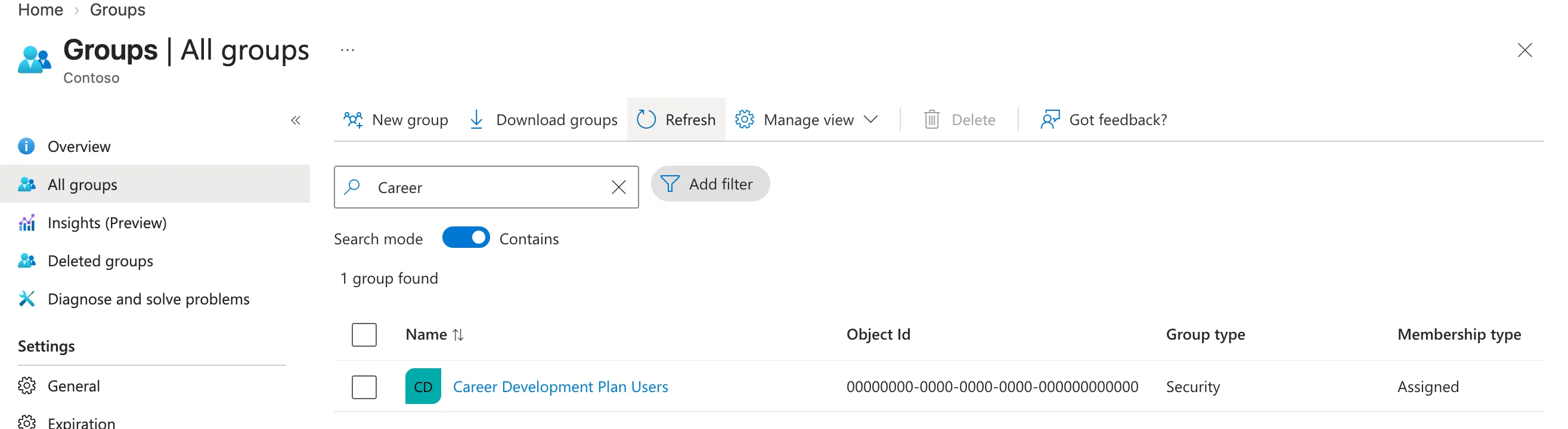
Searching is also the tidy way to work in a tenant that has many groups: you only see the one you're working on.
Do It with PowerShell
Every command in this section was run for this guide, and the output is real, with addresses masked. It adds the other two members, Aisha and Leo, and lists the group.
Install the modules
Group cmdlets are in Microsoft.Graph.Groups, and Get-MgUser, which finds each person, is in Microsoft.Graph.Users:
Install-Module Microsoft.Graph.Groups -Scope CurrentUser -Repository PSGallery -Force
Install-Module Microsoft.Graph.Users -Scope CurrentUser -Repository PSGallery -Force
These install for your account only, with no administrator rights on your computer. Skip the second line if you installed Microsoft.Graph.Users for the manager and job title guide.
Sign in with only the permissions you need
Connect-MgGraph -Scopes "GroupMember.ReadWrite.All","User.ReadBasic.All" -NoWelcome
- GroupMember.ReadWrite.All lets the commands change group membership, and nothing else about groups.
- User.ReadBasic.All lets them look people up by sign-in name.
A browser sign-in opens. Because these are new permissions, Microsoft asks you to accept them for Microsoft Graph Command Line Tools.
Find the group
$group = Get-MgGroup -Filter "displayName eq 'Career Development Plan Users'"
$group | Select-Object DisplayName, SecurityEnabled, MailEnabled | Format-List
-Filter asks Microsoft Graph for the group by its exact name. $group keeps the result, including its Id, for the next commands.
DisplayName     : Career Development Plan Users
SecurityEnabled : True
MailEnabled     : False
SecurityEnabled True and MailEnabled False is what makes this a security group rather than a Microsoft 365 group.
Add members
foreach ($upn in "aisha.khan@example.com", "leo.martin@example.com") {
    $user = Get-MgUser -Filter "userPrincipalName eq '$upn'"
    New-MgGroupMember -GroupId $group.Id -DirectoryObjectId $user.Id
    "Added $($user.DisplayName)"
}
For each sign-in name in the list, Get-MgUser finds the person and New-MgGroupMember adds them to the group by their ID. The last line prints a confirmation, because New-MgGroupMember itself prints nothing when it works.
Added Aisha Khan
Added Leo Martin
List the members
Get-MgGroupMember -GroupId $group.Id -All |
    Select-Object @{Name='DisplayName';Expression={$_.AdditionalProperties.displayName}},
                  @{Name='UserPrincipalName';Expression={$_.AdditionalProperties.userPrincipalName}} |
    Format-Table
-All returns every member, not just the first page. A group's members can be users, devices or other groups, so their names come back inside AdditionalProperties, which is why each column is picked out with an @{...} expression.
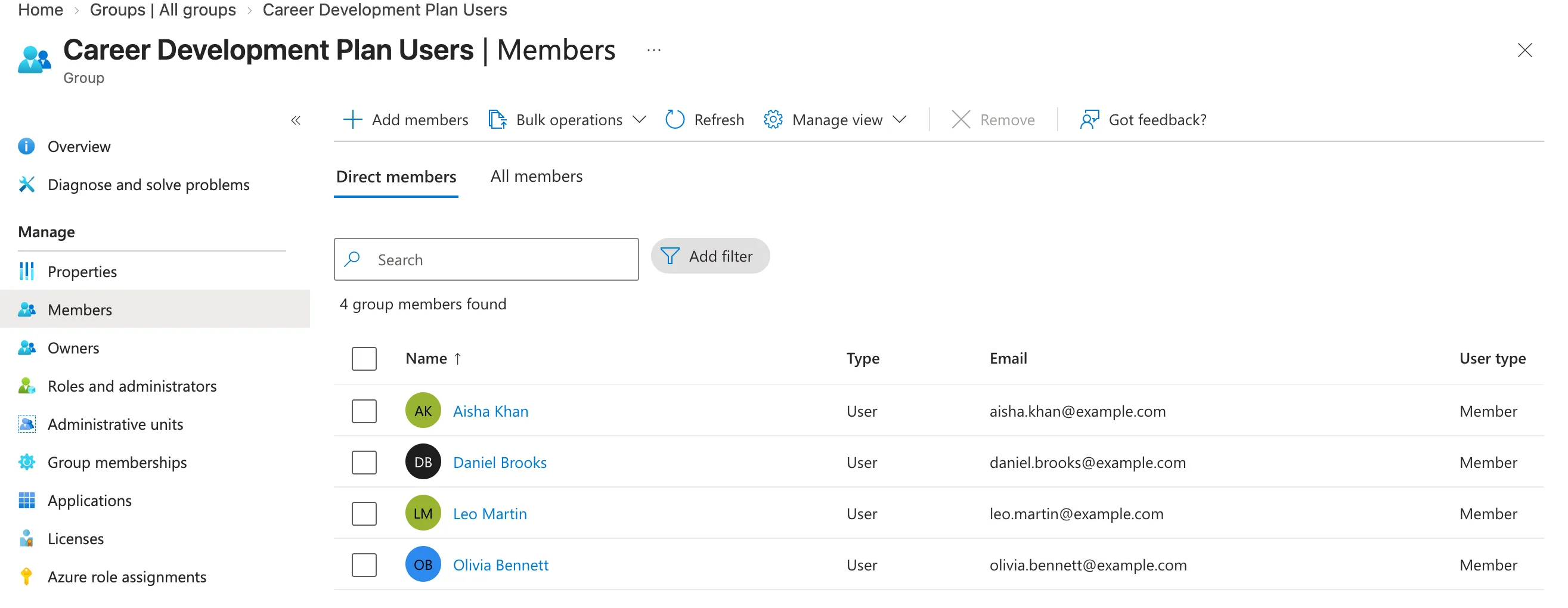
DisplayName    UserPrincipalName
-----------    -----------------
Olivia Bennett olivia.bennett@example.com
Aisha Khan     aisha.khan@example.com
Daniel Brooks  daniel.brooks@example.com
Leo Martin     leo.martin@example.com
When you're done, sign out with Disconnect-MgGraph.
The admin center shows the same four people. Open the group and select Members:
Creating the group with PowerShell
The group was created in the admin center, so creating it again would only have made a duplicate. Below is Microsoft's documented command for creating a security group, so you have the full PowerShell route. There's no captured output for it.
Connect-MgGraph -Scopes "Group.Create"
New-MgGroup -Description "<group purpose>" -DisplayName "<name>" -MailEnabled:$false -SecurityEnabled -MailNickname "<email name>"
-MailEnabled:$false together with -SecurityEnabled is what makes it a security group. -MailNickname is required even though the group gets no mailbox.
Common Mistakes
| Mistake | What happens | Do this instead |
|---|---|---|
| Choosing Microsoft 365 as the group type | You also get a mailbox, calendar and SharePoint site you didn't need | Choose Security for a group that only controls access |
| Assuming owners are members | Owners don't get what the group gives access to | Add owners as members too when they need access |
| Leaving the group without an owner | Only admins can manage it | Add at least one owner, ideally two |
| Turning on Microsoft Entra roles can be assigned to the group | The group can hold admin roles and needs P1 or P2 licensing | Leave it off for groups that share apps or sites |
Naming the group after people (Daniel's team) | The name is wrong as soon as the team changes | Name it after its purpose (Career Development Plan Users) |
| Picking members on the All tab | Apps and devices are easy to tick by mistake | Switch to the Users tab first |
Troubleshooting
| Symptom | Likely cause | Fix |
|---|---|---|
| The new group isn't in All groups | The list wasn't refreshed yet | Search for the group's name and select Refresh |
| New group is missing or greyed out | Your role can't create groups | Use an account with Groups Administrator or User Administrator |
| Dynamic User can't be selected as the membership type | Dynamic membership needs Microsoft Entra ID P1 or P2 | Use Assigned, or license the tenant for P1 |
New-MgGroupMember fails with an authorization error | The sign-in doesn't include a membership permission | Sign in again with -Scopes "GroupMember.ReadWrite.All" |
New-MgGroupMember says it Cannot bind argument to parameter 'GroupId' because it is an empty string | $group is empty: the sign-in didn't complete, or the name in -Filter didn't match | Check that Connect-MgGraph succeeded, then check the group's exact display name |
Get-MgUser -Filter returns nothing | The sign-in name is mistyped | Check the exact user principal name in Users |
FAQ
What's the difference between a security group and a Microsoft 365 group?
A security group is a list of members you give access to things: apps, SharePoint sites, licenses, policies. A Microsoft 365 group is for collaboration. It also has a shared mailbox, calendar and SharePoint site, and can be connected to a Microsoft Teams team. For access control, a security group is the simpler fit.
Can I share a Power Apps app with a security group?
Yes. Microsoft recommends a security group when sharing an app with more than 100 users. The Career Development Plan series shares its app with this group.
Do owners count as members?
No. Owners manage the group, and members are who the group is for. Add a person to both lists if they need both.
Can a group be a member of another group?
Security groups can be nested, by adding one as a member of another under Group memberships. Microsoft notes some limits: for example, nested groups don't get access to apps assigned to the parent group. Keep it flat unless you need nesting.
Does a security group cost anything?
No. Assigned security groups work with the free edition of Microsoft Entra ID. Dynamic membership is the feature that needs P1 or P2.
How do I remove someone from the group?
Open the group, select Members, tick the person and select Remove. They lose whatever the group gave them, which is exactly what you want when someone leaves the team.
Conclusion
A security group is the simplest way to give a team access to something. Create it under Entra ID → Groups → New group: type Security, membership Assigned, at least one owner, and the members.
After that, grant access to the group and manage the people inside it, either in the admin center or with New-MgGroupMember and Get-MgGroupMember in PowerShell. Remember that owners manage the group but aren't members unless you add them.
The demo team is ready: four people with licenses, job titles, managers and a shared group. The Career Development Plan series builds on exactly this setup.
Additional Resources
- Build a Career Development Plan App in Power Apps — Part 1: where this group gets used.
- How to Set a User's Manager and Job Title in the Microsoft Entra Admin Center: the step before this one.
- Manage Microsoft Entra groups and group membership: Microsoft's own walkthrough of New group, owners, members and nesting.
- Learn about groups and membership types: security vs Microsoft 365 groups, and assigned vs dynamic membership.
- Manage security groups with PowerShell: creating, listing and managing owners of security groups with Microsoft Graph PowerShell.
