How to Create a Relationship Between Two Tables in Power BI

A relationship tells Power BI how two tables match, so a filter on one reaches the other: pick a category, and the expenses of that category follow. Power BI sometimes adds relationships for you, and sometimes misses one. Here's how to create one yourself in the Power BI service.
Microsoft's Edit semantic models in the Power BI service describes two ways: drag a column onto a column of another table in the diagram, or use Manage relationships in the ribbon. The example uses the dialog. Its model, Expenses, has an Expenses table with a Category column, and an Expense Categories table with one row per category in Title (How to Create a Semantic Model Without a Report in Power BI). Power BI didn't relate them.
Step 1: Open Manage Relationships
Open the model and select Manage relationships on the Home tab:

If the ribbon's buttons are greyed out, switch the model to Editing first, as the article describes.
Step 2: Select New Relationship
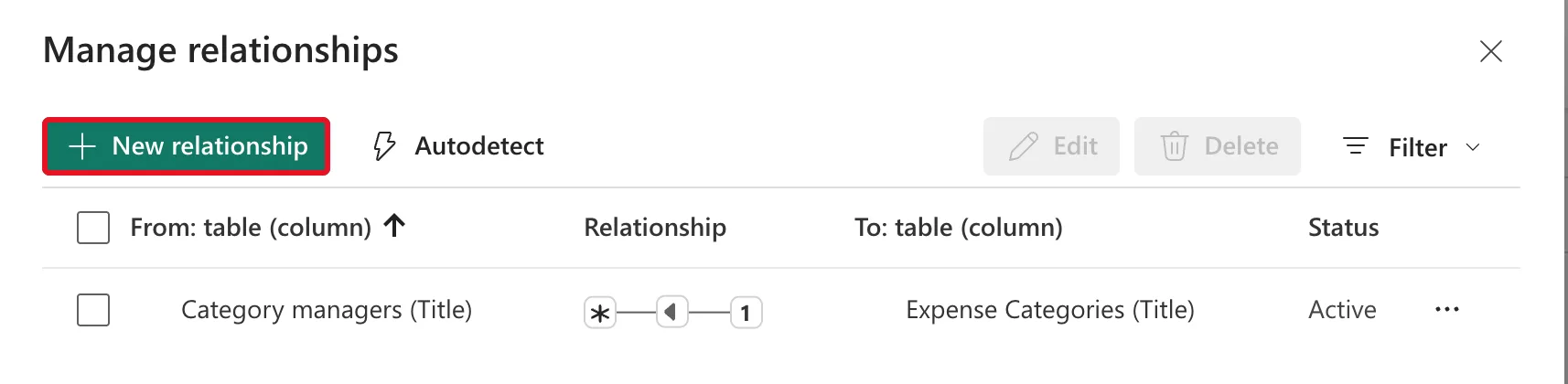
The Manage relationships dialog lists the model's relationships. In the example, it has the one Power BI made, Category managers (Title) to Expense Categories (Title). Select New relationship:
Step 3: Pick the Tables and Columns
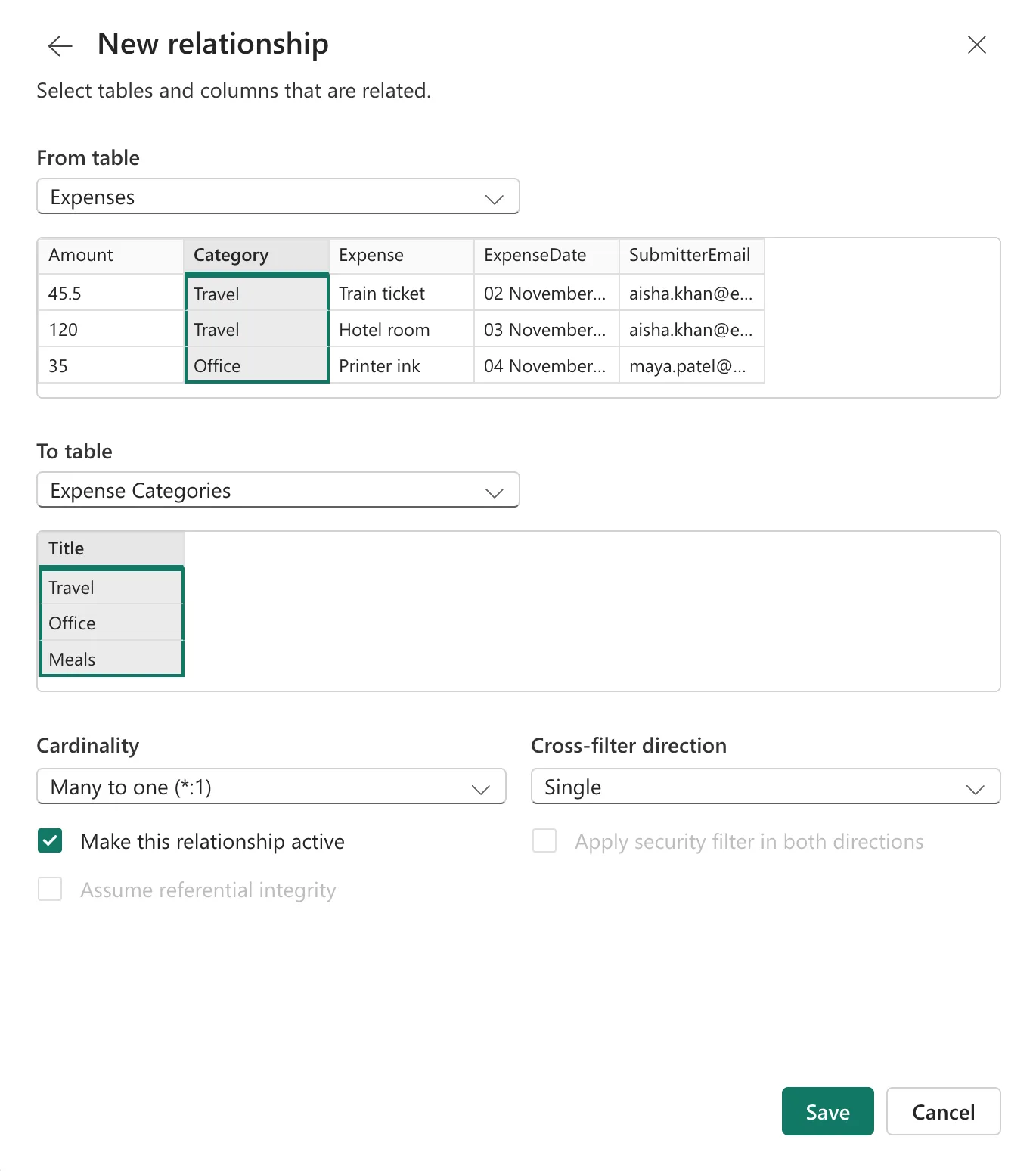
In New relationship:
- From table: the table with many rows per value, here Expenses. A preview of its rows appears; select the column to match, Category.
- To table: the table with one row per value, here Expense Categories, and its column Title.
Power BI fills in the rest from the data:
| Setting | Value | What it means |
|---|---|---|
| Cardinality | Many to one (*:1) | Many expenses can share one category |
| Cross-filter direction | Single | A filter on Expense Categories filters Expenses, not the other way round |
| Make this relationship active | Ticked | Power BI uses it for filtering |
Select Save.
Step 4: Check the Relationship
The dialog lists two relationships now, both Active:
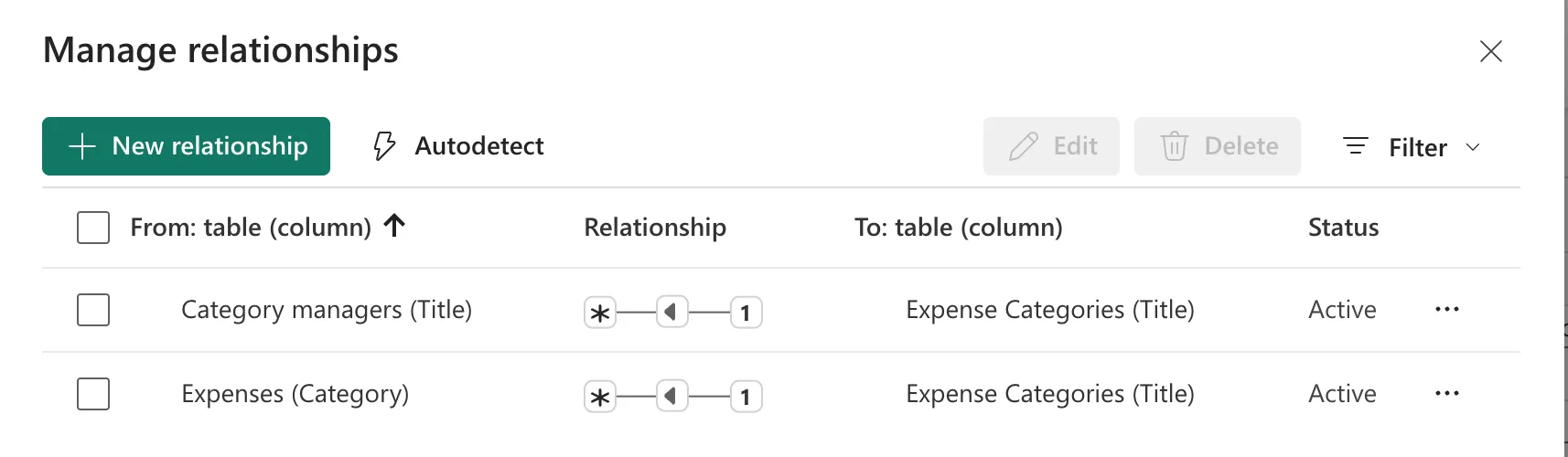
Close the dialog. In Model view, a line joins Expense Categories and Expenses, with 1 at the category end and * at the expenses end:
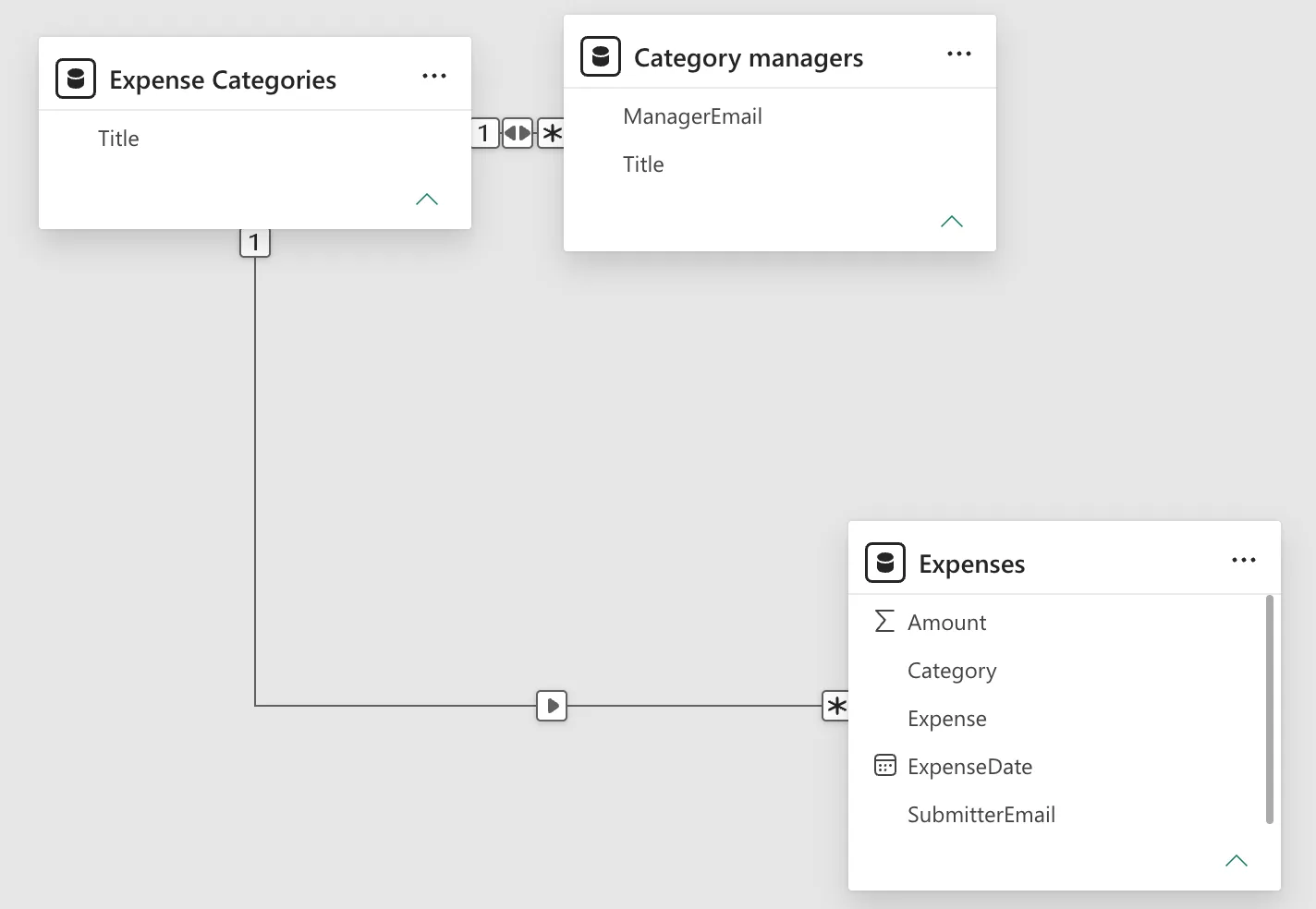
The arrow on the line shows which way filters flow: from the categories to the expenses.
Common Mistakes
| Mistake | What happens | Do this instead |
|---|---|---|
| Relating text names that can change | A renamed category breaks the match | Relate on values that don't change, such as IDs, when the data has them |
| Matching on a column whose values don't match exactly | Rows find no partner and show as (Blank) | Match on identical values |
| Leaving a wrong automatic relationship | Visuals filter by the wrong column | Check the list, and edit or delete it |
Troubleshooting
| Symptom | Likely cause | Fix |
|---|---|---|
| The ribbon's buttons are grey | The model is in Viewing mode | Switch to Editing |
| Cardinality shows One to one (1:1) | Each value appears once on both sides today | Choose the cardinality the data will have (Fixed: Apply Security Filter in Both Directions Is Missing in Power BI) |
| A visual shows a (Blank) group | Some values have no match in the other table | Fix the values at the source |
FAQ
Can I drag instead?
Yes: drag the Category column of Expenses onto the Title column of Expense Categories in the diagram, then check the settings that open.
What's Autodetect?
The button next to New relationship asks Power BI to look for relationships itself, as it did when the model was created. Check whatever it adds.
When do I need Both?
When a filter must flow from the many side back to the one side, such as for row-level security on a related table (How to Make a Relationship Filter in Both Directions in Power BI).
Conclusion
Manage relationships > New relationship, pick the many side as From and the one side as To, check Many to one and Single, and save. The example joined Expenses (Category) to Expense Categories (Title).
Additional Resources
- Edit semantic models in the Power BI service: create a relationship
- Create and manage relationships in Power BI Desktop: cardinality and cross-filter direction explained.
