How to Create a List and Add Columns in SharePoint Online

A SharePoint list is a table that lives on a SharePoint site: rows are items, and columns describe them. Creating one takes a minute. Getting its columns right takes a little more thought, because the name you give a column on day one is the name that apps and flows use for good.
What You Will Build
In this guide you'll create a list called RoleCompetencies, which records the competencies each job title needs, with four columns:
| Column | Type | Settings |
|---|---|---|
| Competency | Single line of text | Required |
| JobTitle | Single line of text | Required |
| Level | Choice: Beginner, Intermediate, Advanced, Expert | Required, no default |
| IsActive | Yes/No | Required, default Yes |
Along the way you'll replace the built-in Title column, which every list starts with, and see the other column types a typical app needs: number, multiple lines of text, a choice with a default, and date and time. Then you'll add the first item.
The list belongs to the Career Development Plan app series. The steps work for any list.
Name Columns Once, Carefully
Every SharePoint column has two names:
- The display name is what people see. You can change it whenever you like.
- The internal name (Microsoft's Power Fx documentation calls it the logical name) is what SharePoint uses underneath. It's taken from the name you type when you create the column and never changes after that, even if you rename the column.
Apps, flows and formulas often depend on the internal name. Spaces are where it goes wrong: a column created as Job Title gets the internal name Job_x0020_Title, because SharePoint stores each space as _x0020_. That code then shows up in flows, JSON formatting and REST calls.
So this guide names every column in PascalCase, with no spaces: JobTitle, IsActive. The internal name then matches the display name exactly, and it stays readable everywhere.
Prerequisites
- A SharePoint site. See How to Create a SharePoint Communication Site.
- Edit, Design or Full Control on the site. Creating lists and columns needs the right to manage lists, which starts at Edit. The site's owner has Full Control.
Step 1: Create the List
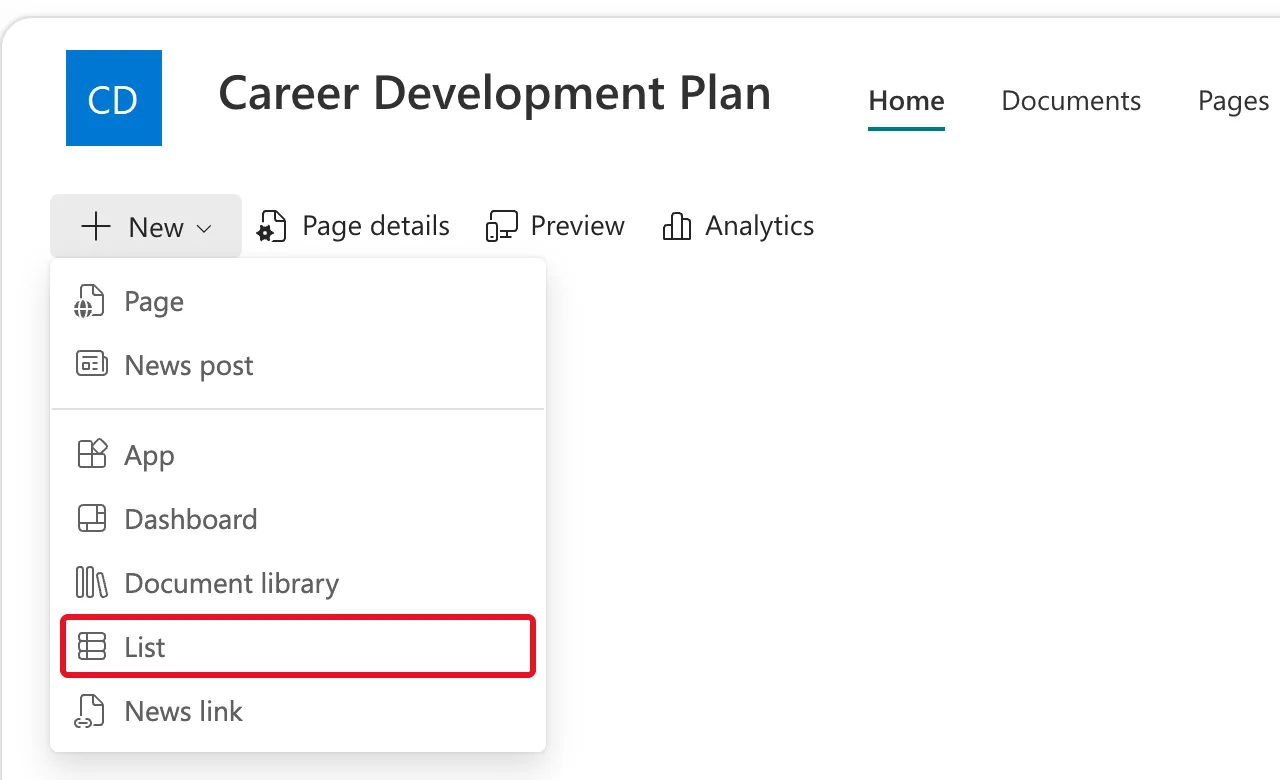
On the site's home page, select + New → List.
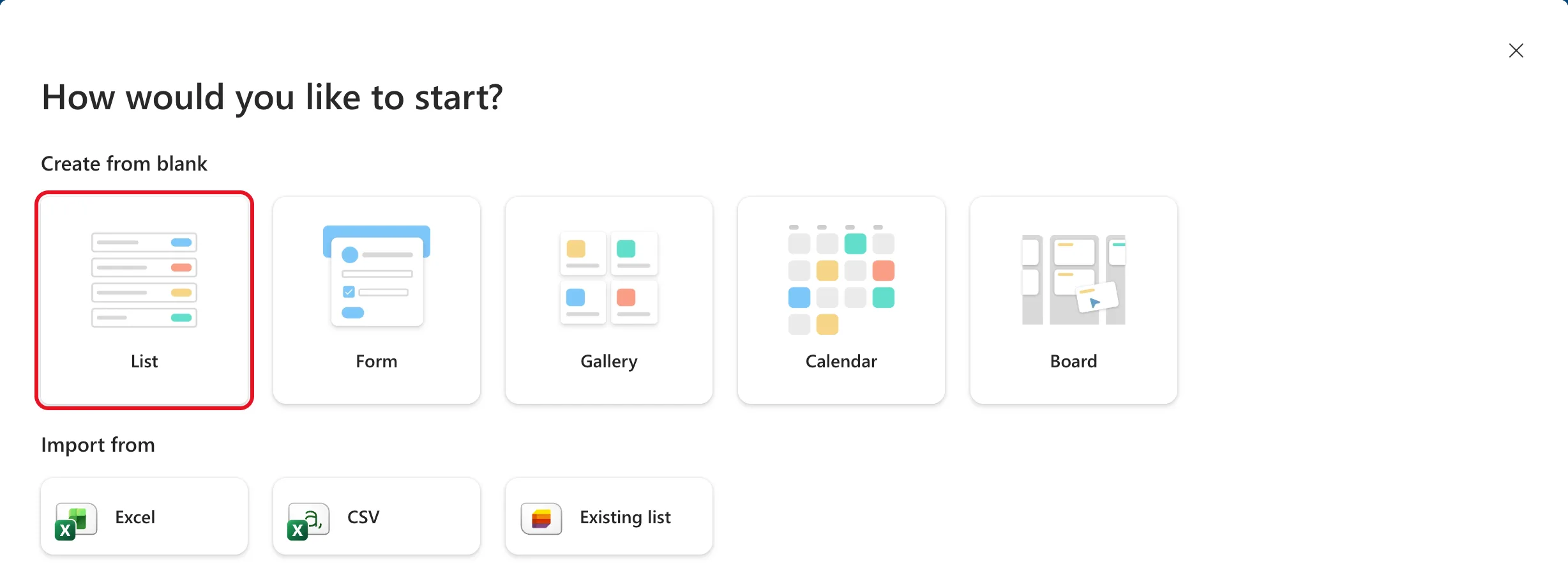
How would you like to start? offers blank lists, imports from Excel, CSV or another list, and templates. Under Create from blank, select List.
Type the name, RoleCompetencies, and leave Show list in site navigation ticked, so the list gets a link in the site's menu. Select Create.
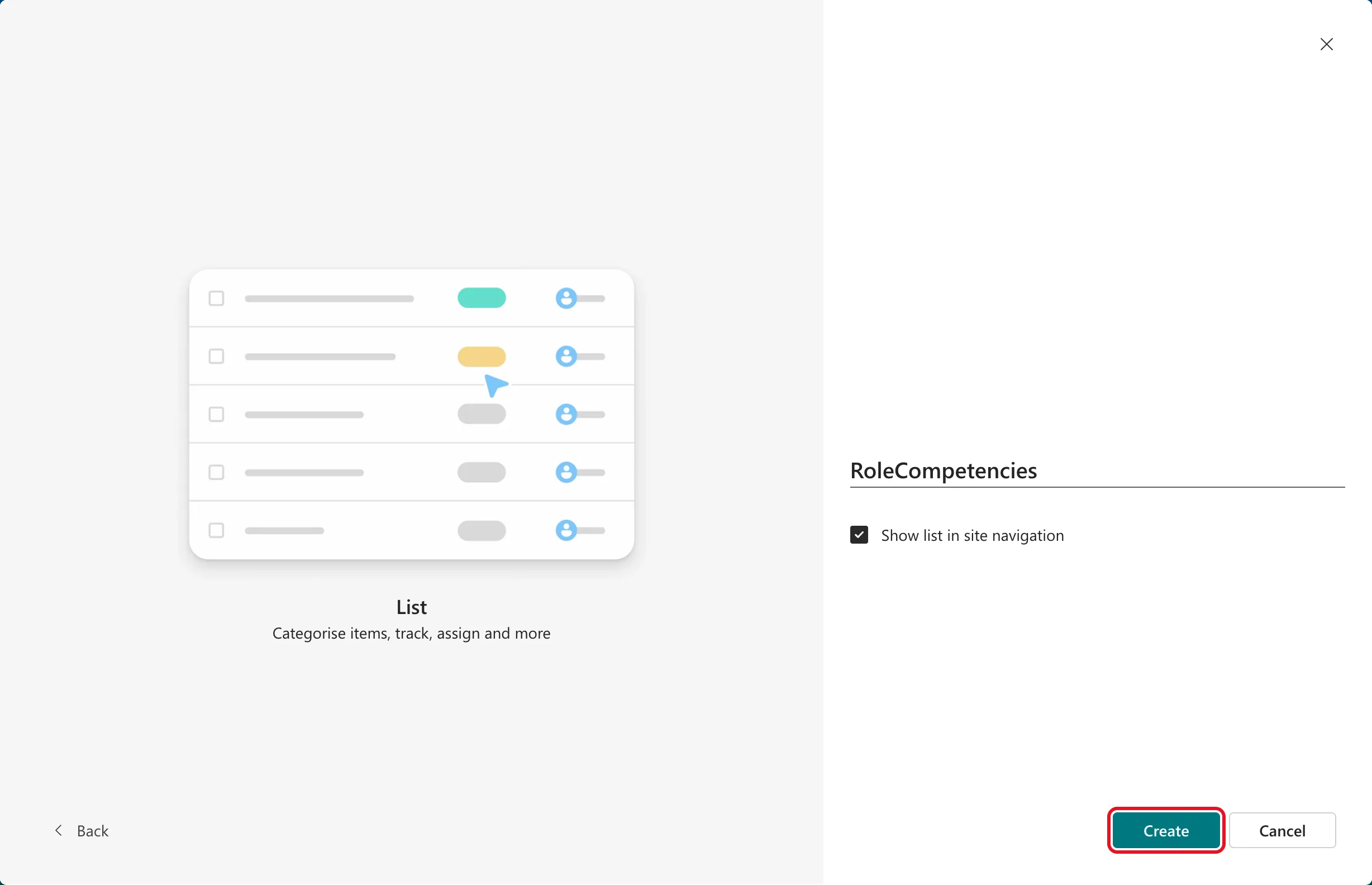
The list name becomes part of its address, /Lists/RoleCompetencies, so the no-spaces rule pays off here too. This step no longer asks for a description; you can add one later in the list's settings, as How to Turn Off Attachments and Hide a SharePoint List from Search shows.
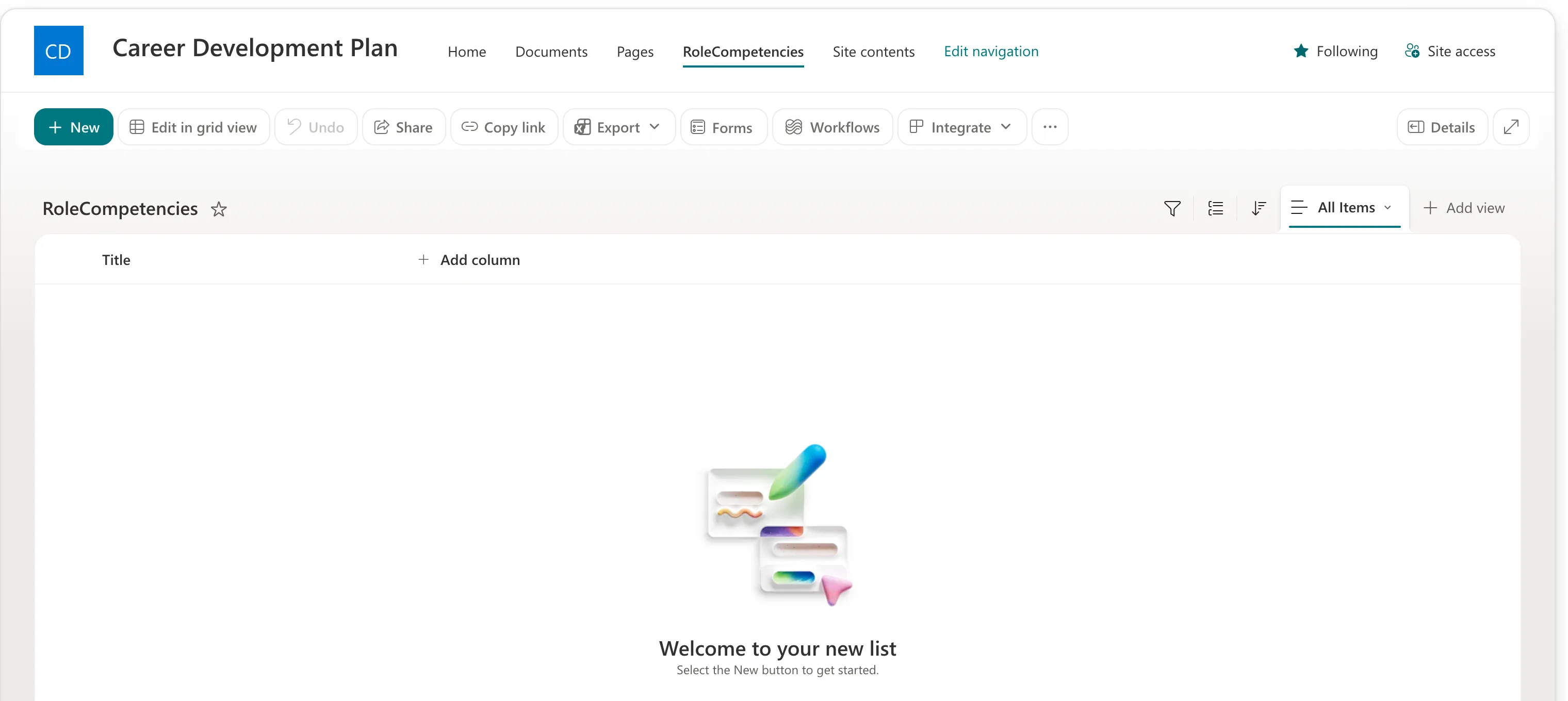
The new list opens with a single column, Title, and a + Add column button.
Step 2: Add a Text Column
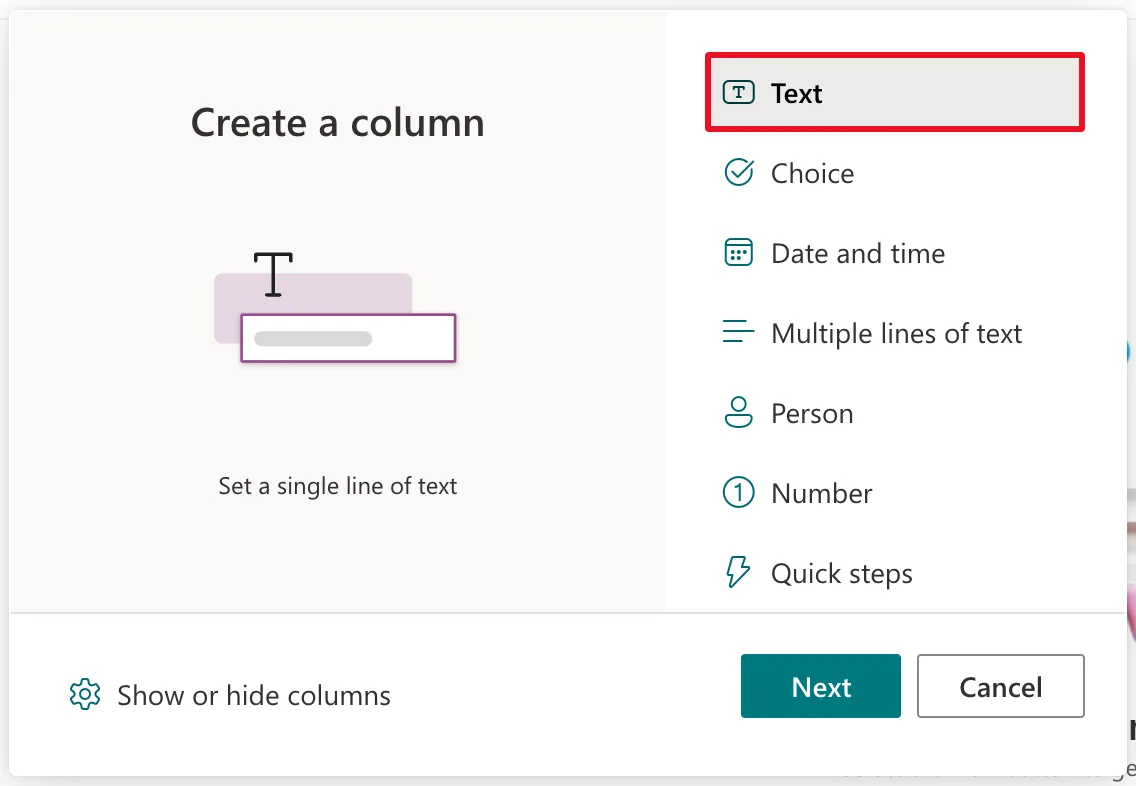
Select + Add column. The Create a column window lists the column types. In this list, a single line of text is called Text, and it's already selected. Select Next.
The Create a column panel opens on the right. Fill it in:
| Field | Value |
|---|---|
| Name | JobTitle |
| Description | The job title this competency is for. Must match the job title in Microsoft 365 exactly. |
| Default value | (empty) |
Then expand More options:
| Option | Value | Why |
|---|---|---|
| Maximum number of characters | 255 (the default) | The longest a single line of text can be |
| Require that this column contains information | Yes | An item without a job title is meaningless |
| Enforce unique values | No | Many competencies share a job title |
| Add to all content types | Yes (the default) | Leave it on |
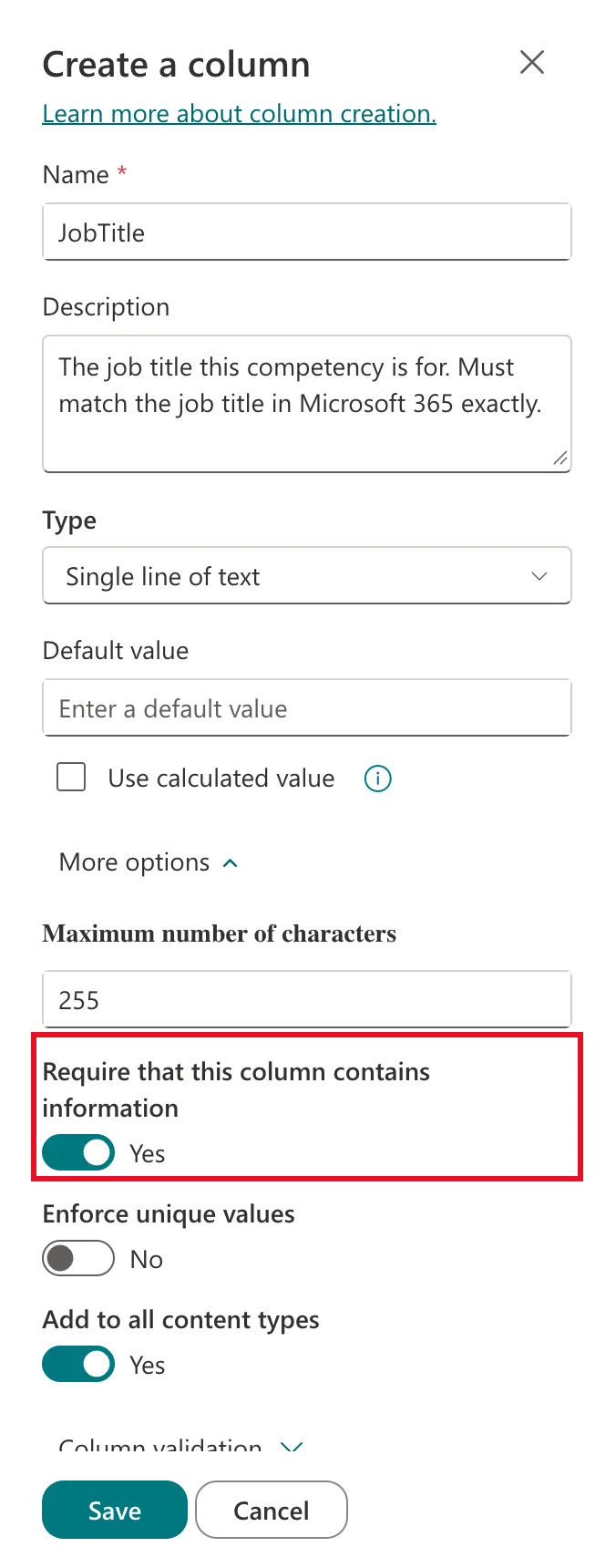
Select Save. JobTitle appears as a new column in the list.
The description isn't decoration: SharePoint shows it under the field in the item form, so it's the place to tell people what to type.
Step 3: Add a Choice Column
A Choice column limits an item to a fixed set of values. Select + Add column → Choice → Next, and fill in the panel:
| Field | Value |
|---|---|
| Name | Level |
| Description | The level a person in this job title is expected to reach. |
| Choices | Beginner, Intermediate, Advanced, Expert |
| Can add values manually | Off |
| Default value | None |
The panel starts with three placeholders: Choice 1, Choice 2 and Choice 3. Select each one and type over it. Select + Add Choice for the fourth, which appears as Choice 4, and rename that too. Each choice gets a colour, which only changes how the list displays it. The palette icon next to a choice changes the colour.
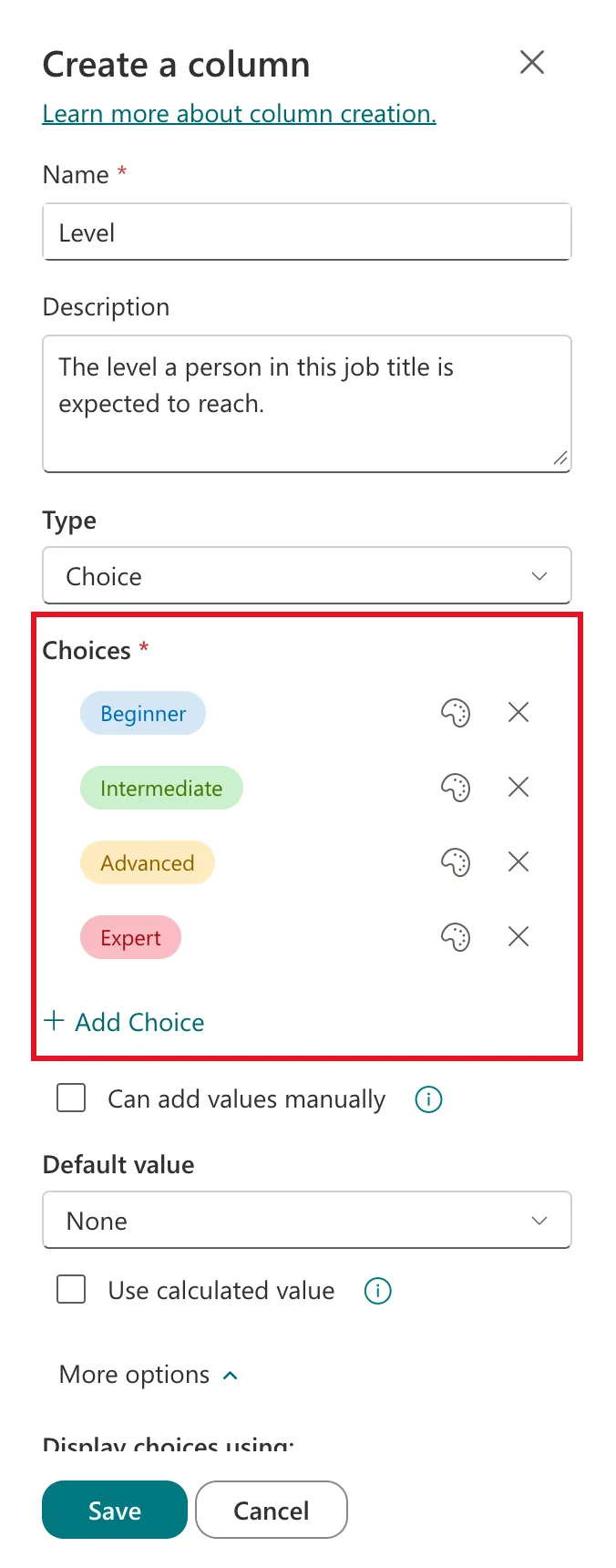
Leave Can add values manually off. Otherwise people can type their own values, and "Intermediate" soon has three spellings. Leave Default value at None, so nobody ends up with a level they never chose.
Expand More options. Keep Display choices using on Drop-Down Menu and Allow multiple selections on No, and switch Require that this column contains information to Yes. A single value is easier to filter on, and unlike a multi-value choice column, it can be indexed.
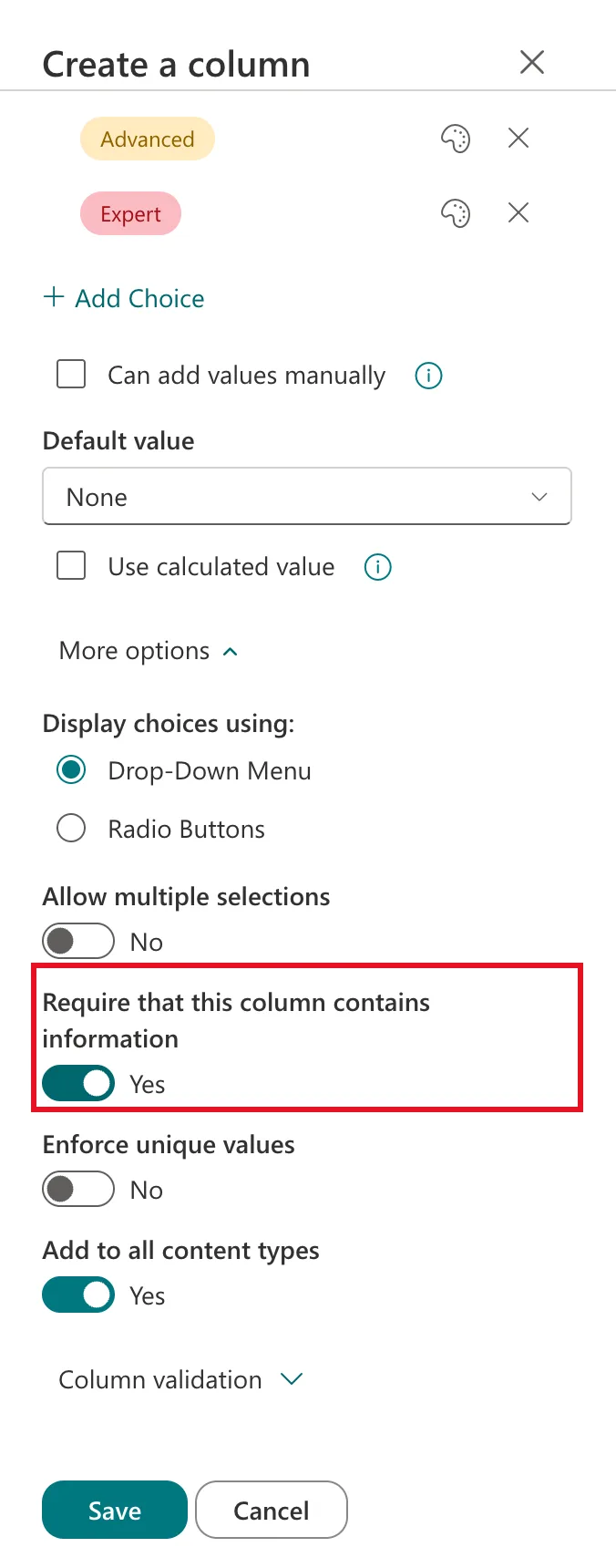
Select Save.
Step 4: Add a Yes/No Column
Select + Add column, scroll the types to Yes/No, select it and select Next.
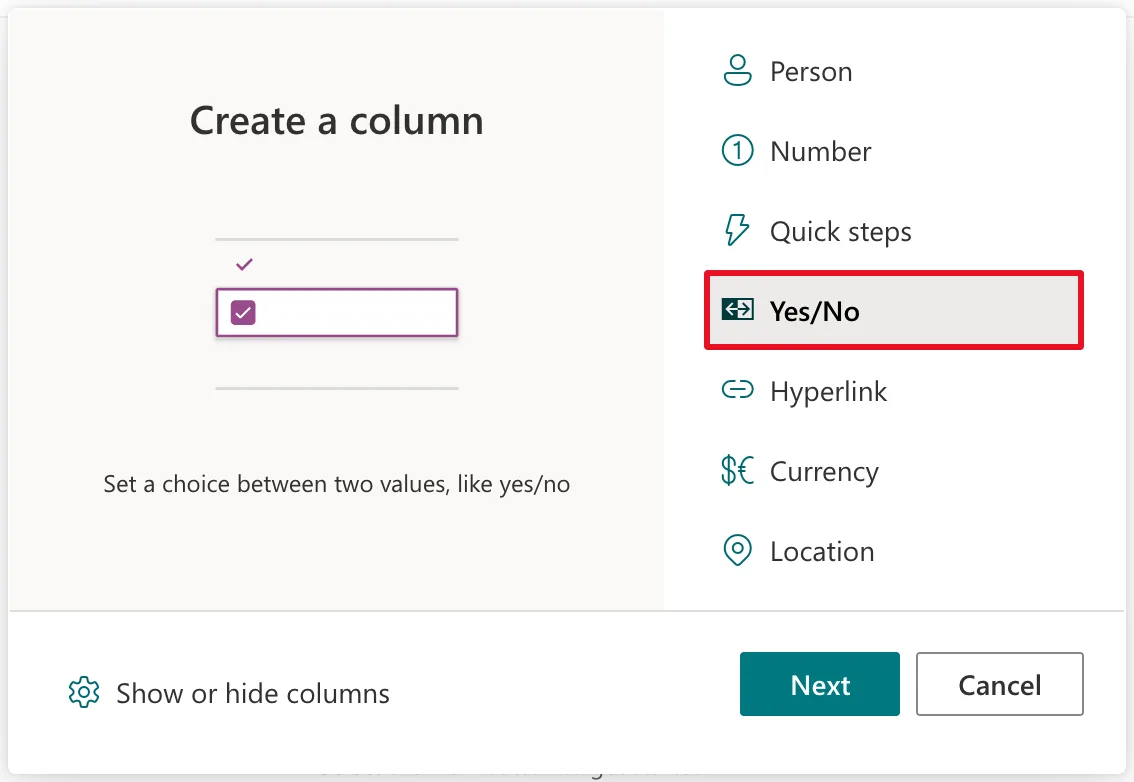
| Field | Value |
|---|---|
| Name | IsActive |
| Description | Yes: part of the plan. No: removed from the plan (the row is kept for history). |
| Default value | Yes |
| Require that this column contains information | Yes (under More options) |
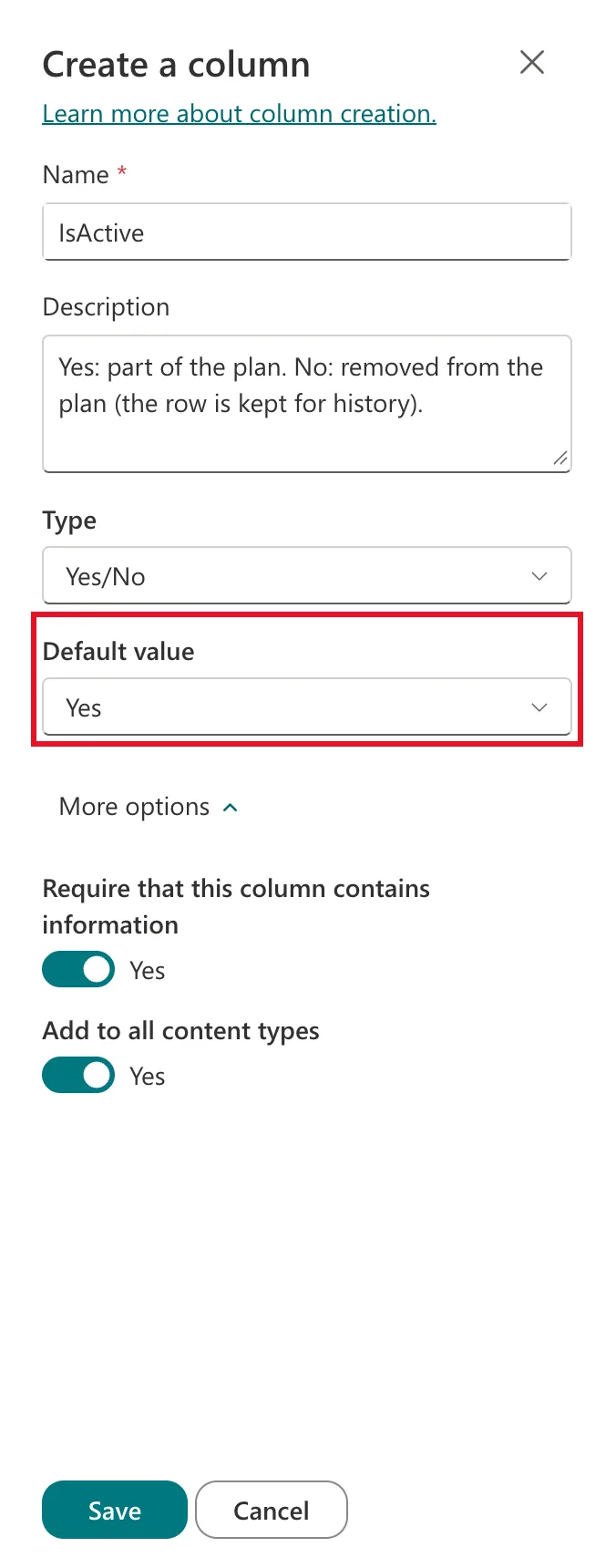
Select Save.
A column like this lets you "remove" a row without deleting it: set it to No and have your app or views show only the Yes rows. The history stays, and the change is easy to undo.
Step 5: Replace the Title Column
Every list starts with a Title column, and you can't delete it. The column menu offers Column settings → Rename, and renaming it looks like it works: the list's header changes. But Microsoft's own troubleshooting article explains that renaming a default column in the SharePoint Online interface creates a separate property for the new name. List settings keeps showing the original name.
When this guide renamed Title to Competency, the list header and the item form both showed Competency. The column's own name didn't change, though: asked for the column's definition, SharePoint's REST API still called it Title.
Microsoft's fix is to create a new column with the name you want and hide Title. Before you start, check that Title isn't required in this list: open Settings → List settings and look at the Required column. In a list created as in Step 1, it isn't.
Hide Title from the list view
Select the Title column header → Column settings → Hide this column.
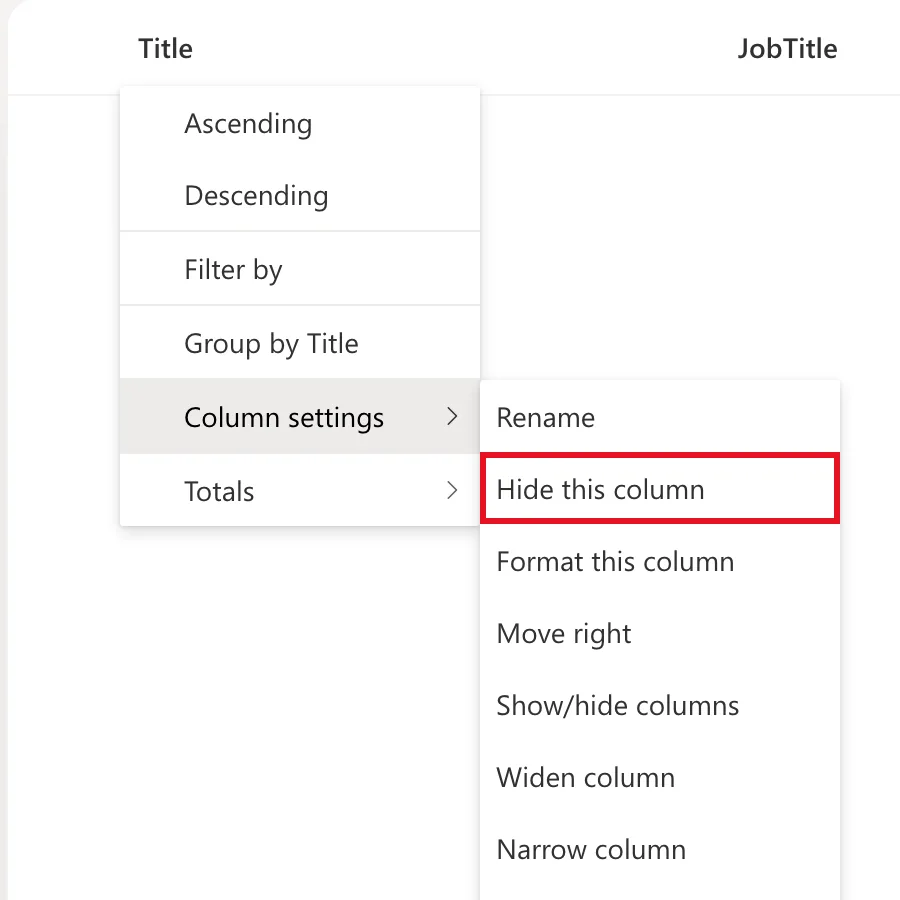
SharePoint confirms with View Saved. Hiding a column only removes it from the view: the column and its data stay in the list.
Add a Competency column
Add a Text column exactly as in Step 2, with these values:
| Field | Value |
|---|---|
| Name | Competency |
| Description | The name of the competency, such as Customer skill or Leadership. |
| Require that this column contains information | Yes |
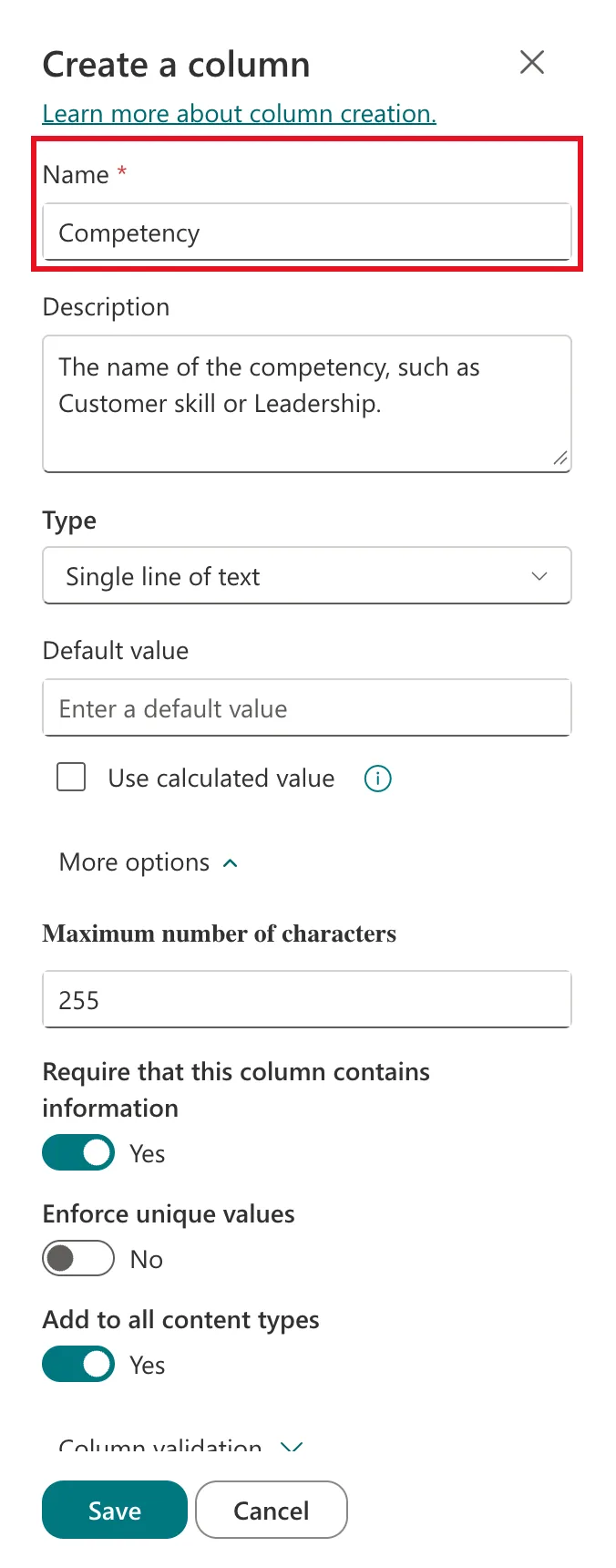
Move it to the front
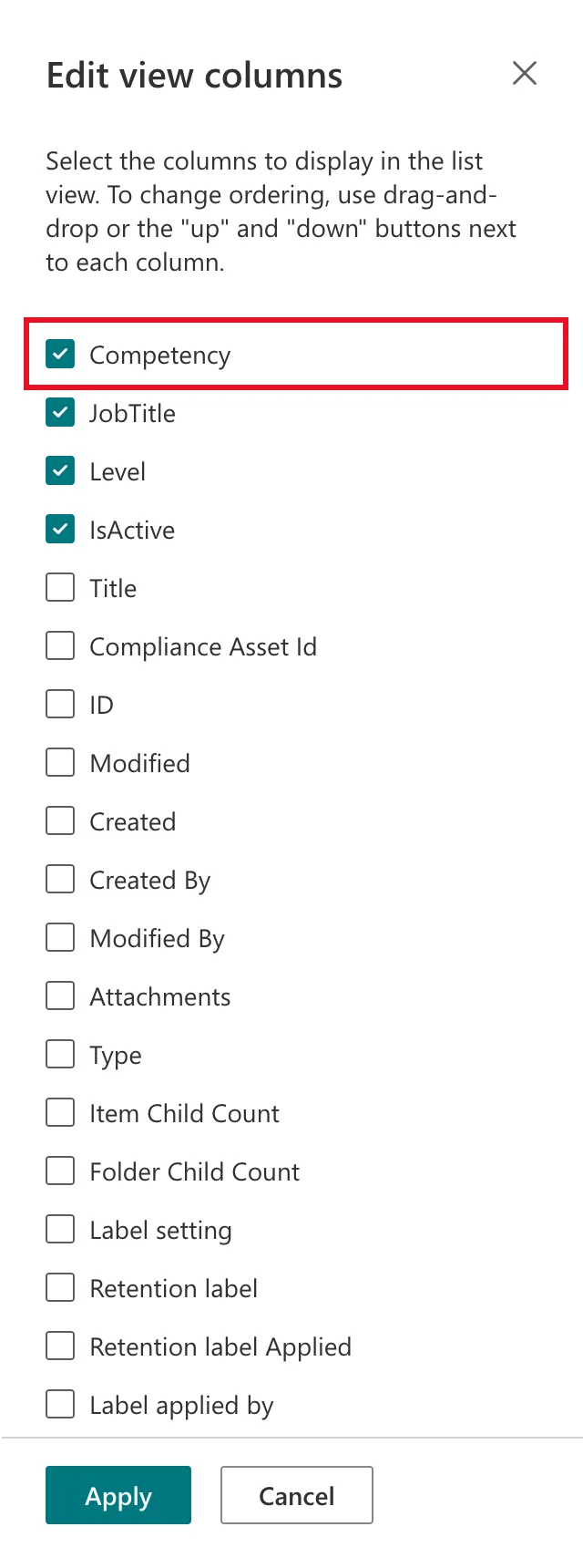
New columns are added at the end of the view. Select the Competency header → Column settings → Show/hide columns. The Edit view columns panel reorders columns with drag and drop, or with the up and down buttons that appear next to each column when you point at it. Move Competency to the top and select Apply.
Hide Title from the item form
The view no longer shows Title, but the form for adding items still does. Select + New. At the top of the New item form, select Edit form (the pencil icon) → Edit columns. Clear Title, move Competency to the top with the More options (…) → Move Up menu next to it, and select Save at the top of the pane.
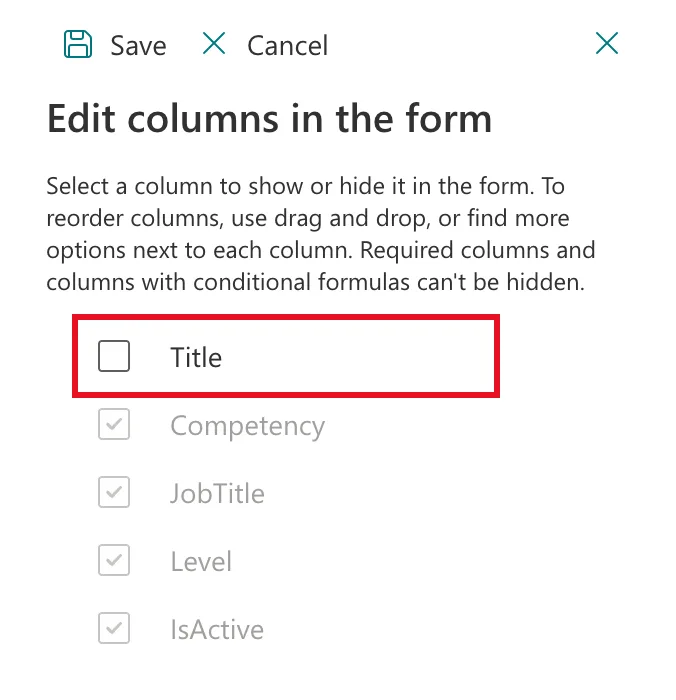
The pane explains why the other columns are greyed out: required columns can't be hidden from the form. Close the empty form with Cancel. The next time you open it, it starts with Competency and has no Title.
Step 6: Know the Other Column Types
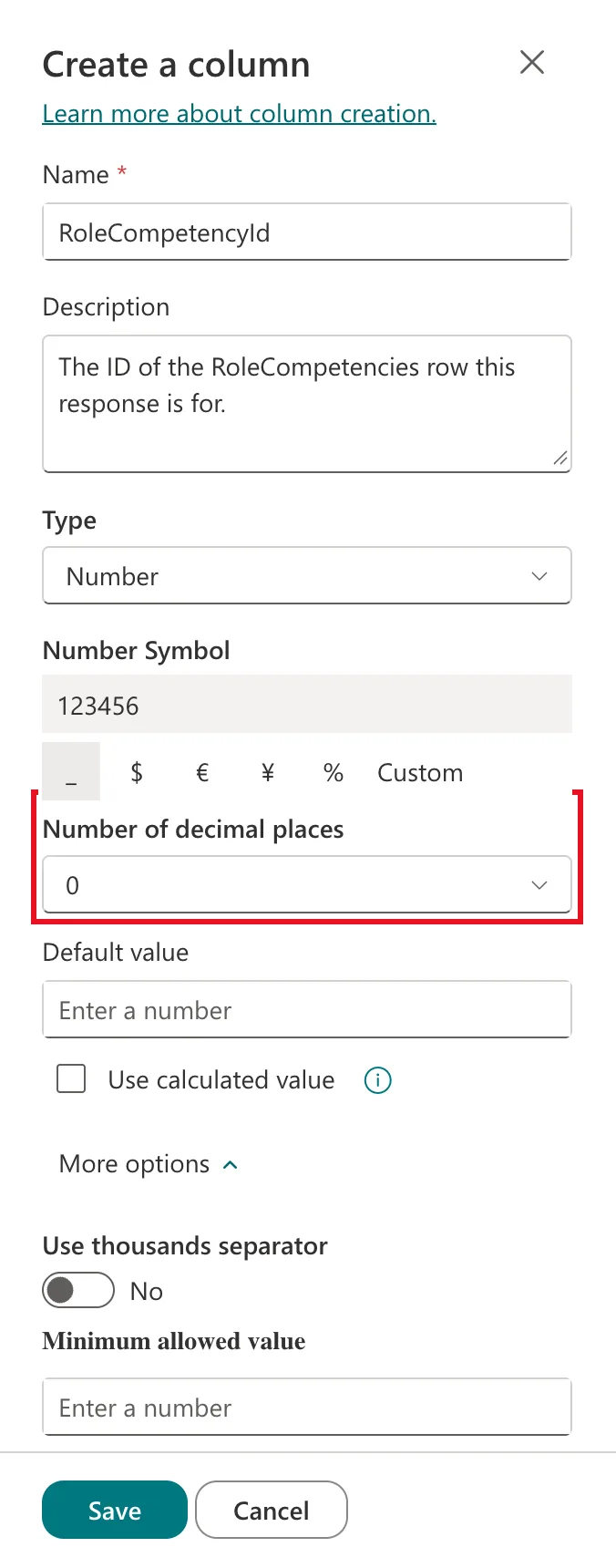
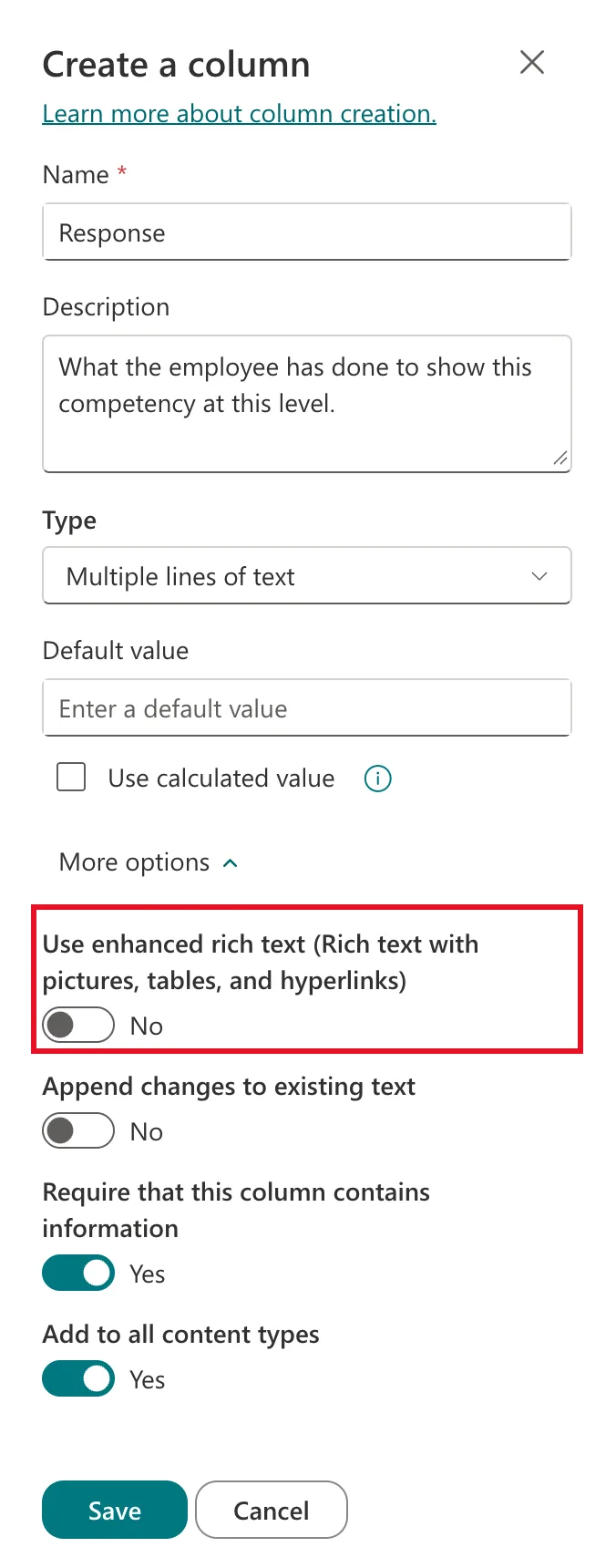
The Career Development Plan app's second list needs four more kinds of column. The screenshots below come from that list, CompetencyResponses; each type is added the same way: + Add column, pick the type, Next.
Number. Set Number of decimal places to 0 for whole numbers, such as an ID that points to another list's item. Under More options, Use thousands separator adds commas to the display, which suits amounts but not IDs. There are also Minimum and Maximum allowed value boxes.
Multiple lines of text. For paragraphs, such as a written response. Use enhanced rich text is off by default, so the column stores plain text with no HTML formatting, which is what an app expects to read and write. Leave Append changes to existing text off too.
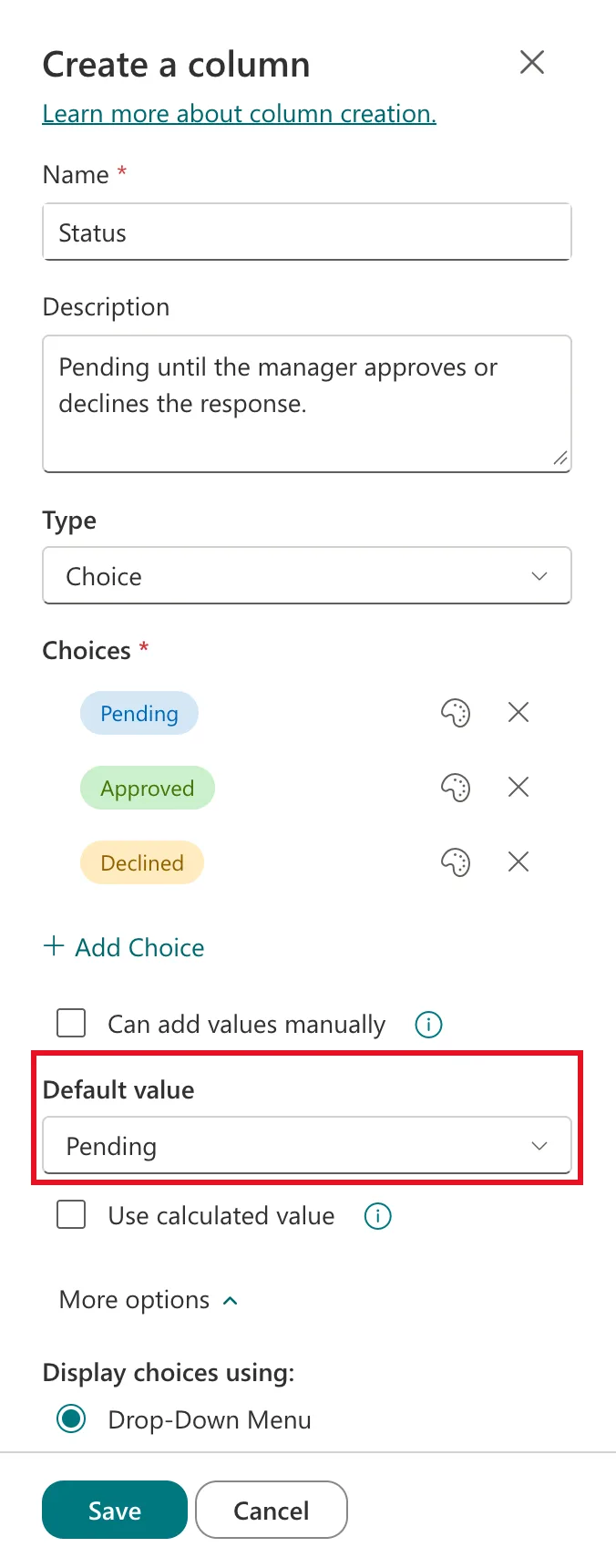
Choice with a default. A status column usually starts somewhere: here, Pending. Set Default value to that choice, and new items get it automatically.
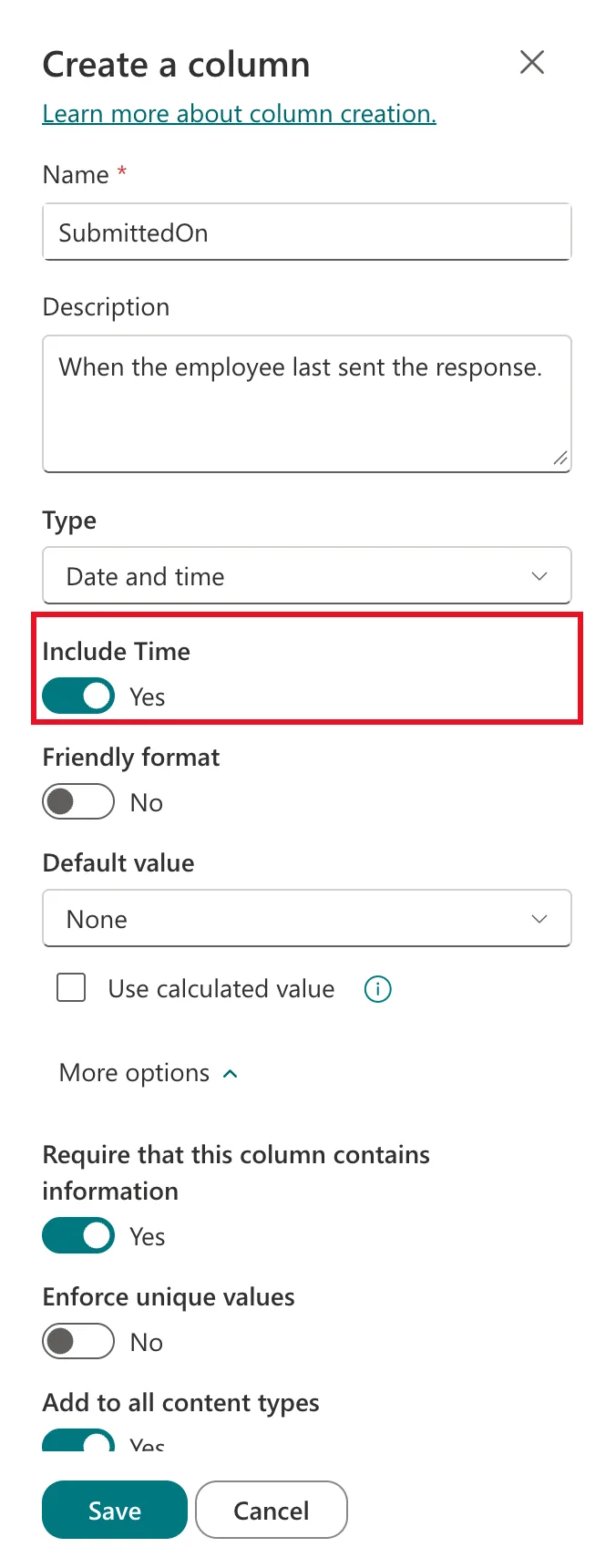
Date and time. Switch Include Time on when the time matters, such as when something was submitted. Leave Friendly format off.
Step 7: Add Your First Item
Back in RoleCompetencies, select + New. Fill in the form and select Save:
| Field | Value |
|---|---|
| Competency | Customer skill |
| JobTitle | Sales Engineer |
| Level | Intermediate |
| IsActive | Yes (already ticked by the default) |
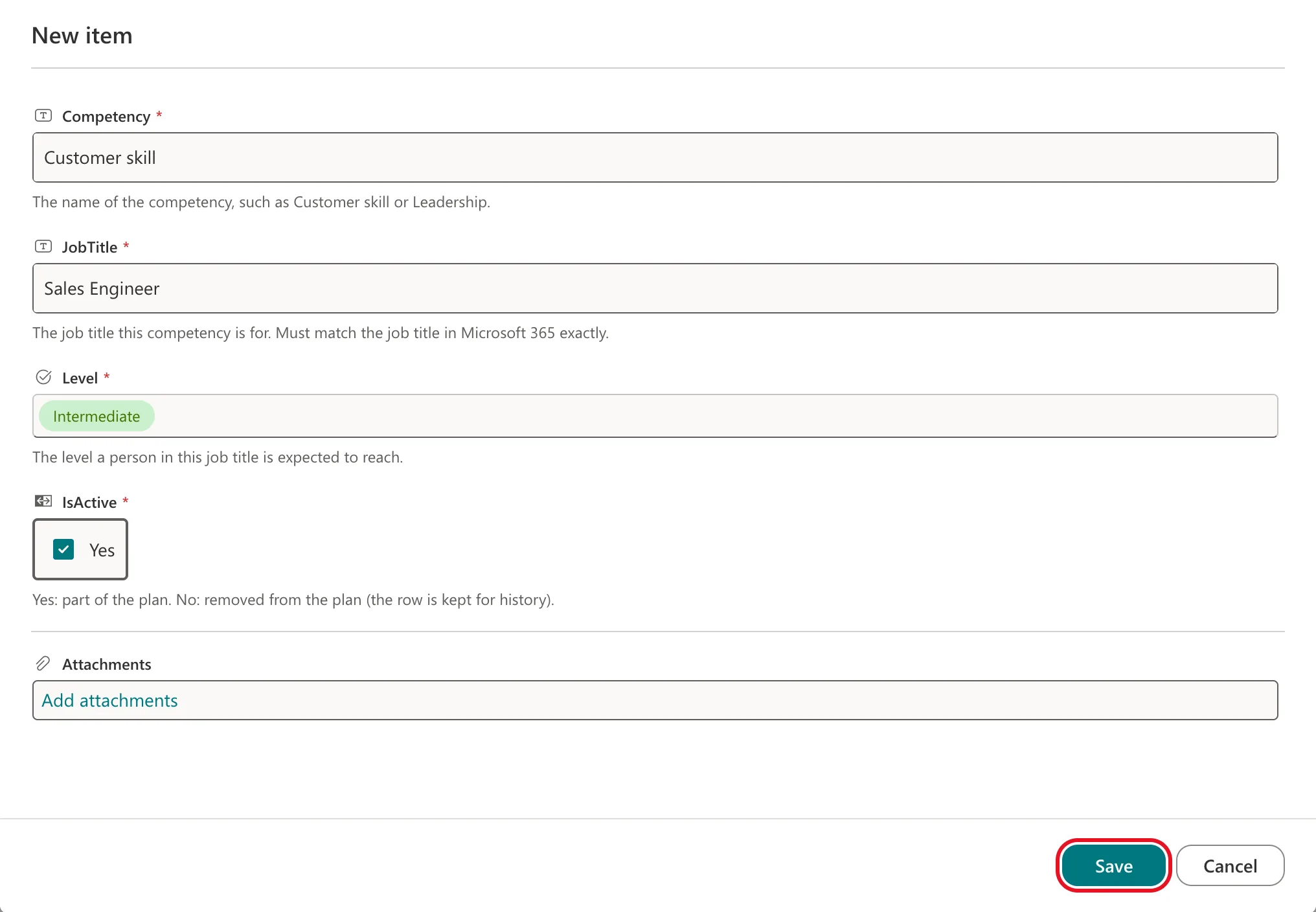
Each required field is marked with an asterisk, and the description you wrote for each column appears under it. The form also shows Attachments, because new lists accept file attachments; How to Turn Off Attachments and Hide a SharePoint List from Search turns that off.
The item appears in the list, with Level as a coloured pill and IsActive as a tick:

To add many items at once, Edit in grid view on the list's command bar lets you type into the list like a spreadsheet.
Common Mistakes
| Mistake | What happens | Do this instead |
|---|---|---|
| Putting spaces in a new column's name | The internal name becomes Job_x0020_Title for good | Create it as JobTitle; change the display name later if you like |
| Renaming Title from the column menu | The header changes, but the column's own name stays Title | Hide Title and add your own column |
| Leaving Can add values manually on | People invent their own spellings | Turn it off and keep the choices fixed |
| Giving a choice column a default it doesn't need | Items get a value nobody chose | Leave Default value at None unless every item starts the same way |
| Turning on Allow multiple selections "just in case" | The column holds several values and can't be indexed | Keep it to one value unless you really need several |
| Using enhanced rich text for app data | The column stores HTML | Leave Use enhanced rich text off |
Troubleshooting
| Symptom | Likely cause | Fix |
|---|---|---|
| + Add column or + New → List is missing | You only have Read or Contribute on the site | Ask an owner for Edit or higher |
| You can't save the item | A required field is empty | Fill in every field marked with an asterisk |
| Title can't be cleared in Edit columns | Title is required in this list | Make it optional first: List settings → Title → Require that this column contains information: No |
| A column you hid still shows in the item form | Views and forms have separate column settings | Hide it in Edit form → Edit columns too |
| A choice column shows a value that isn't in its list | Can add values manually was on | Turn it off and correct the items |
FAQ
What's the difference between a list and a document library?
A list stores rows of data, like a table. A document library stores files, with columns describing each file. For app data, use a list.
Can I rename a column later?
Yes, and its display name changes. Its internal name doesn't. That's why the first name you type matters most.
Can I change a column's type later?
Some type changes are possible, but they're risky once the list holds data, and apps that use the column may stop working. Decide the type before the list fills up.
Why does the Choice panel colour my choices?
The colours only change how SharePoint displays each choice, in views and forms. The stored value is just the text. Select the palette icon next to a choice to change its colour.
Why use Yes/No for "removed" instead of deleting the item?
Deleting loses the history and is harder to undo. A Yes/No column marks the item as no longer in use while keeping it, and your app can filter on it.
How many lists can a site have?
Microsoft's limit is 2,000 lists and libraries combined per site collection, far more than an app usually needs.
Conclusion
A SharePoint list takes a minute to create: + New → List → Create from blank → List. Its columns deserve more care. Name every column in PascalCase with no spaces, so its internal name stays clean, and make required the fields that must never be empty. Give each column a description: it shows in the form. Use Choice columns with fixed values rather than free text, and plain text rather than rich text.
The Title column is the one surprise. Renaming it only changes what you see, so hide it and add your own column, as Microsoft recommends.
Next, tidy up the list's own settings: How to Turn Off Attachments and Hide a SharePoint List from Search.
Additional Resources
- Build a Career Development Plan App in Power Apps — Part 1: the app this list is built for.
- Create a list: Microsoft's steps for every way of creating a list.
- Create a column in a list or library: the Create a column panel and its options.
- List and library column types and options: what each column type stores and every setting it has.
- Default column name shown in list settings after name change: Microsoft's explanation of the Title rename, and its fix.
- Show or hide columns in a list or library form: Edit form → Edit columns.
- Operators and identifiers in Power Fx: how display names and logical (internal) names work in Power Apps.
