How to Create a Git Repository and Make Your First Commit

Git keeps a history of every change you make to a project, so you can see what changed, when, and go back if something breaks. Three commands turn any folder into a Git repository with its first saved snapshot: git init, git add and git commit. This guide runs them on a real project and shows every line of output.
What a Repository and a Commit Are
- A repository is your project folder plus a hidden
.gitfolder, where Git keeps the history. - A commit is a saved snapshot of your files, with a message that says what changed.
- Between the two sits the staging area: you choose which changes go into the next commit with
git add, then save them withgit commit.
The example here is the project folder from the series How to Connect a .NET C# Web API to a MySQL Database. It holds three files: .gitignore, .env.example and compose.yaml. The same commands work for any folder.
Prerequisites
- Git, installed from git-scm.com. Check it in a terminal:
git --version
git version 2.56.0
- A terminal: Terminal on macOS, any shell on Linux, or PowerShell on Windows. Every command in this guide works unchanged in bash, zsh and PowerShell.
Step 1: Tell Git Who You Are
Every commit records an author name and email. Set them once per computer:
git config --global user.name "Your Name"
git config --global user.email "you@example.com"
Put your own name and email between the quotes. --global saves them for every repository on this computer. Check them with:
git config --global user.name
If you skip this step, Git tries to guess, and on macOS it builds an identity from your computer's user name and host name. Here is what I got in a test folder with no identity set (my name and host name replaced):
[master (root-commit) 05d6846] First commit
 Committer: Your Name <you@Your-Computer.lan>
Your name and email address were configured automatically based
on your username and hostname. Please check that they are accurate.
You can suppress this message by setting them explicitly:

    git config --global user.name "Your Name"
    git config --global user.email you@example.com

After doing this, you may fix the identity used for this commit with:

    git commit --amend --reset-author

 1 file changed, 1 insertion(+)
 create mode 100644 notes.txt
A guessed address like that ends up in your history forever, so set your identity before your first real commit.
Step 2: Create the Repository
Open a terminal in your project folder and run:
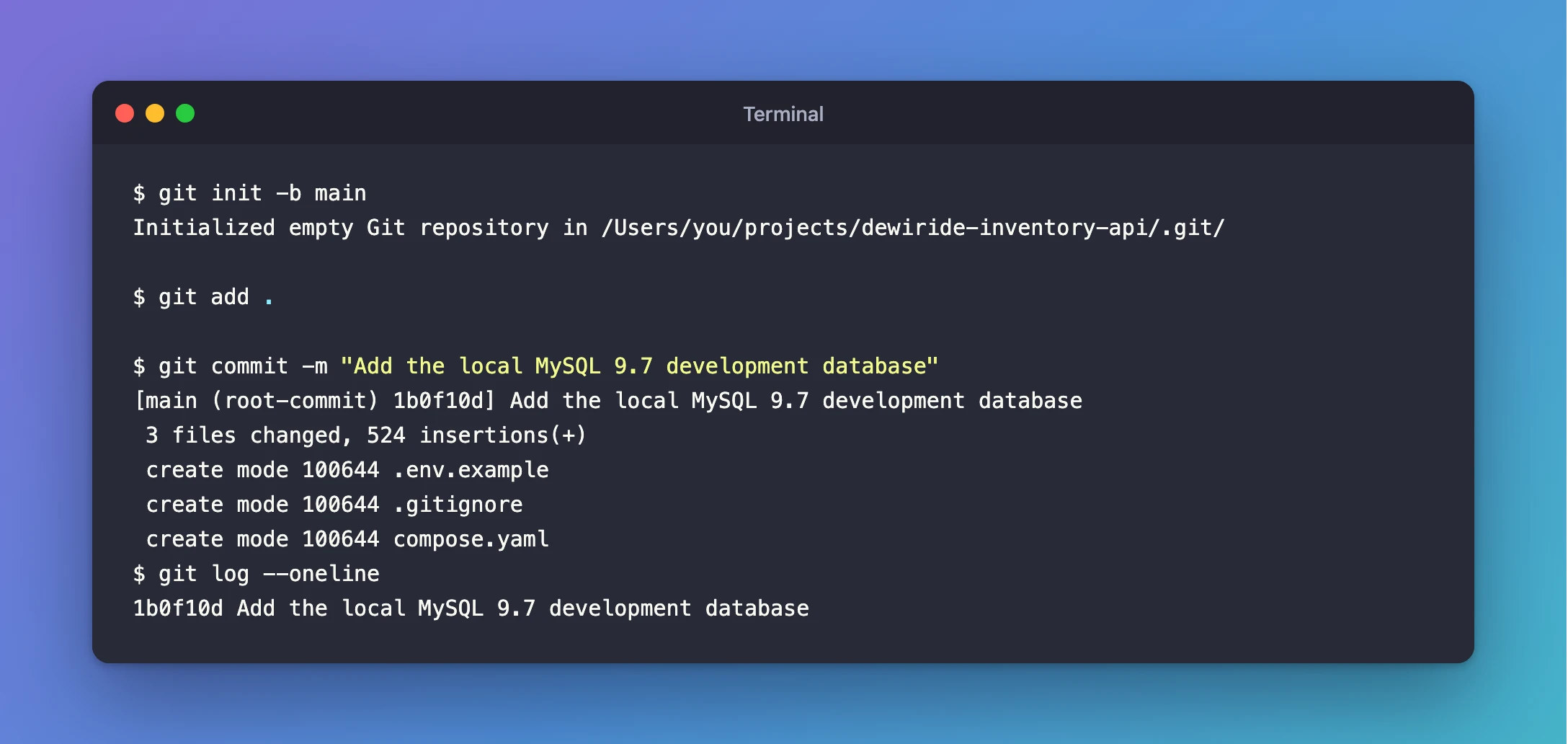
git init -b main
Initialized empty Git repository in /Users/you/projects/dewiride-inventory-api/.git/
git init creates the hidden .git folder. -b main names the first branch main, the name GitHub, Azure Repos and most teams use today. Without -b, Git 2.56 still calls it master and prints a long hint:
hint: Using 'master' as the name for the initial branch. This default branch name
hint: will change to "main" in Git 3.0. To configure the initial branch name
hint: to use in all of your new repositories, which will suppress this warning,
hint: call:
hint:
hint: 	git config --global init.defaultBranch <name>
hint:
hint: Names commonly chosen instead of 'master' are 'main', 'trunk' and
hint: 'development'. The just-created branch can be renamed via this command:
hint:
hint: 	git branch -m <name>
hint:
hint: Disable this message with "git config set advice.defaultBranchName false"
Initialized empty Git repository in /Users/you/projects/demo/.git/
Step 3: See What Git Sees
git status
On branch main

No commits yet

Untracked files:
  (use "git add <file>..." to include in what will be committed)
	.env.example
	.gitignore
	compose.yaml

nothing added to commit but untracked files present (use "git add" to track)
Untracked means Git can see the files but isn't saving them yet. A fourth file, .env, holds real passwords and is missing from the list on purpose: the .gitignore file tells Git to ignore it. How to Add a .gitignore to a .NET C# Project shows how that works.
Anything listed under "Untracked files" goes into the commit when you run git add .. If you see a password file, a key or a database dump there, add it to .gitignore first.
Step 4: Stage the Files
git add .
The . means "everything in this folder that isn't ignored". The command prints nothing. Run git status again to see the result:
On branch main

No commits yet

Changes to be committed:
  (use "git rm --cached <file>..." to unstage)
	new file:   .env.example
	new file:   .gitignore
	new file:   compose.yaml
The files moved from "Untracked" to "Changes to be committed": they are staged.
Step 5: Commit
git commit -m "Add the local MySQL 9.7 development database"
[main (root-commit) 1b0f10d] Add the local MySQL 9.7 development database
 3 files changed, 524 insertions(+)
 create mode 100644 .env.example
 create mode 100644 .gitignore
 create mode 100644 compose.yaml
-mgives the commit its message. Write what the change does, as if finishing the sentence "This commit will…".root-commitmeans this is the first commit in the repository.1b0f10dis the short ID of the commit. Yours will be different.
Step 6: Look at the History
git log --oneline
1b0f10d Add the local MySQL 9.7 development database
Each commit appears on one line, newest first. That's your project's first saved point.
Common Mistakes
| Mistake | What happens | Do this instead |
|---|---|---|
Committing before setting user.name and user.email | Git guesses an identity from your computer name, and the commit keeps it | Run the two git config --global commands first |
Running git init in your home folder instead of the project folder | Git starts tracking everything in your home folder | cd into the project folder first, and check the path in the Initialized… line |
git add . before creating .gitignore | Secrets and build output get staged | Create .gitignore first, then check git status |
| A commit message like "update" | The history doesn't say what changed | Describe the change: "Add the local MySQL 9.7 development database" |
Troubleshooting
| Symptom | Likely cause | Fix |
|---|---|---|
git: command not found or 'git' is not recognized | Git isn't installed, or the terminal was opened before installing it | Install Git, then open a new terminal |
Author identity unknown and the commit fails | Git couldn't guess an email address on this computer | Set user.name and user.email, then commit again |
nothing to commit, working tree clean | Every file is already committed, or all of them are ignored | Check git status --ignored to see what's ignored |
The branch is called master | git init was run without -b main | git branch -m main renames it |
FAQ
What is the difference between git add and git commit?
git add chooses which changes go into the next snapshot (the staging area). git commit saves that snapshot permanently, with a message. Splitting them lets you commit some changes and keep others for later.
Do I need GitHub to use Git?
No. Everything here happens on your own computer. GitHub, Azure Repos and similar services are places you can push a repository to later, to back it up or share it.
Can I set main as the default branch for every new repository?
Yes: git config --global init.defaultBranch main. After that, plain git init uses main without the hint.
Conclusion
git init -b main created the repository, git add . staged the project's files, and git commit saved them as the first snapshot, which git log --oneline now shows. Set your name and email once per computer, and keep a .gitignore in place before your first git add, so secrets never enter the history.
Additional Resources
- git init — every option, including
--initial-branch(-b). - git add and git commit — the official reference pages.
- First-Time Git Setup — setting your identity, from the Pro Git book.
