How to Create a Free Trial Environment in Power Platform

A trial environment is a free, separate Power Platform environment with its own Dataverse database, for 30 days. It's the cheapest way to test installing a solution somewhere other than where you built it. This guide creates one in the Power Platform admin center, limited to one security group.
What a Trial Environment Is
Microsoft's About trial environments describes two kinds. This guide creates the standard one, which the admin center simply calls Trial:
| Trial (standard) | |
|---|---|
| Cost | Free: it doesn't use your paid capacity |
| How long | 30 days, then it's disabled and deleted |
| Longer | One self-service extension of 30 days, in the last 7 days; or convert it to production, which needs 1 GB of paid capacity |
| Inactive | Deleted after 30 days with no activity in its database |
| What you can do with it | Create and delete only: no backup, restore, copy or reset |
| How many | One per user |
Who can create one. Microsoft's Who can create environments? says your license decides. Microsoft 365 plans can't create a trial environment; a Power Apps plan or a Power Apps trial can create one. Unlike other environment types, admins need that license too. The tenant setting Trial environment assignments can also limit it to admins.
Prerequisites
- A Power Apps trial or plan on your account (How to Start a Free 30-Day Power Apps Trial).
- Access to the Power Platform admin center.
- A Microsoft Entra security group of the people who'll use the environment, if you want to limit it (How to Create a Security Group in Microsoft Entra). The example uses Career Development Plan Users.
Step 1: Start a New Environment
In the admin center, select Manage → Environments, then New in the command bar. The New environment pane opens with Type set to Sandbox.
Step 2: Choose Trial, the Region and a Name
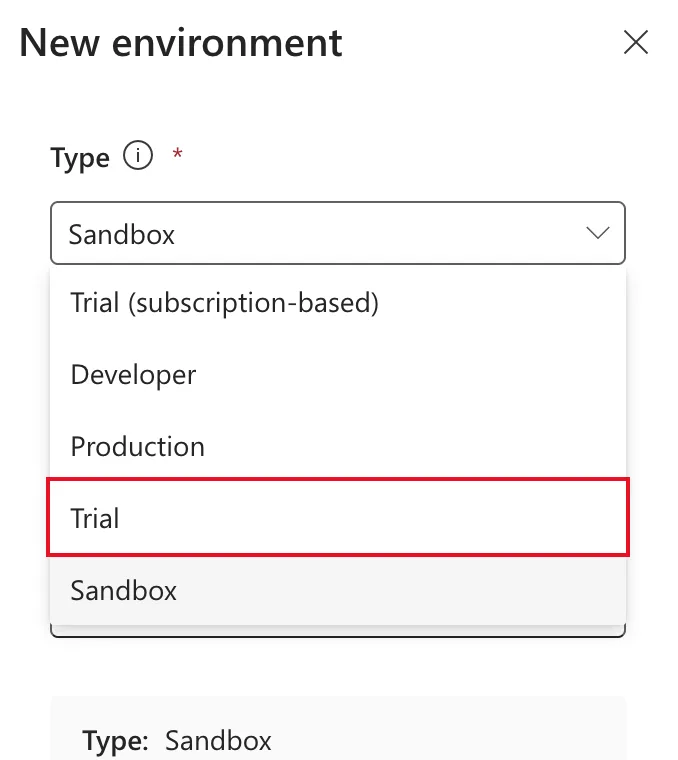
Open Type and select Trial. The list also offers Trial (subscription-based), Developer, Production and Sandbox:
Then:
| Field | Value in the example | Notes |
|---|---|---|
| Region | India - Default | The pane notes that a local region can provide quicker data access |
| Name | Career Development Plan Demo | The pane proposes a generated name such as trial-ind-…; replace it |
Step 3: Add a Dataverse Data Store
Expand Change default settings:
- Environment group: leave it empty.
- Make this a Managed Environment: leave it at No. Managed Environments need premium licenses for the people who use the apps.
- Add a Dataverse data store?: switch it to Yes. Solutions, and the environment variables in them, need Dataverse.
- Pay-as-you-go with Azure? stays off: the pane says only production and sandbox environments can use it.
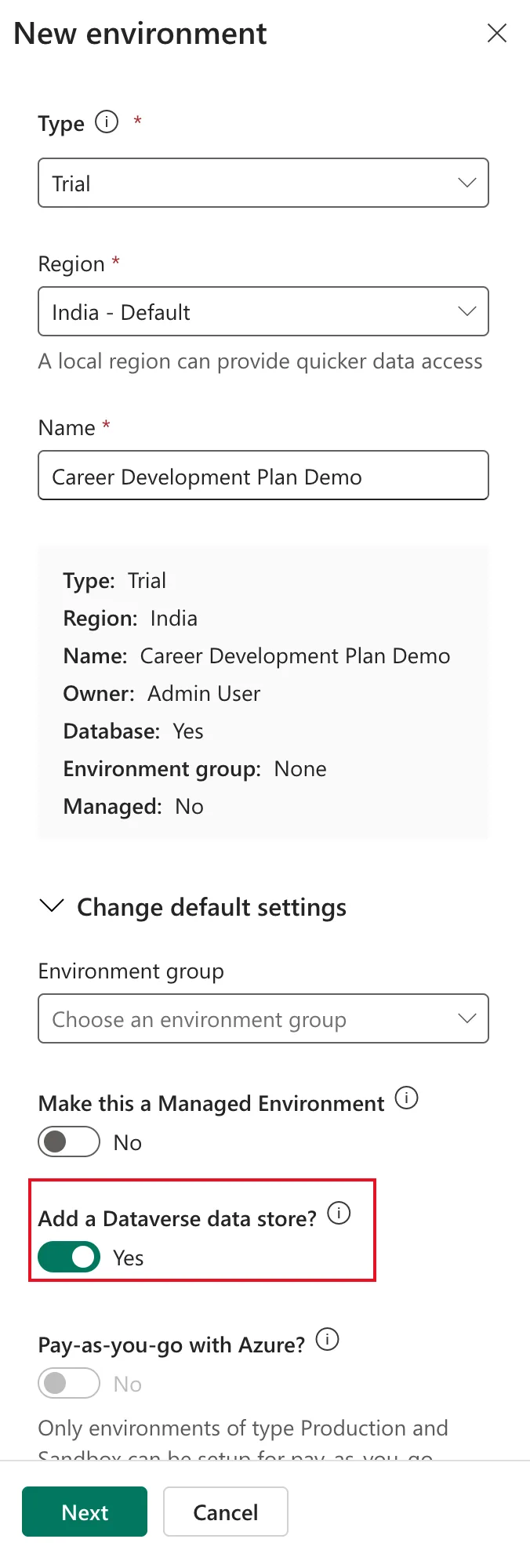
The button at the bottom changes from Save to Next. Select Next.
Step 4: Language, Currency and Security Group
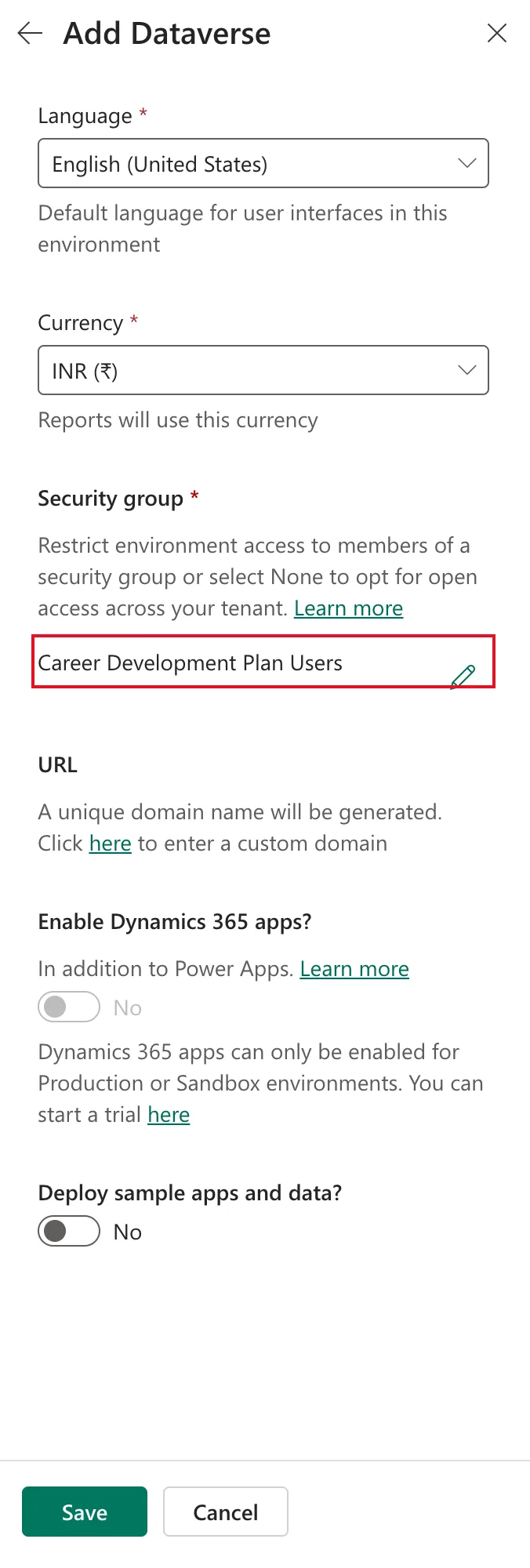
The Add Dataverse pane asks for:
| Field | Value in the example |
|---|---|
| Language | English (United States) |
| Currency | INR (₹), proposed for the India region; reports use it |
| Security group | Career Development Plan Users |
| URL | Left empty: A unique domain name will be generated |
| Enable Dynamics 365 apps? | No: the pane says these can only be enabled for production or sandbox environments |
| Deploy sample apps and data? | No |
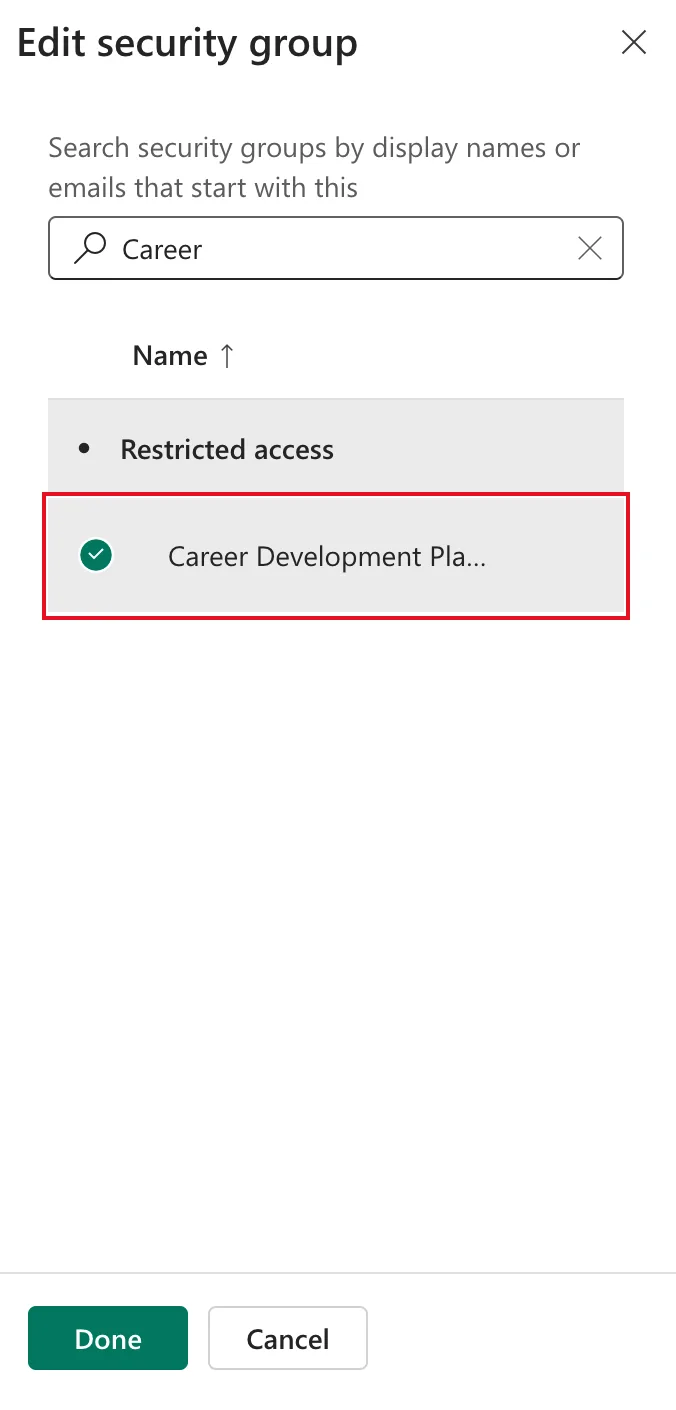
Security group is required, and Save stays unavailable until you choose one. It says what it does: Restrict environment access to members of a security group or select None to opt for open access across your tenant. Select + Select, search for the group, select it under Restricted access, and select Done:
Searching first keeps the rest of your organization's groups off the screen. The pane then shows the group:
Select Save.
Step 5: Wait Until It's Ready
A green bar says New environment Career Development Plan Demo is preparing. It can be used once Ready, and the list shows it as Trial (29 days remaining), Preparing:
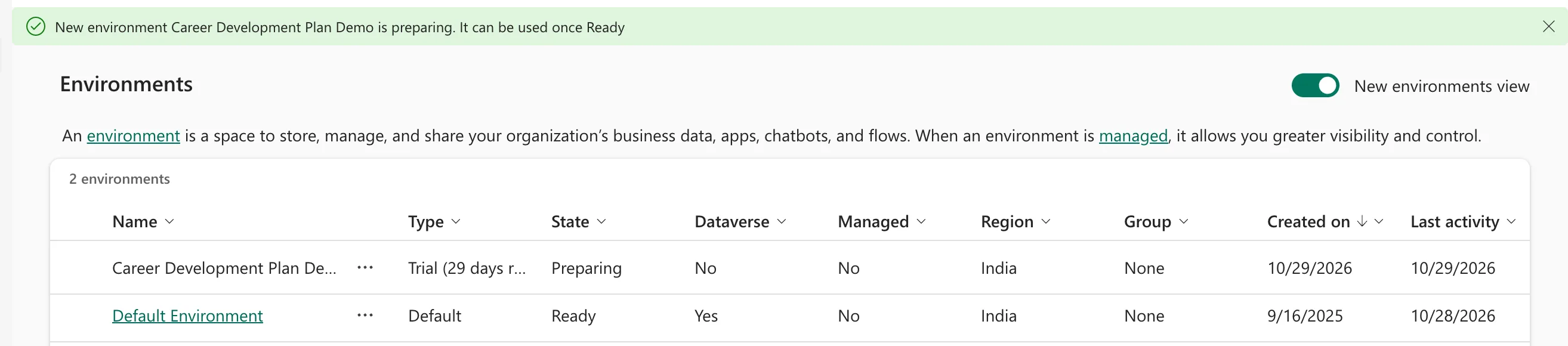
Select Refresh now and then. About two minutes later it was Ready, with Dataverse Yes:

Step 6: Check Its Details
Select the environment's name. Its page shows the type with the days left, and the security group:
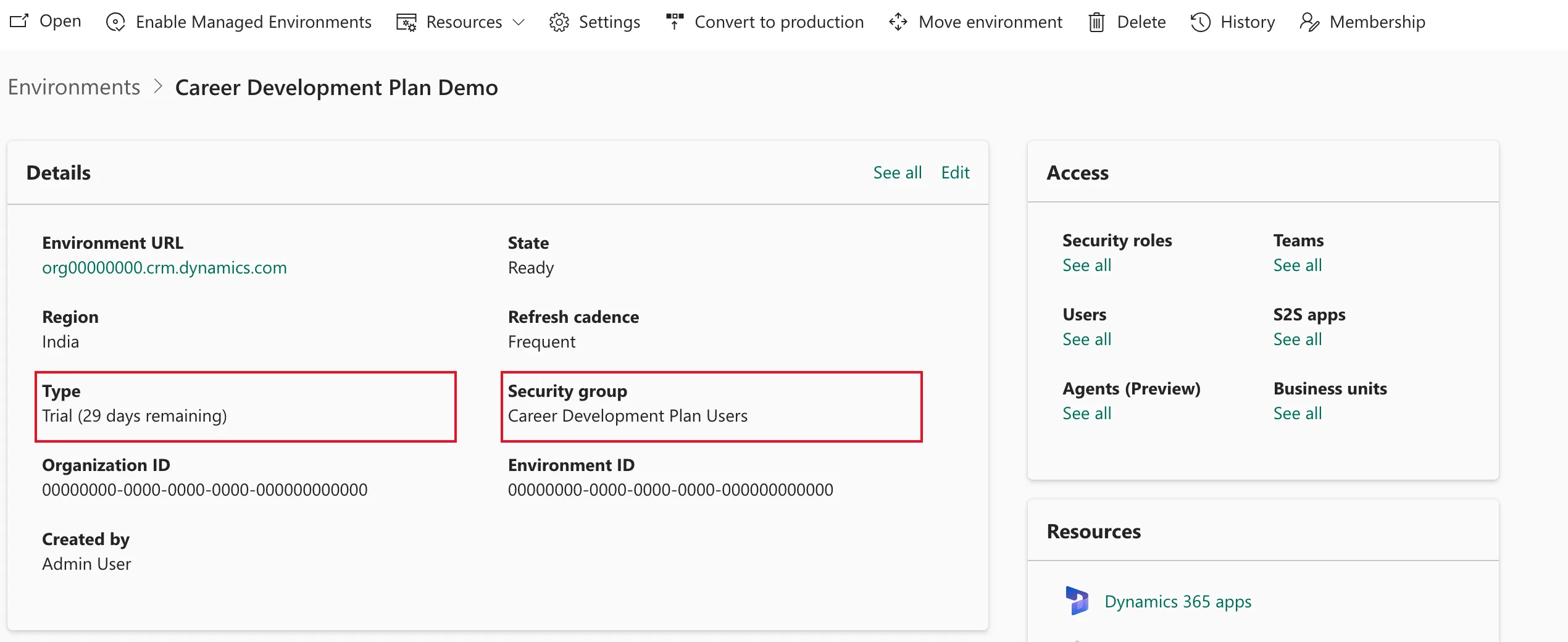
Further down, Recent operations listed the creation: Create, from 6:34:04 to 6:34:39 AM, Succeeded.
The new environment also appears in Power Apps' environment switcher (How to Switch Environments in Power Apps).
Before It Expires
- Extend it once: in the last seven days, the environment gets an Extend trial option that adds 30 days.
- Keep it for good with Convert to production, if you have 1 GB of production capacity.
- Move what you built to another environment with a solution, if you don't.
Common Mistakes
| Mistake | What happens | Do this instead |
|---|---|---|
| Leaving Add a Dataverse data store? off | No solutions, no environment variables | Switch it to Yes before Next |
| Turning on Make this a Managed Environment | People need premium licenses to run apps there | Leave it off for a test of standard apps |
| Choosing None for the security group | Everyone in the organization can access it | Choose the group of people testing |
| Building anything you need to keep in it | It's deleted after 30 days | Keep the source in your development environment |
Troubleshooting
| Symptom | Likely cause | Fix |
|---|---|---|
| The trial can't be created | Microsoft's licensing table: no license that allows trial environments, or the tenant limits them to specific admins | Start a Power Apps trial, or ask an admin |
| Save stays greyed out | No security group chosen | Select one, or None |
| The environment isn't in Power Apps' switcher yet | Microsoft says new access can take a minute or two to show, sometimes up to 10 | Wait for Ready, then reload Power Apps |
FAQ
Does it cost anything?
No. Microsoft's article says trial environments don't consume paid capacity.
Can I have more than one?
No: trial environments are limited to one per user.
Can I create it from the command line?
Microsoft's pac admin create command takes --type Trial. Since each user gets only one, I created mine in the admin center and haven't run it.
Who can sign in to it?
Admins, and the members of the security group you chose. A trial environment doesn't add people automatically: How to Add a User to a Power Platform Environment shows how to add them.
Conclusion
Environments → New, Type Trial, a region and a name, Add a Dataverse data store? Yes, then language, currency and a security group, and Save. Two minutes later you have a free Dataverse environment for 30 days.
Additional Resources
- About trial environments: standard and subscription-based trials, extending and converting.
- Create and manage environments: who can create which type.
- Control user access to environments: what the security group does.
