How to Create a Flow That Power Apps Can Run in Power Automate

A canvas app can only run a flow that starts with a Power Apps trigger. Create an instant cloud flow, choose When Power Apps calls a flow (V2) as its trigger, and the app can call it like a function and get its answer back.
Microsoft's Power Automate pane article lists what's needed to add a flow to an app, including that you have a Power Apps trigger for your flows. The V2 trigger supports both embedded and invoker connections: the flow can use your connections, or those of the person using the app.
The example is Get Waiting Approvals, the flow behind the Waiting for Approval screen of the Overtime Timesheet app.
Prerequisites
- A solution to keep the flow with its app, so they move between environments together (How to Create an Instant Cloud Flow Inside a Solution in Power Automate covers the general steps).
Step 1: Start an Instant Cloud Flow in the Solution
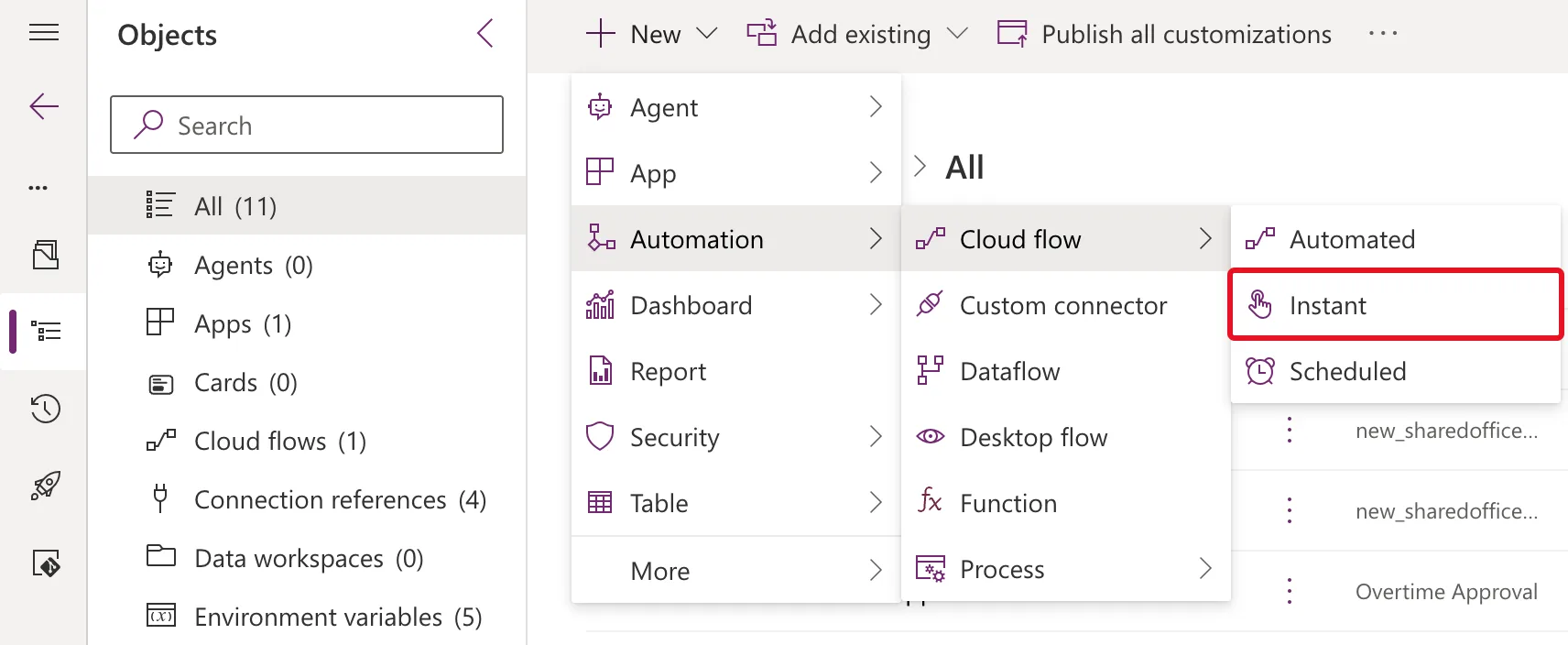
Open the solution in Power Apps and select New > Automation > Cloud flow > Instant. An instant flow is one that starts when someone, or an app, asks it to:
Step 2: Name It and Choose the Power Apps (V2) Trigger
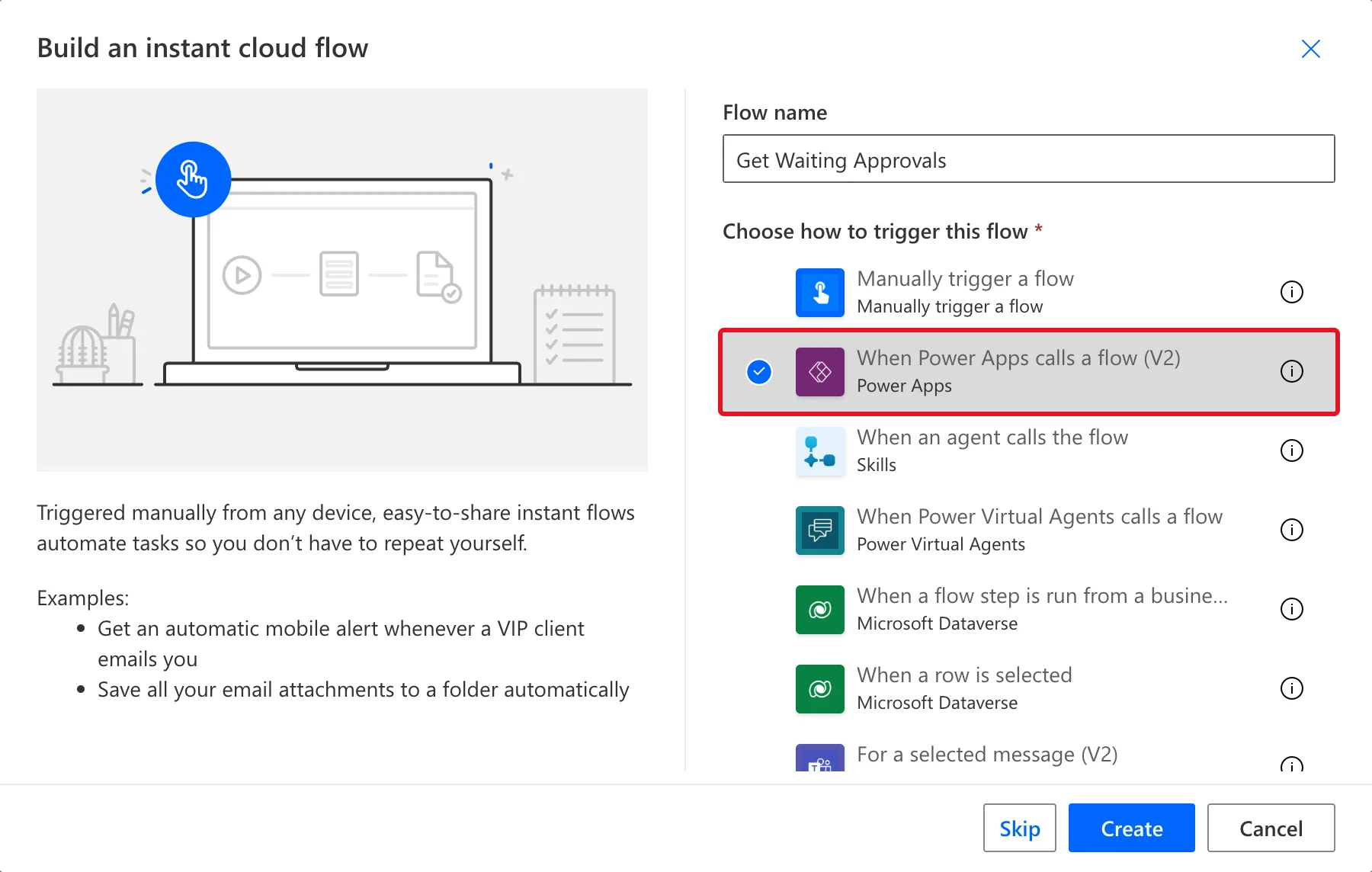
In Build an instant cloud flow, enter a Flow name that says what the flow gives back. I used Get Waiting Approvals. Under Choose how to trigger this flow, select When Power Apps calls a flow (V2), then Create:
Step 3: Add the First Action and Save
The flow opened in the classic designer, with the trigger as a card named Power Apps (V2). Save stays unavailable until the flow has an action:

Select + New step, add the flow's first action, and select Save. Mine was Get my profile (V2), which finds out who's running the flow (How to Get the Profile of the Person Running a Flow in Power Automate). Then open the flow from My flows and select Edit, to keep building in the new designer.
This flow needs no inputs from the app: it works out everything from who calls it.
Step 4: End with a Response to the App
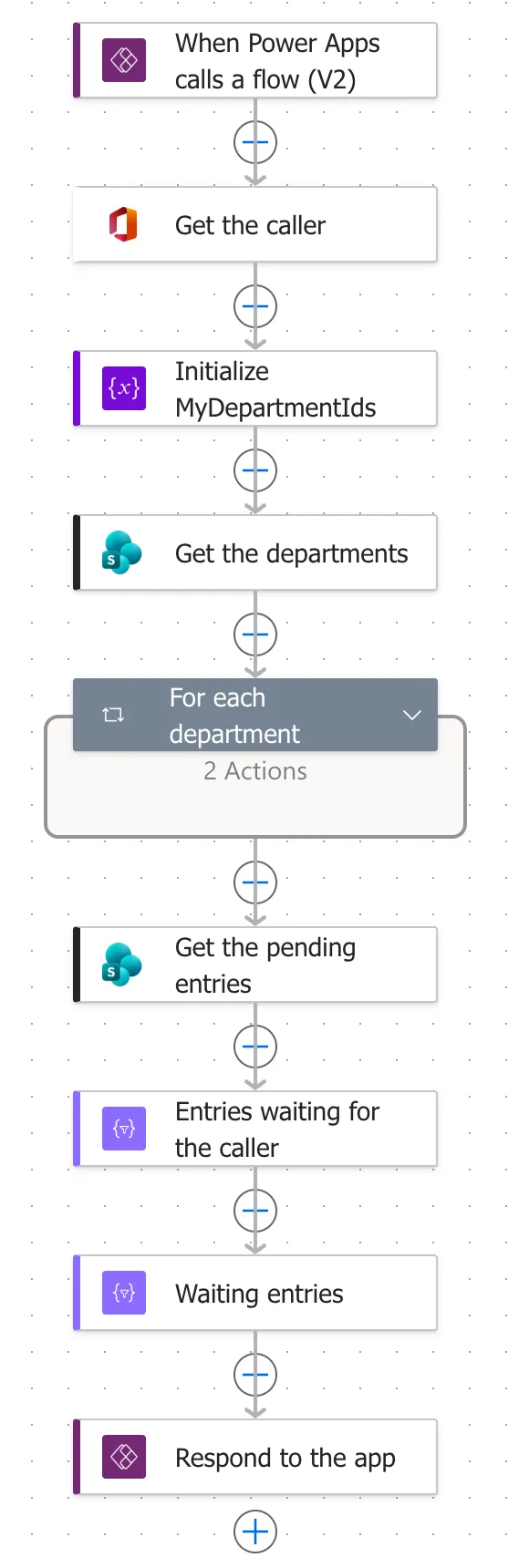
A flow that gives the app an answer ends with Respond to a Power App or flow (How to Send Values Back to Power Apps from a Flow in Power Automate). The finished flow, from the trigger to Respond to the app:
Publish it when it's ready (How to Save a Draft and Publish a Flow in Power Automate).
Who the Flow Runs As
On the flow's details page, the Plan was The user who runs the flow. Microsoft's licensing FAQ says instant flows, including those Power Apps runs, use the invoking user's license, and that who needs a license is independent from whose connections the flow uses. What the flow can reach depends on those connections, which the owner chooses when sharing it with the app's users (How to Choose the Connections Run-Only Users Use in Power Automate).
Common Mistakes
| Mistake | What happens | Do this instead |
|---|---|---|
| Choosing Manually trigger a flow | The app can't add the flow | When Power Apps calls a flow (V2) |
| Creating the flow outside the app's solution | It doesn't move with the app | Create it in the solution |
| Changing a flow a published app uses, without updating the app | The app can break for its users | Refresh the flow in the app and publish again |
Troubleshooting
| Symptom | Likely cause | Fix |
|---|---|---|
| Save is greyed out | The flow has only a trigger | Add an action |
| The flow isn't offered in the app | It has no Power Apps trigger | Recreate it with the V2 trigger |
| It works for you and fails for others | The flow isn't shared with them | How to Share a Flow with Run-Only Users in Power Automate |
FAQ
Should I use V2 or the older Power Apps trigger?
V2. Microsoft's known-issues article says it supports both embedded and invoker connections, so for each connection the flow can use yours or the app user's.
Can I change a flow after the app uses it?
Yes, but Microsoft's trigger troubleshooting warns that updating a flow a published app uses can break it for existing users. After any change, refresh the flow in the app and publish the app again (How to Refresh a Flow in a Canvas App in Power Apps).
Conclusion
A flow that Power Apps can run is an instant cloud flow with the When Power Apps calls a flow (V2) trigger. Create it in the app's solution, end it with Respond to a Power App or flow, and add it to the app.
Additional Resources
- Use Power Automate pane: add and run flows in canvas apps.
- Known issues with Power Apps V2 trigger
