How to Create a File in SharePoint in Power Automate

The SharePoint connector's Create file action saves a file into a document library: you give it the site, the folder, a file name and the content. The content can be text you type, or the content of another file, which makes it the way to copy a file under a new name.
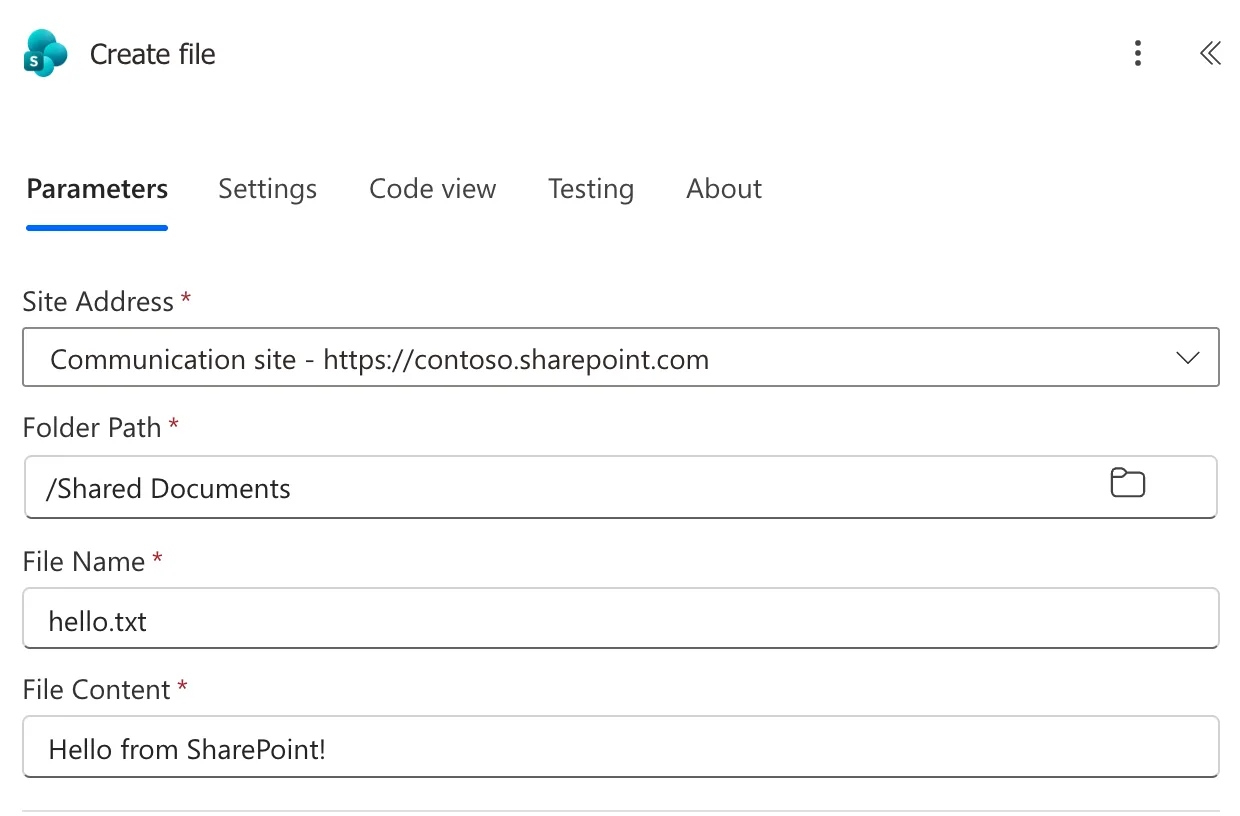
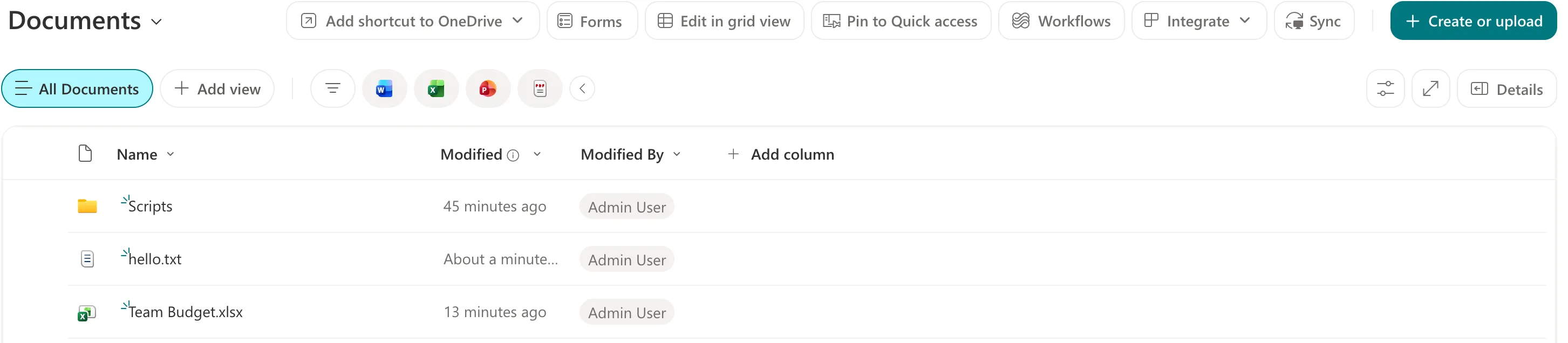
The example creates hello.txt, containing Hello from SharePoint!, in the Documents library of a SharePoint site called Communication site.
Prerequisites
- Permission to add files to the library for the account the flow's SharePoint connection uses. The file is created as that account.
Step 1: Add Create file
In a flow with the trigger Manually trigger a flow, select +, Add an action and search for Create file. Select it under SharePoint: OneDrive for Business has an action with the same name, and the search may list that one first.
Step 2: Fill the Four Fields
- Site Address: the site, picked from the list, here Communication site.
- Folder Path: select the folder icon and pick the library, or a folder in it. The Documents library's path is /Shared Documents, its address in the site. Microsoft's SharePoint connector reference says the path must start with an existing library.
- File Name: the name with its extension, here hello.txt.
- File Content: what goes in the file, here Hello from SharePoint!.
Step 3: Run the Flow
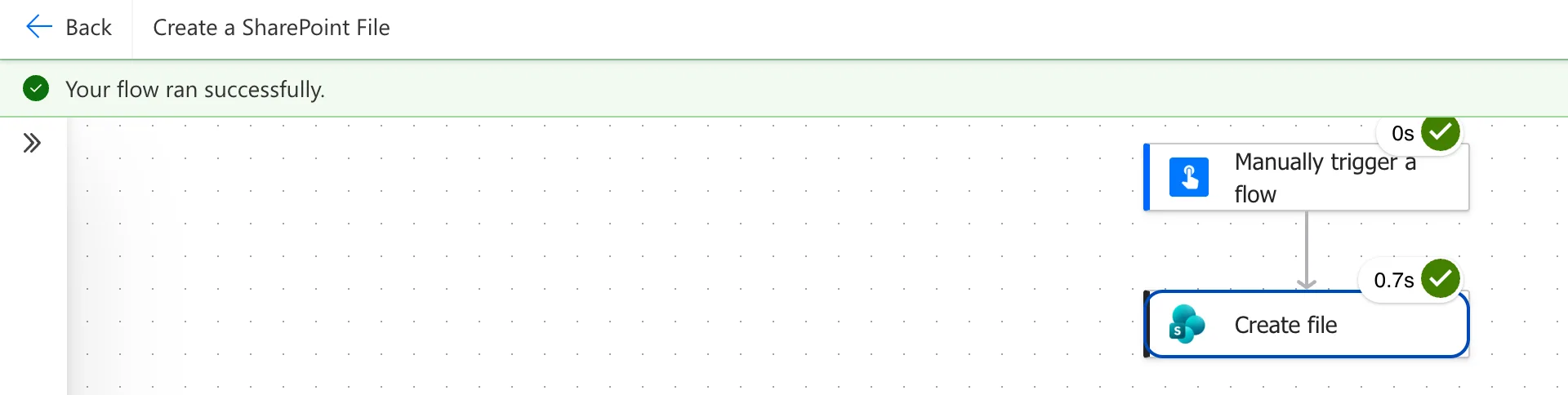
Save the flow and test it (How to Test a Cloud Flow Manually in Power Automate). Create file took 0.7 seconds:
The Result
The Documents library has hello.txt, modified about a minute ago:
Create file also returns details of the new file for the steps after it, such as its path and an identifier. To get its link, see How to Get a Link to a SharePoint File in Power Automate.
Common Mistakes
| Mistake | What happens | Do this instead |
|---|---|---|
| Picking OneDrive's Create file | The file goes to a OneDrive, not the site | Pick the action under SharePoint |
Typing the library's name, /Documents, as the path | The path is the library's address, /Shared Documents, not its name | Pick the folder with the folder icon |
Troubleshooting
| Symptom | Likely cause | Fix |
|---|---|---|
| The action asks you to sign in to OneDrive | It's OneDrive's Create file | Delete it and add the SharePoint one |
| The action uses a connection you didn't expect | The designer picked an existing connection reference | Check Connected to under the action and Change connection reference (Fixed: A Flow in a Solution Uses Another Solution's Connection Reference in Power Automate) |
| The run fails with access denied | The connection's account can't add files to the library | Give that account edit access to the library |
FAQ
How do I copy a file under a new name?
Read the original with Get file content using path (How to Read a File from SharePoint in Power Automate), then use its File Content in Create file with the new name.
Can the name come from the flow?
Yes. Type around tokens or expressions in File Name, for example a month from formatDateTime() to make one file per month (How to Format a Date in Power Automate with formatDateTime).
Can I put the file in a folder that doesn't exist yet?
The reference says Must start with an existing library. Add folders if needed. Pick an existing folder with the folder icon, or create the folder first (How to Create a Folder in a SharePoint Document Library).
Conclusion
Create file, under SharePoint, saves a file: a site, a folder path that starts with a library, a name and the content. Pick the folder with the folder icon, so the path matches the library's address.
