How to Create a Drop-Down List in Excel for the Web

A drop-down list makes people pick from set choices instead of typing, so the same department is never spelt two ways. In Excel for the web it's a Data Validation rule: Data → Data Validation → Allow: List, with the choices typed in Source.
The example is the Department column of the old overtime timesheet from Part 1 of the Overtime Timesheet series, which has two departments.
Prerequisites
- A workbook open for editing in Excel for the web, and the cells that should get the list.
Step 1: Select the Cells
Select the cells that should offer the list: B2:B15, the Department column under its heading.
Step 2: Open Data Validation
Select the Data tab:

In the Data Tools group, select Data Validation:
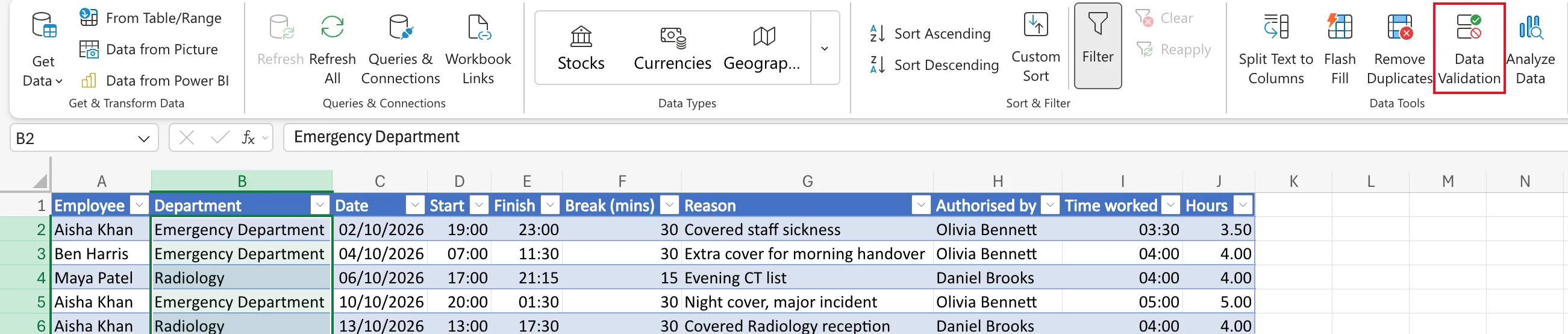
Step 3: Set Up the List
On the Settings tab of Data Validation:
- Allow: List.
- Source: the choices, separated by commas,
Emergency Department,Radiology. - Keep Ignore blank and In-cell drop-down ticked.
Then select Apply:
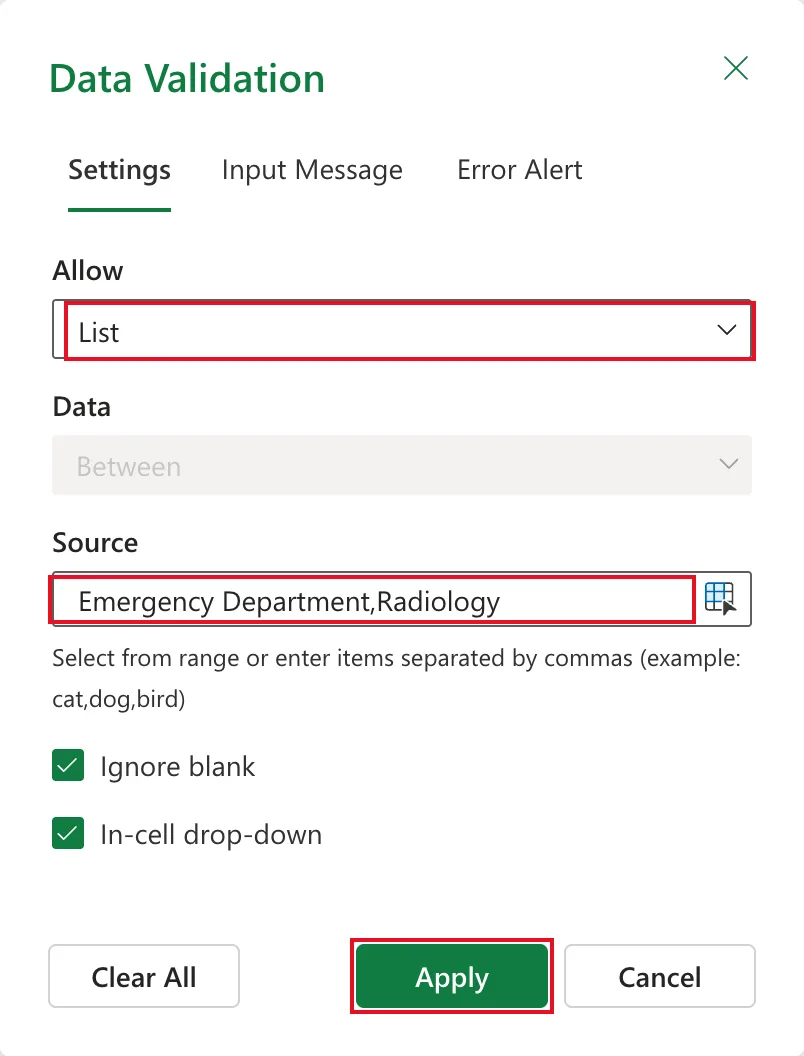
Microsoft's Apply data validation to cells points out that In-cell drop-down must stay ticked, or you won't see the arrow next to the cell.
Step 4: Use the List
Select a cell in the column. An arrow appears at its right; select it to see the choices:
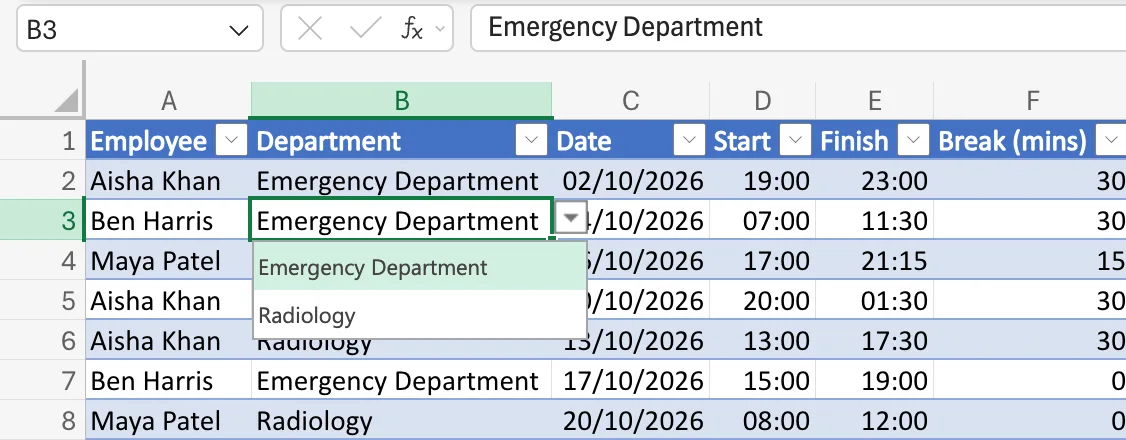
With the cell selected, Alt+Down arrow opens the list from the keyboard.
Common Mistakes
| Mistake | What happens | Do this instead |
|---|---|---|
| Selecting only one cell | Only that cell gets the list | Select every cell that needs it |
| Spelling a choice differently from the data already in the column | Existing entries don't match the list | Copy the choices from the data exactly |
| Clearing In-cell drop-down | The rule works but there's no arrow | Keep it ticked |
Troubleshooting
| Symptom | Likely cause | Fix |
|---|---|---|
| No arrow on the cell | In-cell drop-down is cleared, or the cell isn't in the selection | Reopen Data Validation and check |
| Existing values that aren't in the list stay | Validation checks new entries | Correct old values by hand |
FAQ
Can the choices come from cells instead?
Yes. Source also takes a range of cells, which is handier when the list is long or changes.
What happens if someone types something else?
The Error Alert tab decides: by default, Excel refuses values that aren't in the list.
Conclusion
Select the cells, Data → Data Validation, Allow: List, type the choices with commas, and Apply. Each cell then offers the list.
