How to Create a .NET C# Web API Solution with a Class Library

A real .NET C# Web API usually isn't one project. It's a solution: the API itself, plus one or more class libraries for code that doesn't belong in the web layer, such as the database code. This guide builds that structure from the command line with .NET 10, adds the settings that production projects use, and fixes the two errors those settings raise on the template's own code.
What You'll Build
dewiride-inventory-api/
├── .editorconfig                  code style for VS Code and Visual Studio
├── .gitattributes                 line endings Git stores
├── Dewiride.Inventory.slnx        the solution: a list of the projects
├── Directory.Build.props          build rules every project shares
├── Directory.Packages.props       every NuGet package version, in one file
├── global.json                    which .NET SDK builds the solution
└── src/
    ├── Dewiride.Inventory.Api/    an ASP.NET Core minimal Web API
    └── Dewiride.Inventory.Data/   a class library the API references
The names come from the inventory API in How to Connect a .NET C# Web API to a MySQL Database, which starts from this solution. Use your own names if you like; replace Dewiride.Inventory everywhere it appears.
| Term | Meaning |
|---|---|
| Project | One .csproj file and its code. It builds into one program or library. |
| Solution | A file that lists several projects, so you can build, run and open them together. |
| Class library | A project that builds into a .dll other projects use. It can't run on its own. |
| Project reference | A link that lets one project use the code of another. |
Prerequisites
- The .NET 10 SDK, from the Downloads page:
dotnet --version
10.0.403
- A project folder with a Git repository and a
.gitignore. How to Create a Git Repository and Make Your First Commit and How to Add a .gitignore to a .NET C# Project set them up. Open a terminal in that folder; every command below runs from there. - An editor: VS Code or Visual Studio 2026. Everything here uses the
dotnetcommand, which works the same with both.
The commands work unchanged in bash, zsh and PowerShell unless a step shows tabs.
Step 1: Create the Solution
dotnet new sln --name Dewiride.Inventory
The template "Solution File" was created successfully.
dotnet new creates files from a template; sln is the solution template, and --name names the file. Since .NET 10, this creates an .slnx file, the newer XML solution format, instead of the older .sln. It starts empty:
<Solution>
</Solution>
Microsoft describes .slnx as "well-supported by all major .NET tooling", Visual Studio and VS Code included.
Step 2: Pin the .NET SDK with global.json
dotnet new globaljson --sdk-version 10.0.403 --roll-forward latestFeature
The template "global.json file" was created successfully.
{
  "sdk": {
    "rollForward": "latestFeature",
    "version": "10.0.403"
  }
}
global.json tells the dotnet command which SDK to use in this folder. Without it, whichever SDK is newest on a computer builds the project, and a teammate with a preview of the next .NET version could get different results. latestFeature accepts 10.0.403 or any newer .NET 10 SDK, so everyone stays on .NET 10 but still gets security updates.
Step 3: Set Build Rules for Every Project
dotnet new buildprops
The template "MSBuild Directory.Build.props file" was created successfully.
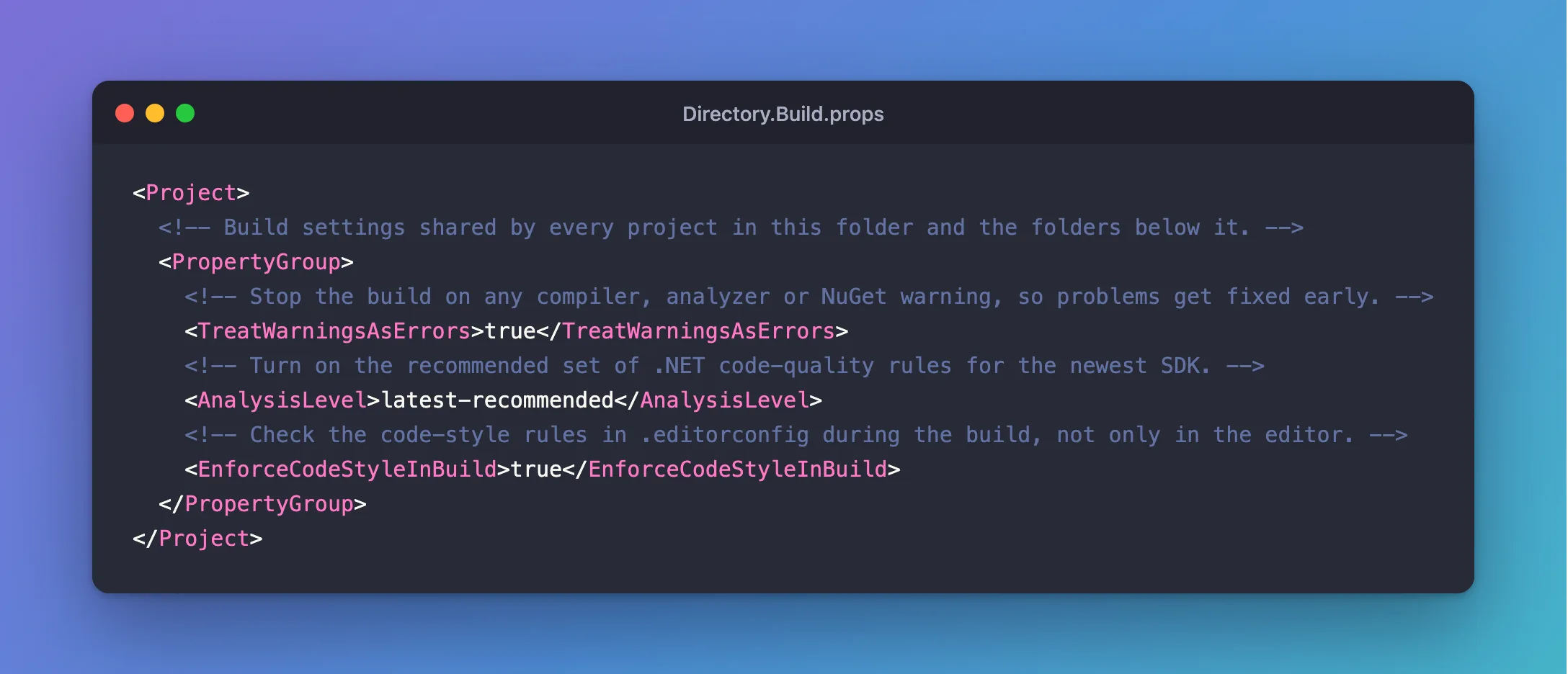
MSBuild, the engine behind dotnet build, reads a file named Directory.Build.props automatically and applies it to every project in the folder and below it. The template is empty; replace its contents:
<Project>
  <!-- Build settings shared by every project in this folder and the folders below it. -->
  <PropertyGroup>
    <!-- Stop the build on any compiler, analyzer or NuGet warning, so problems get fixed early. -->
    <TreatWarningsAsErrors>true</TreatWarningsAsErrors>
    <!-- Turn on the recommended set of .NET code-quality rules for the newest SDK. -->
    <AnalysisLevel>latest-recommended</AnalysisLevel>
    <!-- Check the code-style rules in .editorconfig during the build, not only in the editor. -->
    <EnforceCodeStyleInBuild>true</EnforceCodeStyleInBuild>
  </PropertyGroup>
</Project>
| Setting | What it does |
|---|---|
TreatWarningsAsErrors | Turns every warning into an error. Warnings that only scroll past get ignored; errors get fixed. NuGet warnings count too, including warnings about packages with known security problems. |
AnalysisLevel | latest-recommended turns on the .NET code-quality rules from the newest SDK that Microsoft recommends, on top of the default ones. |
EnforceCodeStyleInBuild | Checks the code-style rules from .editorconfig (Step 5) during dotnet build, not only in the editor. |
These rules are strict on purpose, and they'll stop the template's own code twice in this guide. Both times, the fix makes the code better.
Step 4: Keep Every Package Version in One File
dotnet new packagesprops
The template "MSBuild Directory.Packages.props file" was created successfully.
<Project>
  <PropertyGroup>
    <!-- Enable central package management, https://learn.microsoft.com/en-us/nuget/consume-packages/Central-Package-Management -->
    <ManagePackageVersionsCentrally>true</ManagePackageVersionsCentrally>
  </PropertyGroup>
  <ItemGroup>
  </ItemGroup>
</Project>
This turns on central package management: each NuGet package's version is written once, here, as a <PackageVersion>, and each project only names the packages it uses. When a solution has several projects, they can never drift onto different versions of the same package.
Step 5: Add an .editorconfig
dotnet new editorconfig
The template "EditorConfig file" was created successfully.
.editorconfig holds code-style preferences, such as indentation and naming, that VS Code and Visual Studio both follow. The template is Microsoft's default set for .NET, about 390 lines.
Step 6: Choose the Line Endings Git Stores
Create a file named .gitattributes with this content:
# Store every text file with LF line endings in the repository, whatever the
# operating system or tool that created it. Git picks the right line endings
# for your computer when it checks the files out.
* text=auto
Windows ends lines with two characters (CR LF), macOS and Linux with one (LF). The Web API template's files use Windows line endings even on a Mac, while dotnet commands that edit a file write the other kind. Without this line, Git records both, and a one-line change can show up as a change to every line. Fixed: Git Shows Every Line Changed in Files from dotnet new (CRLF Line Endings) shows the problem and the details.
Step 7: Create the Web API Project
dotnet new webapi --name Dewiride.Inventory.Api --output src/Dewiride.Inventory.Api --no-https
webapi is the ASP.NET Core Web API template. In .NET 10 it creates a minimal API, where endpoints are short functions in Program.cs instead of controller classes. --output puts the project in src/, which keeps the folder tidy as projects are added. --no-https leaves out the HTTPS profile and the HTTPS redirect. Microsoft's guidance is that APIs should either not listen on plain HTTP or refuse it, not redirect it, because API clients "might not understand or obey redirects". An API like this one is meant to run behind a gateway or proxy that provides HTTPS, so locally it uses plain HTTP on your own computer.
This is the first time the strict settings stop the template:
The template "ASP.NET Core Web API" was created successfully.

Processing post-creation actions...
Restoring /Users/you/projects/dewiride-inventory-api/src/Dewiride.Inventory.Api/Dewiride.Inventory.Api.csproj:
    /Users/you/projects/dewiride-inventory-api/src/Dewiride.Inventory.Api/Dewiride.Inventory.Api.csproj : error NU1008: The following PackageReference items cannot define a value for Version: Microsoft.AspNetCore.OpenApi. Projects using Central Package Management must define a Version value on a PackageVersion item. For more information, visit https://aka.ms/nuget/cpm/gettingstarted
Restore failed.
Post action failed.
Manual instructions: Run 'dotnet restore'
The project was created, but the template wrote its package version into the project file, which central package management doesn't allow. Move the version to Directory.Packages.props. Add a PackageVersion line:
<Project>
  <PropertyGroup>
    <!-- Enable central package management, https://learn.microsoft.com/en-us/nuget/consume-packages/Central-Package-Management -->
    <ManagePackageVersionsCentrally>true</ManagePackageVersionsCentrally>
  </PropertyGroup>
  <ItemGroup>
    <PackageVersion Include="Microsoft.AspNetCore.OpenApi" Version="10.0.14" />
  </ItemGroup>
</Project>
And remove Version="10.0.14" from the project file, so the line reads:
<PackageReference Include="Microsoft.AspNetCore.OpenApi" />
Then restore the project's packages:
dotnet restore src/Dewiride.Inventory.Api
Restore complete (1.0s)

Build succeeded in 1.3s
Fixed: error NU1008: The following PackageReference items cannot define a value for Version explains the error in detail.
Pass the project's path to dotnet restore at this point. Run it without a path, and it restores the solution, which is still empty, so it warns Unable to find a project to restore!. The fix for that warning shows what happened when I did exactly that.
Step 8: Create the Class Library
dotnet new classlib --name Dewiride.Inventory.Data --output src/Dewiride.Inventory.Data
The template "Class Library" was created successfully.

Processing post-creation actions...
Restoring /Users/you/projects/dewiride-inventory-api/src/Dewiride.Inventory.Data/Dewiride.Inventory.Data.csproj:
Restore succeeded.
This template has no packages, so central package management has nothing to complain about. It comes with a placeholder class, Class1.cs, which you won't need. Delete it:
- macOS / Linux
- Windows (PowerShell)
rm src/Dewiride.Inventory.Data/Class1.cs
Remove-Item src/Dewiride.Inventory.Data/Class1.cs
Step 9: Add Both Projects to the Solution and Connect Them
Add the projects to the solution:
dotnet sln add src/Dewiride.Inventory.Api/Dewiride.Inventory.Api.csproj src/Dewiride.Inventory.Data/Dewiride.Inventory.Data.csproj
Project `src/Dewiride.Inventory.Api/Dewiride.Inventory.Api.csproj` added to the solution.
Project `src/Dewiride.Inventory.Data/Dewiride.Inventory.Data.csproj` added to the solution.
Then let the API use the class library's code:
dotnet reference add src/Dewiride.Inventory.Data/Dewiride.Inventory.Data.csproj --project src/Dewiride.Inventory.Api/Dewiride.Inventory.Api.csproj
Reference `..\Dewiride.Inventory.Data\Dewiride.Inventory.Data.csproj` added to the project.
dotnet reference add is the .NET 10 form of the older dotnet add reference, which still works. The path is relative to the API project, with backslashes, which MSBuild understands on every operating system. Check the solution:
dotnet sln list
Project(s)
----------
src/Dewiride.Inventory.Api/Dewiride.Inventory.Api.csproj
src/Dewiride.Inventory.Data/Dewiride.Inventory.Data.csproj
The solution file now lists both projects, inside a src folder that mirrors the one on disk:
<Solution>
  <Folder Name="/src/">
    <Project Path="src/Dewiride.Inventory.Api/Dewiride.Inventory.Api.csproj" />
    <Project Path="src/Dewiride.Inventory.Data/Dewiride.Inventory.Data.csproj" />
  </Folder>
</Solution>
Step 10: Give the API a Fixed Port
The template picks a random port, such as 5170, so every reader of a tutorial ends up with a different one. Open src/Dewiride.Inventory.Api/Properties/launchSettings.json and set the address to port 5190:
{
  "$schema": "https://json.schemastore.org/launchsettings.json",
  "profiles": {
    "http": {
      "commandName": "Project",
      "dotnetRunMessages": true,
      "launchBrowser": false,
      "applicationUrl": "http://localhost:5190",
      "environmentVariables": {
        "ASPNETCORE_ENVIRONMENT": "Development"
      }
    }
  }
}
launchSettings.json is only used on your own computer, by dotnet run, VS Code and Visual Studio. Its http profile also sets ASPNETCORE_ENVIRONMENT to Development. Change the same port on the first line of src/Dewiride.Inventory.Api/Dewiride.Inventory.Api.http, the template's file of example requests:
@Dewiride.Inventory.Api_HostAddress = http://localhost:5190
Step 11: Build the Solution
dotnet build
The strict rules stop the template a second time:
Restore complete (0.4s)
  Dewiride.Inventory.Data net10.0 succeeded (0.1s) → src/Dewiride.Inventory.Data/bin/Debug/net10.0/Dewiride.Inventory.Data.dll
  Dewiride.Inventory.Api net10.0 failed with 1 error(s) (0.4s)
    /Users/you/projects/dewiride-inventory-api/src/Dewiride.Inventory.Api/Program.cs(36,8): error CA1852: Type 'WeatherForecast' can be sealed because it has no subtypes in its containing assembly and is not externally visible (https://learn.microsoft.com/dotnet/fundamentals/code-analysis/quality-rules/ca1852)

Build failed with 1 error(s) in 1.0s
The template's sample WeatherForecast record breaks rule CA1852, one of the recommended rules from Step 3, and TreatWarningsAsErrors makes it an error. Microsoft's fix is to mark the type sealed. Open src/Dewiride.Inventory.Api/Program.cs and change line 36:
sealed record WeatherForecast(DateOnly Date, int TemperatureC, string? Summary)
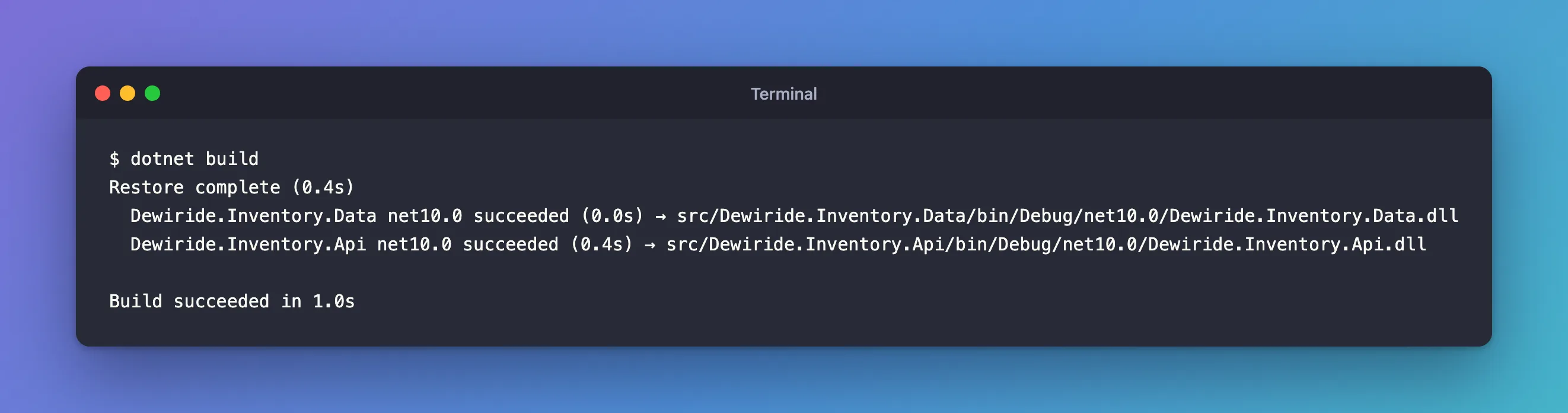
Build again:
dotnet build
Restore complete (0.4s)
  Dewiride.Inventory.Data net10.0 succeeded (0.0s) → src/Dewiride.Inventory.Data/bin/Debug/net10.0/Dewiride.Inventory.Data.dll
  Dewiride.Inventory.Api net10.0 succeeded (0.4s) → src/Dewiride.Inventory.Api/bin/Debug/net10.0/Dewiride.Inventory.Api.dll

Build succeeded in 1.0s
Fixed: error CA1852: Type 'WeatherForecast' can be sealed because it has no subtypes explains the rule.
Step 12: Run the API
dotnet run --project src/Dewiride.Inventory.Api
Using launch settings from src/Dewiride.Inventory.Api/Properties/launchSettings.json...
Building...
info: Microsoft.Hosting.Lifetime[14]
      Now listening on: http://localhost:5190
info: Microsoft.Hosting.Lifetime[0]
      Application started. Press Ctrl+C to shut down.
info: Microsoft.Hosting.Lifetime[0]
      Hosting environment: Development
info: Microsoft.Hosting.Lifetime[0]
      Content root path: /Users/you/projects/dewiride-inventory-api/src/Dewiride.Inventory.Api
Leave it running, and call the template's sample endpoint from a second terminal:
- macOS / Linux
- Windows (PowerShell)
curl -i http://localhost:5190/weatherforecast
curl.exe -i http://localhost:5190/weatherforecast
In Windows PowerShell, curl on its own is a different command, so type curl.exe.
HTTP/1.1 200 OK
Content-Type: application/json; charset=utf-8
Date: Mon, 02 Nov 2026 16:33:44 GMT
Server: Kestrel
Transfer-Encoding: chunked

[{"date":"2026-11-03","temperatureC":-5,"summary":"Balmy","temperatureF":24},{"date":"2026-11-04","temperatureC":9,"summary":"Chilly","temperatureF":48},{"date":"2026-11-05","temperatureC":22,"summary":"Scorching","temperatureF":71},{"date":"2026-11-06","temperatureC":-15,"summary":"Freezing","temperatureF":6},{"date":"2026-11-07","temperatureC":-11,"summary":"Freezing","temperatureF":13}]
The API works. The forecast is random, so your numbers will differ. Stop the API with Ctrl+C.
Step 13: Remove the Sample Code
Your API won't forecast the weather, so remove the sample. Replace src/Dewiride.Inventory.Api/Program.cs with this:
var builder = WebApplication.CreateBuilder(args);

// Add services to the container.
// Learn more about configuring OpenAPI at https://aka.ms/aspnet/openapi
builder.Services.AddOpenApi();

var app = builder.Build();

// Configure the HTTP request pipeline.
if (app.Environment.IsDevelopment())
{
    app.MapOpenApi();
}

app.Run();
What's left is the skeleton every minimal API needs:
WebApplication.CreateBuilder(args)reads configuration, fromappsettings.jsonto environment variables, and sets up logging and dependency injection.AddOpenApiandMapOpenApipublish an OpenAPI document that describes the API's endpoints.IsDevelopment()keeps it on your computer only.app.Run()starts the web server and keeps it running.
Replace the sample request in src/Dewiride.Inventory.Api/Dewiride.Inventory.Api.http too:
@Dewiride.Inventory.Api_HostAddress = http://localhost:5190

GET {{Dewiride.Inventory.Api_HostAddress}}/openapi/v1.json
Accept: application/json

###
Run the API again with dotnet run --project src/Dewiride.Inventory.Api, and ask for the OpenAPI document:
- macOS / Linux
- Windows (PowerShell)
curl -i http://localhost:5190/openapi/v1.json
curl.exe -i http://localhost:5190/openapi/v1.json
HTTP/1.1 200 OK
Content-Type: application/json;charset=utf-8
Date: Mon, 02 Nov 2026 16:33:59 GMT
Server: Kestrel
Transfer-Encoding: chunked

{
  "openapi": "3.1.1",
  "info": {
    "title": "Dewiride.Inventory.Api | v1",
    "version": "1.0.0"
  },
  "servers": [
    {
      "url": "http://localhost:5190/"
    }
  ],
  "paths": { }
}
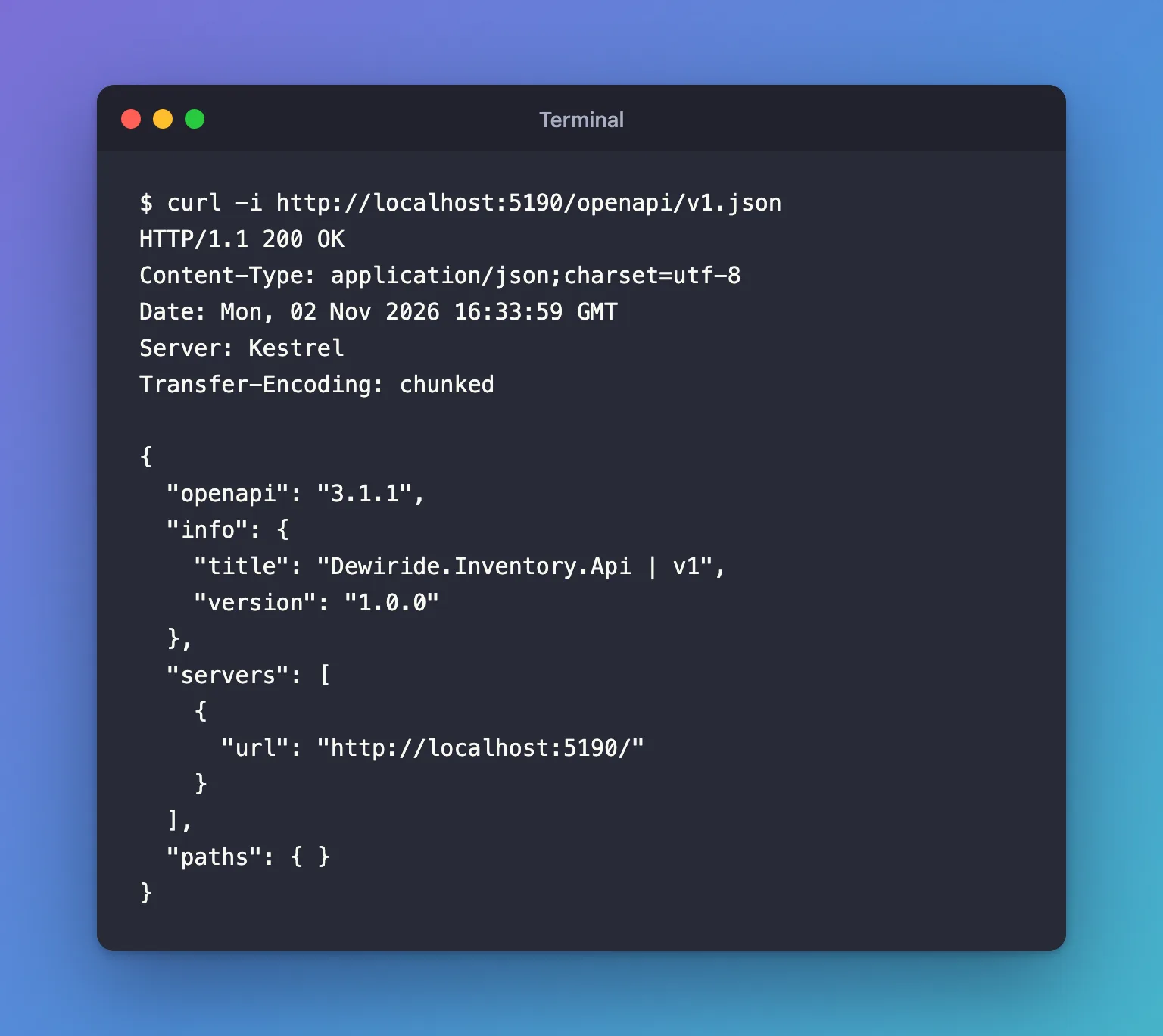
"paths": { } says the API has no endpoints yet, which is exactly right: it's an empty, working API, ready for your own code. The old address now answers 404 Not Found. Stop the API with Ctrl+C.
Step 14: Commit the Solution
git add .
warning: in the working copy of 'src/Dewiride.Inventory.Api/Dewiride.Inventory.Api.csproj', CRLF will be replaced by LF the next time Git touches it
warning: in the working copy of 'src/Dewiride.Inventory.Api/Properties/launchSettings.json', CRLF will be replaced by LF the next time Git touches it
warning: in the working copy of 'src/Dewiride.Inventory.Api/appsettings.Development.json', CRLF will be replaced by LF the next time Git touches it
warning: in the working copy of 'src/Dewiride.Inventory.Api/appsettings.json', CRLF will be replaced by LF the next time Git touches it
These warnings are .gitattributes from Step 6 at work: Git noticed the template's Windows line endings and stores the files with LF. Nothing is wrong, and your files on disk stay as they are. Now commit:
git commit -m "Add the .NET 10 Web API solution"
[main (root-commit) 653d173] Add the .NET 10 Web API solution
 14 files changed, 985 insertions(+)
 create mode 100644 .editorconfig
 create mode 100644 .gitattributes
 create mode 100644 .gitignore
 create mode 100644 Dewiride.Inventory.slnx
 create mode 100644 Directory.Build.props
 create mode 100644 Directory.Packages.props
 create mode 100644 global.json
 create mode 100644 src/Dewiride.Inventory.Api/Dewiride.Inventory.Api.csproj
 create mode 100644 src/Dewiride.Inventory.Api/Dewiride.Inventory.Api.http
 create mode 100644 src/Dewiride.Inventory.Api/Program.cs
 create mode 100644 src/Dewiride.Inventory.Api/Properties/launchSettings.json
 create mode 100644 src/Dewiride.Inventory.Api/appsettings.Development.json
 create mode 100644 src/Dewiride.Inventory.Api/appsettings.json
 create mode 100644 src/Dewiride.Inventory.Data/Dewiride.Inventory.Data.csproj
bin and obj, the build output folders, aren't in the list, because .gitignore excludes them. This was the first commit in my folder, hence root-commit; in a repository that already has commits, Git leaves that word out, and your commit ID will differ.
Open the Solution in Your Editor
- VS Code
- Visual Studio
Run code . in the project folder, or choose File → Open Folder. Microsoft's C# Dev Kit extension adds a Solution Explorer view that shows the projects in the solution.
Choose File → Open → Project/Solution and pick Dewiride.Inventory.slnx. Solution Explorer shows the src folder with both projects.
Common Mistakes
| Mistake | What happens | Do this instead |
|---|---|---|
Creating the projects without --output src/... | Every project lands in the root folder | Pass --output with a path under src/ |
Keeping Version="…" on a PackageReference | error NU1008 stops restore and build | Put the version in Directory.Packages.props only |
Forgetting dotnet sln add | The project builds on its own, but dotnet build in the root skips it | Add every project to the solution |
| Forgetting the project reference | The API can't see the class library's code | Run dotnet reference add |
| Leaving the random port | Every machine uses a different address | Set applicationUrl in launchSettings.json |
Troubleshooting
| Symptom | Likely cause | Fix |
|---|---|---|
error NU1008: The following PackageReference items cannot define a value for Version | A template or tool wrote a version into a project file | See the NU1008 fix |
error CA1852: Type 'WeatherForecast' can be sealed | The recommended analysis rules caught the template's sample | See the CA1852 fix |
warning Unable to find a project to restore! | dotnet restore ran on a solution with no projects yet | See the fix |
| Git shows every line of a file as changed | Mixed CRLF and LF line endings | Add .gitattributes (Step 6); see the line-endings fix |
FAQ
Why a separate class library?
It keeps code that isn't about HTTP, such as database access, out of the web project. The API stays small and only wires things together, and the library could be reused by another app, such as a background worker.
Can I still use an .sln file?
Yes. dotnet new sln --format sln creates the older format. Microsoft made .slnx the default in .NET 10 because it's much easier to read and maintain.
Do I need Directory.Build.props and central package management?
No, a solution works without them. They pay off as soon as there's more than one project: one place for build rules, one place for versions.
Conclusion
You've created a .NET 10 C# solution the way production projects are usually laid out: an .slnx solution, a pinned SDK, shared build rules, central package management, a minimal Web API on a fixed port and a class library it references. The strict rules caught two problems in the template's own code, and both fixes are in place.
Additional Resources
- dotnet new sln — creating and editing solution files, including
.slnx. - Central Package Management — NuGet's documentation for
Directory.Packages.props. - Customize the build by folder — how MSBuild reads
Directory.Build.props. - global.json overview — every
rollForwardoption. - Enforce HTTPS in ASP.NET Core — Microsoft's guidance for API projects.
