How to Create a Dev Tunnel That Keeps Its URL

devtunnel host -p 8080 gives you a new URL every time you run it. That's fine for a quick look, but not when the URL is saved somewhere else: a webhook, an app's redirect address, or a bot's messaging endpoint. A persistent dev tunnel keeps one URL until you delete it.
A temporary tunnel is what devtunnel host -p <port> creates: Microsoft's CLI reference says it is deleted once the connection is closed, and the next one gets a new ID and a new URL. A persistent tunnel is created first, on its own, and then hosted by its ID as often as you like. Dev tunnels are in public preview. They need no Azure subscription or payment method, only a sign-in, and use is capped by monthly limits instead, such as 10 tunnels and 5 GB of bandwidth per user.
Syntax
A persistent tunnel takes three commands to set up and run, and one to remove:
devtunnel create <tunnel-id> --allow-anonymous
devtunnel port create <tunnel-id> -p <port>
devtunnel host <tunnel-id>
devtunnel delete <tunnel-id> -f
| Part | What it is |
|---|---|
devtunnel create <tunnel-id> | Creates a persistent tunnel. <tunnel-id> is a name you choose; leave it out and the CLI makes one up |
--allow-anonymous | Optional. Lets anyone with the URL connect. Without it, only you can, after signing in |
devtunnel port create <tunnel-id> -p <port> | Adds a port to the tunnel: the port your app listens on. A new tunnel has none |
devtunnel host <tunnel-id> | Opens the tunnel and keeps it open while the command runs. Ctrl+C stops hosting, and the tunnel stays |
devtunnel delete <tunnel-id> -f | Deletes the tunnel. -f (force) skips the confirmation question |
The Example
The CLI's own echo server stands in for your app: devtunnel echo http -p 8080 answers every request with the request it received, on port 8080. The tunnel is called my-echo-tunnel. It's hosted, stopped and hosted again, and the URL is compared.
Prerequisites
- The
devtunnelCLI, signed in. Microsoft's quickstart installs it, anddevtunnel user loginsigns you in.devtunnel user showtells you whether you're signed in.
Step 1: Start the Echo Server
In a first terminal:
devtunnel echo http -p 8080
Echo server listening at http://127.0.0.1:8080/ (ws://127.0.0.1:8080/)
Leave it running.
Step 2: Create the Tunnel
In a second terminal, create the tunnel with a name of your choice:
devtunnel create my-echo-tunnel --allow-anonymous
Tunnel ID             : my-echo-tunnel.inc1
Description           :
Labels                :
Access control        : {+Anonymous [connect]}
Host connections      : 0
Client connections    : 0
Current upload rate   : 0 MB/s (limit: 20 MB/s)
Current download rate : 0 MB/s (limit: 20 MB/s)
Tunnel Expiration     : 30 days

Set default tunnel to my-echo-tunnel.inc1.
The service added the region it chose, inc1, to the ID. Host connections: 0 means nobody hosts it yet: the tunnel exists, but it doesn't forward anything. Set default tunnel means later commands use this tunnel when you don't name one. This guide names it anyway, so each command is clear on its own.
Step 3: Add the Port
devtunnel port create my-echo-tunnel -p 8080
Tunnel ID             : my-echo-tunnel.inc1
Port Number           : 8080
Protocol              : auto
Access control        : {Inherited: +Anonymous [connect]}
Client connections    : 0
The port inherits the tunnel's anonymous access. Protocol: auto lets the service detect whether the port speaks HTTP or HTTPS. Microsoft's reference suggests --protocol https for a port that serves HTTPS.
Step 4: Host It
devtunnel host my-echo-tunnel
Connection to host tunnel relay restored.
Hosting port: 8080
Connect via browser: https://k0n84s8w.inc1.devtunnels.ms:8080, https://k0n84s8w-8080.inc1.devtunnels.ms
Inspect network activity: https://k0n84s8w-8080-inspect.inc1.devtunnels.ms

Ready to accept connections for tunnel: my-echo-tunnel.inc1
The URL, https://k0n84s8w-8080.inc1.devtunnels.ms, belongs to this tunnel and this port. Call it from a third terminal. curl -s makes the request quietly, without a progress bar:
curl -s https://k0n84s8w-8080.inc1.devtunnels.ms/hello
The echo server's answer starts with the request it received:
GET /hello HTTP/1.1
Accept: */*
Host: localhost:8080
All three commands together:
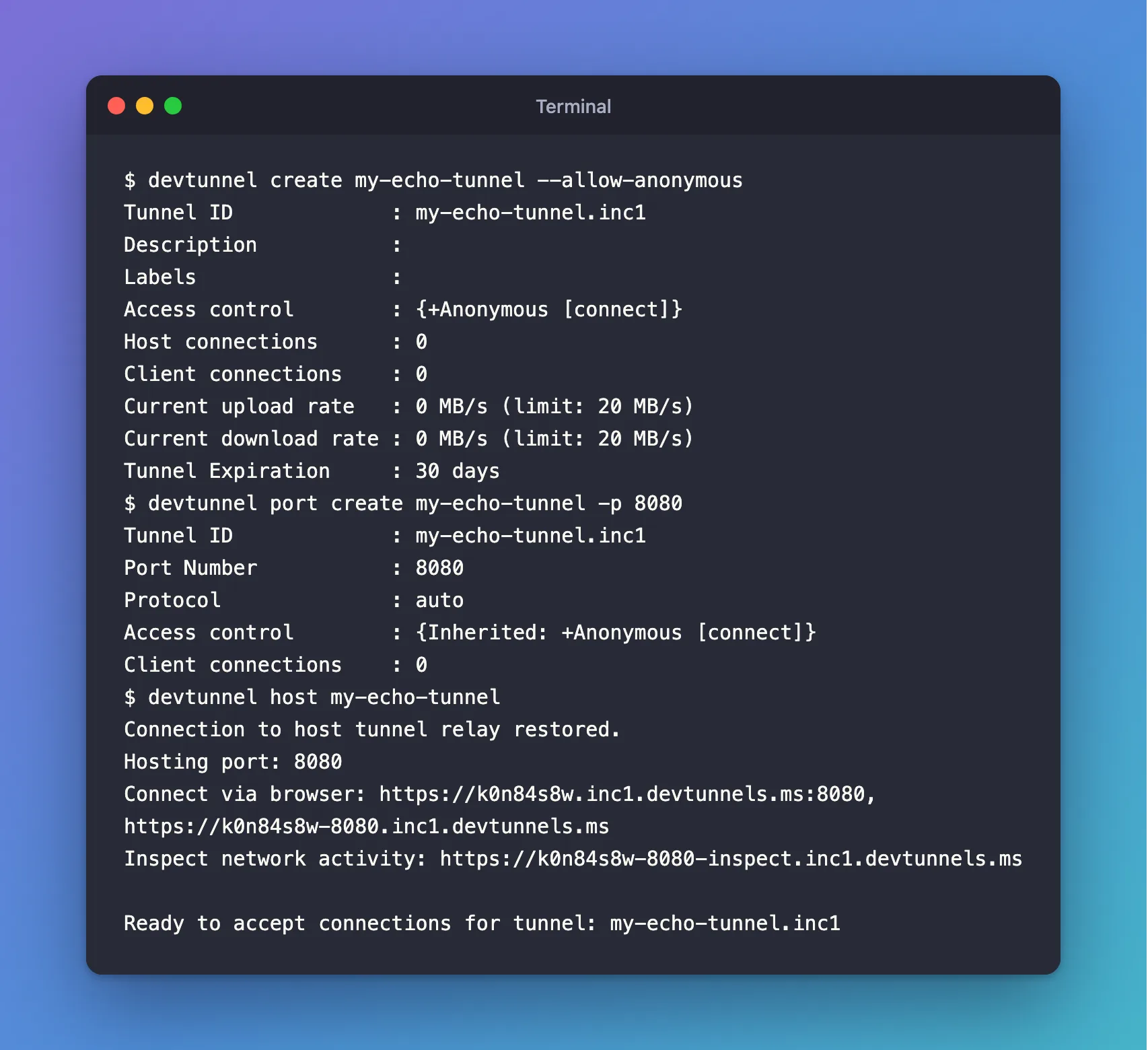
Step 5: Stop and Host Again
Press Ctrl+C in Terminal 2. The host stops, and the tunnel stays:
devtunnel list
Found 1 tunnel.

Tunnel ID                           Host Connections     Labels                    Ports                Expiration                Description
my-echo-tunnel.inc1                 0                                              1                    30 days
Host Connections: 0: nothing forwards to your computer right now, but the tunnel and its port are still there. Host it again:
devtunnel host my-echo-tunnel
Connection to host tunnel relay restored.
Hosting port: 8080
Connect via browser: https://k0n84s8w.inc1.devtunnels.ms:8080, https://k0n84s8w-8080.inc1.devtunnels.ms
Inspect network activity: https://k0n84s8w-8080-inspect.inc1.devtunnels.ms

Ready to accept connections for tunnel: my-echo-tunnel.inc1
The same k0n84s8w URL, and the same request answers again:
curl -s https://k0n84s8w-8080.inc1.devtunnels.ms/hello
GET /hello HTTP/1.1
Accept: */*
Host: localhost:8080
Whatever you saved the URL in keeps working each time you host the tunnel. While the tunnel isn't hosted, requests to the URL don't reach your computer.
Step 6: Delete the Tunnel
A persistent tunnel counts toward your limit of 10 until it's gone, and unused ones are deleted only after 30 days without activity. When you're done with it, press Ctrl+C in Terminal 2 to stop hosting, then delete it:
devtunnel delete my-echo-tunnel -f
Deleted: my-echo-tunnel.inc1
Stop the echo server in Terminal 1 with Ctrl+C as well.
Common Mistakes
| Mistake | What happens | Do this instead |
|---|---|---|
Hosting with devtunnel host -p 8080 again | A new temporary tunnel with a new URL | Host by ID: devtunnel host my-echo-tunnel |
| Creating the tunnel and hosting it without a port | Nothing is forwarded | Add the port with devtunnel port create |
| Leaving old persistent tunnels around | They count toward the 10-tunnel limit | devtunnel list, then delete what you don't use |
Troubleshooting
| Symptom | Likely cause | Fix |
|---|---|---|
| The URL doesn't answer | The tunnel isn't hosted right now | Run devtunnel host <tunnel-id> |
| The browser asks you to sign in | The tunnel was created without --allow-anonymous | Sign in with the account that owns the tunnel, or allow anonymous access |
| Anonymous does not have 'create' access scope | The CLI isn't signed in | Sign in with devtunnel user login |
FAQ
How long does a persistent tunnel last?
Microsoft's FAQ: unused tunnels are deleted after 30 days of no activity, and the window moves with every new activity. --expiration on create sets a shorter one, from 1 hour to 30 days.
Can I allow anonymous access only for a while?
Yes. Microsoft's FAQ shows devtunnel access create <tunnel-id> -a --expiration 2h, which adds anonymous access to an existing tunnel for two hours.
Is the tunnel ID part of the URL?
No. The URL uses a short code, k0n84s8w in this example, that belongs to the tunnel. You use the ID in commands, and the code in the URL.
Conclusion
devtunnel create, devtunnel port create and devtunnel host <tunnel-id> give you a tunnel whose URL survives every restart, so whatever you've pointed at it keeps working. Ctrl+C stops hosting without deleting anything, and devtunnel delete removes the tunnel when you're done.
Additional Resources
- Dev tunnels command-line reference —
create,port,host,listanddelete. - Dev tunnels FAQ — expiration and time-limited access.
