How to Create a Database and Container in Azure Cosmos DB Data Explorer

In Azure Cosmos DB, your data lives in containers, and containers live in databases. Data Explorer in the Azure portal creates both in one panel. Here's every field of that panel, including the one you can't change in place later: the partition key.
An Azure Cosmos DB for NoSQL account is organised in three levels:
- A database groups containers, much like a folder.
- A container holds the data: JSON documents, which Cosmos DB calls items. Settings such as the partition key and the time to live belong to the container.
- An item is one JSON document, with an
idthat is unique within its partition.
Data Explorer is the account's built-in tool for browsing and changing all three. My example is a small notes app: a database notesdb with a container notes, in a serverless account named cosmos-howto-4224.
Step 1: Open Data Explorer
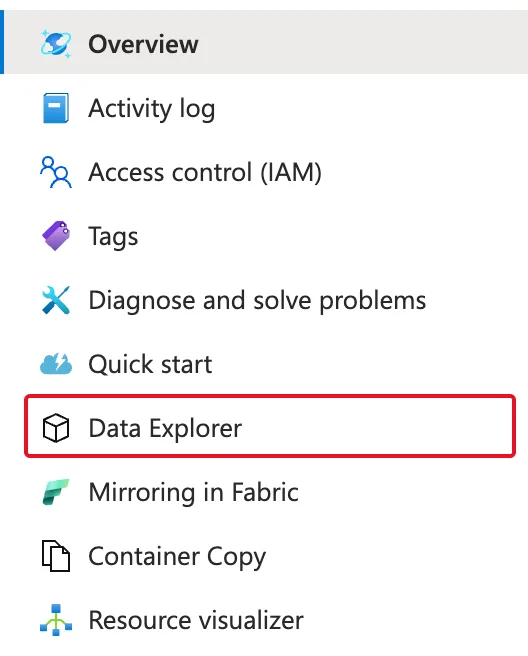
In the Azure portal, open your Azure Cosmos DB account and select Data Explorer in its menu. If a welcome dialog opens, close it with its X.
Step 2: Start a New Container
Select New... above the tree of databases, then New Container:
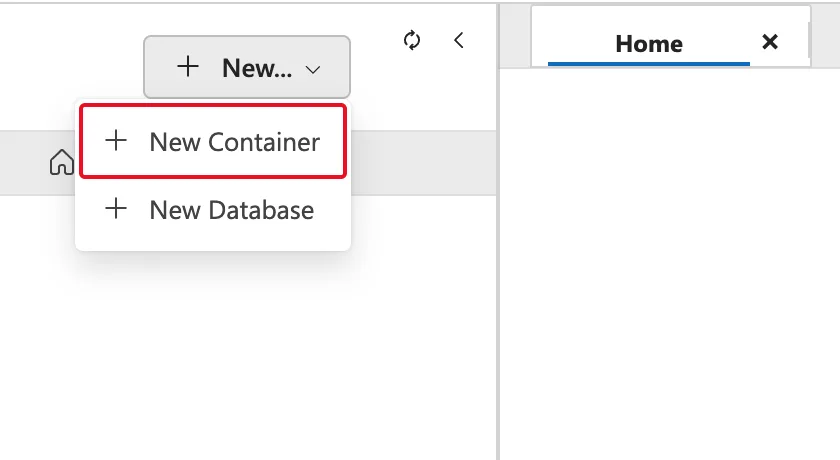
New Database creates a database on its own. New Container can create the container's database at the same time, so one panel does both.
Step 3: Fill In the Panel
The New Container panel opens on the right. Fill in three fields:
| Field | Value | What it is |
|---|---|---|
| Database id | Create new, notesdb | The database's name. Use existing puts the container in a database you already have |
| Container id | notes | The container's name, unique within its database |
| Partition key | /id | The property whose value decides where each item is stored. It starts with / |
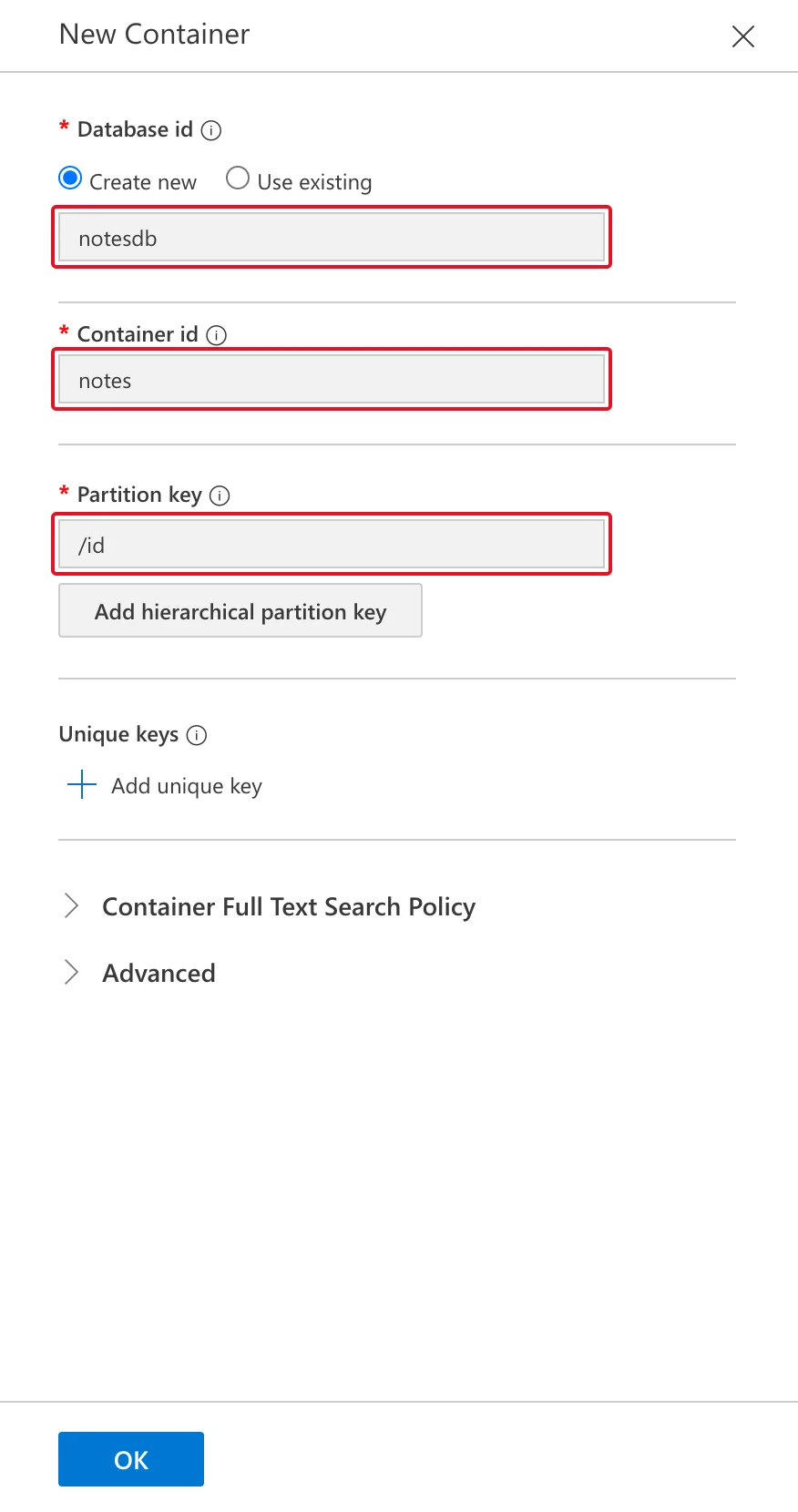
The partition key is the field to think about. Cosmos DB splits a container's items into partitions by the value of that property, and a fast, cheap read of one item, a point read, needs both the item's id and its partition key value. Microsoft's guidance: For small read-heavy containers or write-heavy containers of any size, the item ID (/id) is naturally a great choice for the partition key. With /id, an app that knows a note's ID knows everything it needs to read it.
It has trade-offs, which the same documentation lists:
- If the item ID is the partition key, it becomes a unique identifier for your entire container. No two notes can share an ID.
- Use
/idwhen your workload is mostly point reads and writes, and you rarely run broader filters. A query that filters on another property, such as all the notes of one user, has to look in every partition. If most of your reads are queries like that, partition by that property instead.
Choose carefully: Once you select your partition key, you can't change it in place. Changing it means copying the data to a new container.
Leave the rest as it is: no hierarchical partition key, no unique keys, and the Container Full Text Search Policy and Advanced sections closed. In a serverless account the panel has no throughput settings: serverless containers don't take any.
Step 4: Create It
Select OK. The tree on the left now shows notesdb with notes under it. Expand notes to see what a container has: Items, its data, Settings, such as the time to live, and folders for Stored Procedures, User Defined Functions and Triggers:
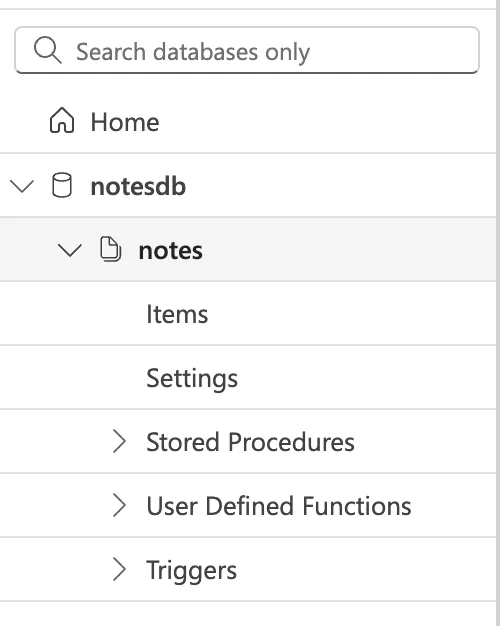
The container is ready for items, and empty. How to View, Edit and Delete Items in Azure Cosmos DB Data Explorer works with them under Items, and How to Set a Time to Live on an Azure Cosmos DB Container uses Settings.
If key-based authentication is turned off and you don't have a Cosmos DB data role yet, the bar at the bottom of Data Explorer can report Error while reading container. The container was created: creating databases and containers is management, which your Azure role allows, but reading what's in them needs a data role (Fixed). How to Give Your Account Access to Azure Cosmos DB Data with the Azure CLI assigns one.
Do It with the Azure CLI
Two commands do the same. I created a second database, notesdb-cli, with a notes container in it. First the database:
- bash / zsh
- PowerShell
az cosmosdb sql database create \
    --account-name cosmos-howto-4224 \
    --resource-group rg-maf-servicedesk \
    --name notesdb-cli \
    --query "{database:name}"
az cosmosdb sql database create `
    --account-name cosmos-howto-4224 `
    --resource-group rg-maf-servicedesk `
    --name notesdb-cli `
    --query "{database:name}"
{
  "database": "notesdb-cli"
}
az cosmosdb sql is the group of commands for an account with the NoSQL API. Use your own account name and resource group; --query prints only the name. Then the container, with its partition key path:
- bash / zsh
- PowerShell
az cosmosdb sql container create \
    --account-name cosmos-howto-4224 \
    --resource-group rg-maf-servicedesk \
    --database-name notesdb-cli \
    --name notes \
    --partition-key-path /id \
    --query "{container:name, partitionKey:resource.partitionKey.paths}"
az cosmosdb sql container create `
    --account-name cosmos-howto-4224 `
    --resource-group rg-maf-servicedesk `
    --database-name notesdb-cli `
    --name notes `
    --partition-key-path /id `
    --query "{container:name, partitionKey:resource.partitionKey.paths}"
{
  "container": "notes",
  "partitionKey": [
    "/id"
  ]
}
Each command took about 35 seconds. Both work with key-based authentication turned off: like the portal, they manage the account with your Azure role and don't read any data.
Common Mistakes
| Mistake | What happens | Do this instead |
|---|---|---|
| Leaving the partition key for later | It can't be changed in place; the data has to be copied to a new container | Decide it before you create the container |
Partitioning by /id when most reads filter on another property | Those queries read every partition | Partition by the property your queries filter on |
| Expecting a container's items to be readable right away with keys off | Error while reading container in Data Explorer | Give your account a data role |
FAQ
Do I need a separate database for every container?
No. A database can hold many containers, and Use existing adds a container to a database you already have.
Why is there no throughput setting in my panel?
Because the account is serverless: you pay per request, so there's nothing to provision. In a provisioned-throughput account, throughput is set on databases and containers, and you pay for it every hour.
Can I rename a container?
Not directly. Microsoft lists rename a container or database among the reasons to use a container copy job, which copies the items to a new container.
Conclusion
In Data Explorer, New... › New Container creates a container and, with Create new, its database in one step. Give the database and the container their names and choose the partition key with care: /id suits containers that are mostly read and written one item at a time, and it can't be changed in place. With the Azure CLI, az cosmosdb sql database create and az cosmosdb sql container create --partition-key-path do the same.
Additional Resources
- Partitioning and horizontal scaling in Azure Cosmos DB — how to choose a partition key, and the item ID as partition key.
- Azure Cosmos DB serverless account type — what changes for serverless containers.
- az cosmosdb sql container — the container commands.
