How to Create a Custom Permission Level in SharePoint

SharePoint's Contribute permission level lets people add, edit and delete list items. When they should add and edit but never delete, no built-in level fits. Make your own: copy Contribute, clear the two delete permissions, and save it under a new name.
This guide creates Contribute Without Delete on the site of the Overtime Timesheet series. Staff log their overtime with it, and an entry that's been submitted to payroll can't simply disappear.
How Permission Levels Work
SharePoint doesn't grant single permissions to people. It groups them into permission levels, such as Read or Contribute, and you grant a level to a person or group. Microsoft's Permission levels page gives two rules this guide follows:
- Copy, don't edit, the built-in levels. "It's easier to keep track of permission levels if you don't change the default permission levels." Changing Contribute itself would change it everywhere it's already used.
- Levels belong to the site collection. "Permission levels apply to a specific site collection." A new communication site is its own site collection, so the new level exists only on that site.
Prerequisites
- Owner of the site. The same page: "To create or change permission levels, you must belong to a SharePoint group that includes the permission to Manage Permissions. By default, you have this permission if you belong to the Owners group or if you're a Site Collection Administrator."
Step 1: Open Permission Levels
Select Settings → Site permissions → Advanced permissions settings. How to Give a Group Read-Only Access to a SharePoint Site shows those screens. On the classic Permissions page, select Permission Levels on the ribbon:
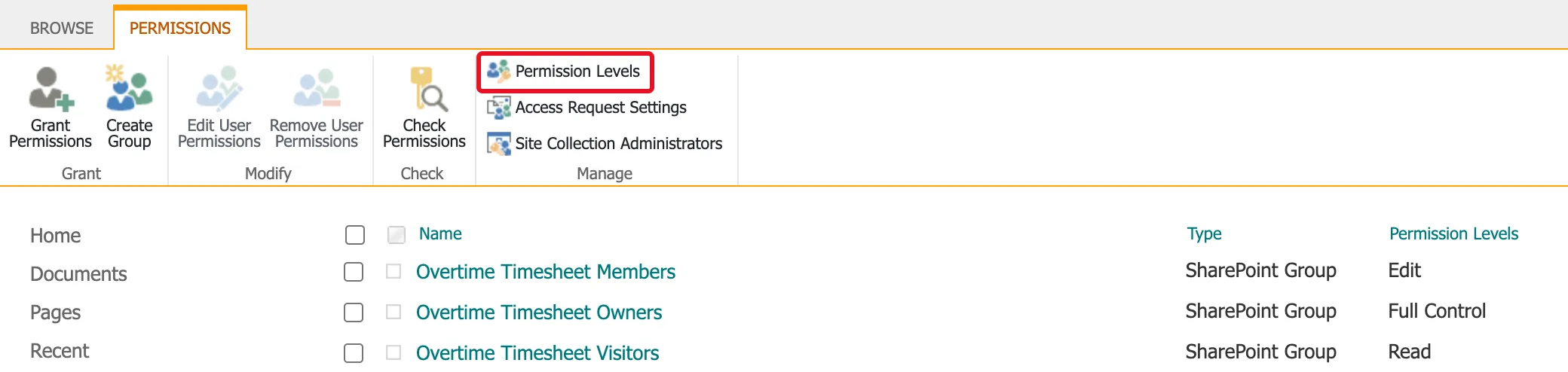
Step 2: Open Contribute
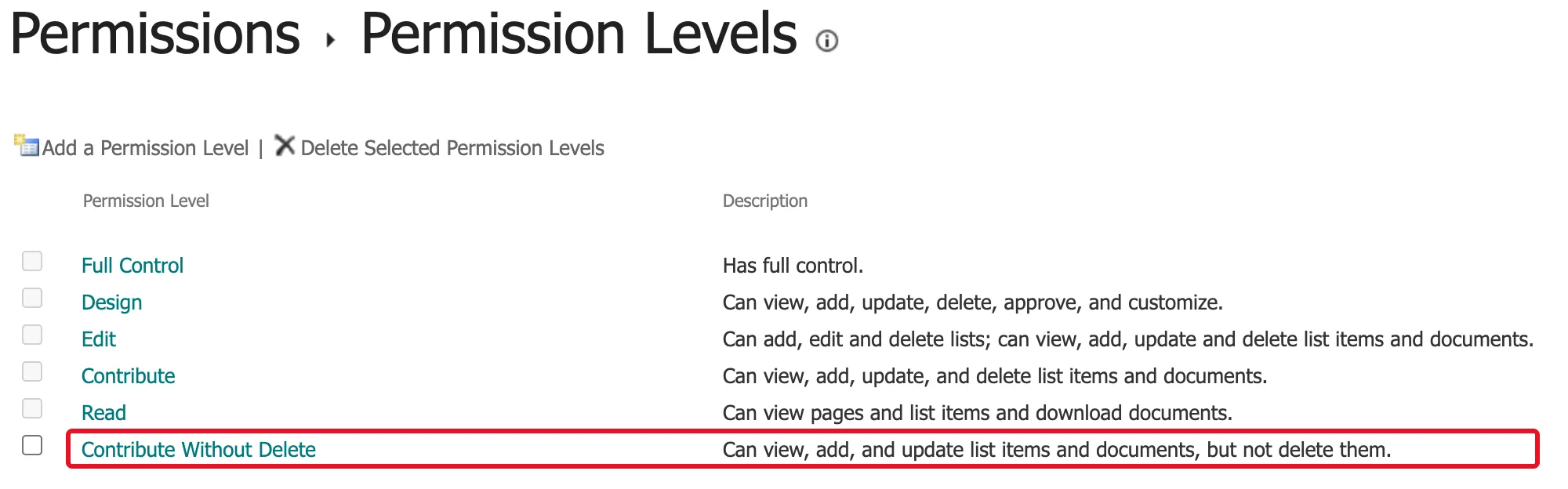
The page lists the site's levels with their descriptions. A communication site has five: Full Control, Design, Edit, Contribute and Read. Select the Contribute link, not the checkbox next to it:
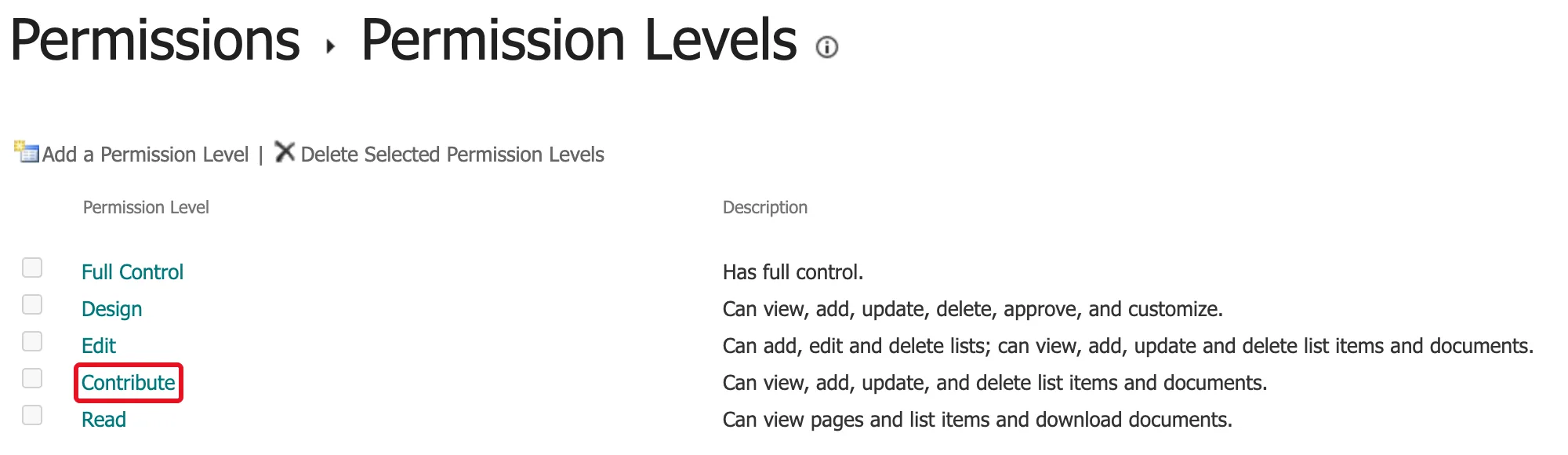
Step 3: See What Contribute Includes
The Edit Permission Level page shows every permission, ticked or not. Under List Permissions, Contribute includes Delete Items ("Delete items from a list and documents from a document library.") and Delete Versions ("Delete past versions of a list item or document."):
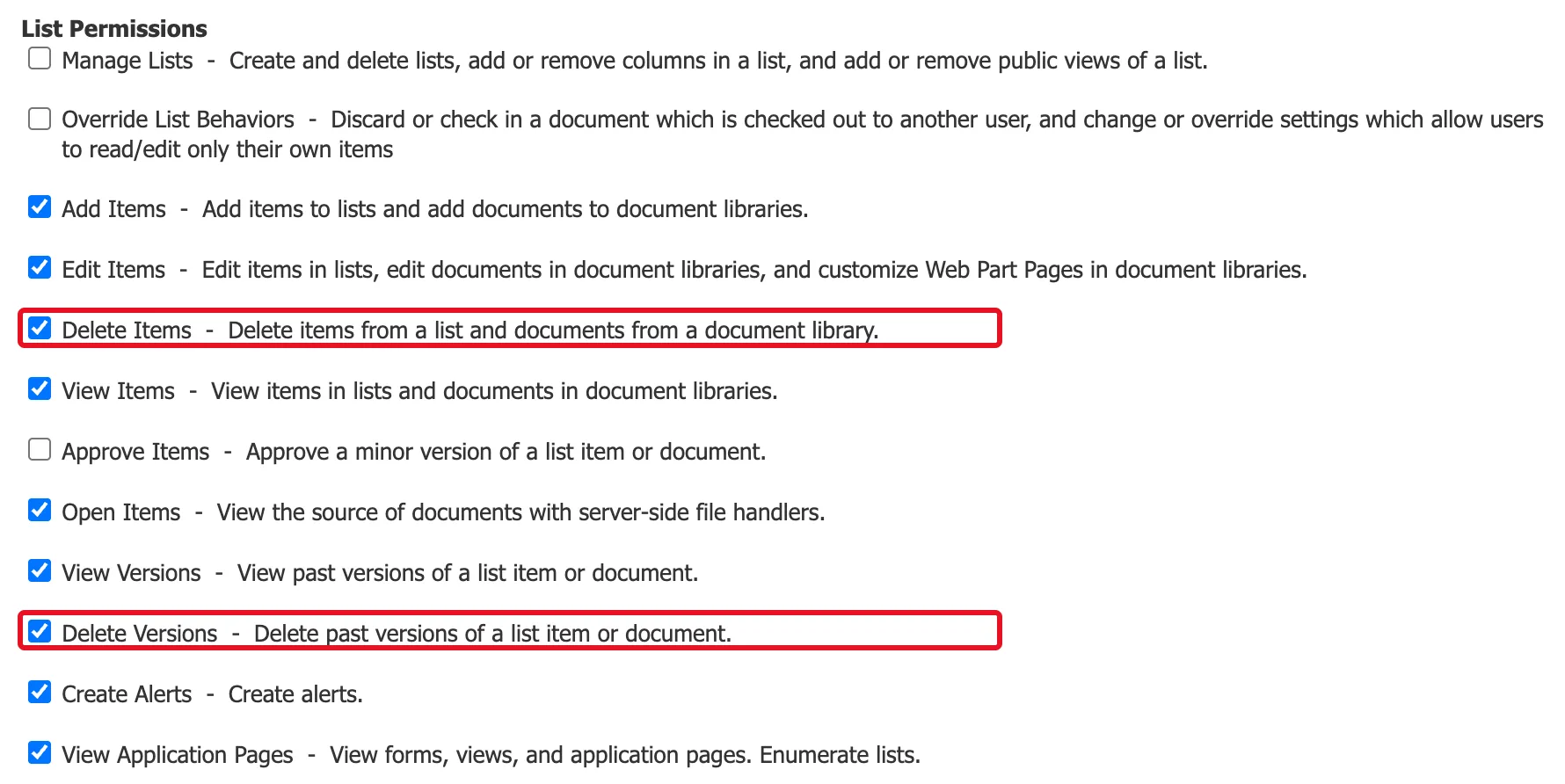
Two unticked ones are worth knowing:
- Override List Behaviors: "Discard or check in a document which is checked out to another user, and change or override settings which allow users to read/edit only their own items." On this site, Design and Full Control include it.
- Approve Items: "Approve a minor version of a list item or document." Also only in Design and Full Control here.
Step 4: Copy the Level
Scroll to the bottom and select Copy Permission Level, not Submit:
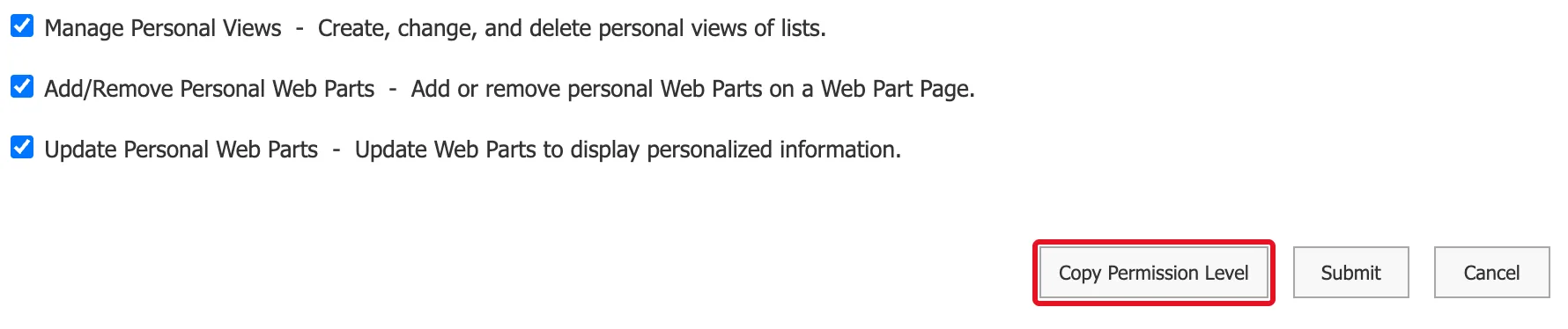
Step 5: Name It
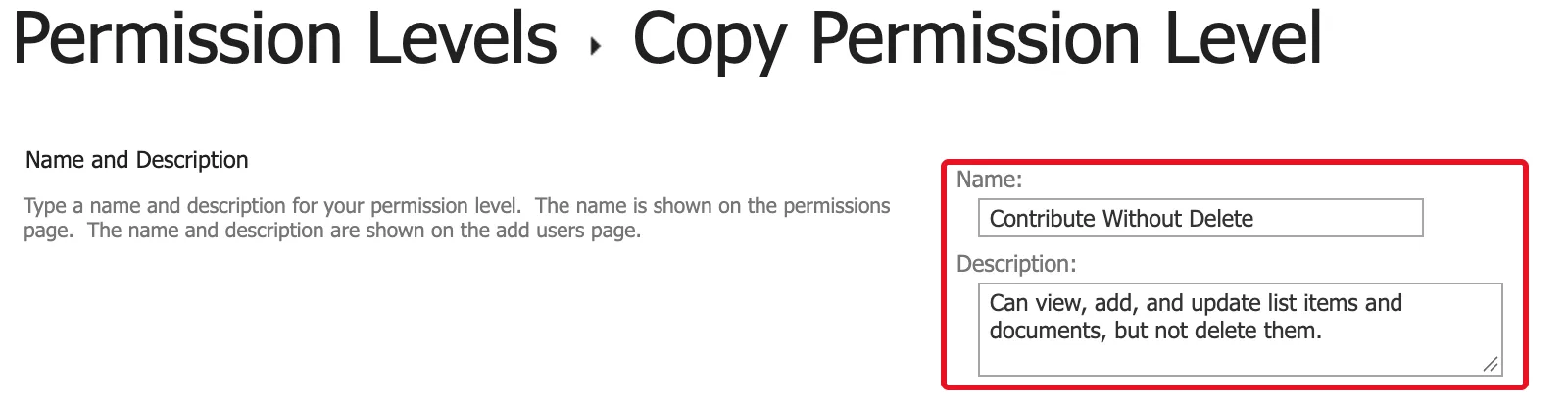
The Copy Permission Level page starts with the same permissions ticked and empty boxes for the name and description. The page explains: "The name is shown on the permissions page. The name and description are shown on the add users page." Enter:
| Box | Value |
|---|---|
| Name | Contribute Without Delete |
| Description | Can view, add, and update list items and documents, but not delete them. |
Step 6: Clear the Delete Permissions
Under List Permissions, clear Delete Items and Delete Versions. Leave everything else as Contribute had it:
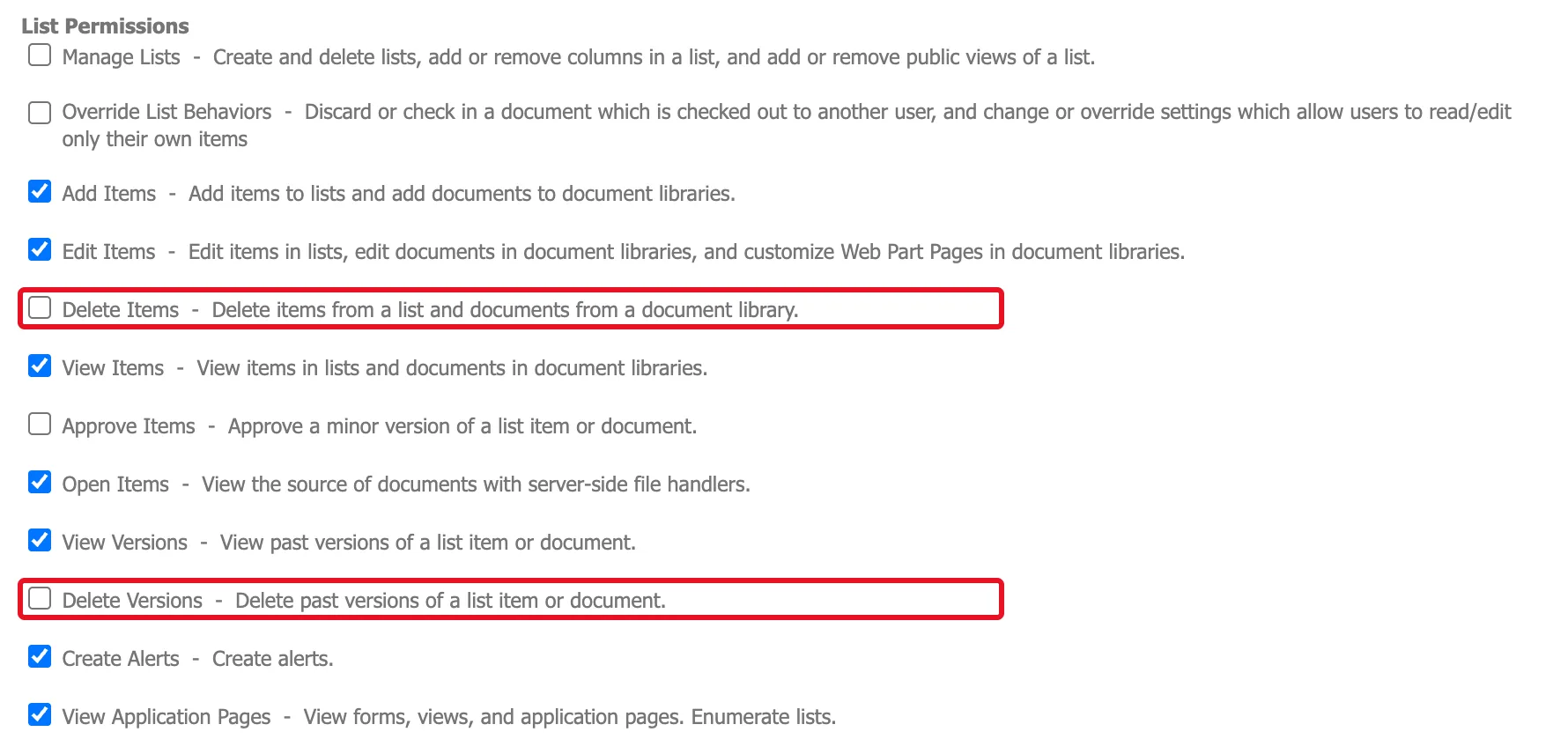
Why both: Delete Items stops people deleting an item, and Delete Versions stops them deleting its past versions, so the version history stays complete.
Microsoft's page warns that modern pages need one permission in every level: "The modern user experience uses client-side rendering, which requires that all users have the "Use Remote Interfaces" permission." Contribute includes it, so a copy keeps it. Leave it ticked.
Step 7: Create
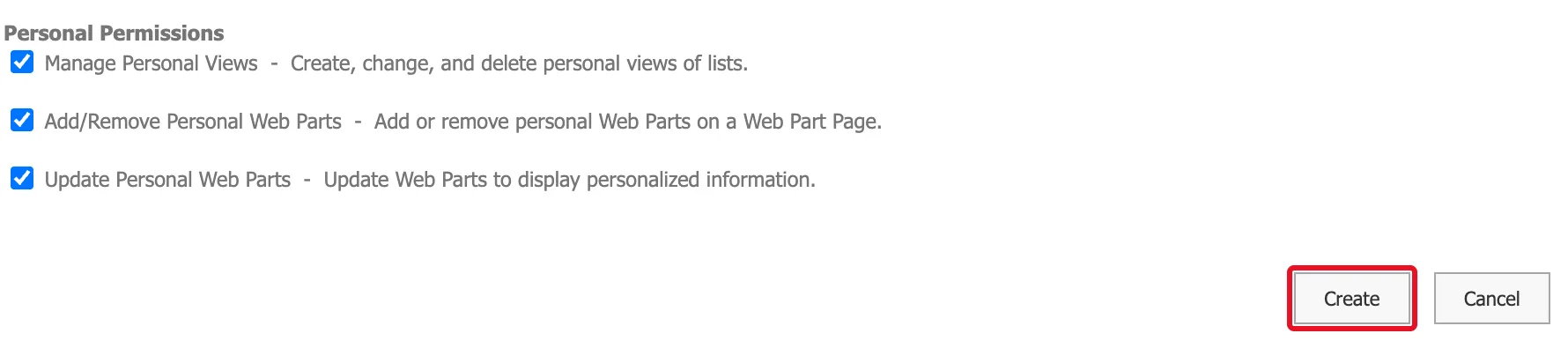
Scroll to the bottom and select Create:
SharePoint goes back to Permission Levels, with the new level at the end of the list:
A permission level does nothing until you give it to someone. It now appears in the Select a permission level list when you grant permissions on the site or on a list: How to Give a Group Access to One SharePoint List uses it, and How to Stop Users Deleting Items in a SharePoint List shows the result.
Common Mistakes
| Mistake | What happens | Do this instead |
|---|---|---|
| Editing Contribute itself | Everyone who already has Contribute loses the permissions you clear | Copy it with Copy Permission Level |
| Ticking the checkbox next to Contribute | Nothing opens; the checkbox is for Delete Selected Permission Levels | Select the name link |
| Selecting Submit instead of Copy Permission Level | You save changes to Contribute | Use Copy Permission Level |
| Clearing only Delete Items | People can still delete an item's past versions | Clear Delete Versions too |
| Clearing Use Remote Interfaces | Modern pages fail to load for those people | Leave it ticked |
Troubleshooting
| Symptom | Likely cause | Fix |
|---|---|---|
| No Permission Levels button | You aren't an owner of the site | Ask a site owner |
| The new level isn't in Select a permission level | It was created on another site collection | Create it on this site too |
| People with the level get Access Denied on modern pages | Use Remote Interfaces was cleared | Edit the level and tick it again |
FAQ
Can I change the level later?
Yes. Select its name on Permission Levels, change the description or permissions, and select Submit. The change applies everywhere the level is used.
Does creating the level change anyone's access?
No. Nobody has it until you grant it.
Can I make a level from scratch instead?
Yes, with Add a Permission Level at the top of the page: you tick every permission yourself. Copying an existing level is quicker when you only need to remove a few.
Conclusion
Permission Levels → Contribute → Copy Permission Level → name it → clear Delete Items and Delete Versions → Create. You now have Contribute Without Delete, ready to grant to a group on a list.
