How to Create a Connection Reference in a Solution in Power Apps

A flow in a solution doesn't connect to SharePoint directly. Each action points to a connection reference, and the connection reference points to a connection. When the solution is imported somewhere else, whoever imports it picks a connection for each reference, and the flow works there. This guide creates one inside a solution, before the flow that uses it.
What a Connection Reference Is
Microsoft's article Use a connection reference in a solution defines the three pieces:
- a connector wraps a service's API, such as SharePoint's;
- a connection is a stored sign-in for a connector, such as your SharePoint account;
- a connection reference is a solution component that points to a connection.
Flows in a solution use connection references for every connector. Canvas apps use them only for some kinds of connection, which is why the Career Development Plan app's own solution has none (Part 3 explains why).
Why Create It First
When you add an action to a flow in a solution, Power Automate looks for an existing connection reference to use, in that solution or in any other, before it creates a new one. Microsoft's article recommends creating the connection reference in the flow's own solution, so the flow uses it and it travels with that solution.
Prerequisites
- A solution. See How to Create a Solution and Publisher in Power Apps. The example is Career Development Plan Setup, the solution for the setup flow in Part 11 of the Career Development Plan series.
- A connection for the connector, or the permission to create one. The example uses the SharePoint connection made in Part 3.
Step 1: Open the New Menu
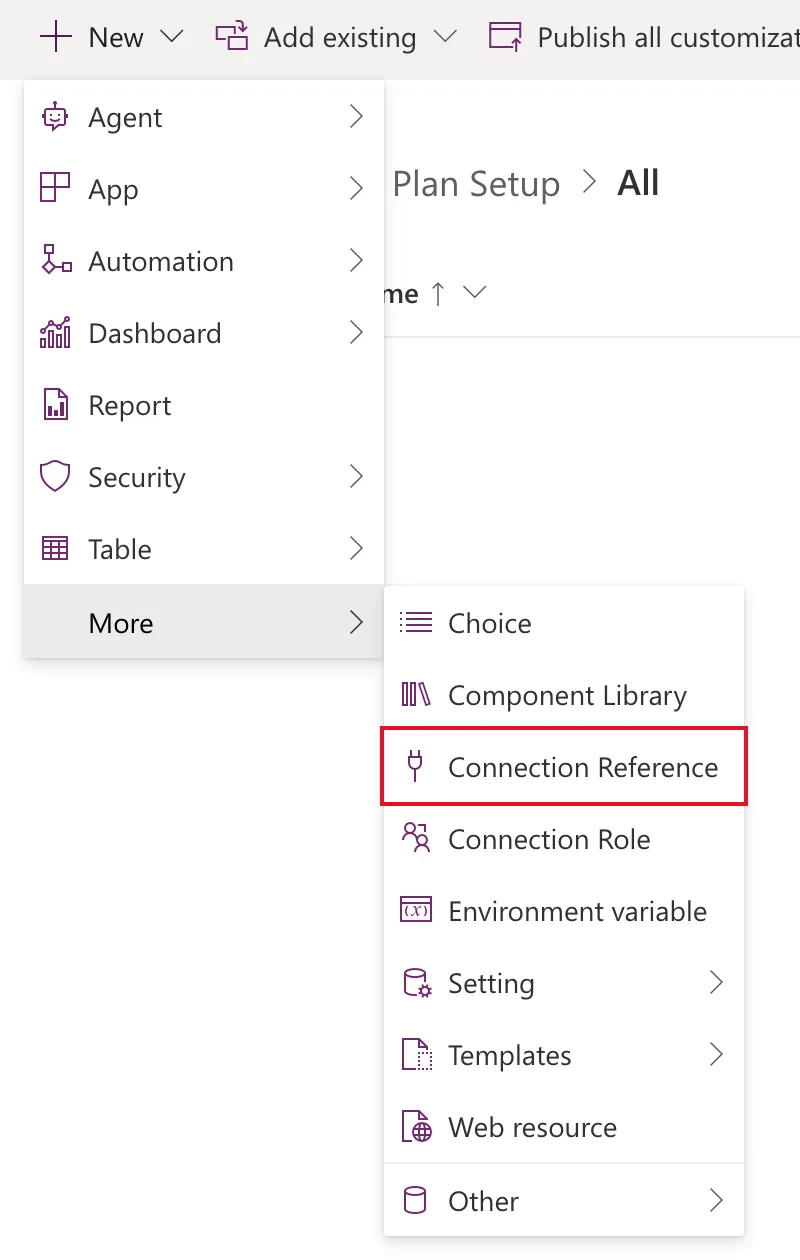
In Power Apps, go to Solutions and open your solution. In the command bar, select New → More → Connection Reference:
Step 2: Fill In the Panel
The New Connection Reference panel opens. Fill it in:
| Field | Example value | What it's for |
|---|---|---|
| Display name | Career Development Plan Setup SharePoint | The name you'll see in the flow's actions |
| Name | dewiride_CareerDevelopmentPlanSetupSharePoint | Filled in from the display name, after your publisher's prefix |
| Add a description | SharePoint connection for the flow that creates the Career Development Plan lists. | Tells the next person what it's for |
| Connector | SharePoint | The service the flow talks to; type its name to filter the list |
| Connection | Your SharePoint connection | Whose sign-in the flow uses |
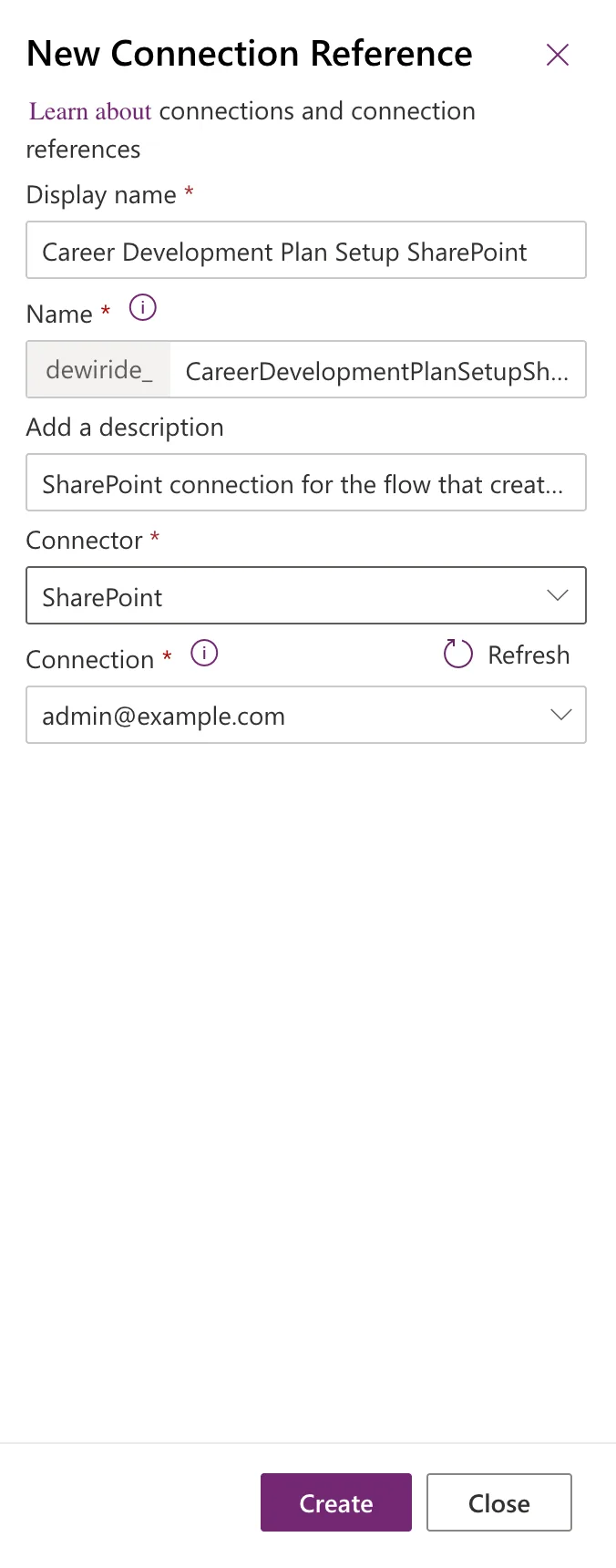
Microsoft suggests a display name that says what the reference is for, because by default it's just the connector and solution names with a random suffix. Connection picked my existing SharePoint connection by itself. If you have none, its list offers to create one.
Then select Create.
Step 3: Check the Solution
The connection reference is now one of the solution's objects:
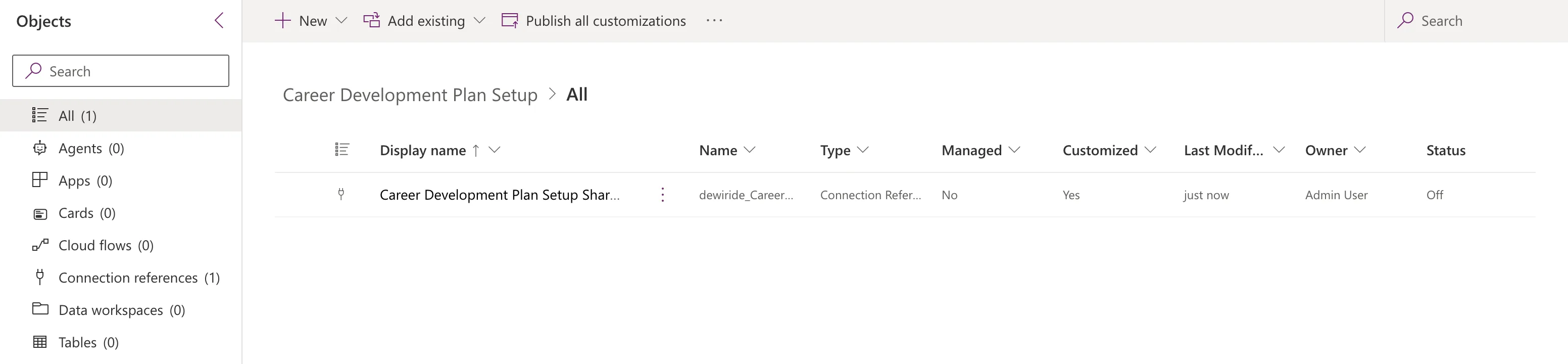
Its Status said Off. It still said Off after the flow had used it in every run, while the flow beside it said On:

Microsoft's solutions overview says this column shows the state of objects that support one. It doesn't explain Off for a connection reference. The flow worked regardless.
Step 4: Use It from a Flow
Create the flow in the same solution (How to Create an Instant Cloud Flow Inside a Solution). When you add a SharePoint action, its pane names the connection reference it uses:
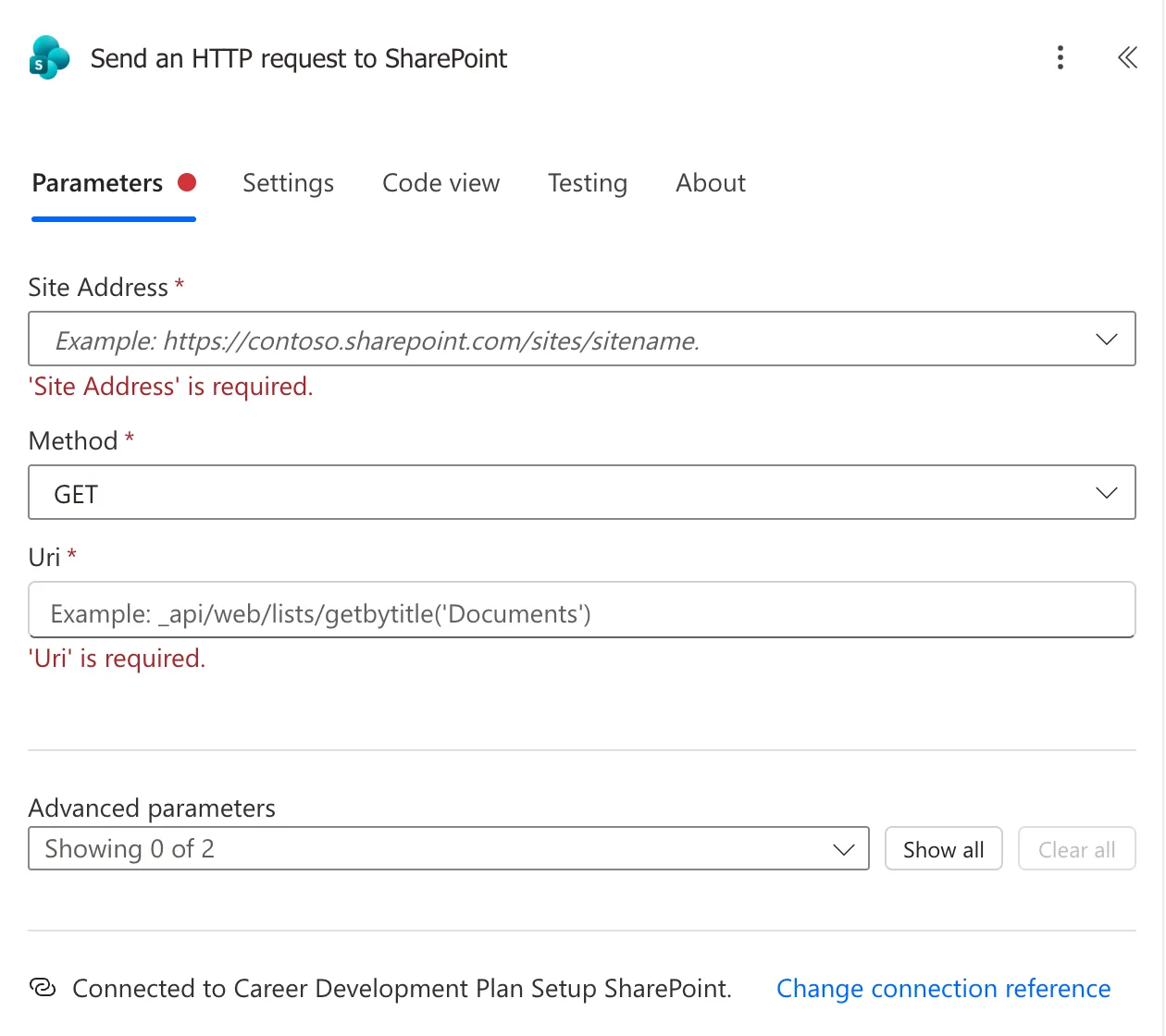
Every SharePoint action I added to the flow picked it up by itself. Change connection reference switches an action to a different one.
Common Mistakes
| Mistake | What happens | Do this instead |
|---|---|---|
| Building the flow first | Power Automate may use or create a reference elsewhere | Create the reference in the flow's solution first |
| Typing into the wrong box | My description once ended up in Name | Read every box before Create |
| Keeping the default display name | Hard to tell references apart later | Say what it's for |
Troubleshooting
| Symptom | Likely cause | Fix |
|---|---|---|
| Connection is empty | You have no connection for the connector | Create one from the list, then select Refresh |
| An action shows a different reference | It picked up an existing one | Use Change connection reference |
| Status shows Off | That's what the column showed for mine, in use or not | Nothing to fix |
FAQ
Do canvas apps need a connection reference too?
Only for implicitly shared connections. For SharePoint and Office 365 Users, each person uses their own sign-in, so the app needs none.
What happens when the solution is imported elsewhere?
The person importing it picks a connection for each connection reference, and Microsoft's article says the flows that use them can then be turned on after the import.
Conclusion
Create the connection reference in the flow's solution before you build the flow: New → More → Connection Reference, a clear display name, the connector, a connection, Create. Every action you add then connects through it, and it travels with the solution.
Additional Resources
- Use a connection reference in a solution: what they are, naming, and reuse in flows.
- Solutions in Power Apps overview: the objects list and its columns.
