How to Create a Collection in Power Apps with ClearCollect

A collection is a table that your app keeps in memory and can change: add rows, remove them, edit them. ClearCollect empties a collection and fills it again in one step, which makes it the usual way to load data into one.
Syntax
ClearCollect( Collection, Item1 [, Item2, ... ] )
ClearCollect deletes all the records in the collection, then adds the items: records, or the rows of a table. If the collection doesn't exist yet, it's created. It works only in behavior properties, such as OnSelect or a screen's OnVisible (Collect, Clear, and ClearCollect functions).
Name collections with the col prefix (Power Apps Naming Conventions).
Example: Load the Competencies for a Job Title
While building the Career Development Plan app's My Plan screen, the screen's OnVisible first loaded the Sales Engineer competencies into a collection:
ClearCollect(
    colMyPlan,
    Sort(
        Filter(RoleCompetencies, JobTitle = "Sales Engineer" && IsActive = true),
        Competency
    )
)
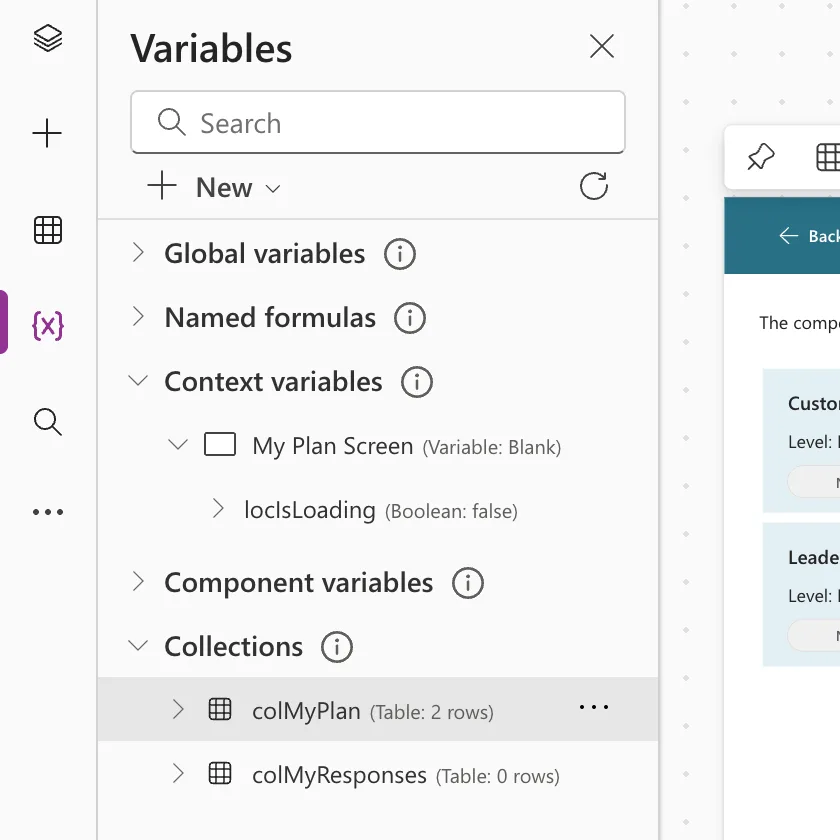
OnVisible runs when you go to the screen in preview (How to Run a Formula When a Screen Opens in Power Apps). After that, Variables (the {x} icon on the left) → Collections showed colMyPlan with 2 rows:
See What's in It
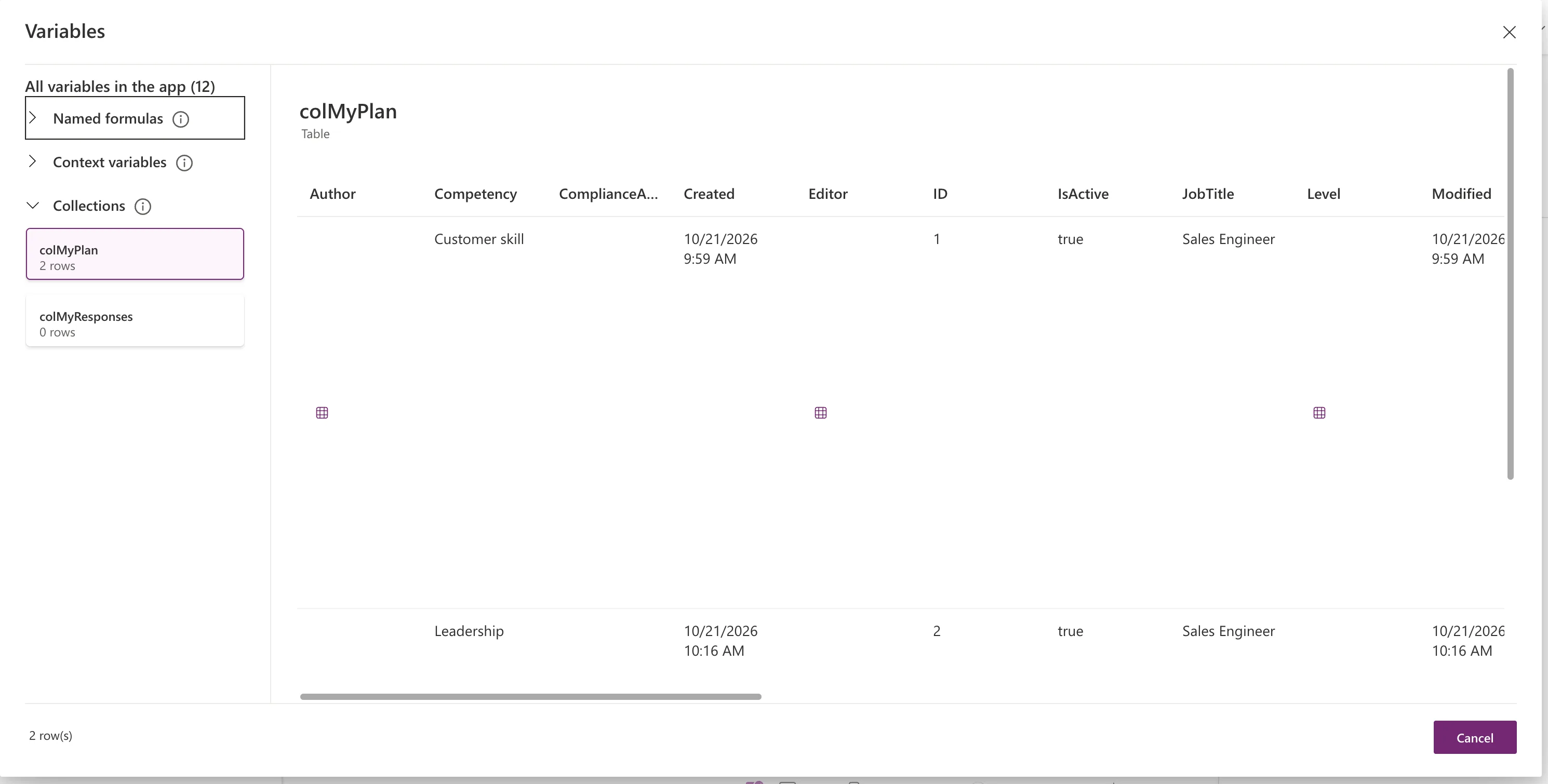
Select ... next to the collection → View Table. The two Sales Engineer competencies were there, with every column of the list:
The Delegation Limit
ClearCollect itself can't be delegated: Microsoft says only the first portion of a data source is retrieved, up to the app's data row limit (500 by default). Filter first, with conditions SharePoint can run, so that only the rows you need come back. In the example, that's a handful of rows for one job title. See What Is Delegation in Power Apps?
When Not to Use a Collection
A collection is for data you change in the app, such as a basket of items before you save it. Microsoft's guidance on fast-loading apps says data that's read-only should be used directly, without copying it into a collection (Optimize app or page load).
The App checker agrees. The My Plan screen only read its collections, never changed them, and the checker warned: Collection is initialized but never updated. The finished screen holds the rows in context variables instead.
Common Mistakes
| Mistake | What happens | Do this instead |
|---|---|---|
| Collecting a whole large list | Only the first 500 rows (by default) arrive | Filter first |
| Using Clear and then Collect | Two steps for one job | ClearCollect |
| A collection for read-only data | An App checker performance warning | Use the data directly, a named formula or a variable |
Troubleshooting
| Symptom | Likely cause | Fix |
|---|---|---|
| The collection has 0 rows in Studio | The formula that fills it hasn't run | Run it: preview the screen, or Alt+click the button |
| Rows are missing | The query wasn't delegated, or the data row limit was reached | Fix delegation warnings; filter first |
FAQ
ClearCollect or Collect?
ClearCollect replaces the contents; Collect adds to them.
Where do I see a collection's contents?
Variables → Collections → ... → View Table.
Conclusion
ClearCollect(colName, rows) loads rows into a collection, and Variables shows what's in it. Filter first because of the data row limit, and keep collections for data your app actually changes.
