How to Create a Client Secret for an App Registration in Microsoft Entra ID

When an app has to sign in as itself, with no person involved, it needs a credential of its own. The simplest is a client secret: a password that belongs to the app registration. This guide creates one in the Microsoft Entra admin center, shows the one moment you can copy it, and deletes it again.
What a Client Secret Is
An app registration in Microsoft Entra ID has an Application (client) ID, which says which app it is. To prove it really is that app when it asks for a token, the app also needs a credential. Microsoft's guide to app credentials lists three kinds:
| Credential | What it is | Microsoft's advice |
|---|---|---|
| Client secret | A random string, the app's password | Convenient for local development; should not be used in production |
| Certificate | A public key whose private key only the app holds | Recommended over a secret |
| Federated credential | Trust in tokens from another identity provider, such as GitHub Actions or a managed identity | No secret to keep at all |
This guide is about the first. The example is an app registration for a nightly report job, a program that runs at night and signs in as itself.
Creating a client secret costs nothing.
Prerequisites
- An app registration in Microsoft Entra ID that you can change: you're one of its owners, or you have the Application Administrator or Cloud Application Administrator role.
Step 1: Open Certificates & Secrets
- Open the Microsoft Entra admin center and browse to Entra ID > App registrations.
- Select your app, then Certificates & secrets under Manage.
- Make sure the Client secrets tab is selected, and select New client secret.
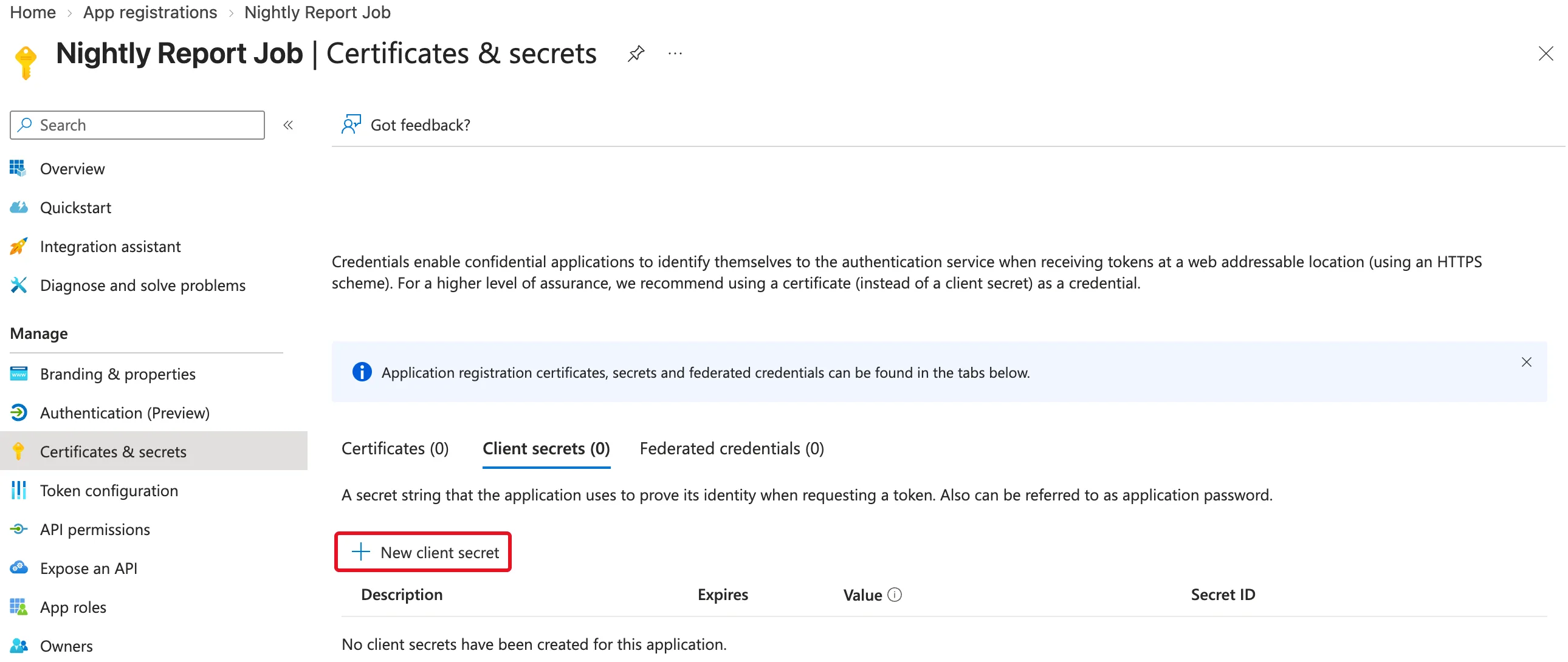
The page's own description is the shortest definition there is: A secret string that the application uses to prove its identity when requesting a token. Also can be referred to as application password.
Step 2: Describe the Secret and Choose When It Expires
The Add a client secret pane opens on the right:
- Description: what the secret is for, so you can tell it from others later. I used
Nightly report job. - Expires: how long the secret works. Open the list to see the choices:
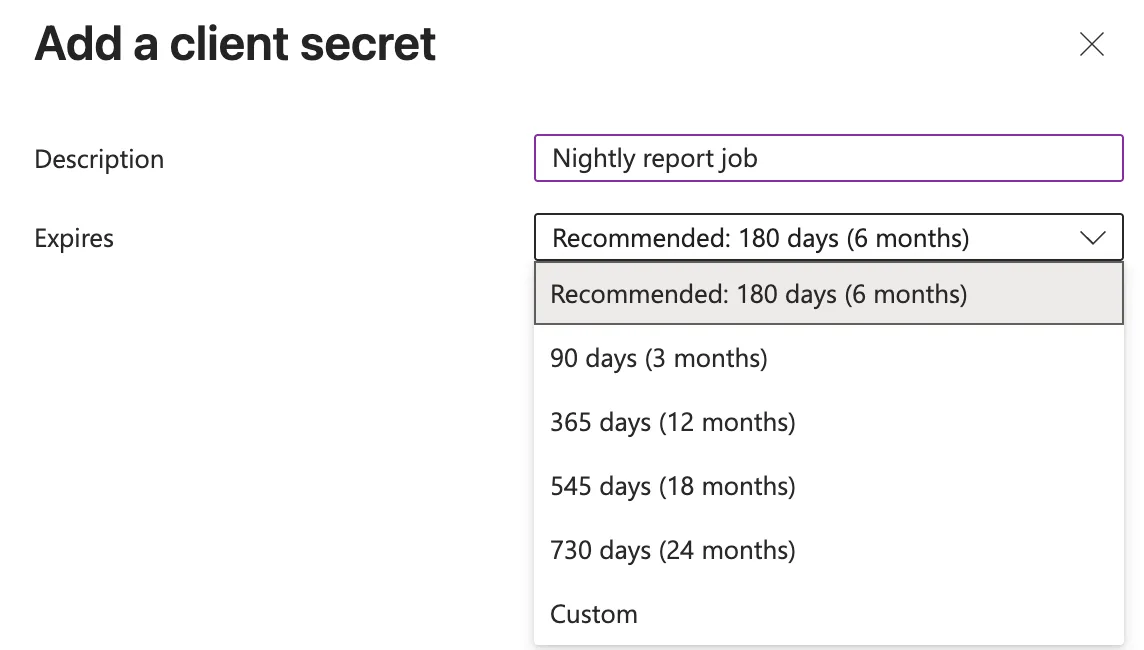
Microsoft's guide says a client secret can live for 24 months at most, and recommends less than 12. Keep the recommended 180 days (6 months) unless you have a reason not to. A secret that never expires isn't an option.
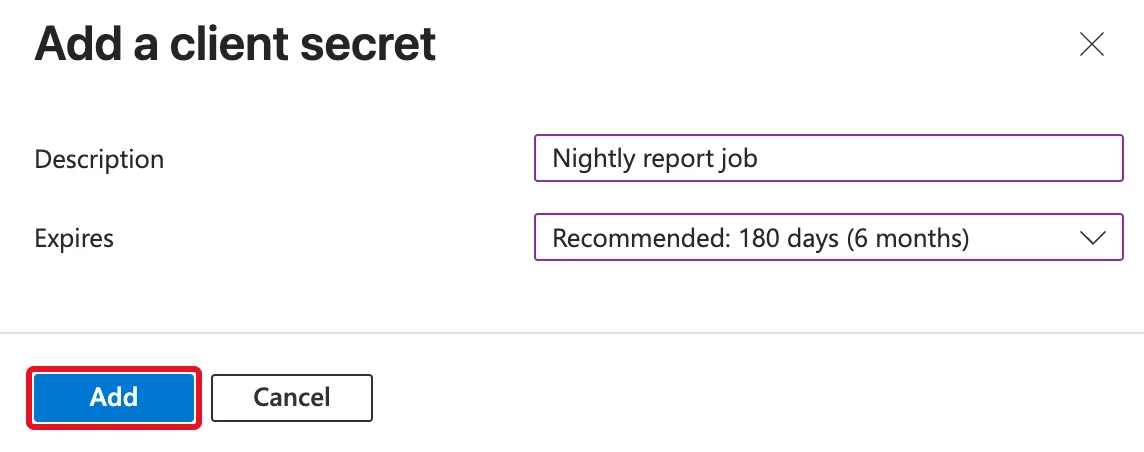
- Select Add at the bottom of the pane:
Step 3: Copy the Value Now
The new secret appears in the list:

Select the copy button next to Value, and paste the value where your app will read it, straight away. The value in these screenshots is replaced with Abc8Q~xxxx…; yours is a real one, and it's the only time you'll see it. The Value column's information icon says so:

The row has two long strings, and only one of them is the secret:
| Column | What it is | Do you need it? |
|---|---|---|
| Value | The secret itself, the app's password | Yes: your app sends it when it asks for a token |
| Secret ID | An ID for the secret entry, so it can be told apart from others | No: it's not a password, and it won't sign in anything |
The expiry date is also in the row: this secret stops working on 5/23/2027, 180 days after it was created.
Step 4: Keep It Out of Your Code
A client secret is a password, so treat it like one: never in source code, never in appsettings.json, never in a chat or a ticket. Where to put it depends on where the app runs:
- On your own machine, use .NET user secrets, as How to Store Secrets with .NET C# User Secrets Instead of appsettings.json shows.
- In Azure, use a key vault, as Adding Secrets in Azure Key Vault shows, or better, no secret at all: a managed identity or a federated credential.
If you lose the value, you can't get it back. Create a new secret and delete the old one.
Step 5: Delete a Secret You No Longer Need
When the app no longer uses a secret, or the value may have been seen by someone it shouldn't have, delete it: select the bin icon at the end of its row. The admin center asks first:
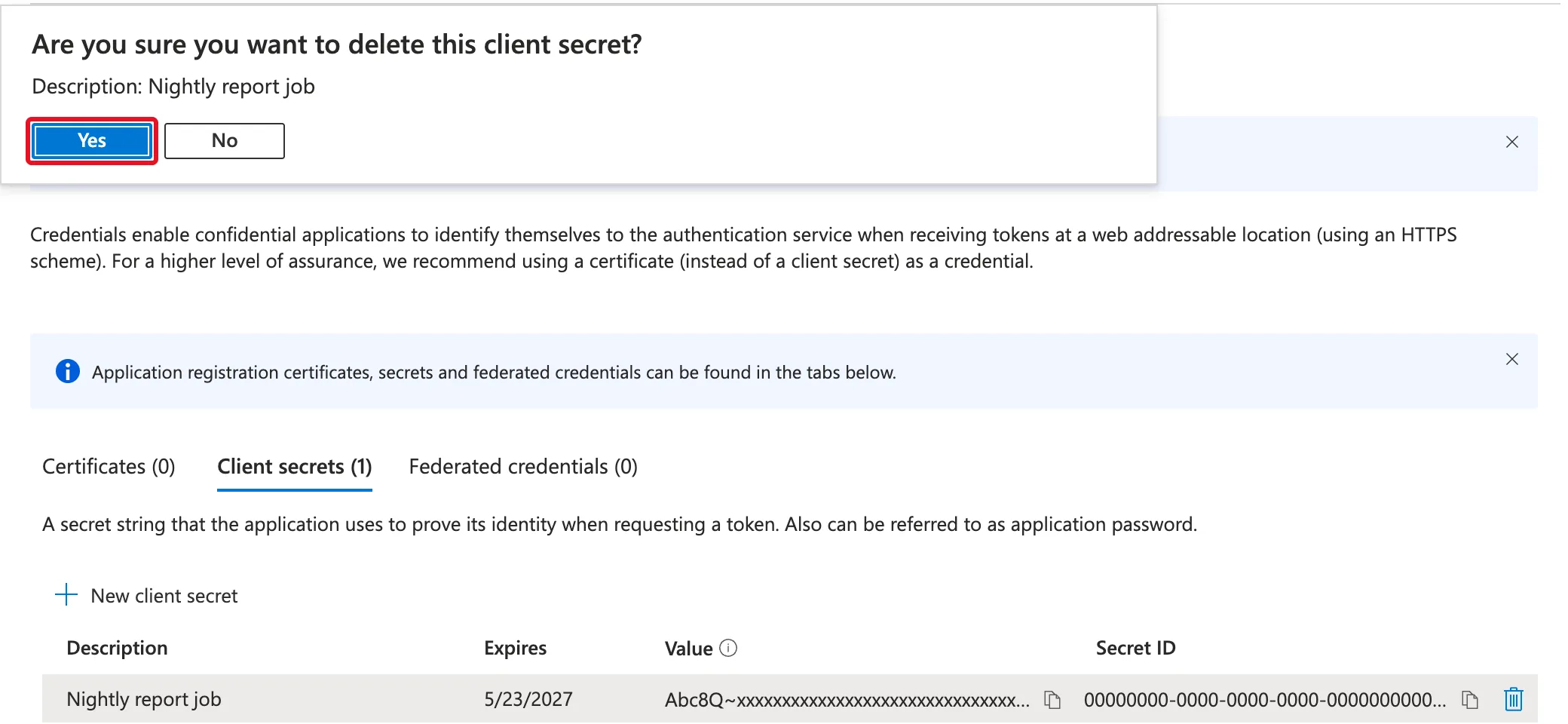
Select Yes. The row disappears, and anything still using that value can no longer get tokens.
Common Mistakes
| Mistake | What happens | Do this instead |
|---|---|---|
| Copying the Secret ID instead of the Value | Sign-in fails, because the ID isn't the password | Copy the Value |
| Leaving the page before copying the value | The value is hidden for good | Create a new secret and delete the unused one |
Putting the value in appsettings.json or code | Anyone who can read the repository has the app's password | Use user secrets on your machine and a key vault in Azure |
| Forgetting the expiry date | The app stops signing in on that day | Note the date, and replace the secret before it |
Troubleshooting
| Symptom | Likely cause | Fix |
|---|---|---|
| The Value column no longer shows the whole value | You left the page and came back, and the value is hidden for good | Create a new secret |
| The app can no longer get tokens with its secret | The secret expired or was deleted, or the app was given the Secret ID | Check the row's expiry, and use the Value of a current secret |
FAQ
Can I see a secret's value again later?
No. Microsoft's guide: This secret value is never displayed again after you leave this page. Create a new one if you need it.
Can an app have more than one secret?
Yes, the list holds several. That's how you replace one without downtime: add the new secret, move the app to it, then delete the old one.
Should my production app use a client secret?
Microsoft says no: use a certificate, a federated credential, or a managed identity. A client secret is for development and testing.
Conclusion
A client secret is an app registration's password. Create it under Certificates & secrets, choose an expiry of a year or less, copy the Value before you leave the page, and keep it out of your code. Delete it as soon as nothing uses it.
Additional Resources
- Add and manage application credentials in Microsoft Entra ID — client secrets, certificates and federated credentials.
- Migrate applications away from secret-based authentication — why secrets are the weakest option.
