How to Create a Canvas App Inside a Solution in Power Apps

Where you create a canvas app matters. Create it from inside a solution and it belongs to that solution from the start: it can use the solution's environment variables, and it moves with the solution to other environments. This guide does exactly that, and takes a first look around Power Apps Studio.
Why Inside a Solution
A canvas app created from the Apps page lives on its own. You can add it to a solution later, but Microsoft notes that moving an app into a solution can't be reversed. Creating it from the solution avoids the question:
- It can use the solution's environment variables. When you add a SharePoint list, Studio offers the variables on an Advanced tab.
- It travels with the solution, together with its variables, when you export it.
- Its internal name carries your publisher's prefix, like everything else in the solution.
The example is the Career Development Plan app from the Career Development Plan series.
Prerequisites
- A solution with your own publisher. See How to Create a Solution and Publisher in Power Apps.
- Environment Maker or higher in the environment.
Step 1: Start a New Canvas App
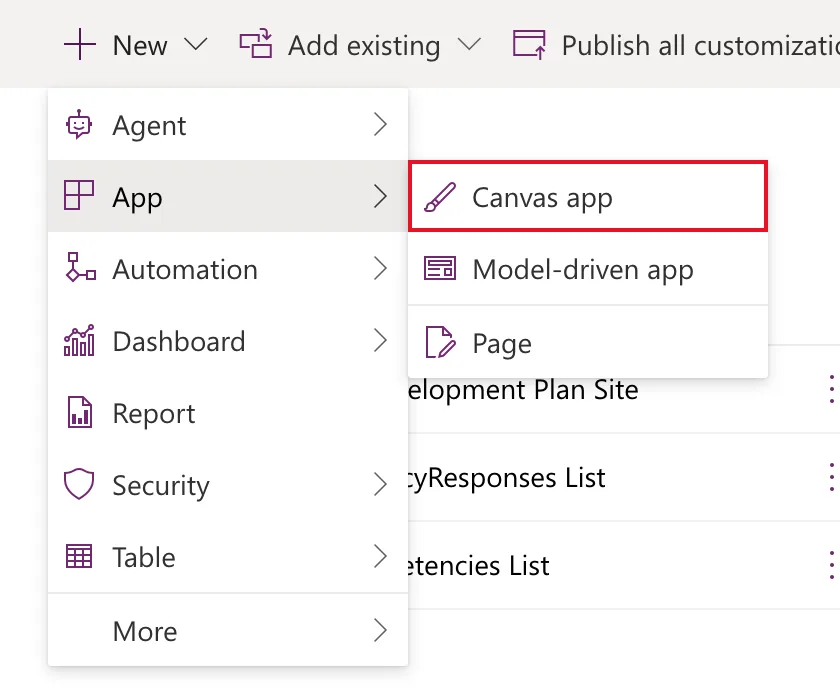
Open your solution and select New → App → Canvas app.
Step 2: Name It and Choose Tablet
Canvas app from blank asks for two things:
| Field | Example | Notes |
|---|---|---|
| App name | Career Development Plan | What people see in their list of apps |
| Format | Tablet | The shape of the canvas you design on |
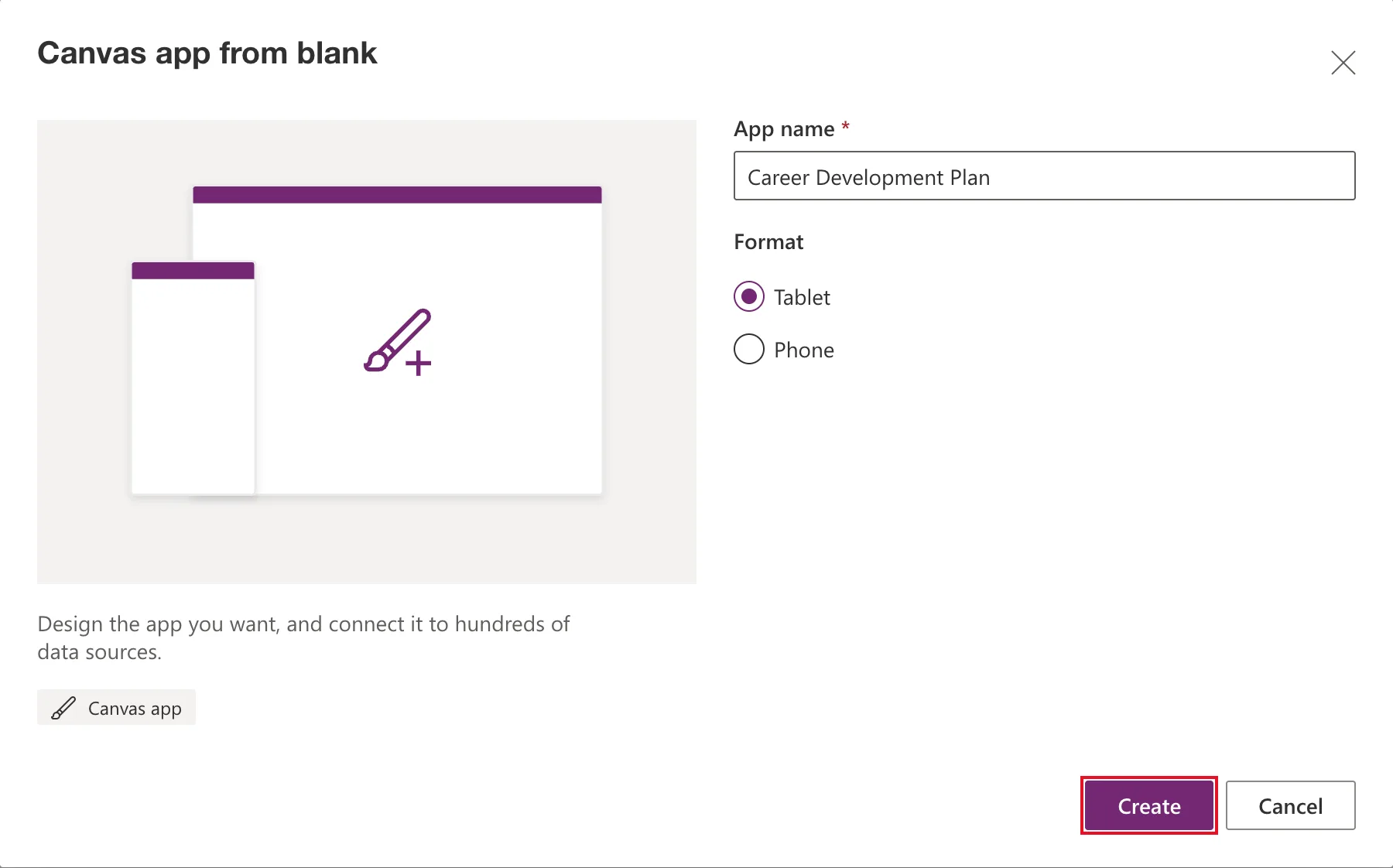
Tablet or phone? The format sets the size and shape of the canvas. Microsoft recommends Tablet for apps that should work at phone, tablet and web sizes, using responsive containers to adapt the layout. Choose Phone only for an app that will only ever run on phones.
Select Create. From inside a solution, you always start from a blank app: Microsoft notes that solutions don't offer the three-screen apps Power Apps can generate from data, or templates.
Step 3: Skip the Welcome
Power Apps Studio, the app editor, opens in the same browser tab. The first time, it shows Welcome to Power Apps Studio with shortcuts to create a form or a gallery:
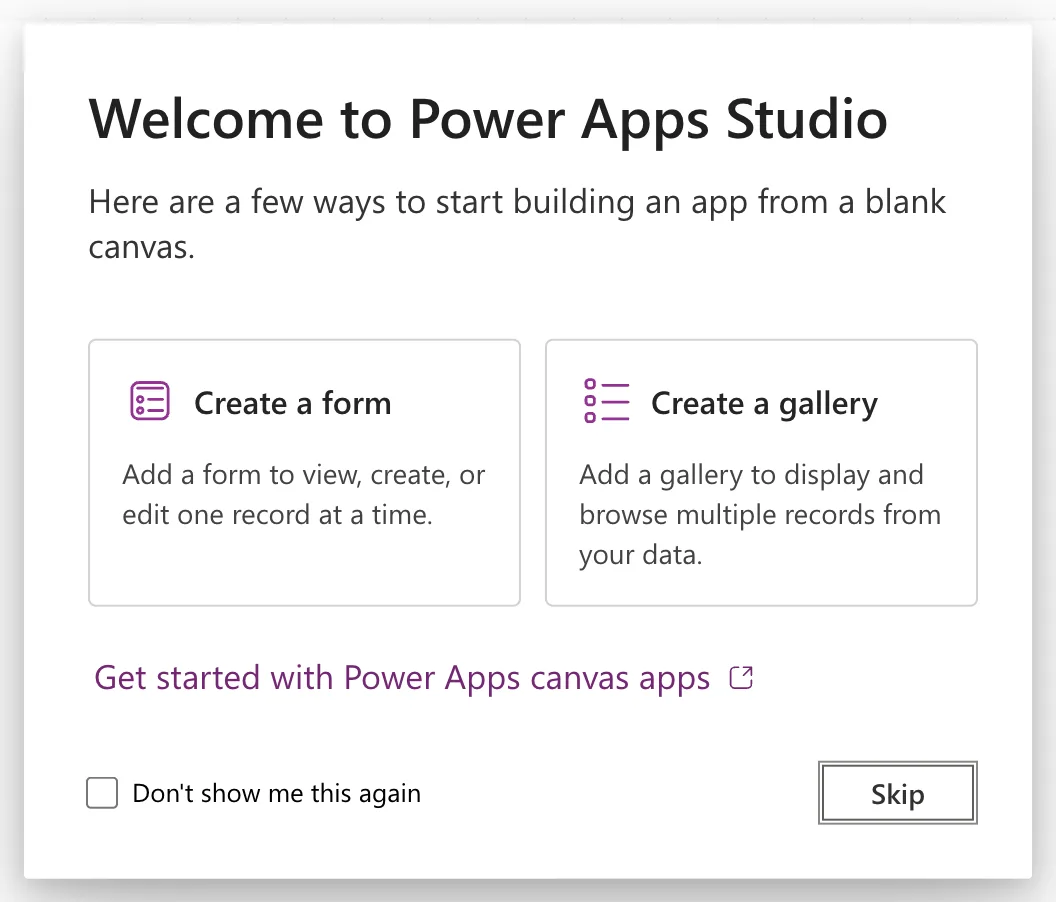
Select Skip. Tick Don't show me this again first if you don't want to see it next time.
Step 4: Find Your Way Around Studio
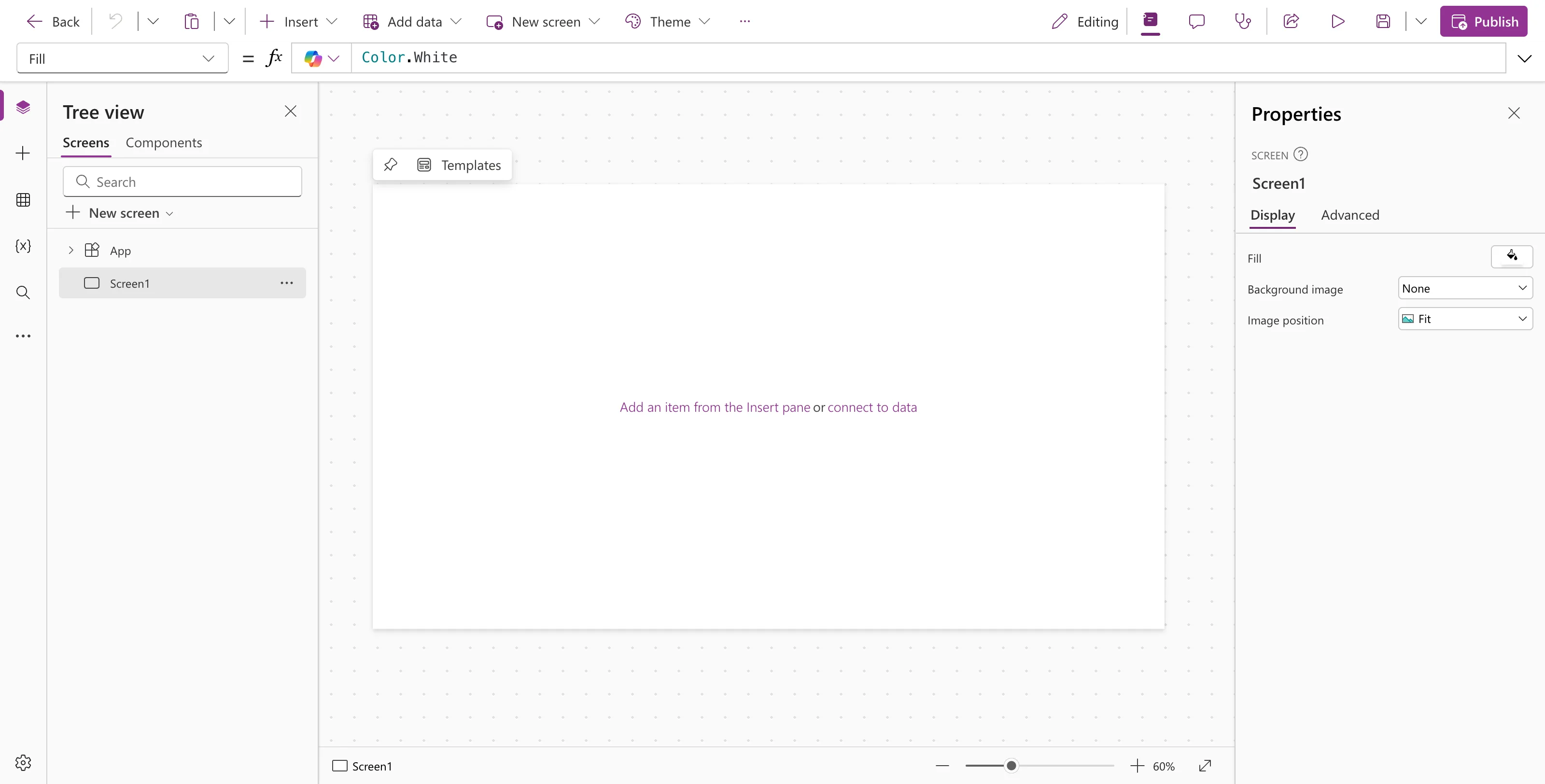
| Area | Where | What it's for |
|---|---|---|
| Command bar | Top | Insert controls, Add data, add screens, change the theme, Save and Publish |
| Formula bar | Under the command bar | The selected property on the left, its formula on the right, such as Fill = Color.White |
| Tree view | Left | Every screen and control. App holds settings that apply to the whole app |
| Canvas | Middle | The screen you're designing |
| Properties pane | Right | The selected item's main properties |
The icons down the far left switch the left-hand pane: Tree view, Insert, Data, Variables, Search and More. The gear at the bottom opens App settings.
Step 5: Save the App
Select Save in the command bar (the disk icon, or Ctrl+S). Studio confirms with All changes are saved.
Microsoft's steps for apps in solutions ask you to save at least once before you go back to the solution. Saving keeps your changes, but only publishing makes them available to the people the app is shared with, so you can save as often as you like while you build.
Back in your solution, the app is listed under Apps, with an internal name that starts with your prefix:
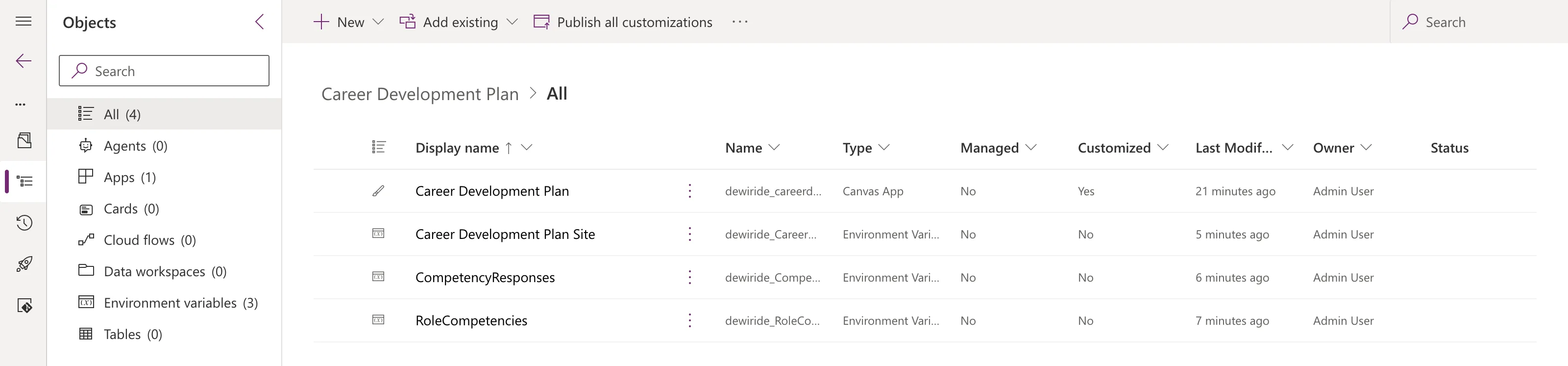
The example's full internal name is dewiride_careerdevelopmentplan_c64b8: the prefix, the app's name, and a short code that Power Apps adds.
Common Mistakes
| Mistake | What happens | Do this instead |
|---|---|---|
| Creating the app from Apps | It isn't in your solution, and can't use its environment variables | Create it from the solution |
| Choosing Phone for an app that also runs on desktops | A small fixed canvas | Choose Tablet and make it responsive |
| Leaving Studio without saving | Your work isn't kept | Save at least once |
| Expecting users to see saved changes | Users see the published version | Publish when you're ready to share |
Troubleshooting
| Symptom | Likely cause | Fix |
|---|---|---|
| The app isn't in the solution | It was never saved, or was created from Apps | Create it again from the solution, and save it |
| No App option under New | You're not inside a solution | Open the solution first |
| Studio keeps loading | It loads a lot the first time | Give it a minute; reload if it stays stuck |
FAQ
Can I change the format later?
The app's display settings, including the size and orientation, are under Settings → Display. Choosing the right format at the start is still easier.
Do I need to publish now?
No. Publish when the app is ready for other people. Until then, saving is enough.
Does creating an app in a solution need a premium license?
No. You don't need a license to build canvas apps, and the app's license needs come from the connectors and data it uses.
Conclusion
The app exists, inside the solution: a blank tablet app, saved, with an internal name that carries your publisher's prefix. It can now use the solution's environment variables, which is the next thing to connect.
Additional Resources
- Create a canvas app in a solution: Microsoft's steps and the limits of apps in solutions.
- Power Apps Studio: the parts of Studio and the app settings.
- Save and publish canvas apps: the difference between saving and publishing.
- Building responsive canvas apps: why tablet format and containers.
