How to Copy and Paste Controls Between Screens in Power Apps

When a second screen needs the same header as the first, you don't have to build it again. Copy the header container on one screen and paste it into the other: every control inside it comes along, with all its settings. You only rename the copies and change what's different.
Prerequisites
- Two screens, and something worth reusing on the first one. The example copies
conHeaderHS, the header from the Career Development Plan app's Home screen (Part 4), to the new My Plan screen. On the new screen, the screen containerconMainMPSalready exists (How to Add a Vertical Container in Power Apps).
Step 1: Copy the Control
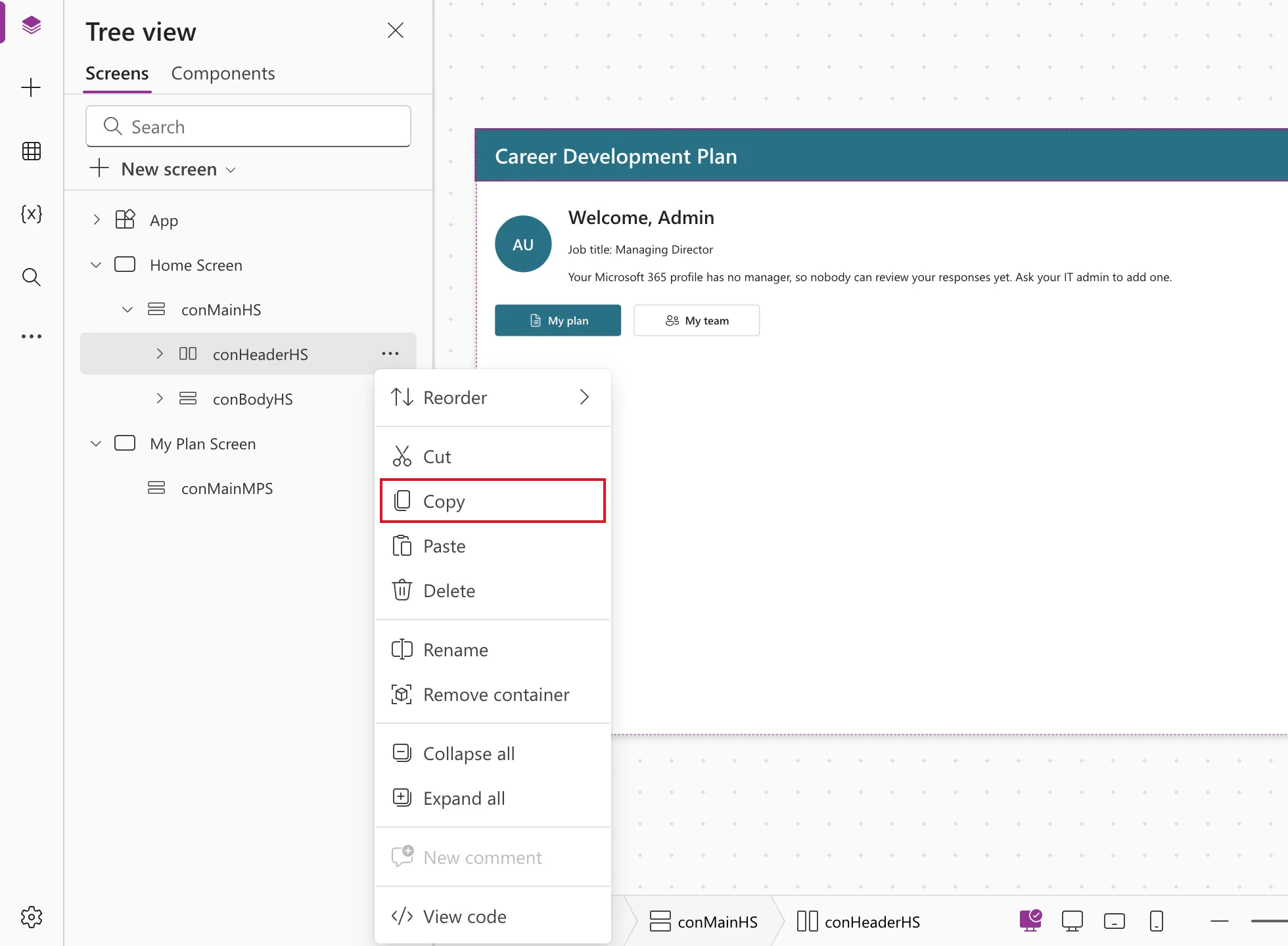
In Tree view, hover over the control, select ... and choose Copy. Copying a container copies everything inside it. Ctrl+C does the same (Use code view for canvas app controls).
Step 2: Paste It Where It Belongs
Open the ... menu of the place it should go, here the screen container conMainMPS, and choose Paste:
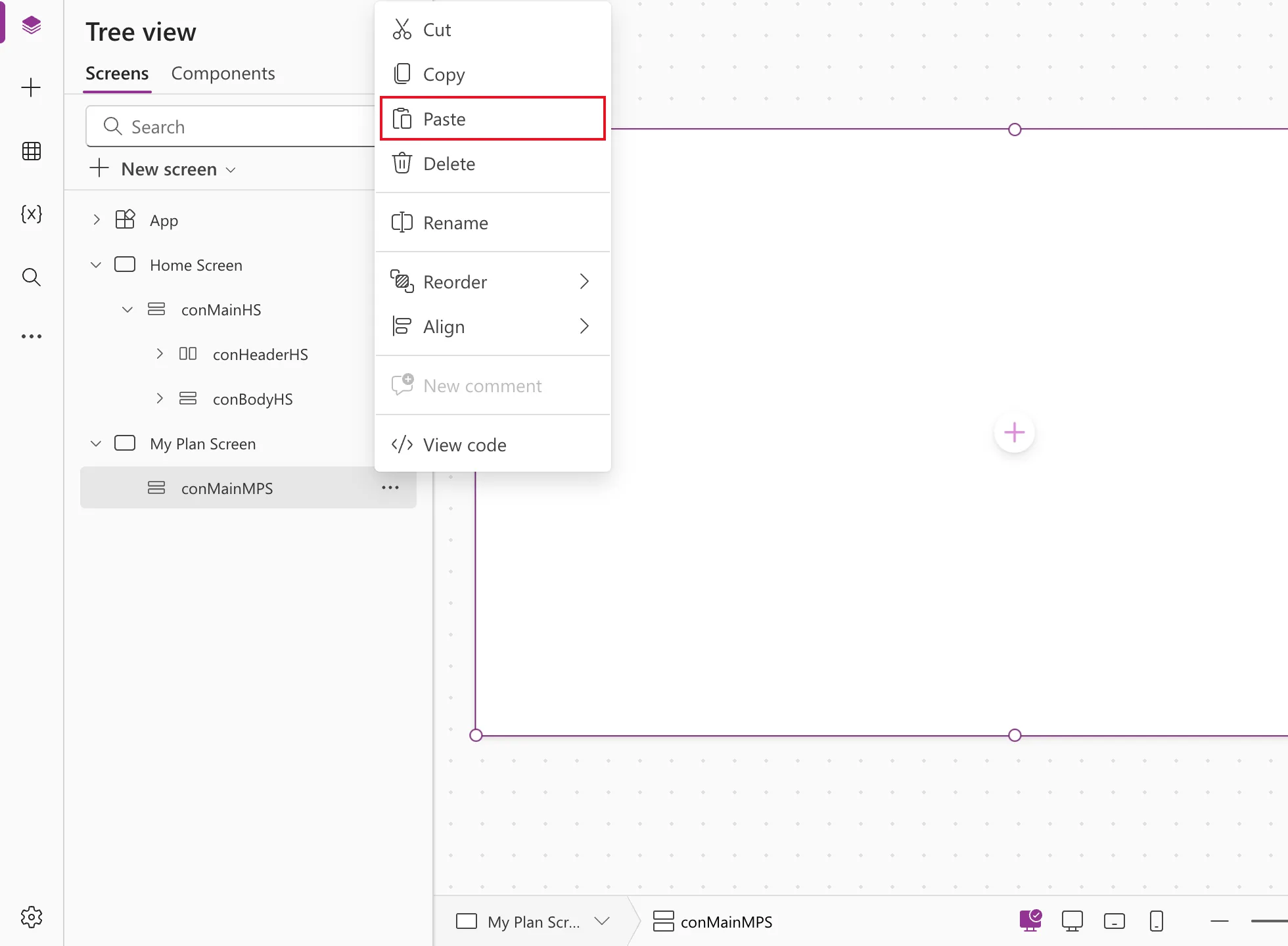
The copy lands inside that container. Microsoft notes that controls pasted into a layout container are placed by their order in Tree view (Building responsive canvas apps). To change the order afterwards, see How to Reorder Controls in a Container in Power Apps.
Step 3: Rename the Copies
Control names must be unique across the whole app (Code readability), so Studio adds _1 to each copy. In the example, conHeaderHS_1 and lblTitleHS_1 appeared:
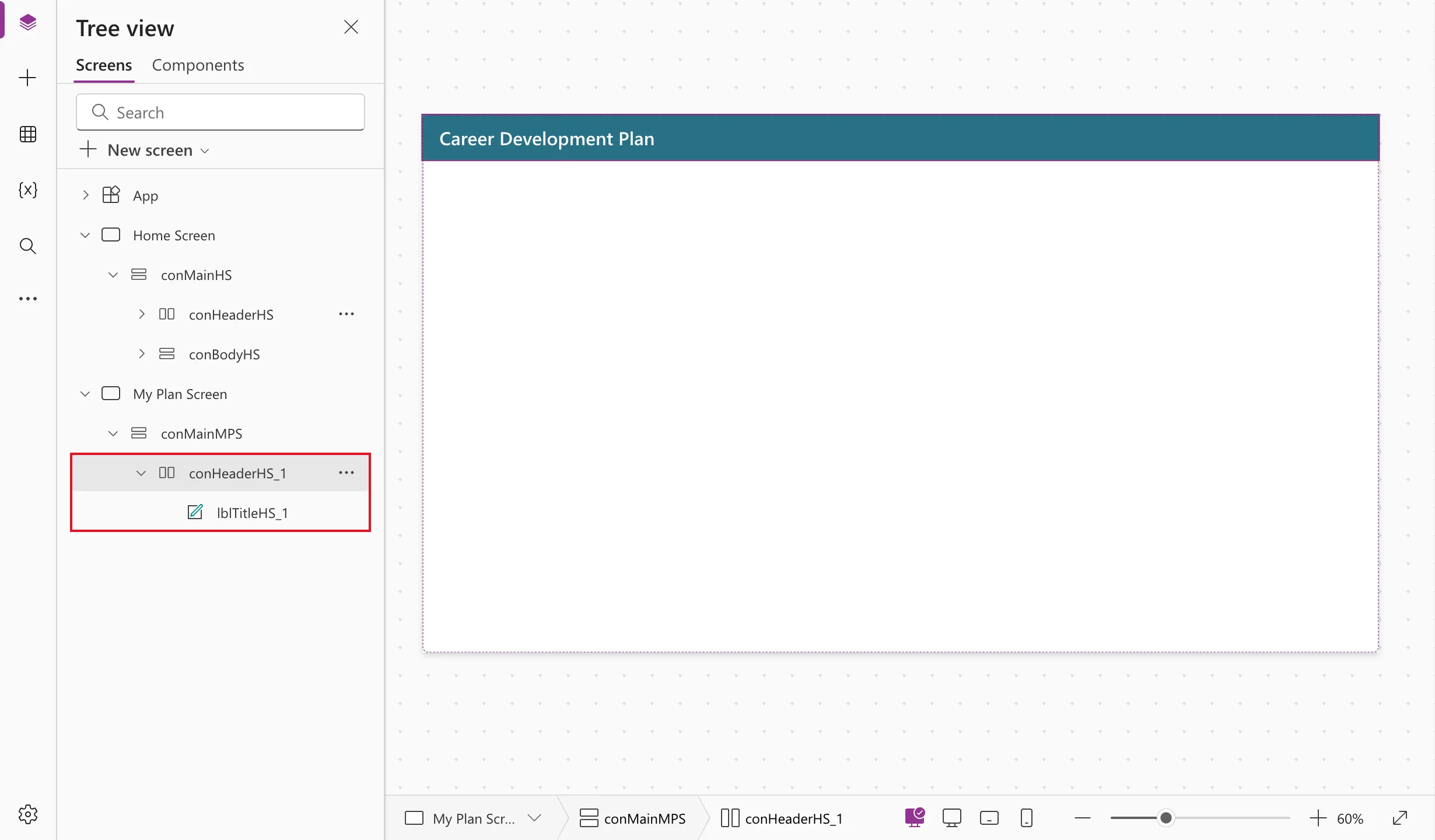
Rename each one (How to Rename a Screen or Control in Power Apps): the example's became conHeaderMPS and lblTitleMPS, with MPS for My Plan Screen.
The settings came along unchanged. The copied header still had Fill App.Theme.Colors.Primary, Height 64 and PaddingLeft 24, and the title kept its heading Role. Only the text needed changing, to "My plan".
Common Mistakes
| Mistake | What happens | Do this instead |
|---|---|---|
| Pasting with the wrong control selected | The copy lands in the wrong container | Use Paste from the ... menu of the target container |
Keeping the _1 names | Formulas and Tree view are hard to read | Rename each copy |
Troubleshooting
| Symptom | Likely cause | Fix |
|---|---|---|
| The copy appears in the wrong place in the container | It was inserted by its Tree view order | Reorder it |
| The copy is outside the container you wanted | It was pasted with another control selected | Undo, then paste from the target container's ... menu |
| A copy pasted on a gallery lands outside its rows | Paste was chosen on the gallery itself | Undo, then paste on a control inside the row (Fixed: New Control Lands Outside the Gallery) |
| There's something wrong with the pasted code | The clipboard no longer holds the control, for example after you copied a formula | Copy the control again, then paste (Fixed: "There's Something Wrong with the Pasted Code") |
FAQ
Does the copy stay linked to the original?
No. In the example, changing the copy's text to "My plan" left the Home screen's title as it was.
Why did Studio add _1 to the names?
Because two controls in one app can't have the same name. The copies need their own names, so rename them to match the new screen.
Conclusion
Copy in Tree view, Paste on the target container, then rename the _1 copies. Every setting comes along, so a header takes seconds instead of a dozen steps.
Additional Resources
- Use code view for canvas app controls: copy, paste and view a control's code.
- Add and configure controls: selecting, renaming and deleting controls.
