How to Copy and Paste an Action in Power Automate

When a flow needs several actions that are almost the same, build one, then copy it. The copy keeps every setting: the site, the method, the headers and the expressions. You only change what's different. This guide copies an action in the new designer, pastes it where it's needed, and uses the same moves to move an action into a condition.
Prerequisites
- A flow with the action you want to reuse. The example is the setup flow from Part 11 of the Career Development Plan series. Most of its steps are Send an HTTP request to SharePoint actions that differ only in their address, method and body.
Step 1: Copy the Action
Right-click the action's card on the canvas and select Copy action:
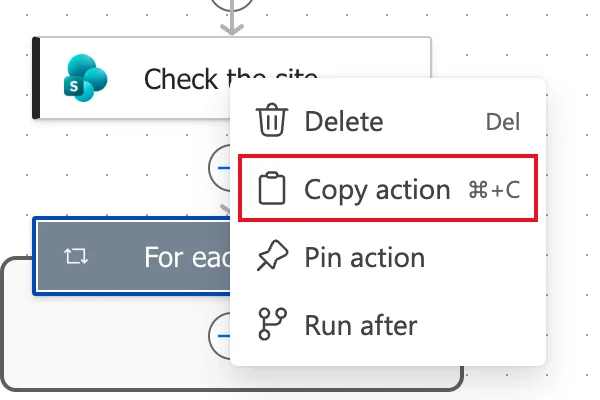
The menu shows the keyboard shortcut: Ctrl+C on Windows, ⌘+C on a Mac. Right next to Copy action is Delete, so read before you select.
Step 2: Paste It
Right-click the + where the copy should go, then select Paste an action → Paste an action:
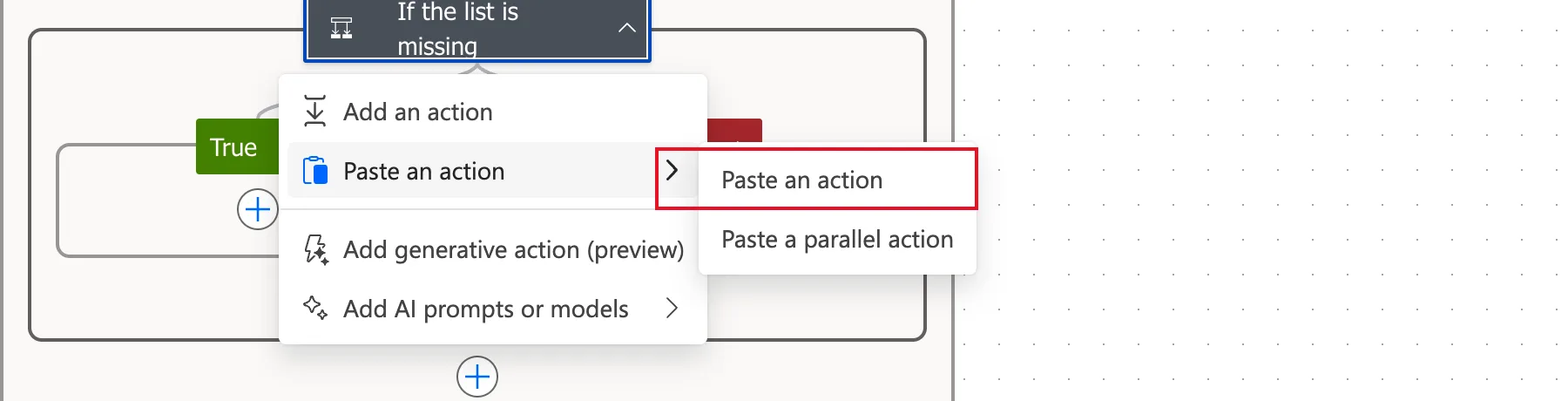
Paste a parallel action adds it as a parallel branch instead.
Step 3: Rename the Copy and Change It
The copy opens in the pane. Its name is the original's with a number added: copies of Find the list came out as Find the list 2 and, later, Find the list 4. Microsoft's designer overview shows a copy's name ending in -copy instead. Either way, rename it: select the name at the top of the pane and type the new one.
Then change only what differs. For example, a copy of Find the list became Find Title in the view by changing its Uri from the list address to the view's columns:
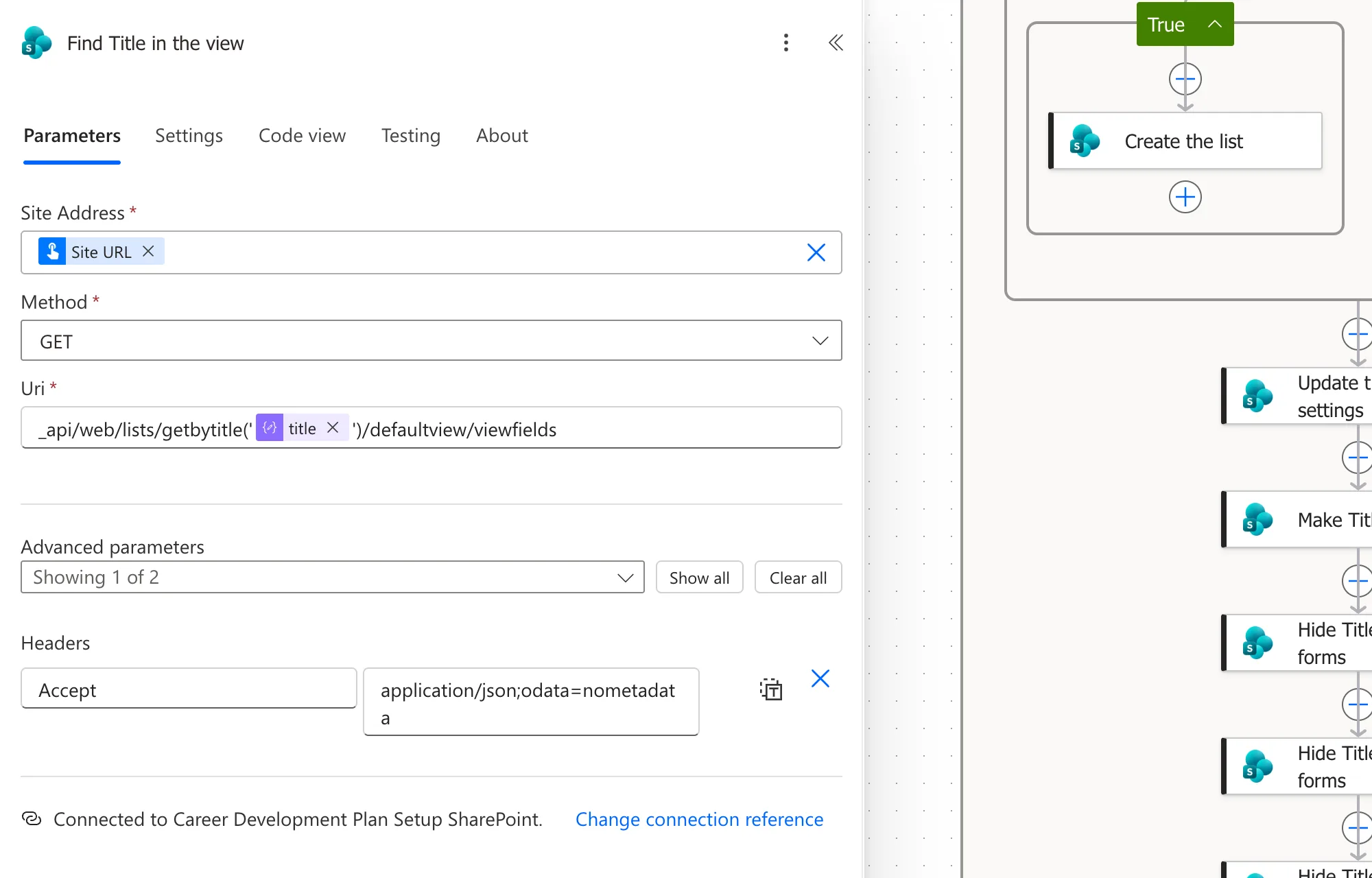
Expressions in the copy keep pointing to the same steps. Inside the same loop that's what you want. If you paste into a different loop, change the loop name in its items() expressions.
Move an Action
The new designer can move an action this way too. To move Remove Title from the view into a condition's True branch, I copied it, pasted it into the branch, then deleted the original: right-click → Delete, and OK in Delete workflow action. The copy, Remove Title from the view 1, then took the original's name. Fixed: "Invalid Field Name" BadGateway explains why it moved.
Delete the original before renaming the copy: two actions can't have the same name.
Common Mistakes
| Mistake | What happens | Do this instead |
|---|---|---|
| Selecting Delete instead of Copy action | The action is gone | Read the menu; Delete is right above |
| Keeping the numbered name | Expressions and run history read Find the list 4 | Rename the copy at once |
| Forgetting what must change | Two steps do the same thing | Check every field of the copy |
Troubleshooting
| Symptom | Likely cause | Fix |
|---|---|---|
| No Paste an action in the menu | Nothing copied yet, or you left-clicked | Copy first, then right-click the + |
| Paste doesn't work in another flow's tab | Microsoft lists cross-tab paste as a classic-designer-only feature | Copy and paste within the same flow |
| The copy's expressions point to the wrong loop | It was pasted into a different loop | Change the loop name in items() |
FAQ
Can I copy a whole condition?
Yes. Microsoft's article says you can copy individual actions, or whole conditions and scopes with the actions inside them. You can't copy a trigger.
Does the copy share anything with the original?
No. It's a separate action that started with the same settings.
Conclusion
Right-click an action and select Copy action, right-click the + where you want it and select Paste an action → Paste an action. Rename the copy and change only what differs. To move an action, paste it in the new place and delete the original.
Additional Resources
- Streamline workflow creation with Power Automate features: copying and pasting in both designers.
- Explore the cloud flows designer: the designer's canvas and menus.
- Classic designer vs. new designer for cloud flows: what each designer can do.
