How to Copy a Formula to Other Cells in Excel

Write a formula once, then copy it to the other rows. Excel adjusts the cell references as it pastes, so row 11's copy uses row 11's cells, while references with $ signs stay pointing at the same cell. Select, Ctrl+C, select the target cells, Ctrl+V (Cmd+C and Cmd+V on a Mac).
The example is the Clock change sheet from How to Calculate Hours Worked Across a Daylight Saving Time Change in Excel. Row 10 has two formulas, Excel hours in C10 and Real hours in D10, and rows 11 and 12 need the same.
Prerequisites
- A formula to copy, such as the ones from How to Enter a Formula in Excel and How to Use the Formula Bar in Excel for the Web.
Step 1: Copy the Cells
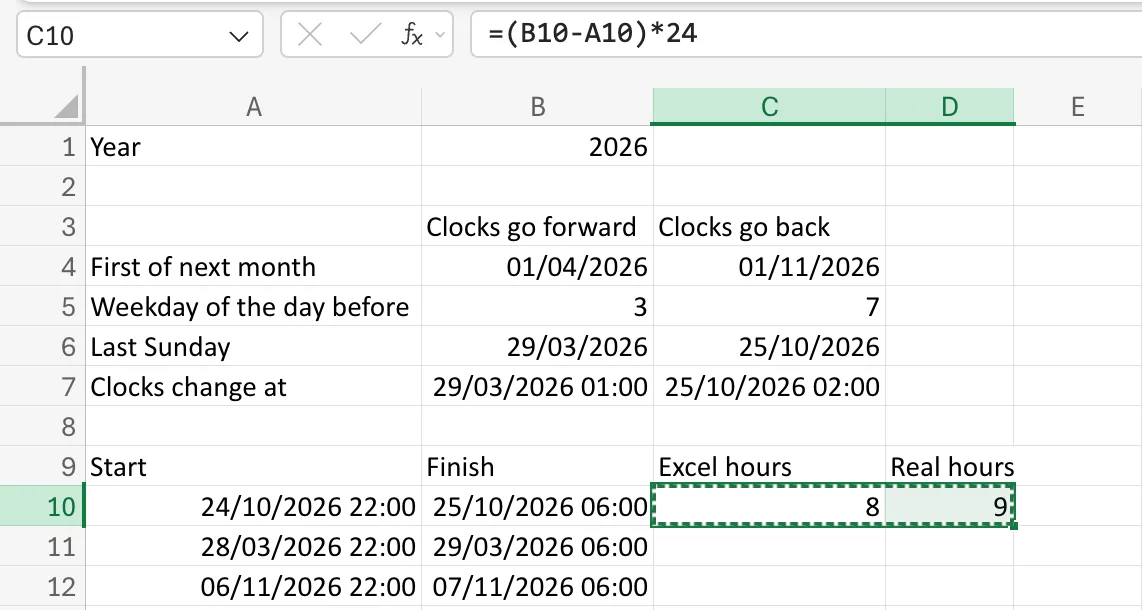
Select the cells with the formulas, C10:D10, and press Ctrl+C (Cmd+C). A moving dashed border marks what's been copied:
Step 2: Select Where They Go
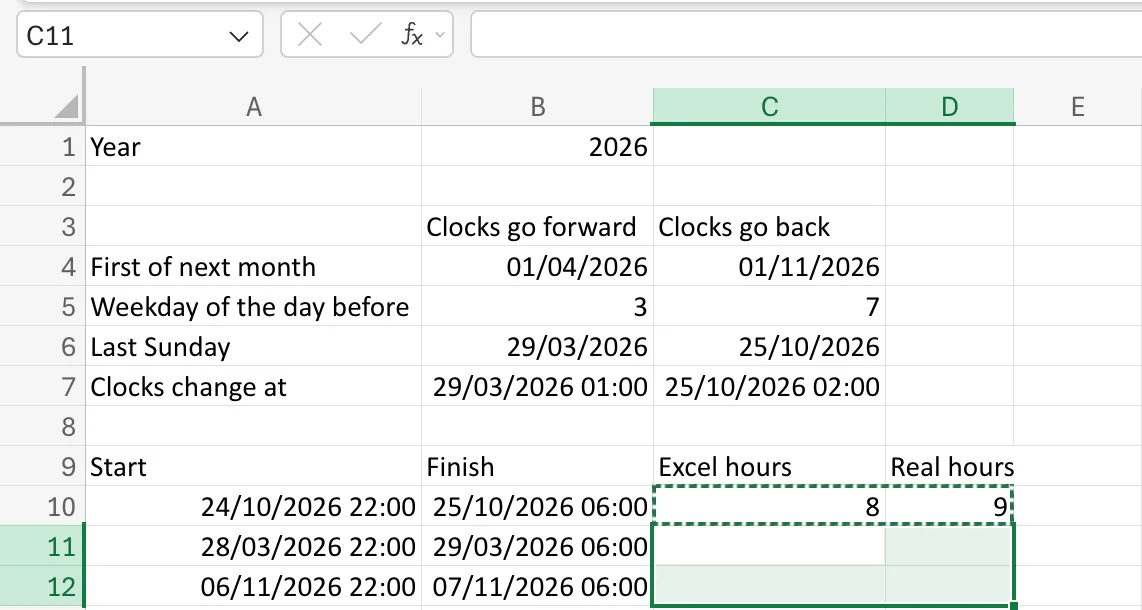
Select the cells to fill, C11:D12. Two columns and two rows: Excel pastes the copied pair into each row:
Step 3: Paste
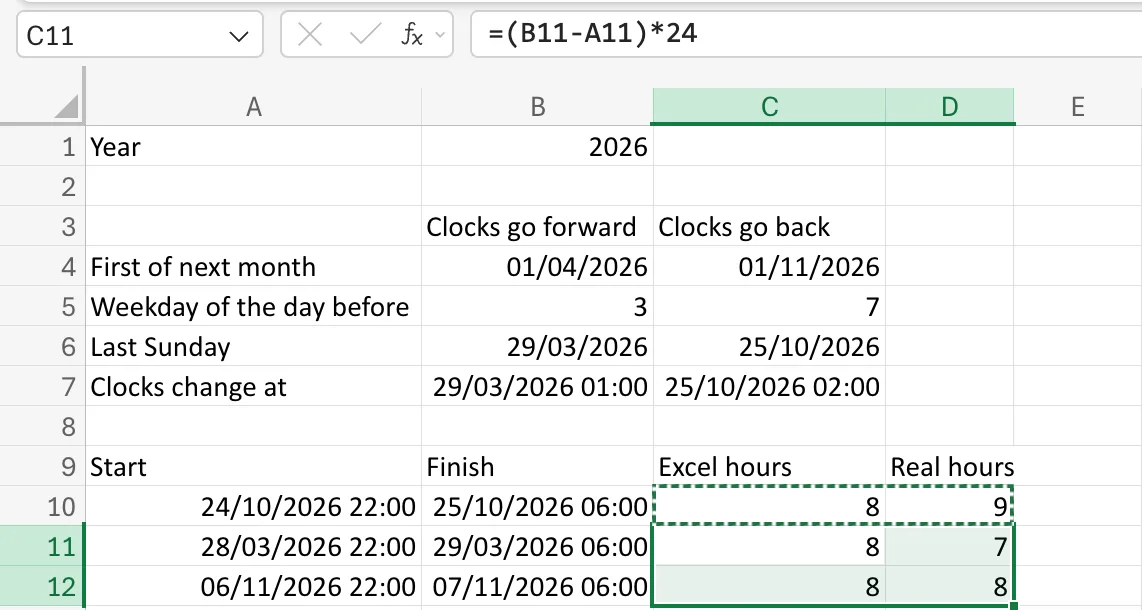
Press Ctrl+V (Cmd+V). Rows 11 and 12 get their own results, 8 and 7, then 8 and 8:
Press Esc to clear the dashed border.
Step 4: Check How the References Changed
Select a pasted cell and read its formula. C11 became =(B11-A11)*24: every reference moved down one row. D11 shows the difference $ makes:
=C11+AND(A11<$C$7,B11>$C$7)-AND(A11<$B$7,B11>$B$7)
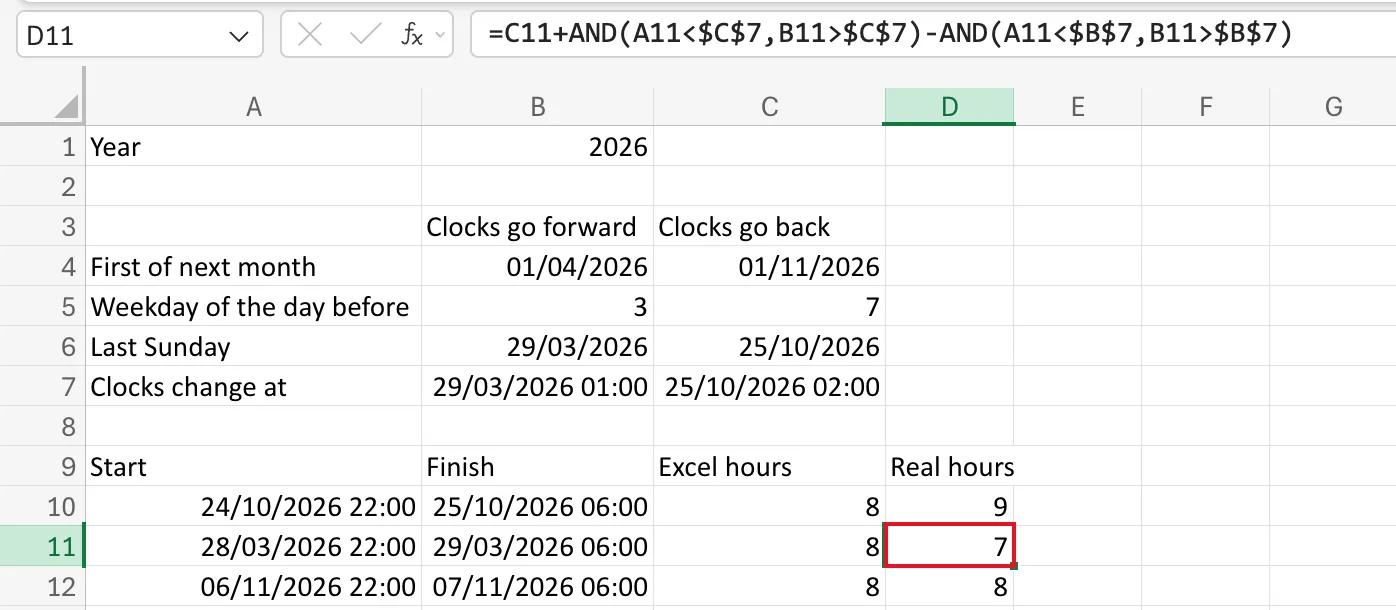
C10, A10 and B10 became C11, A11 and B11, but $C$7 and $B$7 didn't change: every row compares its shift with the same clock-change times. How to Use Absolute and Mixed Cell References in Excel explains the $ signs.
Common Mistakes
| Mistake | What happens | Do this instead |
|---|---|---|
Forgetting $ on a cell every row should use | The copies point at empty cells further down | Make that reference absolute before copying |
| Copying values instead of formulas from somewhere else | The pasted cells don't update | Copy the cell that holds the formula |
| Retyping the formula in every row | Slow, and easy to get one row wrong | Type it once and copy it |
Troubleshooting
| Symptom | Likely cause | Fix |
|---|---|---|
| A pasted row shows a wrong result | A reference that should be fixed moved | Add $ to it in the original, copy again |
| The dashed border is still there after pasting | Excel keeps the copy ready to paste again | Press Esc when you're done |
FAQ
Do I need to copy formulas in an Excel table?
No. In a table, a formula typed in one row of a column fills the whole column by itself: How to Add a Calculated Column to an Excel Table.
Can I copy the formula with the ribbon instead?
Yes. Copy is on the Home tab. I used the keyboard, which works the same in Excel for the web and the desktop app.
Conclusion
Copy the formula cells, select the cells to fill, and paste. Ordinary references move with each row; references with $ stay put.
