How to Convert Minutes to Hours and Minutes in Power Apps

Durations are easiest to count in minutes, and easiest to read in hours. 450 minutes is 7 h 30 min: RoundDown gives the whole hours and Mod the minutes left over. As decimal hours, the way payroll usually wants them, it's 7.50: divide by 60 and format with Text(..., "0.00").
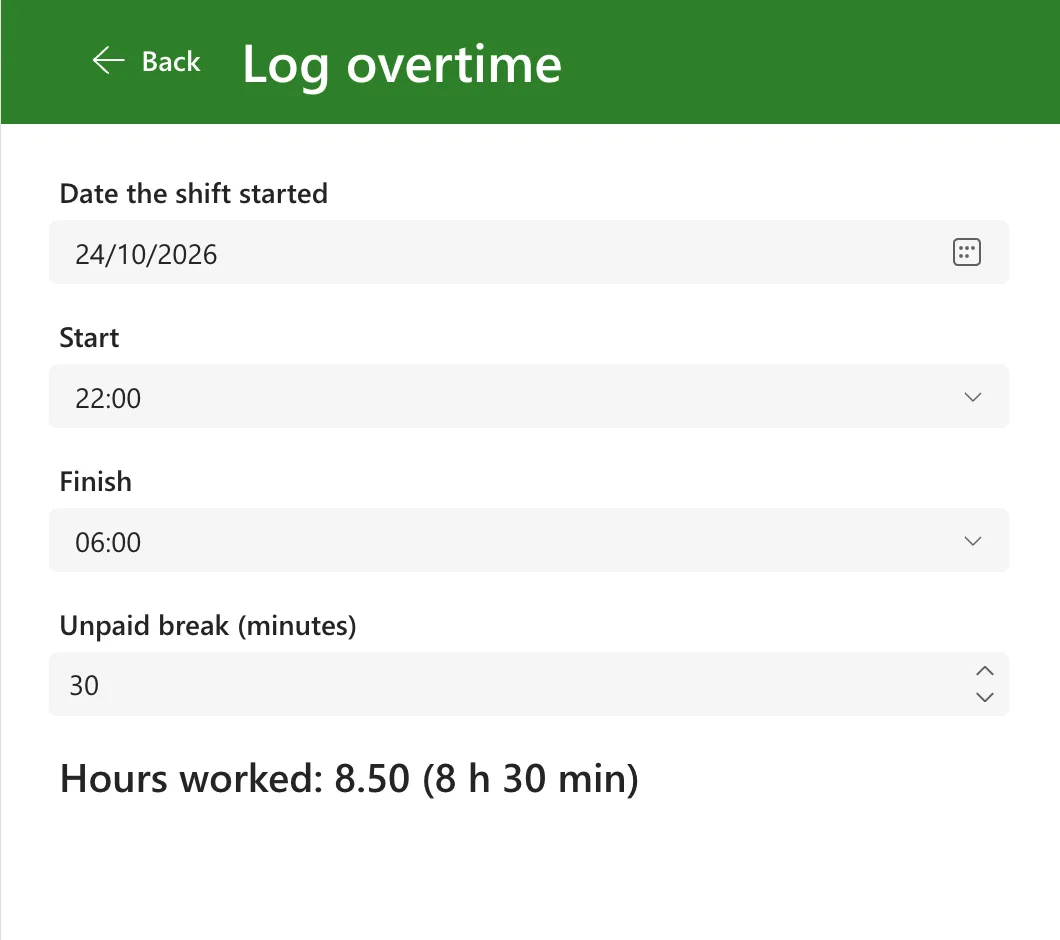
The example is the Overtime Timesheet app, whose Log overtime screen shows the hours worked both ways.
Prerequisites
- The whole hours: How to Round a Number in Power Apps with Round, RoundDown and RoundUp.
- The minutes left over: How to Get the Remainder of a Division in Power Apps with Mod.
- Putting numbers into text: How to Join Text in Power Apps with & and String Interpolation.
Step 1: Show Hours and Minutes
I put each formula into a text control's Text for a moment, so Studio's preview strip shows the result:
$"{RoundDown(450 / 60, 0)} h {Mod(450, 60)} min"
$"…"is an interpolated string: each{…}is replaced by the result of the formula inside it.RoundDown(450 / 60, 0)is the whole hours, 7.Mod(450, 60)is the minutes left over, 30.
The result is 7 h 30 min:

Step 2: Show Decimal Hours
Text(450 / 60, "0.00")
450 divided by 60 is 7.5. In the format "0.00", each 0 after the point displays insignificant zeros if a number has fewer digits than there are zeros in the format (Text function), so it shows 7.50:

A number with more decimal places is rounded to two by the same format. 7.50 hours is 7 h 30 min, not 7 h 50 min: the decimal part is a fraction of an hour.
Step 3: Show Both in the App
The app's hours line counts the minutes of the shift, takes off the break, and shows both forms:
If(
    IsBlank(cmbStartLO.Selected) || IsBlank(cmbEndLO.Selected),
    "Choose the start and finish times to see the hours worked.",
    With(
        {Minutes: Max(0, ShiftMinutes(dpWorkDateLO.SelectedDate, cmbStartLO.Selected.Value, cmbEndLO.Selected.Value) - numBreakLO.Value)},
        $"Hours worked: {Text(Minutes / 60, "0.00")} ({RoundDown(Minutes / 60, 0)} h {Mod(Minutes, 60)} min)"
    )
)
- If shows a prompt until both times are chosen.
- With works out
Minutesonce, so the text can use it three times (How to Use the With Function in Power Apps). ShiftMinutesis the app's own function for the minutes between the start and the finish (How to Create a User-Defined Function in Power Apps).Max(0, …)keeps the result from going below zero while the break is longer than the shift; the screen shows a message about that instead.
In the formula bar:

On 24 October 2026, the night the UK clocks went back, 22:00 to 06:00 was 540 minutes. With a 30-minute break that's 510 minutes, and the screen shows Hours worked: 8.50 (8 h 30 min):
Common Mistakes
| Mistake | What happens | Do this instead |
|---|---|---|
| Reading 7.50 hours as 7 h 50 min | Half an hour becomes 50 minutes | The decimal is a fraction of an hour: 7.50 is 7 h 30 min |
| Round for the whole hours | 450 minutes shows as 8 h 30 min | RoundDown |
Leaving out the $ | The braces and formulas show as typed, not their results | Start the string with $" |
Showing Minutes / 60 without a format | 210 minutes shows as 3.5, not 3.50 | Text(Minutes / 60, "0.00") |
Troubleshooting
| Symptom | Likely cause | Fix |
|---|---|---|
The text shows {RoundDown(...)} | The string isn't interpolated | Add $ before the opening quote |
| Negative hours | The break is longer than the shift | Max(0, …) around the minutes, and a message asking for a shorter break |
| The hours are a whole number | The minutes were counted in TimeUnit.Hours | Count minutes with DateDiff: How to Calculate the Minutes Between Two Times in Power Apps with DateDiff |
FAQ
Which form should I store?
A number. The example saves decimal hours, rounded to two places, to a SharePoint number column, so totals and reports can add them up. The text forms are only for showing.
How does Excel do this?
Multiply a time by 24 for decimal hours (How to Convert Time to Decimal Hours in Excel), or format a total with [h]:mm (How to Show Total Hours Over 24 in Excel).
Conclusion
$"{RoundDown(m / 60, 0)} h {Mod(m, 60)} min" shows m minutes as hours and minutes, and Text(m / 60, "0.00") as decimal hours. Count in minutes, store a number, and format only what people read.
Additional Resources
- Text function: number placeholders.
- Mod function and Round, RoundDown and RoundUp.
- Data types: string interpolation.
