How to Convert Local Time to UTC in Power Automate with convertToUtc

Times typed by people are local times: 22:00 in London means 21:00 UTC in summer and 22:00 UTC in winter. convertToUtc() turns a local date and time into UTC for a named time zone, and it knows when that zone's clocks change.
Syntax
convertToUtc('<timestamp>', '<sourceTimeZone>', '<format>'?)
From Microsoft's functions reference:
<timestamp>(required): text that contains the date and time to convert.<sourceTimeZone>(required): the name of the time zone the timestamp is in. The names are Windows' time zone names, listed in Default Time Zones; the reference adds that you might have to remove any punctuation from the time zone name.<format>(optional): the format of the result. Without it, the result is in the formato,yyyy-MM-ddTHH:mm:ss.fffffffK.- The result is text: the timestamp converted to UTC.
Microsoft's example: convertToUtc('01/01/2018 00:00:00', 'Pacific Standard Time') returns 2018-01-01T08:00:00.0000000Z.
For the United Kingdom, the name is GMT Standard Time: Microsoft's list gives it as (UTC) Dublin, Edinburgh, Lisbon, London.
The example is Import Old Overtime Timesheet, a flow of the Overtime Timesheet app. It reads an old Excel timesheet whose dates and start and finish times are UK local times, and has to save each shift's start and end in UTC. One of the rows is Ben Harris's night shift from 22:00 on Saturday 24 October 2026 to 06:00 the next morning: the night the UK's clocks went back from 02:00 to 01:00.
Step 1: Build the Local Date and Time
Inside the loop over the rows, For each old row, the date and the start time are in separate columns, read as 2026-10-24T00:00:00.000Z and 1899-12-30T22:00:00.000Z (How to Get Excel Dates as Dates, Not Numbers, in Power Automate). Take the date part of one and the time part of the other, and join them (How to Format a Date in Power Automate with formatDateTime, How to Combine Text in Power Automate with concat()):
concat(formatDateTime(items('For_each_old_row')?['Date'], 'yyyy-MM-dd'), 'T', formatDateTime(items('For_each_old_row')?['Start'], 'HH:mm'), ':00')
For Ben's row, that's 2026-10-24T22:00:00: no Z and no offset, a time as it was on the clock.
Step 2: Convert It
Add a Compose, name it Shift start, and in Inputs add the conversion as an expression (How to Add an Expression in Power Automate):
convertToUtc(concat(formatDateTime(items('For_each_old_row')?['Date'], 'yyyy-MM-dd'), 'T', formatDateTime(items('For_each_old_row')?['Start'], 'HH:mm'), ':00'), 'GMT Standard Time')
The action's Code view shows it as saved:
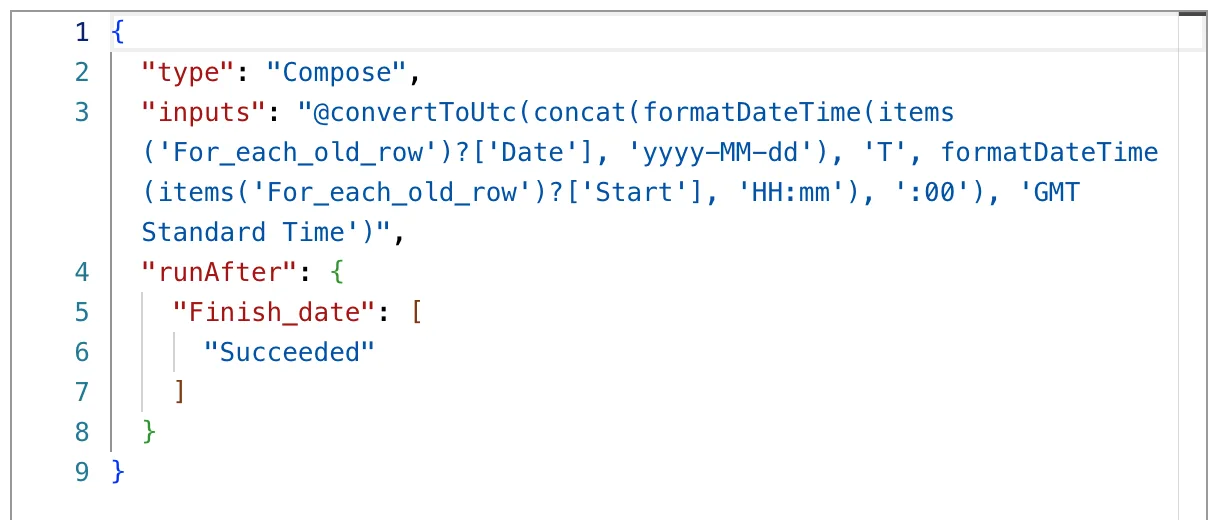
A second Compose, Shift end, does the same with the finish time and the date the shift ends, which is the next day for a night shift (How to Add Days to a Date in Power Automate with addDays):
convertToUtc(concat(outputs('Finish_date'), 'T', formatDateTime(items('For_each_old_row')?['Finish'], 'HH:mm'), ':00'), 'GMT Standard Time')
The Result
In the test run, Ben's shift started at 22:00 British Summer Time, one hour ahead of UTC, so Shift start was 21:00 UTC:

It ended at 06:00 after the clocks went back, when UK time equals UTC, so Shift end was 06:00 UTC:

Between them are nine hours, not eight: the clock showed 01:00 to 02:00 twice that night. After his 60-minute break, Ben worked 8 hours (How to Work Out the Hours Between Two Times in Power Automate); the old workbook said 7. A shift in early October, 19:00 to 23:00 on 2 October, came out as 18:00 to 22:00 UTC: one hour behind, the whole shift in summer time.
Common Mistakes
| Mistake | What happens | Do this instead |
|---|---|---|
Subtracting a fixed hour with addHours() | Shifts in winter, or across the clock change, are an hour out | convertToUtc() with the time zone's name |
A name like Europe/London | The reference asks for Windows' time zone names | GMT Standard Time |
| Greenwich Standard Time for the UK | A different zone in Microsoft's list: Monrovia, Reykjavik | GMT Standard Time |
'yyyy-mm-dd' when building the date | mm is minutes | 'yyyy-MM-dd' |
Troubleshooting
| Symptom | Likely cause | Fix |
|---|---|---|
The result ends in .0000000Z | That's the default format, o | Pass a format as the third argument if you need another |
| Summer times are an hour late | The local times weren't converted | Wrap them in convertToUtc() |
| The end is before the start | A night shift's end has the start's date | Add a day to the end's date |
| This expression has a problem when you add it | The designer showed it for correct expressions too | Select Add again (Fixed: "This expression has a problem" in Power Automate) |
FAQ
How do I go the other way, from UTC to local time?
With convertFromUtc(): How to Convert UTC to Local Time in Power Automate with convertFromUtc.
What about 01:30 on the night the clocks go back?
That clock time happens twice, so it doesn't say which of the two hours it means. The example's shifts start and end outside that hour, so I didn't test it.
Can I get the result in another format?
Pass a third argument, for example convertToUtc(..., 'GMT Standard Time', 'yyyy-MM-dd HH:mm'). A SharePoint date and time column takes the default format as it is.
Conclusion
convertToUtc(timestamp, sourceTimeZone) turns a local time into UTC, using Windows' name for the time zone, GMT Standard Time for the UK. It applies the clock change for you: a night shift from 22:00 to 06:00 across it came out as nine hours apart, as it really was.
Additional Resources
- Reference guide to functions in expressions: convertToUtc
- Default Time Zones: Windows' time zone names by country or region
- Convert a time zone in Power Automate
