How to Convert a Unix Timestamp to a Date in the Terminal

A Unix timestamp such as 1800000000 is easy for computers and impossible for people. One command turns it into a date you can read. The command differs between macOS, Linux and Windows, so this guide shows all three, in UTC, in the ISO 8601 format, and in any time zone.
Syntax
On macOS, date reads a timestamp with -r:
date -u -r <seconds> [+<format>]
On Linux, date reads it with -d and an @ in front:
date -u -d @<seconds> [+<format>]
| Part | What it does |
|---|---|
-u | Shows the date in UTC. Leave it out to show your computer's own time zone. |
-r <seconds> (macOS) or -d @<seconds> (Linux) | The timestamp to convert. The @ tells Linux's date that the number is a Unix timestamp. |
+<format> (optional) | How to print the date. +%Y-%m-%dT%H:%M:%SZ prints ISO 8601, such as 2027-01-15T08:00:00Z. |
TZ=<zone> before the command (optional) | Shows the date in another time zone, such as TZ=Asia/Tokyo. |
In PowerShell:
[DateTimeOffset]::FromUnixTimeSeconds(<seconds>).ToString('<format>')
| Part | What it does |
|---|---|
[DateTimeOffset]::FromUnixTimeSeconds(<seconds>) | Turns the timestamp into a date and time in UTC. |
.ToString('u') | Prints it as 2027-01-15 08:00:00Z. 'o' prints full ISO 8601 with fractions of a second. |
.UtcDateTime | The same moment as a .NET DateTime, which PowerShell prints in a long, readable form. |
The Example
The timestamp 1800000000. A JSON Web Token's exp claim, the time it stops working, is a number like this one, and reading it is the most common reason to convert a timestamp.
Step 1: Show the Date in UTC
- macOS
- Linux
- Windows (PowerShell)
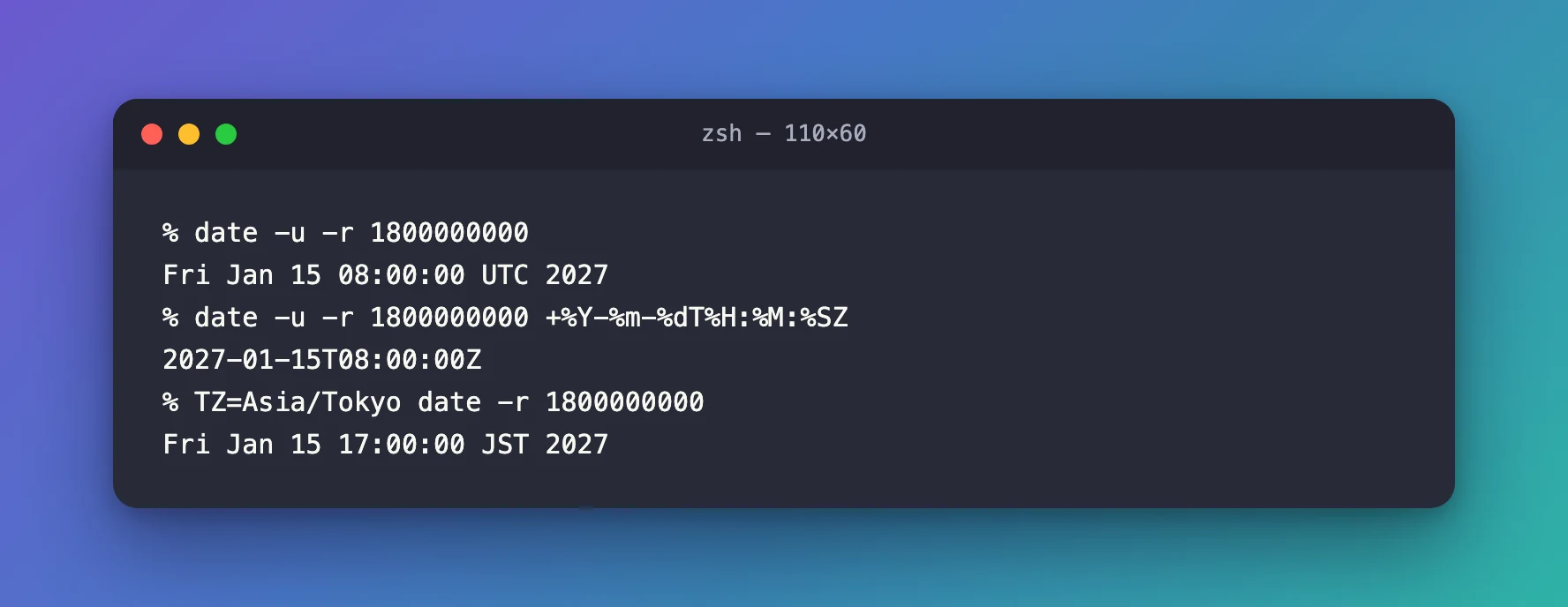
date -u -r 1800000000
Fri Jan 15 08:00:00 UTC 2027
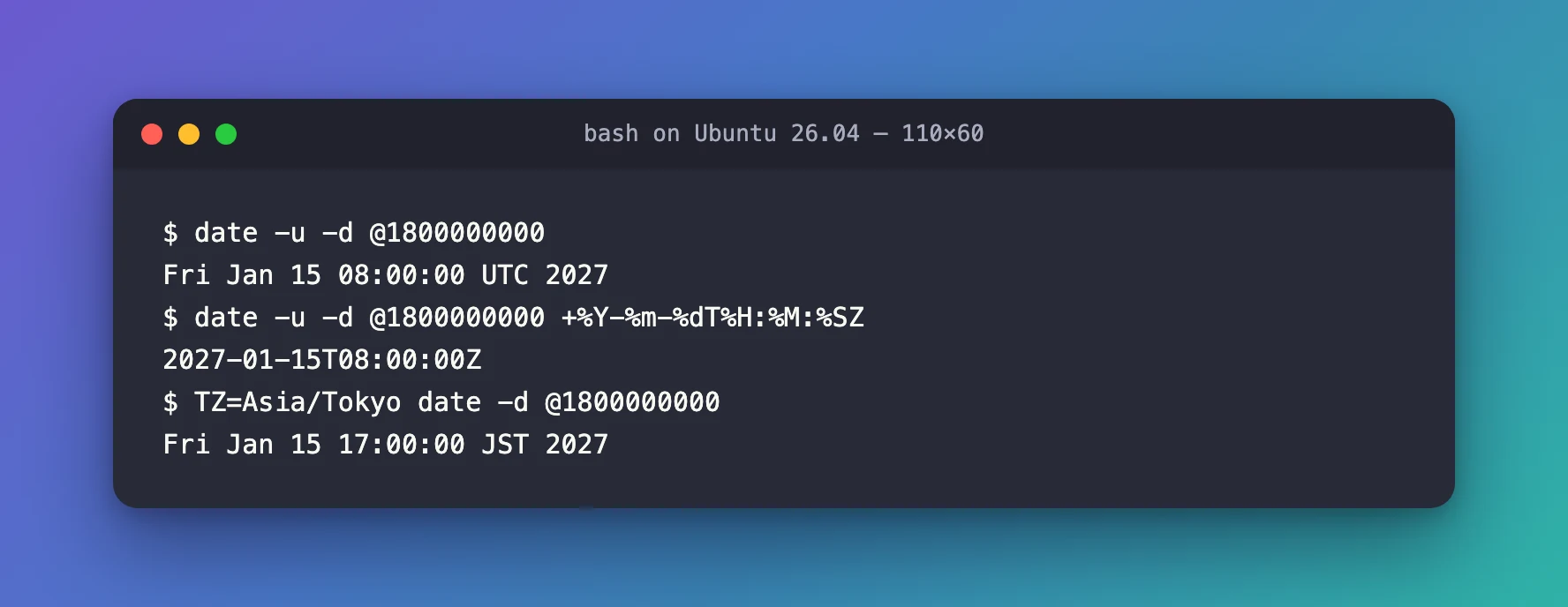
date -u -d @1800000000
Fri Jan 15 08:00:00 UTC 2027
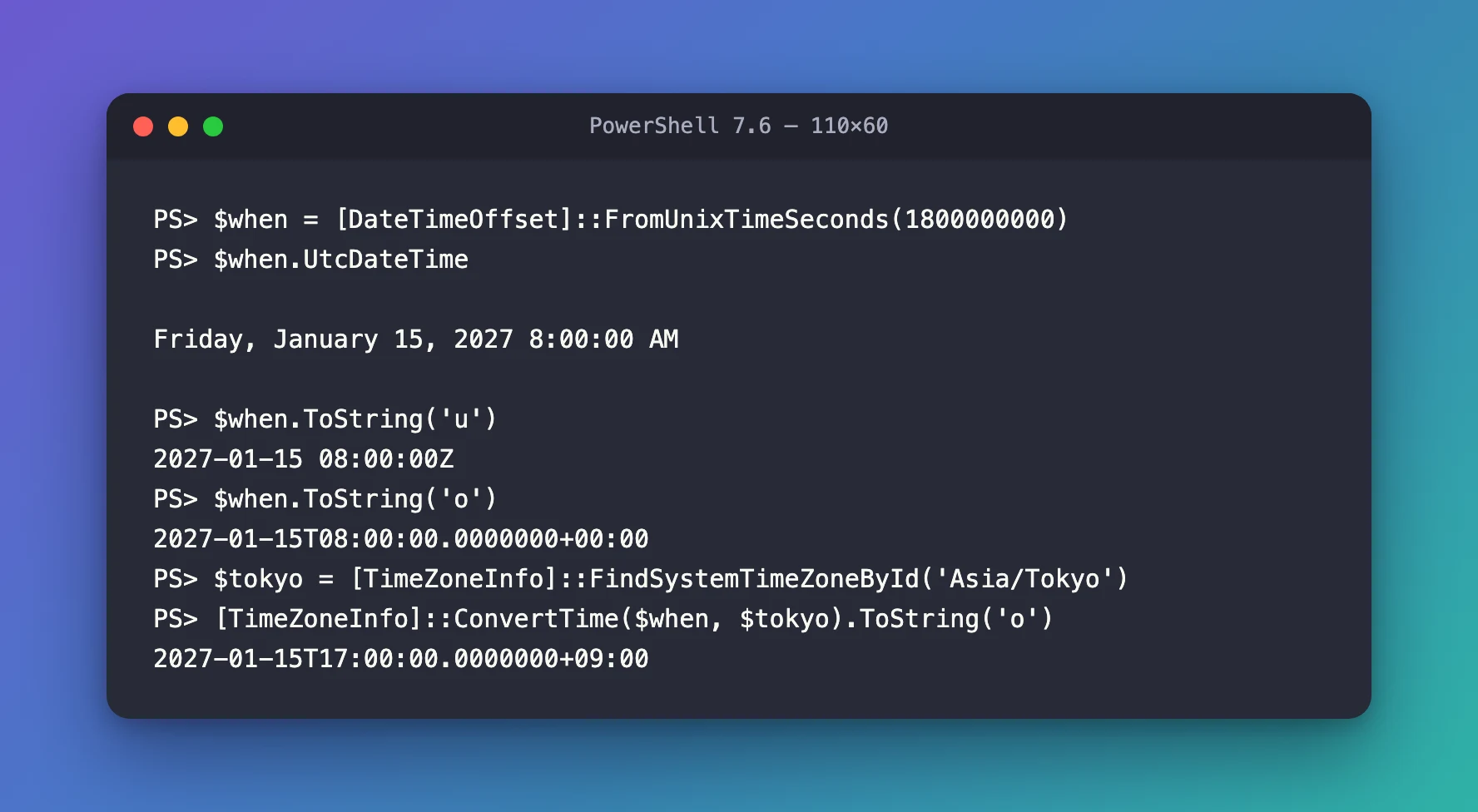
$when = [DateTimeOffset]::FromUnixTimeSeconds(1800000000)
$when.UtcDateTime
Friday, January 15, 2027 8:00:00 AM
$when keeps the date for the next steps. PowerShell prints .UtcDateTime in your computer's date format, here US English.
1800000000 is 8:00 in the morning, UTC, on Friday 15 January 2027.
Step 2: Print It in ISO 8601
ISO 8601, 2027-01-15T08:00:00Z, is the date format logs and APIs use: it sorts correctly and the Z says it's UTC.
- macOS
- Linux
- Windows (PowerShell)
date -u -r 1800000000 +%Y-%m-%dT%H:%M:%SZ
2027-01-15T08:00:00Z
%Y, %m and %d are the year, month and day; %H, %M and %S are the hours, minutes and seconds. T and Z are printed as they are.
date -u -d @1800000000 +%Y-%m-%dT%H:%M:%SZ
2027-01-15T08:00:00Z
$when.ToString('u')
$when.ToString('o')
2027-01-15 08:00:00Z
2027-01-15T08:00:00.0000000+00:00
'u' and 'o' are .NET's standard formats: 'u' has a space where ISO 8601 has T, and 'o' is full ISO 8601, with fractions of a second and +00:00 for UTC.
Step 3: Show It in Another Time Zone
Time zones have names like Asia/Tokyo or America/New_York, from the IANA time zone database.
- macOS
- Linux
- Windows (PowerShell)
TZ=Asia/Tokyo date -r 1800000000
Fri Jan 15 17:00:00 JST 2027
TZ=Asia/Tokyo before the command sets the time zone for that one command, and leaving out -u lets date use it.
TZ=Asia/Tokyo date -d @1800000000
Fri Jan 15 17:00:00 JST 2027
$tokyo = [TimeZoneInfo]::FindSystemTimeZoneById('Asia/Tokyo')
[TimeZoneInfo]::ConvertTime($when, $tokyo).ToString('o')
2027-01-15T17:00:00.0000000+09:00
FindSystemTimeZoneById looks the zone up, and ConvertTime moves the date into it: 17:00, nine hours ahead of UTC.
Common Mistakes
| Mistake | What happens | Do this instead |
|---|---|---|
Using Linux's -d @ on macOS | macOS answers date: illegal option -- d | Use -r on macOS |
Leaving out -u | The date shows in your computer's time zone, which may not be what you meant | Add -u for UTC |
| Passing milliseconds | The date lands tens of thousands of years ahead | Divide by 1,000 first |
Troubleshooting
| Symptom | Likely cause | Fix |
|---|---|---|
| The date is hours off | It's shown in your local time zone | Add -u, or set TZ |
date: illegal option -- d on a Mac | -d @ is the Linux form | Use date -u -r <seconds>; the fixes post shows the error and why |
| PowerShell can't find a time zone | The name is misspelled | Use the full IANA name, such as Asia/Tokyo |
FAQ
Why does macOS need a different command?
macOS uses the BSD version of date, and Linux uses a GNU-compatible one. They agree on +%s and the format codes, but not on how to read a timestamp: BSD uses -r, GNU uses -d @.
How do I read a JWT's expiry this way?
Decode the token's payload, take the number after "exp":, and convert it as above. How to Decode a JWT in the Terminal shows the decoding.
How do I get the current timestamp?
How to Get the Current Unix Time in the Terminal shows it for each system.
Conclusion
To turn a Unix timestamp into a date, use date -u -r <seconds> on macOS, date -u -d @<seconds> on Linux, and [DateTimeOffset]::FromUnixTimeSeconds(<seconds>) in PowerShell. Add a format for ISO 8601, and TZ= or ConvertTime for another time zone. 1800000000 is 8:00 UTC on 15 January 2027, wherever you run it.
Additional Resources
- date, in the POSIX standard — the format codes shared by macOS and Linux.
- DateTimeOffset.FromUnixTimeSeconds — .NET's conversion from Unix time.
- Standard date and time format strings — what
'u'and'o'print. - TimeZoneInfo.ConvertTime — moving a date into another time zone.
