How to Connect to Azure Cosmos DB with Microsoft Entra ID in C#

A .NET C# app can use Azure Cosmos DB without a single key: give the CosmosClient the account's URI and a Microsoft Entra ID credential, and every request carries a token instead. Here's the whole thing in a small console app, with real output and what each request cost.
The Azure Cosmos DB SDK for .NET, the Microsoft.Azure.Cosmos package, talks to an account through one object, the CosmosClient. It can authenticate with an account key or with Microsoft Entra ID. With Entra ID, the app signs in as an identity, your own account on your computer or a managed identity in Azure, and Cosmos DB checks that identity's data role. No secret lives in the app or its settings, and an account with key-based authentication turned off works the same.
Syntax
using CosmosClient <client> = new(
    "<account-endpoint>",
    <token-credential>,
    new CosmosClientOptions
    {
        UseSystemTextJsonSerializerWithOptions = <json-serializer-options>,
    });

Container <container> = <client>.GetContainer("<database-id>", "<container-id>");
| Part | What it is |
|---|---|
<client> | The client, one for the whole app. Microsoft's reference: CosmosClient is thread-safe. Its recommended to maintain a single instance of CosmosClient per lifetime of the application |
<account-endpoint> | The account's URI from its Overview, such as https://<account>.documents.azure.com:443/ |
<token-credential> | A Microsoft Entra ID credential from the Azure.Identity package, such as new AzureCliCredential() on your computer |
UseSystemTextJsonSerializerWithOptions | Optional. Stores your items with System.Text.Json and these options |
<json-serializer-options> | The System.Text.Json options for your items, such as JsonSerializerOptions.Web |
GetContainer("<database-id>", "<container-id>") | A Container to read and write items. The reference says it returns a proxy reference to a container, which doesn't guarantee existence |
Creating the client doesn't connect to anything: creation doesn't make any network calls. A wrong URI or a missing role shows up at the first request.
The Example
A small notes app keeps its notes in the container notes of the database notesdb, in the account cosmos-howto-4224. The container's partition key path is /id, so each note's ID is also its partition key. The console app saves two notes and reads one back, signed in with my Azure CLI account.
Prerequisites
- The .NET 10 SDK.
dotnet --versionprints a version that starts with10.0. - The Azure CLI, signed in with
az login. The app uses that sign-in. - A Cosmos DB data role for your account on the database or container, such as Cosmos DB Built-in Data Contributor. An Azure role such as Owner isn't enough.
Step 1: Create a Console App and Add the Packages
dotnet new console -n NotesApp
cd NotesApp
The template "Console App" was created successfully.

Processing post-creation actions...
Restoring /Users/you/source/NotesApp/NotesApp.csproj:
Restore succeeded.
Then add three packages:
dotnet add package Microsoft.Azure.Cosmos --version 3.64.0
dotnet add package Newtonsoft.Json --version 13.0.4
dotnet add package Azure.Identity --version 1.21.0
Each command ends like this one:
info : PackageReference for package 'Microsoft.Azure.Cosmos' version '3.64.0' added to file '/Users/you/source/NotesApp/NotesApp.csproj'.
log  : Restored /Users/you/source/NotesApp/NotesApp.csproj (in 734 ms).
Microsoft.Azure.Cosmosis the Cosmos DB SDK.Newtonsoft.Jsonis there because the SDK needs it and leaves the version to you: without it, the build stops with an error from the SDK's own check (Fixed). Microsoft recommends 13.0.4 for this SDK version.Azure.Identityhas the Microsoft Entra ID credentials.
The project file now lists all three:
<Project Sdk="Microsoft.NET.Sdk">

  <PropertyGroup>
    <OutputType>Exe</OutputType>
    <TargetFramework>net10.0</TargetFramework>
    <ImplicitUsings>enable</ImplicitUsings>
    <Nullable>enable</Nullable>
  </PropertyGroup>

  <ItemGroup>
    <PackageReference Include="Azure.Identity" Version="1.21.0" />
    <PackageReference Include="Microsoft.Azure.Cosmos" Version="3.64.0" />
    <PackageReference Include="Newtonsoft.Json" Version="13.0.4" />
  </ItemGroup>

</Project>
Open the folder in VS Code, or NotesApp.csproj in Visual Studio.
Step 2: Create the Client
Replace everything in Program.cs with the client first:
using System.Text.Json;
using Azure.Identity;
using Microsoft.Azure.Cosmos;

// Sign in with your Azure CLI account: no keys anywhere.
using CosmosClient client = new(
    "https://cosmos-howto-4224.documents.azure.com:443/",
    new AzureCliCredential(),
    new CosmosClientOptions
    {
        // Store items with System.Text.Json and camelCase names, so the Id property is saved as "id".
        UseSystemTextJsonSerializerWithOptions = JsonSerializerOptions.Web,
    });
- The URI is the account's address. Use your own.
new AzureCliCredential()gets a token from the Azure CLI, the account you signed in withaz login. The SDK asks it for a token whenever it needs one.UseSystemTextJsonSerializerWithOptionsstores your items with System.Text.Json.JsonSerializerOptions.Webwrites property names in camelCase, so the record'sIdbecomesid. That matters: theidproperty is case-sensitive, and every item needs one.usingdisposes the client when the program ends. A web app would register one client for its whole lifetime instead.
Step 3: Write and Read Notes
Add the rest below it:
Container notes = client.GetContainer("notesdb", "notes");

// Write two notes. The container's partition key path is /id, so each note's ID is also its partition key.
foreach (Note note in new[] { new Note("note-1", "Buy milk"), new Note("note-2", "Call the plumber") })
{
    ItemResponse<Note> saved = await notes.UpsertItemAsync(note, new PartitionKey(note.Id));
    Console.WriteLine($"Saved {note.Id}: {(int)saved.StatusCode} {saved.StatusCode}, {saved.RequestCharge} RU");
}

// Read one note back by its ID and partition key.
ItemResponse<Note> read = await notes.ReadItemAsync<Note>("note-1", new PartitionKey("note-1"));
Console.WriteLine($"Read {read.Resource.Id}: \"{read.Resource.Text}\", {read.RequestCharge} RU");

record Note(string Id, string Text);
GetContainernames the database and container.UpsertItemAsynccreates the item, or replaces it if one with that ID exists. The reference: creation or replace can be identified by the status code: 201 - item created 200 - item replaced.new PartitionKey(note.Id)is the item's partition key value. The container is partitioned by/id, so it's the note's ID.ReadItemAsyncis a point read: one item by its ID and partition key, the cheapest way to read.RequestChargeis what the request cost, in request units (RUs).record Noteis the item: anIdand aText.
Step 4: Run It Twice
Run dotnet run twice in VS Code's terminal, or press Ctrl+F5 twice in Visual Studio:
$ dotnet run
Saved note-1: 201 Created, 5.9 RU
Saved note-2: 201 Created, 5.9 RU
Read note-1: "Buy milk", 1 RU

$ dotnet run
Saved note-1: 200 OK, 10.29 RU
Saved note-2: 200 OK, 10.29 RU
Read note-1: "Buy milk", 1 RU
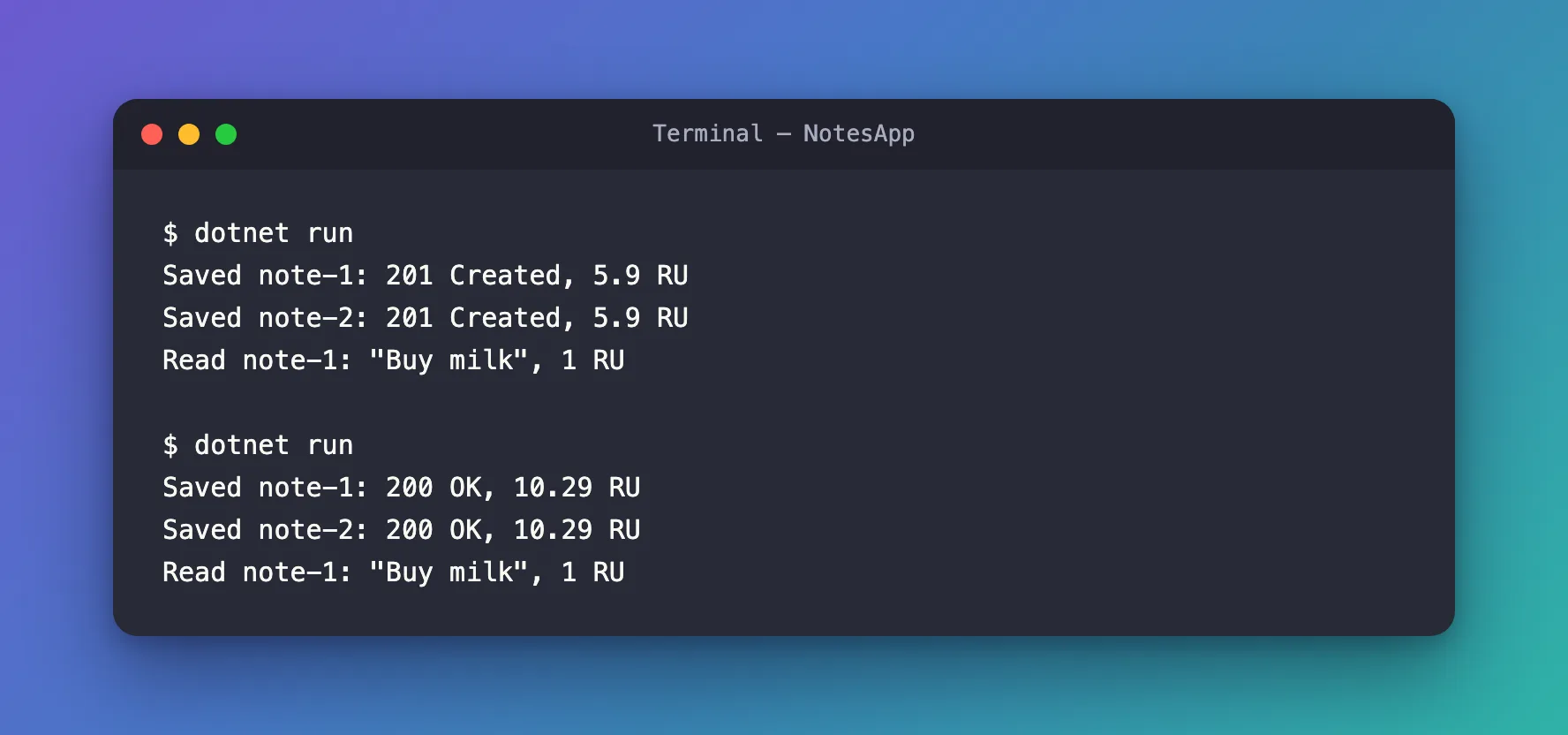
The first run created both notes, 201 Created; the second replaced them, 200 OK. Replacing cost more than creating, 10.29 RU against 5.9, and the point read cost 1 RU both times. No key was involved: the account has key-based authentication turned off, and the app read and wrote as my Azure CLI account.
The Complete File
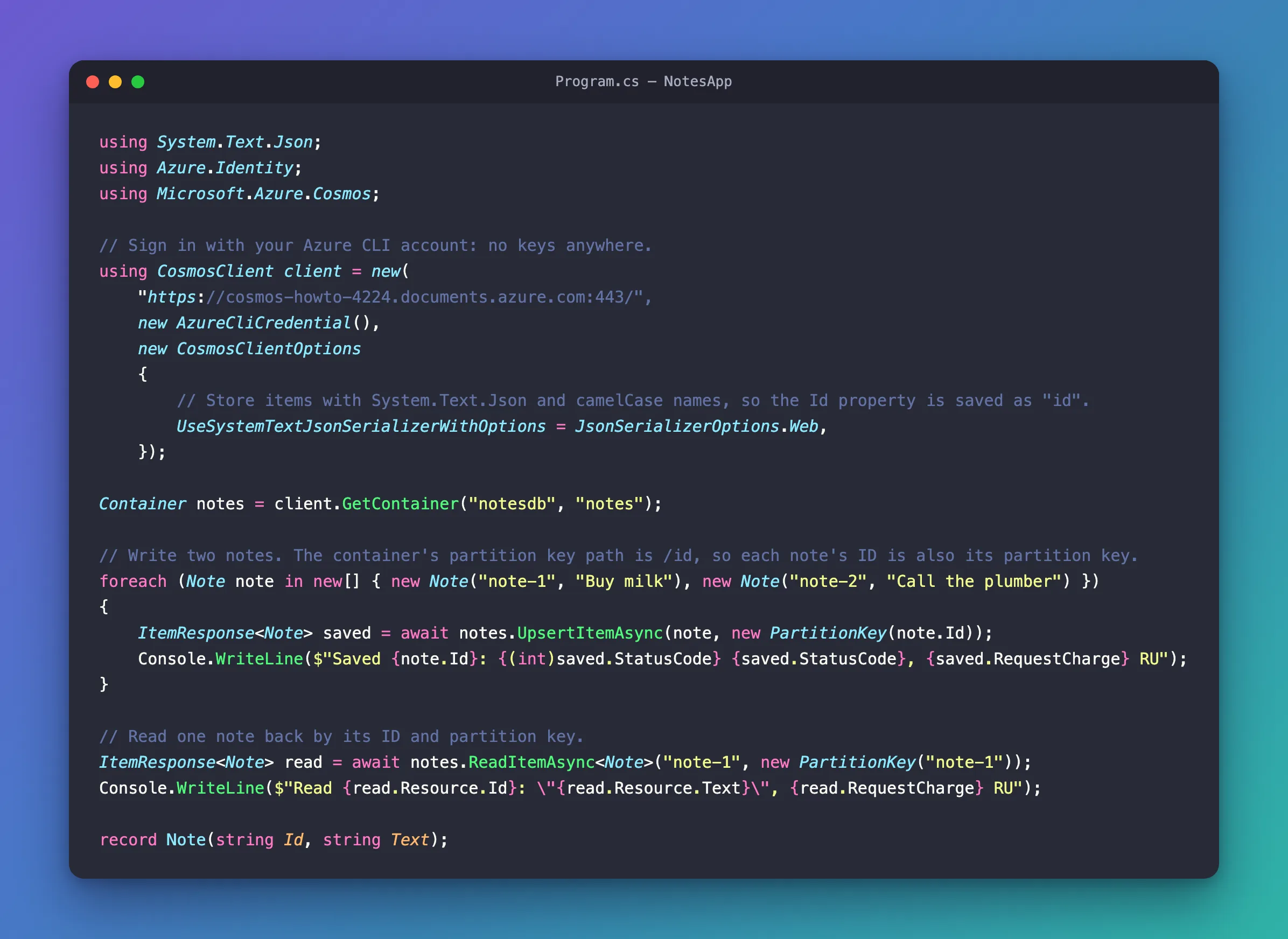
using System.Text.Json;
using Azure.Identity;
using Microsoft.Azure.Cosmos;

// Sign in with your Azure CLI account: no keys anywhere.
using CosmosClient client = new(
    "https://cosmos-howto-4224.documents.azure.com:443/",
    new AzureCliCredential(),
    new CosmosClientOptions
    {
        // Store items with System.Text.Json and camelCase names, so the Id property is saved as "id".
        UseSystemTextJsonSerializerWithOptions = JsonSerializerOptions.Web,
    });

Container notes = client.GetContainer("notesdb", "notes");

// Write two notes. The container's partition key path is /id, so each note's ID is also its partition key.
foreach (Note note in new[] { new Note("note-1", "Buy milk"), new Note("note-2", "Call the plumber") })
{
    ItemResponse<Note> saved = await notes.UpsertItemAsync(note, new PartitionKey(note.Id));
    Console.WriteLine($"Saved {note.Id}: {(int)saved.StatusCode} {saved.StatusCode}, {saved.RequestCharge} RU");
}

// Read one note back by its ID and partition key.
ItemResponse<Note> read = await notes.ReadItemAsync<Note>("note-1", new PartitionKey("note-1"));
Console.WriteLine($"Read {read.Resource.Id}: \"{read.Resource.Text}\", {read.RequestCharge} RU");

record Note(string Id, string Text);
Common Mistakes
| Mistake | What happens | Do this instead |
|---|---|---|
Leaving out Newtonsoft.Json because the app uses System.Text.Json | The build stops with the SDK's Newtonsoft.Json check | Reference Newtonsoft.Json 13.0.4 anyway |
Saving a record with Id without camelCase options | Cosmos DB treats Id as an ordinary property, and the item has no id | Use JsonSerializerOptions.Web, or name the JSON property id |
Creating a new CosmosClient for every request | Each client manages its own connections, and the app loses the reuse that one client gives | Create one and reuse it for the app's lifetime |
| Giving your account an Azure role, such as Contributor, and expecting data access | Requests are blocked: Azure roles don't include Cosmos DB data | Give it a Cosmos DB data role |
Troubleshooting
| Symptom | Likely cause | Fix |
|---|---|---|
CosmosException … Forbidden (403); Substatus: 5301 … Request blocked by Auth | Your identity has no data role on that database or container (Fixed) | Assign one, as in How to Give Your Account Access to Azure Cosmos DB Data with the Azure CLI |
error The Newtonsoft.Json package must be explicitly referenced with version >= 10.0.2 at build time | No Newtonsoft.Json reference (Fixed) | dotnet add package Newtonsoft.Json --version 13.0.4 |
AzureCliCredential fails to get a token | You're not signed in to the Azure CLI, or the sign-in expired | Run az login again |
FAQ
What credential does the app use in Azure?
A managed identity, with ManagedIdentityCredential from the same Azure.Identity package. Give that identity its own Cosmos DB data role; nothing else in the code changes.
Can I use DefaultAzureCredential instead?
Yes. It tries several credentials in turn, including the Azure CLI and managed identity. AzureCliCredential is the direct choice when you know the app runs on your computer with your sign-in; to keep DefaultAzureCredential and still use only the Azure CLI locally, see How to Make DefaultAzureCredential Use Only the Azure CLI with AZURE_TOKEN_CREDENTIALS.
Conclusion
To connect to Azure Cosmos DB with Microsoft Entra ID in C#, create one CosmosClient with the account's URI and a TokenCredential such as AzureCliCredential, and give the identity a Cosmos DB data role. Reference Newtonsoft.Json 13.0.4 even with System.Text.Json, store items with JsonSerializerOptions.Web so Id becomes id, and use UpsertItemAsync and ReadItemAsync with the item's partition key.
Additional Resources
- CosmosClient(String, TokenCredential, CosmosClientOptions) — the constructor, and why to keep one client.
- Connect to Azure Cosmos DB for NoSQL using role-based access control and Microsoft Entra ID — data roles and connecting from code.
- Create an item in Azure Cosmos DB for NoSQL using .NET — create, replace and upsert.
- Read an item in Azure Cosmos DB for NoSQL using .NET — point reads.
