How to Connect a Canvas App to SharePoint Lists with Environment Variables

When a canvas app adds a SharePoint list from Recent sites, it remembers that site's address. To have it follow environment variables instead, so a new environment only needs new values, add the lists through the Advanced tabs. They take a few more clicks, and they're easy to miss.
The example is the Overtime Timesheet app. Its solution already has a site variable, Overtime Timesheet Site, and list variables named after the lists they point at: Departments and OvertimeEntries.
Prerequisites
- The environment variables, in the same solution as the app: How to Create Environment Variables for a SharePoint Site and List in Power Apps.
- A canvas app created in that solution and open in Studio: How to Create a Canvas App Inside a Solution in Power Apps.
- A SharePoint connection that can open the site and lists. The environment variables guide creates one.
Step 1: Check the Automatic Variables Setting
In Studio, open App settings, the gear at the bottom left. On General, near the end, Automatically create environment variables when adding data sources is Off:
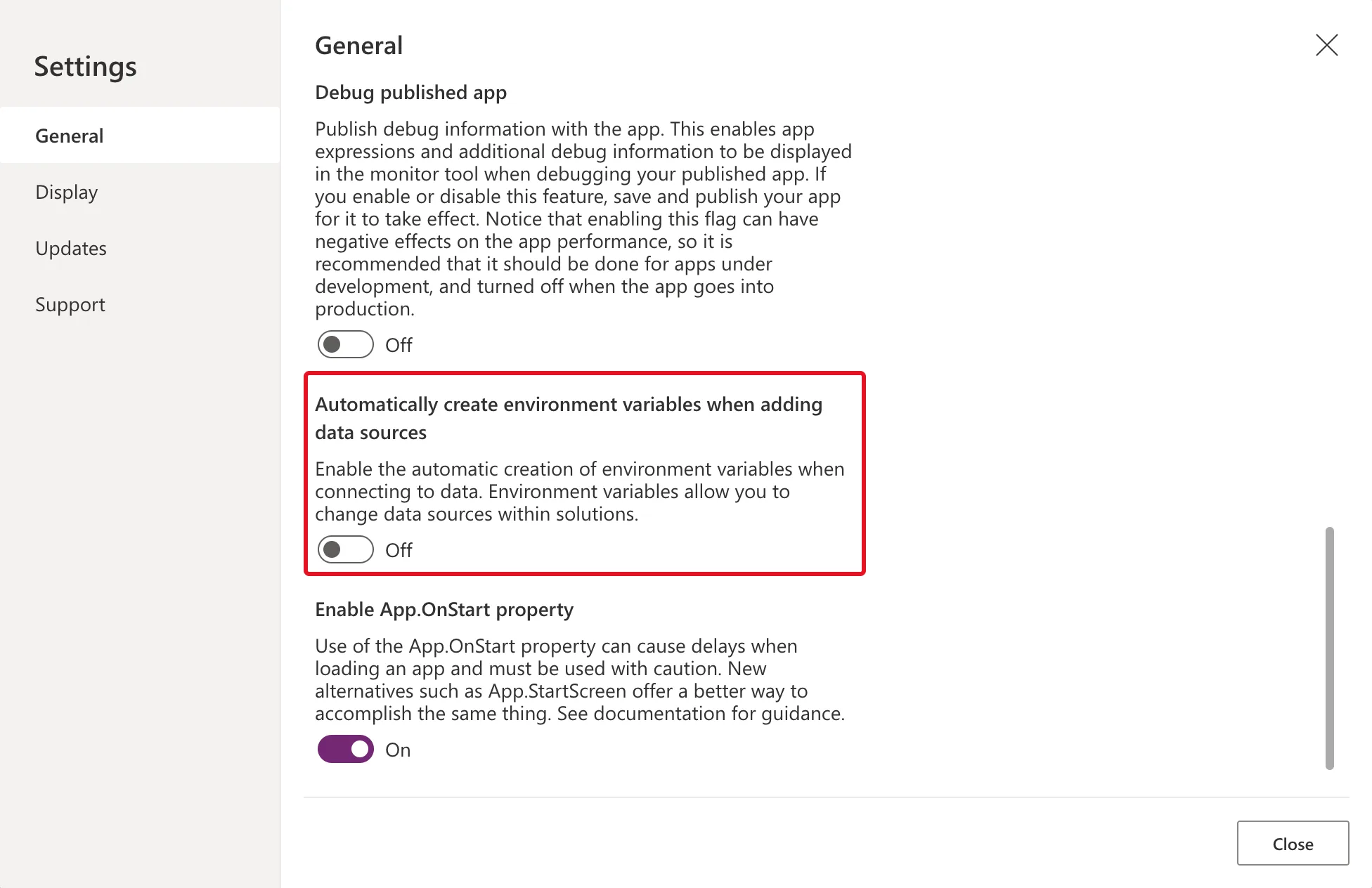
Leave it off. When it's on, Studio creates new variables for you as you add data sources, with names it chooses. You already have variables, with the names you chose.
Step 2: Add SharePoint
Open the Data pane, select Add data, and search for SharePoint. Choose plain SharePoint:
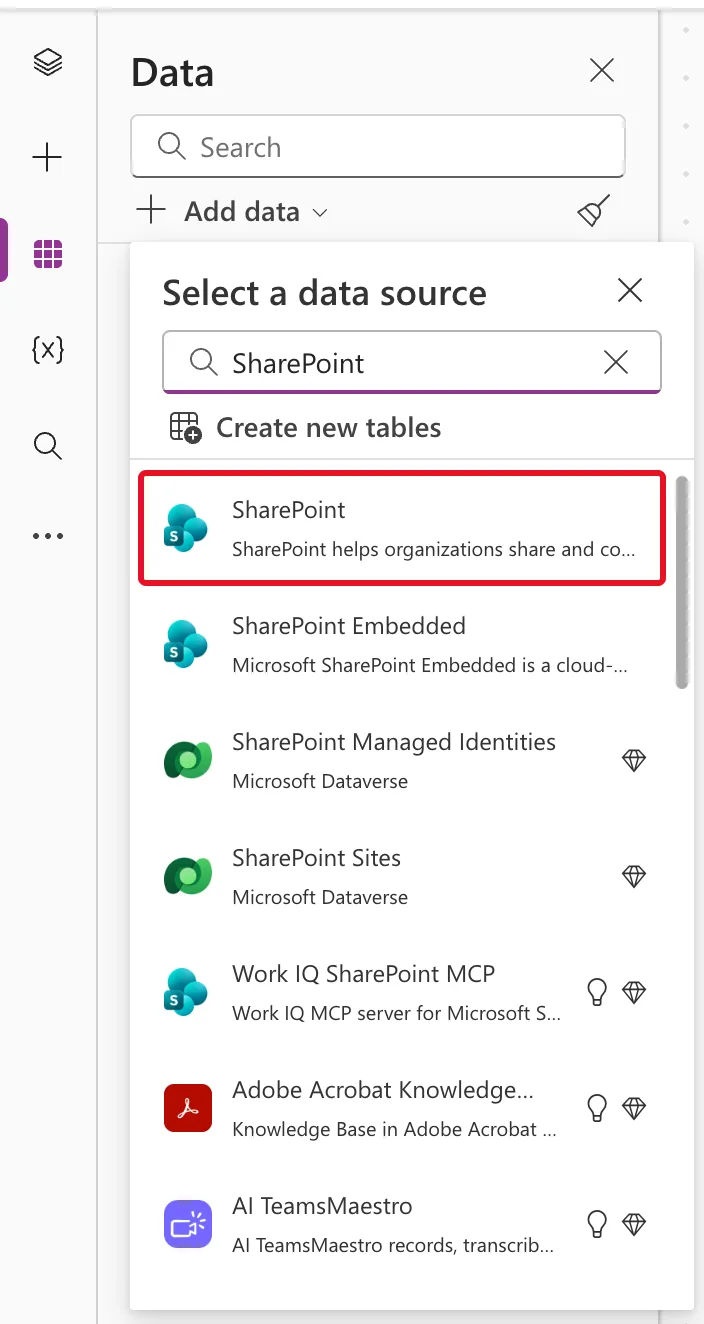
The results with a diamond are premium. SharePoint itself is a standard connector.
Step 3: Choose Your Connection
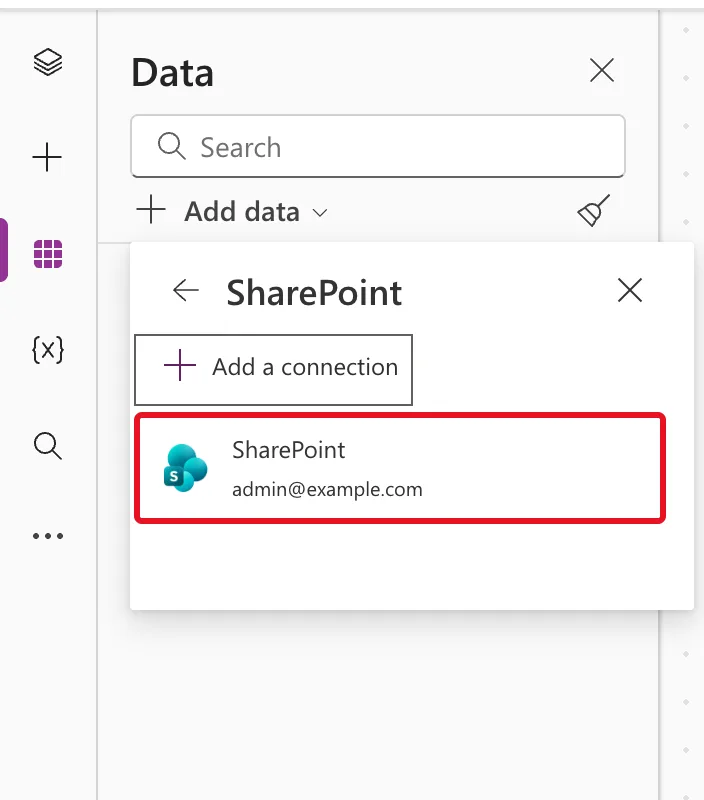
Select your existing SharePoint connection:
Step 4: Skip Recent Sites and Open Advanced
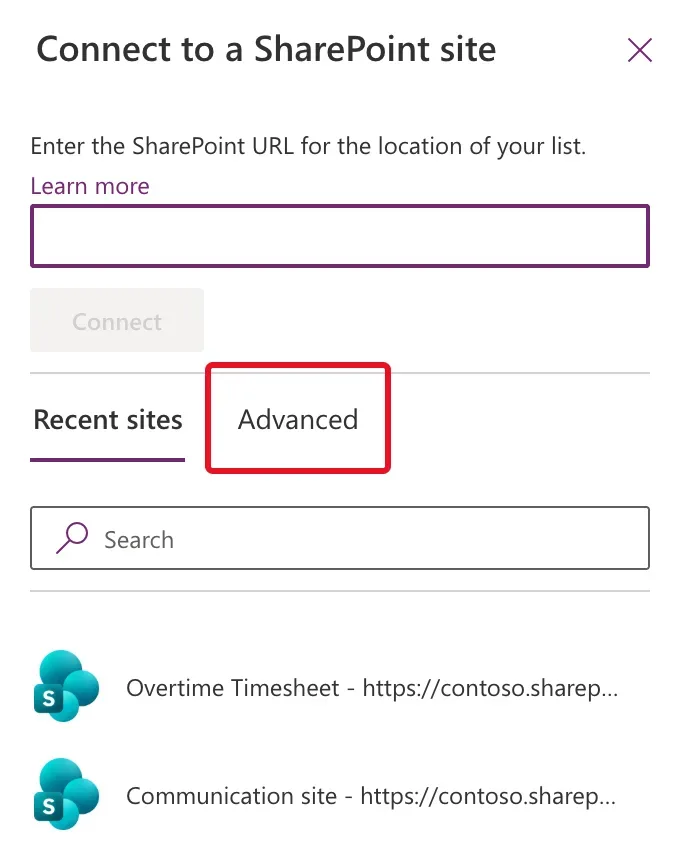
Connect to a SharePoint site opens on Recent sites, a list of your real sites. Picking one there ties the app to that address. Select the Advanced tab instead:
Step 5: Choose the Site Variable
Advanced says Connect using an existing environment variable. and lists the site variables in the environment. If there are several, type part of the name in the search box, then choose yours:
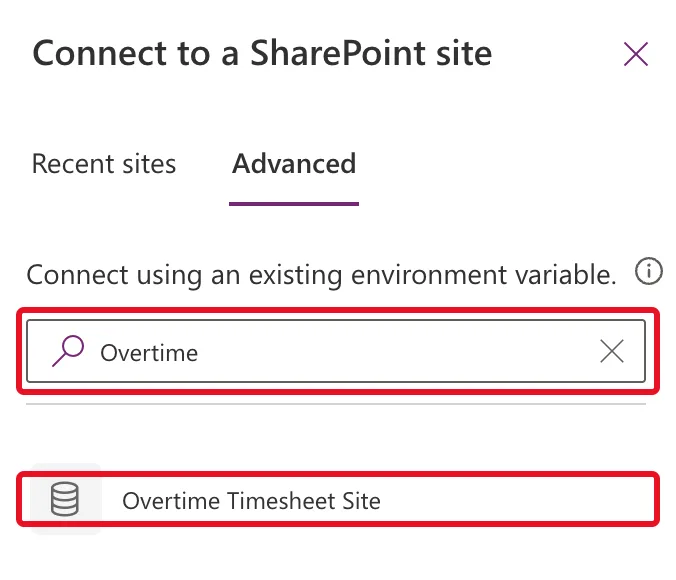
Microsoft's documentation notes that a site variable only appears here if it has a current or default value.
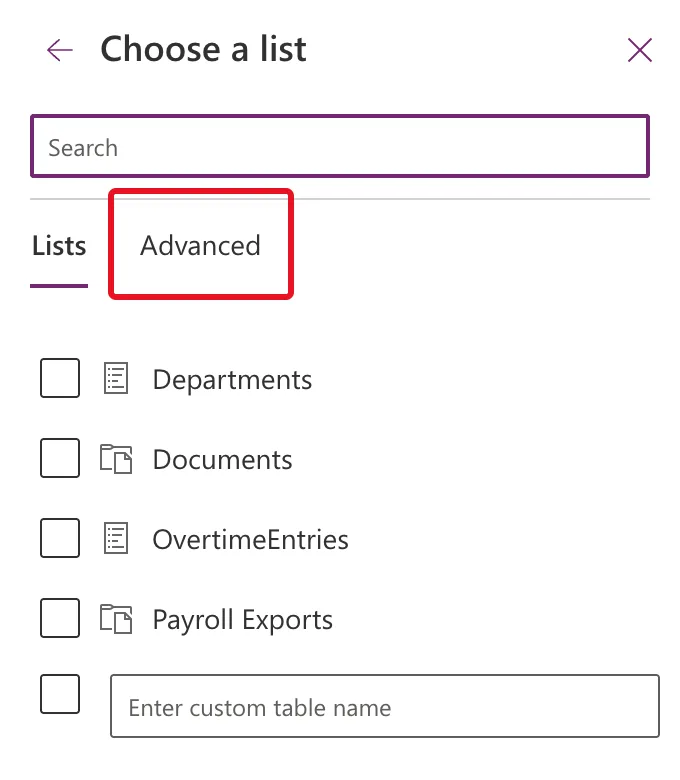
Step 6: Open Advanced Again for the Lists
Choose a list opens on its Lists tab, which shows the site's actual lists and libraries by name. Select Advanced here too:
Step 7: Tick the List Variables and Connect
This Advanced tab lists the list variables linked to the site variable you chose. Tick the ones the app needs, here Departments and OvertimeEntries, and select Connect:
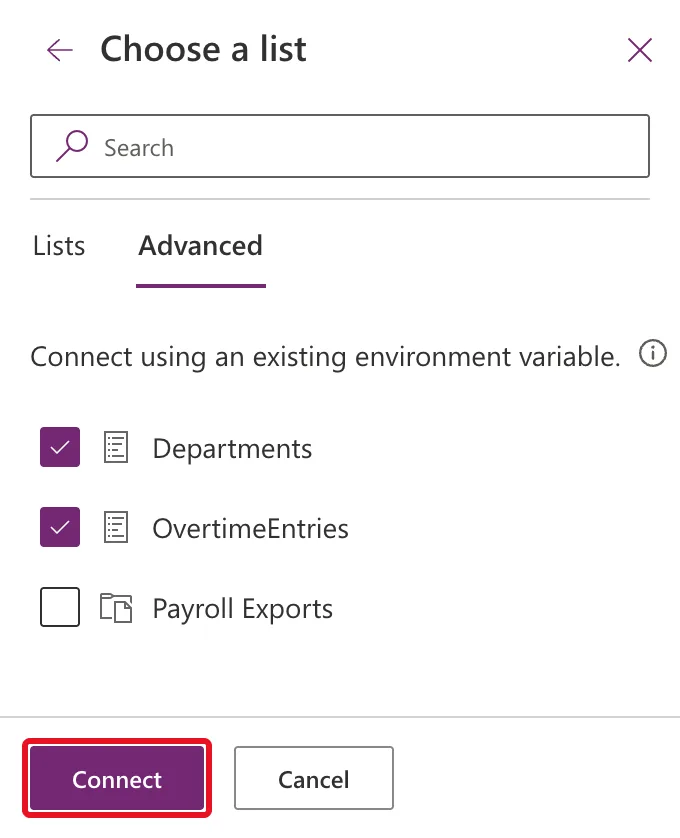
Payroll Exports points at a document library, and the app doesn't need it, so it stays unticked: How to Create an Environment Variable for a SharePoint Document Library in Power Apps.
Step 8: Check the Data Pane
Studio confirms The data source "OvertimeEntries" was added to your app. The Data pane lists both lists, named after the variables' display names, with the connection under each:
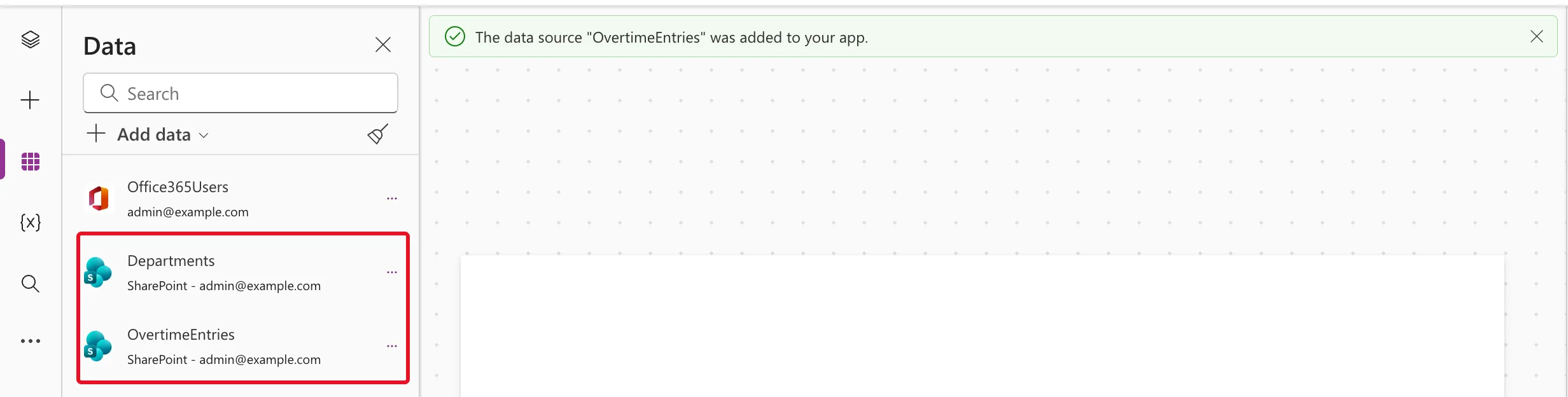
That's why the variables carry the lists' own names: formulas can say OvertimeEntries instead of 'OvertimeEntries List'. Save the app.
Step 9: Prove the App Uses the Variables
The Data pane looks the same either way, so check the solution. In it, select the app's ⋮ → Advanced → Show dependencies, then the Uses tab. After the app has been published, it lists the variables:
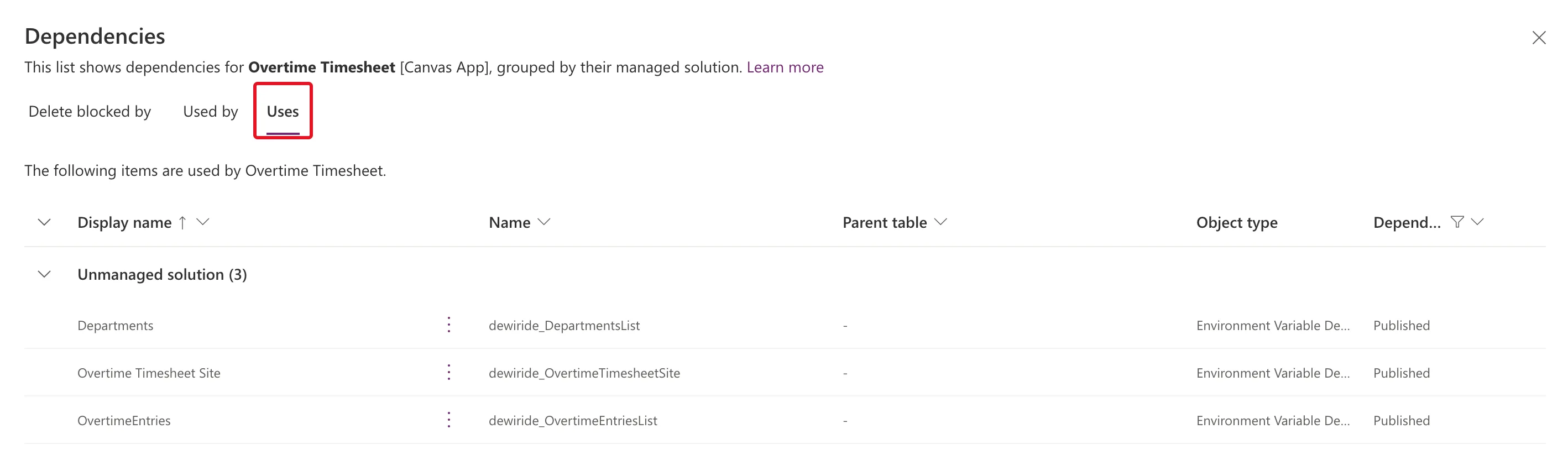
In the example, Uses was empty while the app had only been saved, and listed the three variables once it was published. Microsoft's component library article says dependencies are calculated from an app's latest published state. The site variable is listed too, because each SharePoint data source uses both a site and a list.
Common Mistakes
| Mistake | What happens | Do this instead |
|---|---|---|
| Choosing the site on Recent sites | The app is tied to that site's address | Use Advanced, twice |
| Ticking lists on the Lists tab | That tab shows the lists themselves, not the list variables | Tick the variables on Advanced |
| Using variables from another solution | Microsoft notes the app then depends on that solution | Keep the variables in the app's solution |
| Checking Show dependencies before publishing | Uses is empty | Publish once, then check |
Troubleshooting
| Symptom | Likely cause | Fix |
|---|---|---|
| The Advanced tab doesn't list your site variable | It has neither a current nor a default value | Give it a current value |
| A list variable is missing | It's linked to another site variable, or the connection can't open the list | Choose the right site variable; use an account with access |
| An app added the list from Recent sites earlier | Existing data sources don't switch to variables | Remove the data source and add it again through Advanced, as Microsoft's article advises |
| Editing a list variable says We are unable to find the list | A known problem when editing list variables | Fixed: "We Are Unable to Find the List" |
FAQ
Do environment variables make the app premium?
No. Microsoft's environment variables FAQ says premium licenses aren't required, and SharePoint is a standard connector.
Does the variable store the connection?
No. Microsoft's FAQ says the connection only lists sites and lists while you edit. Each person who uses the app connects with their own account.
What if the picker doesn't show a variable that exists?
Microsoft documents that Studio's picker reads only the first page of matching variables, up to 5,000, so in environments with very many variables some may not appear.
Conclusion
Add SharePoint lists through Advanced on both panes: first the site variable, then the list variables. The data sources take the variables' display names, and Show dependencies on the published app shows the app uses the variables, not one site's address.
Additional Resources
- Use data source environment variables in canvas apps: the Advanced tab, automatic variables, and the picker's limits.
- Use environment variables in Power Platform solutions: the FAQ, including Show dependencies.
- Component library application lifecycle management: how dependencies follow an app's published state.
