How to Clone a GitHub Repository in Visual Studio (Step-by-Step)

You do not need a terminal to get code from GitHub onto your computer. Visual Studio 2026 clones a repository in a few clicks, either from the URL GitHub gives you or straight from your GitHub account, and this guide walks through both routes screen by screen.
What Cloning Does
Cloning downloads a complete copy of a repository to your computer: every file, every folder and the full history of changes. The copy stays connected to the original on GitHub, so later you can pull other people's changes down and push your own changes up.
You clone a repository once per computer. After that, you work in your local copy.
Visual Studio gives you two ways to pick the repository, and this guide clones a real repository with each:
| Option | Best for | Example in this guide |
|---|---|---|
| A. Paste the repository URL | Any repository you can open in a browser. Public ones need no sign-in. | Dewiride-Analytics, a public open-source repository |
| B. Browse your GitHub account | Your own repositories, including private ones, without hunting for URLs | WhatsAppStateBot, a private repository |
Both routes end in the same place: the code on your disk, open in Solution Explorer.
Prerequisites
- Visual Studio 2026 on Windows. The screenshots come from the September 2026 Feature Update. The Community edition is free for individual developers, students and open-source work. Its license excludes most work at larger companies (more than 250 PCs or users, or more than US $1 million in annual revenue), which need Professional or Enterprise. Download it from visualstudio.microsoft.com.
- A GitHub account, which is free. Option A does not need one for public repositories. Option B and every private repository do.
- Access to the repository. Anyone can clone a public repository. For a private one, your GitHub account must own it, be a collaborator on it, or belong to the organization that owns it.
Step 1: Open the Clone a Repository Window
- Start Visual Studio 2026. The start window opens.
- In the list on the right, select Clone a repository.
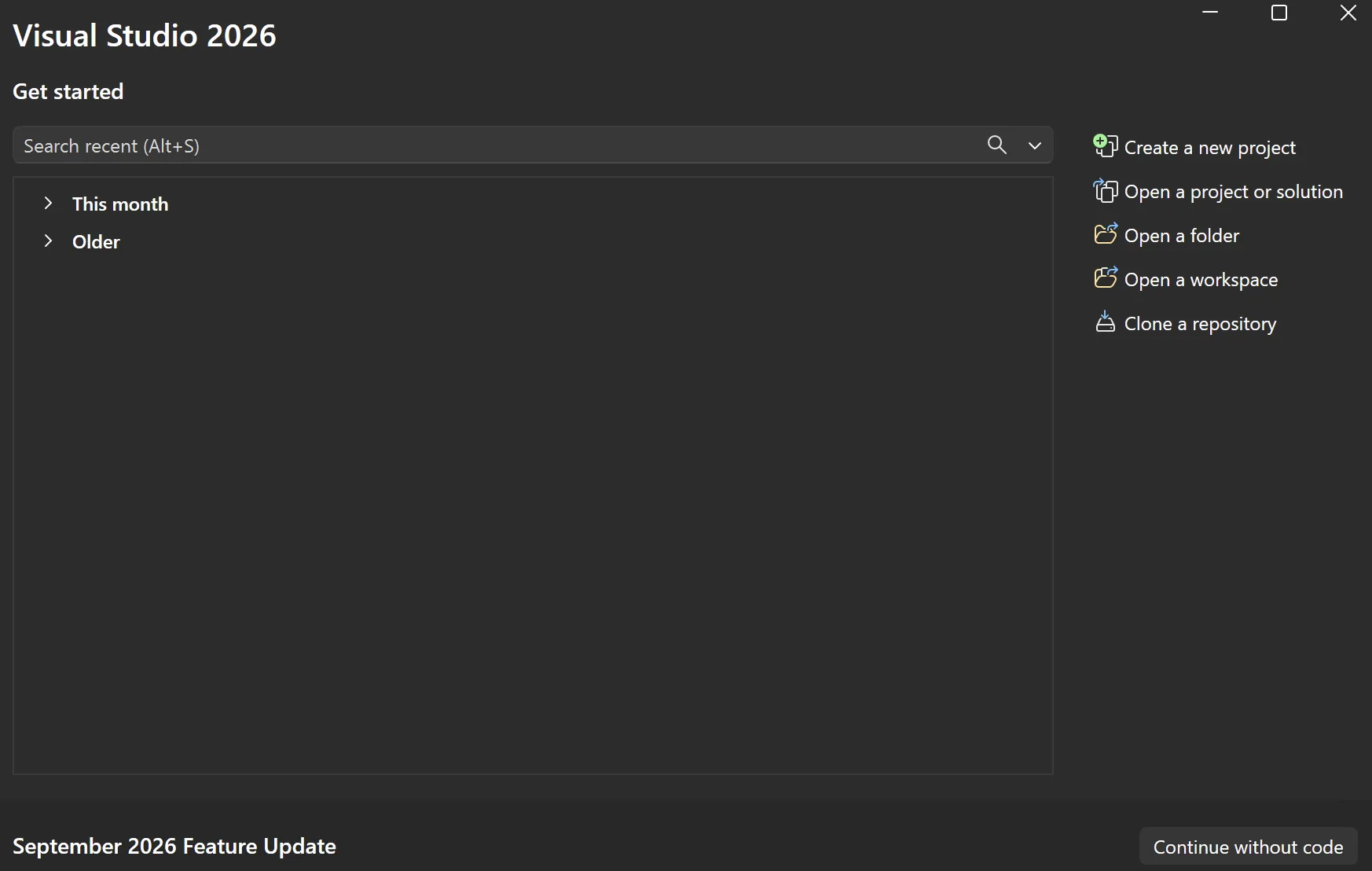
The Clone a repository window opens. The top half is Option A: a Repository location box for the URL. The bottom half, Browse a repository, is Option B.
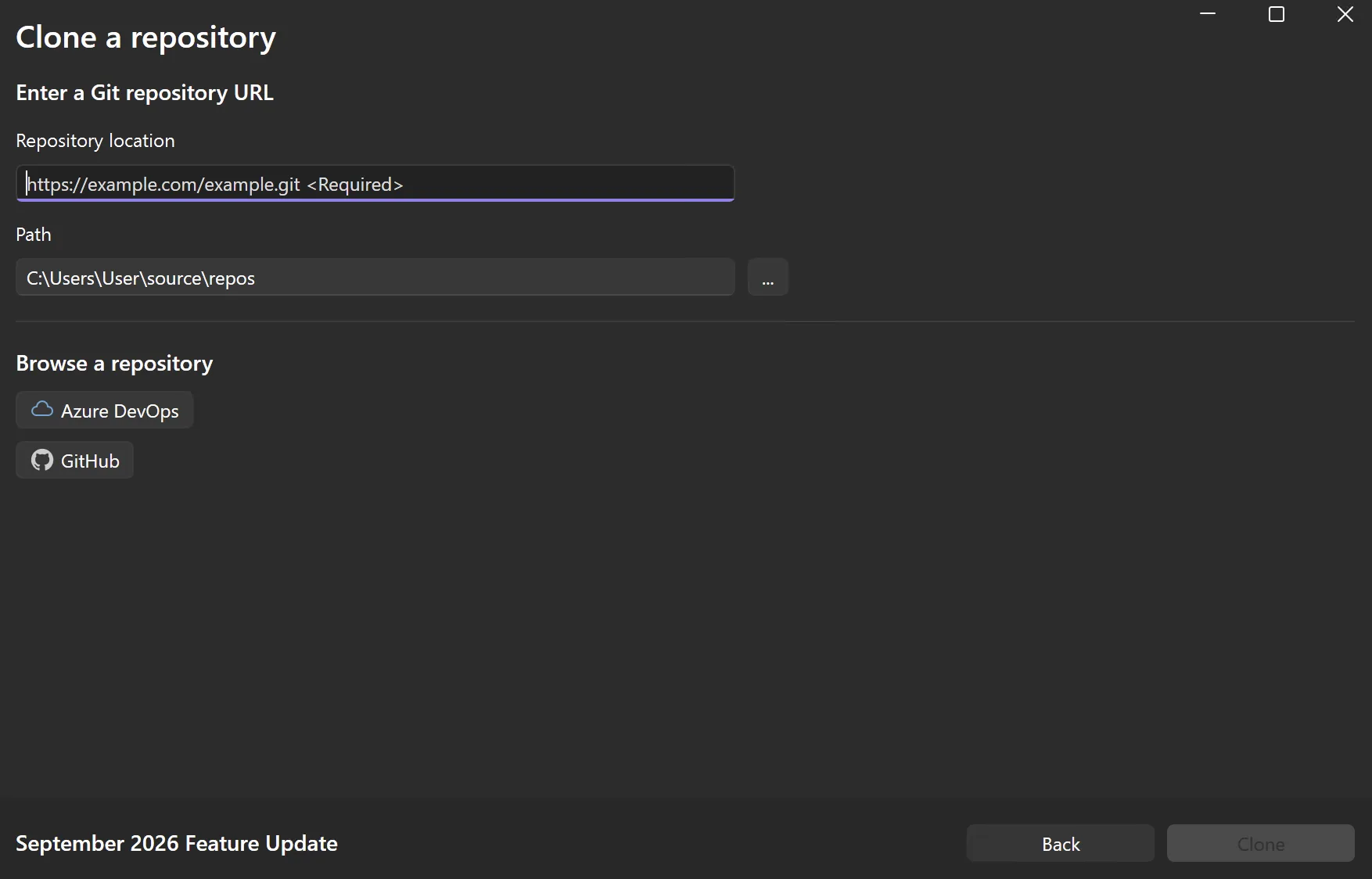
Note the Path box. By default every clone goes into a new folder under C:\Users\<your user name>\source\repos. The Clone button stays greyed out until you give Visual Studio a repository.
Already inside Visual Studio with something open? Use Git → Clone Repository on the menu bar. It opens this same window. If you have never used the Git menu before, the item may just say Clone.
Step 2: Choose the Repository
Pick one of the two options below.
Option A: Paste the Repository URL
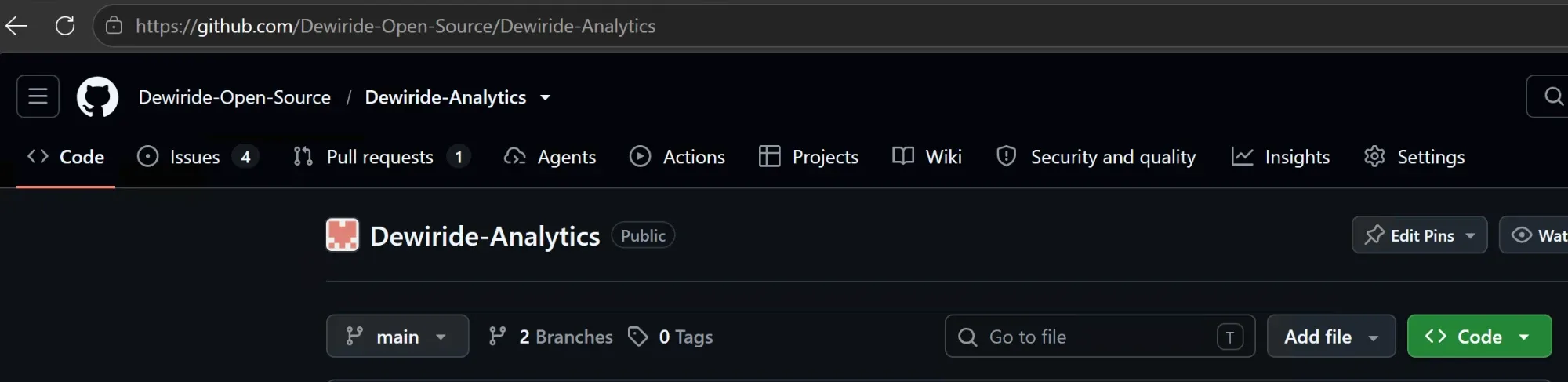
First, copy the repository's address from GitHub.
- In your browser, open the repository on github.com.
- Select the green Code button.
- Stay on the Local tab and make sure HTTPS is selected.
- Select the copy button next to the URL. Your clipboard now holds the clone URL, which ends in
.git. For this repository it ishttps://github.com/Dewiride-Open-Source/Dewiride-Analytics.git.
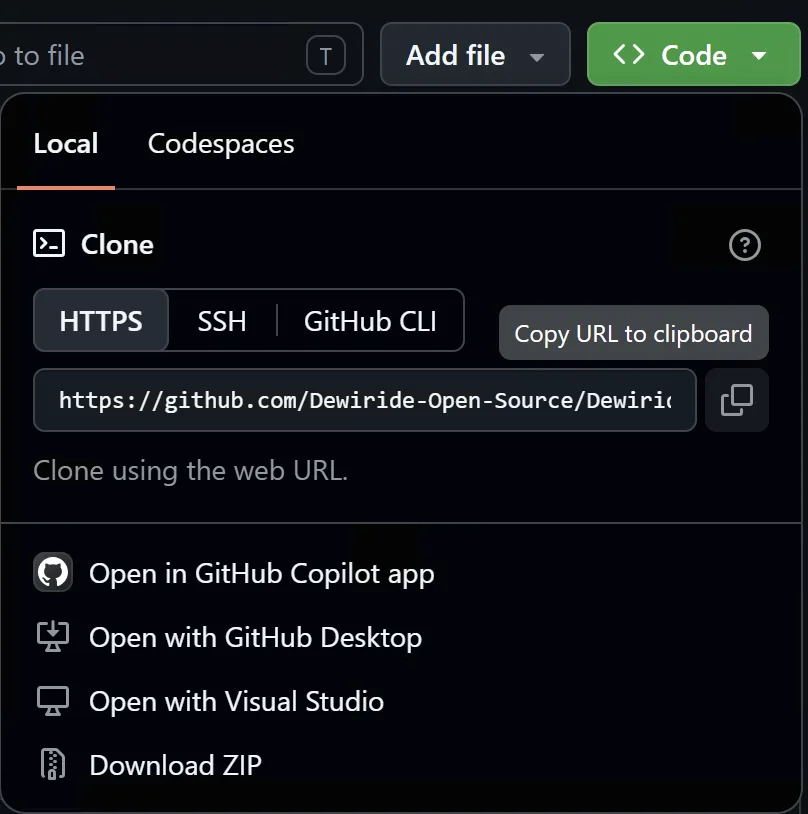
HTTPS works straight away. Public repositories need no sign-in, and private ones need you to sign in with an account that has access. SSH URLs, which start with git@github.com:, work only after you add an SSH key to your GitHub account. If you are not sure, use HTTPS. How to Add SSH Key to GitHub and Clone a Repository covers the SSH setup.
Now go back to Visual Studio:
- Click in Repository location and paste the URL with Ctrl+V.
- Check Path. Visual Studio adds the repository's name to the default folder, so this clone lands in
source\repos\Dewiride-Analytics. Select ... to pick a different folder. - Select Clone, which is now enabled.
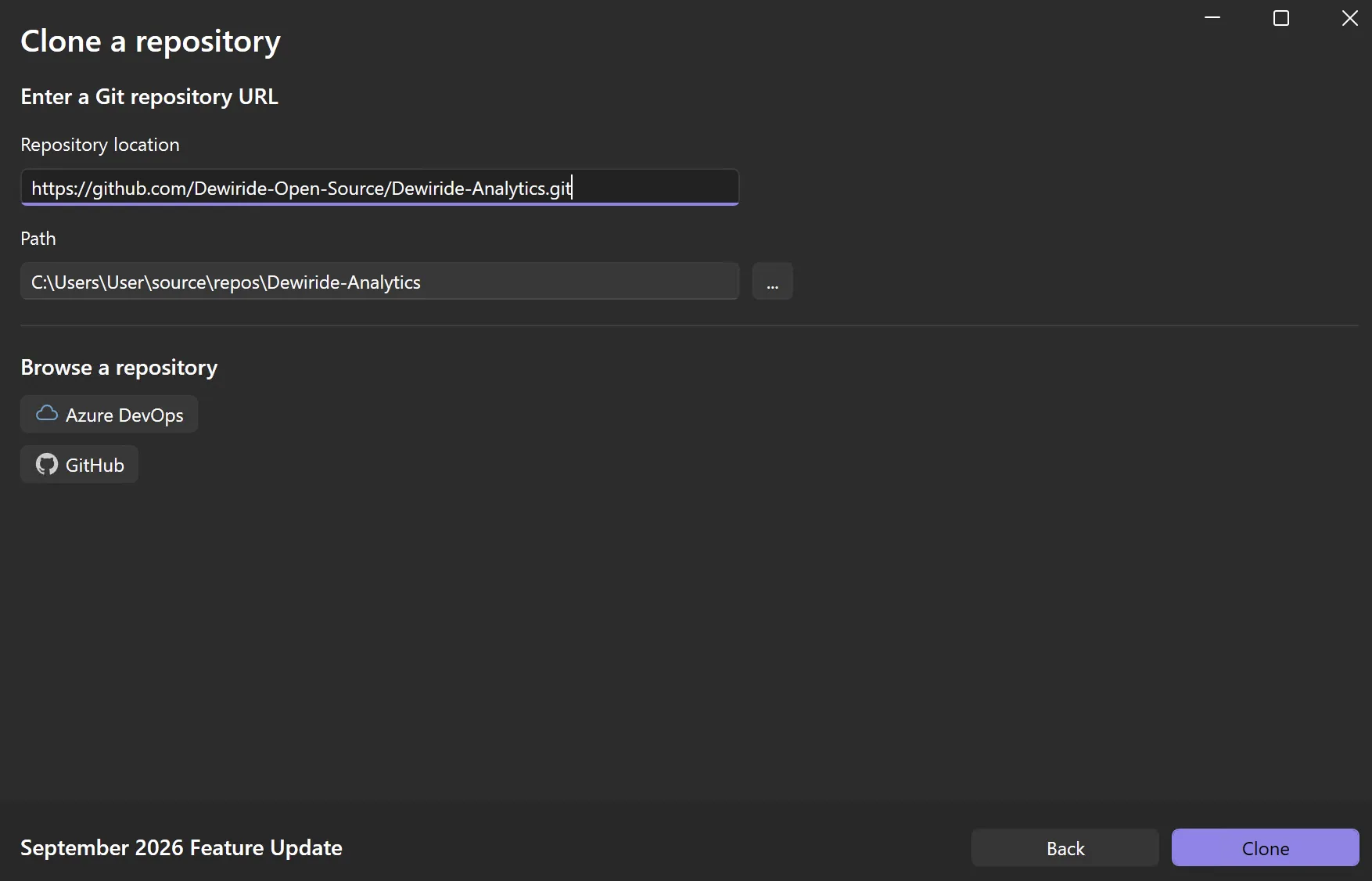
Keep clones out of folders that OneDrive syncs, such as Documents and Desktop. A build writes thousands of small files, and the sync client tries to upload every one of them and can lock files while Git or Visual Studio is writing them. The default source\repos folder is not synced, and a short path such as C:\src also keeps deep repositories clear of the Windows path-length limit.
Now go to Step 3.
Option B: Browse Your GitHub Account
This route never leaves Visual Studio. It lists every repository your GitHub account can reach, private ones included.
- In the Clone a repository window, under Browse a repository, select GitHub.
- The Open from GitHub window opens. Check the account in the drop-down at the top right.
- Find the repository. Scroll the list, or type part of its name into Search or enter a URL to filter it.
- Select the repository. A padlock icon marks a private repository, and a fork icon marks your copy of someone else's repository.
- Check Local path. Visual Studio suggests a folder under
source\repos. Select Browse... to change it. - Select Clone.
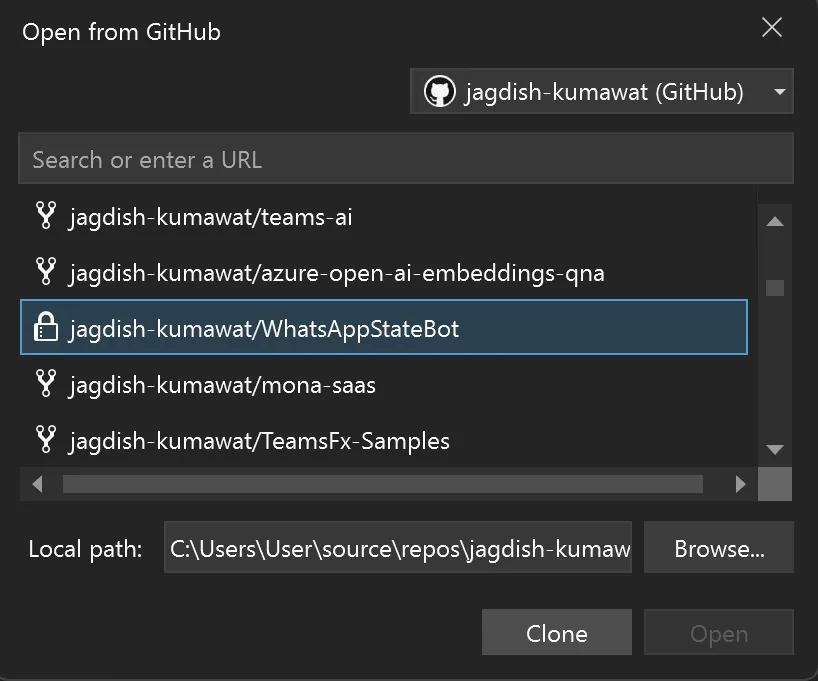
Several other private repositories are hidden from the list in this screenshot. Yours shows every repository your account can reach.
The account in this guide was already connected to Visual Studio, so the sign-in screens are not shown here. If yours is not, open the account drop-down and choose Sign in. GitHub asks you to Authorize Visual Studio and to confirm your password, then Visual Studio returns to this list. Microsoft's Clone a Git repository in Visual Studio shows each of those screens.
Step 3: Wait for the Clone to Finish
Whichever option you used, Visual Studio now downloads the repository and shows its progress. This is the WhatsAppStateBot clone from Option B:
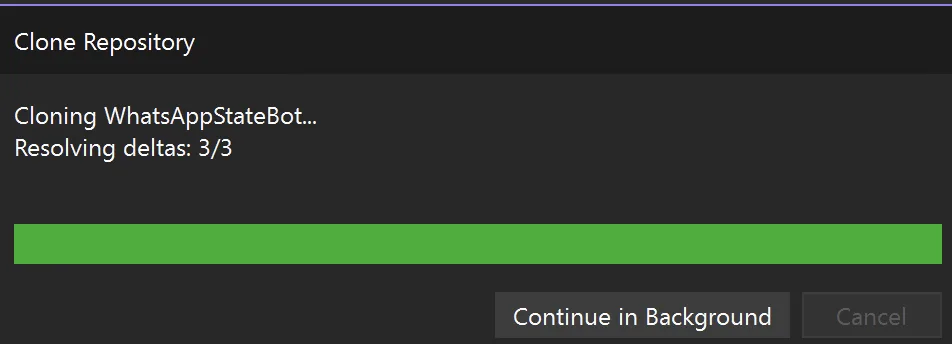
Git downloads the history in a compressed form. Resolving deltas is the last step, where it rebuilds the files from that compressed history. A small repository finishes in seconds. For a large one, select Continue in Background and keep working while it downloads.
Step 4: Open the Solution
When the clone finishes, Visual Studio shows the new folder in Solution Explorer in Folder View, which lists the files exactly as they sit on disk:
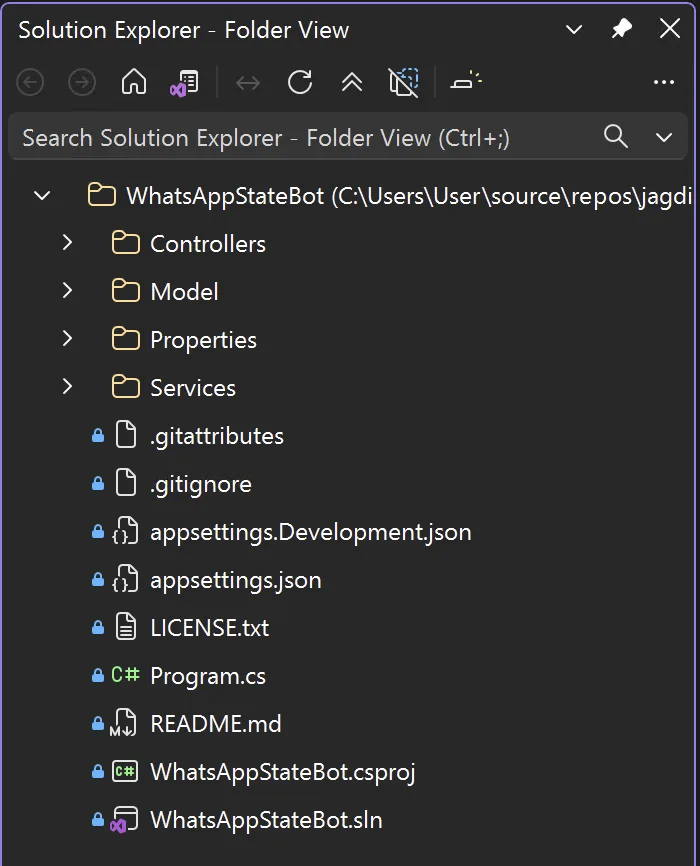
The small padlock beside each file means Git is tracking it and you have not changed it. When you edit a file, its icon changes to show that.
Folder View is good for reading code. To build, run or debug a .NET app, you need Solution View, which loads a solution file and the projects it lists. To get there, double-click the solution file:
- WhatsAppStateBot keeps
WhatsAppStateBot.slnat the top of the repository, so it is right there in the list. - Dewiride-Analytics keeps its solution in a subfolder. Expand backend and double-click Dewiride.Analytics.slnx. A
.slnxfile is the newer, XML-based solution format, and Visual Studio 2026 opens it just like a.sln.
Solution Explorer switches to the solution and loads its projects. For Dewiride-Analytics that is all 18 of them, grouped into migrations, src and tests:
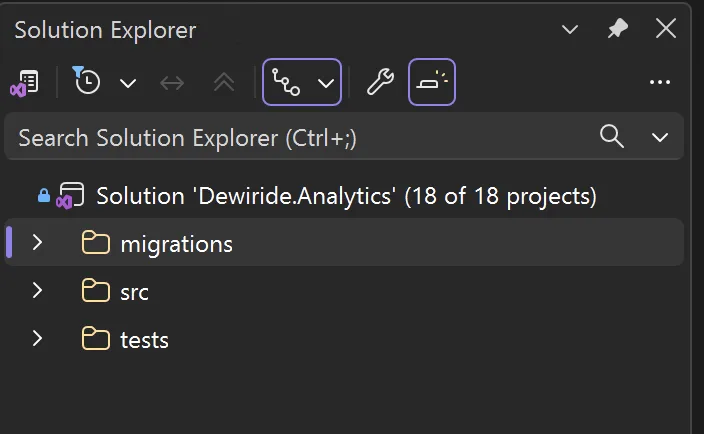
That is the whole job: the repository is on your computer, connected to GitHub, and open in Visual Studio. Visual Studio also adds it to Git → Local Repositories, so you can reopen it later in two clicks.
Under Git → Settings, turn on Automatically load the solution when opening a Git repository. To move between the two views at any time, use the Switch Views button at the top of Solution Explorer.
Do It with the Git Command Line
Visual Studio runs Git for you, but the same clone is a single command. Open a terminal, such as PowerShell or View → Terminal inside Visual Studio, and check that Git is available:
git --version
If the command is not recognised, install Git for Windows and open a new terminal.
Then move to the folder that should hold the clone and run git clone with the HTTPS URL you copied in Option A:
cd $HOME\source\repos
git clone https://github.com/Dewiride-Open-Source/Dewiride-Analytics.git
Cloning into 'Dewiride-Analytics'...
remote: Enumerating objects: 2674, done.
remote: Counting objects: 100% (276/276), done.
remote: Compressing objects: 100% (208/208), done.
remote: Total 2674 (delta 68), reused 147 (delta 55), pack-reused 2398 (from 1)
Receiving objects: 100% (2674/2674), 2.23 MiB | 21.96 MiB/s, done.
Resolving deltas: 100% (1446/1446), done.
Your numbers will differ as the repository grows. git clone creates a folder named after the repository, downloads everything into it, and records where it came from as a remote named origin. You can confirm that:
cd Dewiride-Analytics
git remote -v
origin	https://github.com/Dewiride-Open-Source/Dewiride-Analytics.git (fetch)
origin	https://github.com/Dewiride-Open-Source/Dewiride-Analytics.git (push)
origin is where future pulls come from and pushes go to. To open the code, choose Open a project or solution on the Visual Studio start window and pick backend\Dewiride.Analytics.slnx.
A command-line clone is the same as a Visual Studio clone. Visual Studio lists it under Git → Local Repositories once you open it.
Common Mistakes
| Mistake | What happens | Fix |
|---|---|---|
Copying the browser's address bar on a file or branch page (.../tree/main, .../blob/...) | There is no repository at that address, so the clone fails | Copy the URL from Code → Local → HTTPS |
| Pasting an SSH URL without an SSH key on GitHub | Permission denied (publickey) | Use the HTTPS URL, or add an SSH key first |
| Cloning into a folder that already has files in it | Git refuses: destination path '...' already exists and is not an empty directory | Pick a new, empty folder in Path |
| Cloning into Documents or Desktop with OneDrive turned on | OneDrive uploads build output and can lock files mid-build | Keep the default source\repos, or use a short path such as C:\src |
| Expecting the projects to appear straight away | Solution Explorer shows Folder View and no projects | Double-click the .sln or .slnx file |
| Signed in to Visual Studio with the wrong GitHub account | The repository is missing from Open from GitHub | Switch accounts in the drop-down at the top right |
Troubleshooting
| Symptom | Cause | Fix |
|---|---|---|
repository '...' not found | A typo, a page URL instead of the clone URL, or a private repository your account cannot see | Copy the URL again from Code → HTTPS, and check you can open the repository on github.com while signed in |
| A GitHub sign-in prompt appears during an HTTPS clone | The repository is private and Git needs to know who you are | Sign in with the GitHub account that has access to it |
| A repository is missing from Open from GitHub | Wrong account, or the owning organization restricts third-party app access | Check the account drop-down, or paste the repository URL into Search or enter a URL and select Clone |
Permission denied (publickey) | An SSH URL without a working SSH key | Switch to the HTTPS URL, or follow SSH Permission Denied (Publickey) on GitHub |
Filename too long during the clone | A file's full path passes the Windows 260-character limit | Clone to a shorter folder such as C:\src, or run git config --global core.longpaths true and clone again |
| Solution Explorer shows folders but no projects | You are in Folder View | Double-click the .sln or .slnx file, or select Switch Views |
| There is no Git menu | Git is not the selected source control plug-in | Tools → Options → All Settings → Source Control → Plug-in Selection, then set it to Git |
Frequently Asked Questions
Do I need a GitHub account to clone a repository in Visual Studio?
Not for a public repository. Paste its URL using Option A and Visual Studio clones it without signing in. You need an account for private repositories and for Option B, which lists the repositories your account can reach.
Where does Visual Studio save cloned repositories?
By default, in C:\Users\<your user name>\source\repos, inside a new folder named after the repository. Change the folder for a single clone with Path or Local path. To change the default for every clone, open Git → Settings and edit Default location.
Can I clone a private GitHub repository in Visual Studio?
Yes, as long as your GitHub account has access to it. Option B is the easiest way. Connect your account once and your private repositories appear in Open from GitHub with a padlock icon. The WhatsAppStateBot example in this guide is a private repository.
What is the difference between Folder View and Solution View?
Folder View shows the files exactly as they are on disk. Solution View loads a .sln or .slnx file and shows the projects in it, and that is what you need to build, run and debug. The Switch Views button at the top of Solution Explorer moves between the two.
Is cloning the same as Download ZIP on GitHub?
No. Download ZIP gives you a snapshot of the files, with no history and no link back to GitHub. A clone includes the full history and stays connected to the original, so you can pull updates and push your changes.
How do I reopen a repository I cloned earlier?
Select Git → Local Repositories in Visual Studio. It lists every repository Visual Studio has cloned or opened on this computer. The start window's recent list works too.
Conclusion
Cloning a GitHub repository in Visual Studio 2026 takes four steps. Open Clone a repository, choose the repository by URL or from your GitHub account, let the clone finish, then open the solution file. Paste the URL when you have it to hand or the repository is public. Browse your account when you want your own or private repositories without leaving Visual Studio.
Your next move is usually to change some code and push it back. That workflow happens in the Git Changes window, the same one used in Push your Code to Azure DevOps Repository from Microsoft Visual Studio.
Additional Resources
- Clone a Git repository in Visual Studio: Microsoft's reference, including the GitHub sign-in and authorization screens.
- Tutorial: Open a project from a repo: Folder View, Solution View and switching between them.
- Git settings and preferences in Visual Studio: the default clone location and automatic solution loading.
- Cloning a repository: GitHub's own guide, including GitHub Desktop and the GitHub CLI.
- How to Add SSH Key to GitHub and Clone a Repository: set up SSH and clone from the terminal.
- SSH Permission Denied (Publickey) on GitHub: Complete Troubleshooting Guide: fix failing SSH clones.
