How to Choose Who Can See Draft Items in a SharePoint List

When a SharePoint list requires approval, items wait as drafts until they're approved. Draft Item Security, in the list's Versioning settings, decides who can see those drafts in the meantime: anyone who can read the list, only people who can edit it, or only approvers and the item's author.
The Overtime Timesheet series keeps its overtime entries as private as possible, so its OvertimeEntries list uses the strictest choice.
What a Draft Is
The page explains: "Drafts are minor versions or items which have not been approved." In a list with content approval, a new item is a draft until it's approved, and so is a change to an approved item.
Prerequisites
- Owner of the site.
- Content approval on, or about to be turned on. The setting only applies to lists that require approval: How to Turn On Content Approval for a SharePoint List.
Step 1: Open Versioning Settings
Open the list, then Settings → List settings → Versioning settings.
Step 2: Find Draft Item Security
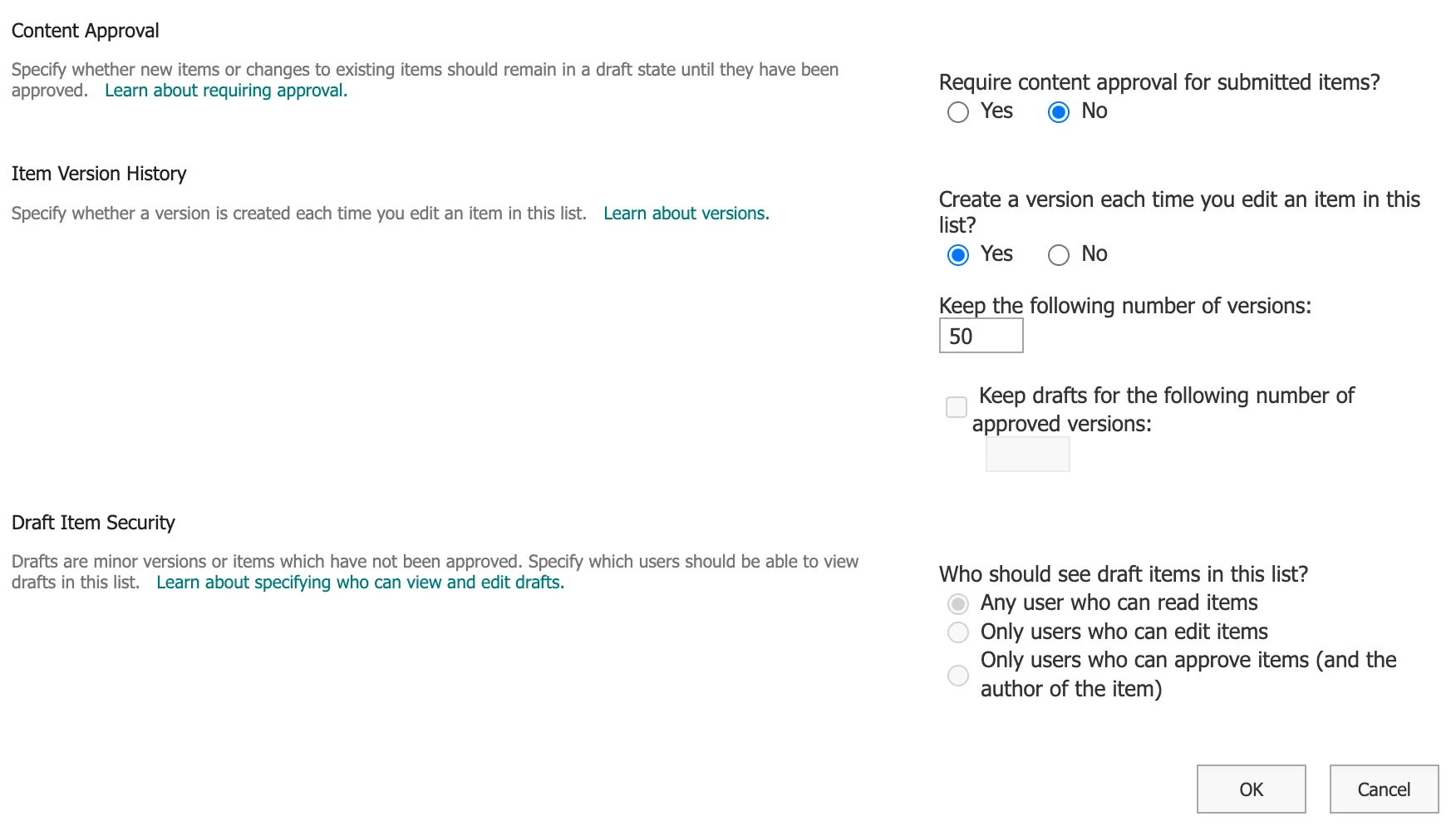
Draft Item Security is the last section: "Who should see draft items in this list?" While Require content approval for submitted items? is No, its choices are greyed out:
Step 3: Choose Who Sees Drafts
Once content approval is Yes, you can pick one of three:
| Choice | Who sees a draft |
|---|---|
| Any user who can read items | Everyone who can read the list |
| Only users who can edit items | People who can edit items in the list |
| Only users who can approve items (and the author of the item) | Approvers, and the person who created the item |
On this list, selecting Yes for content approval switched Draft Item Security to the third choice by itself:
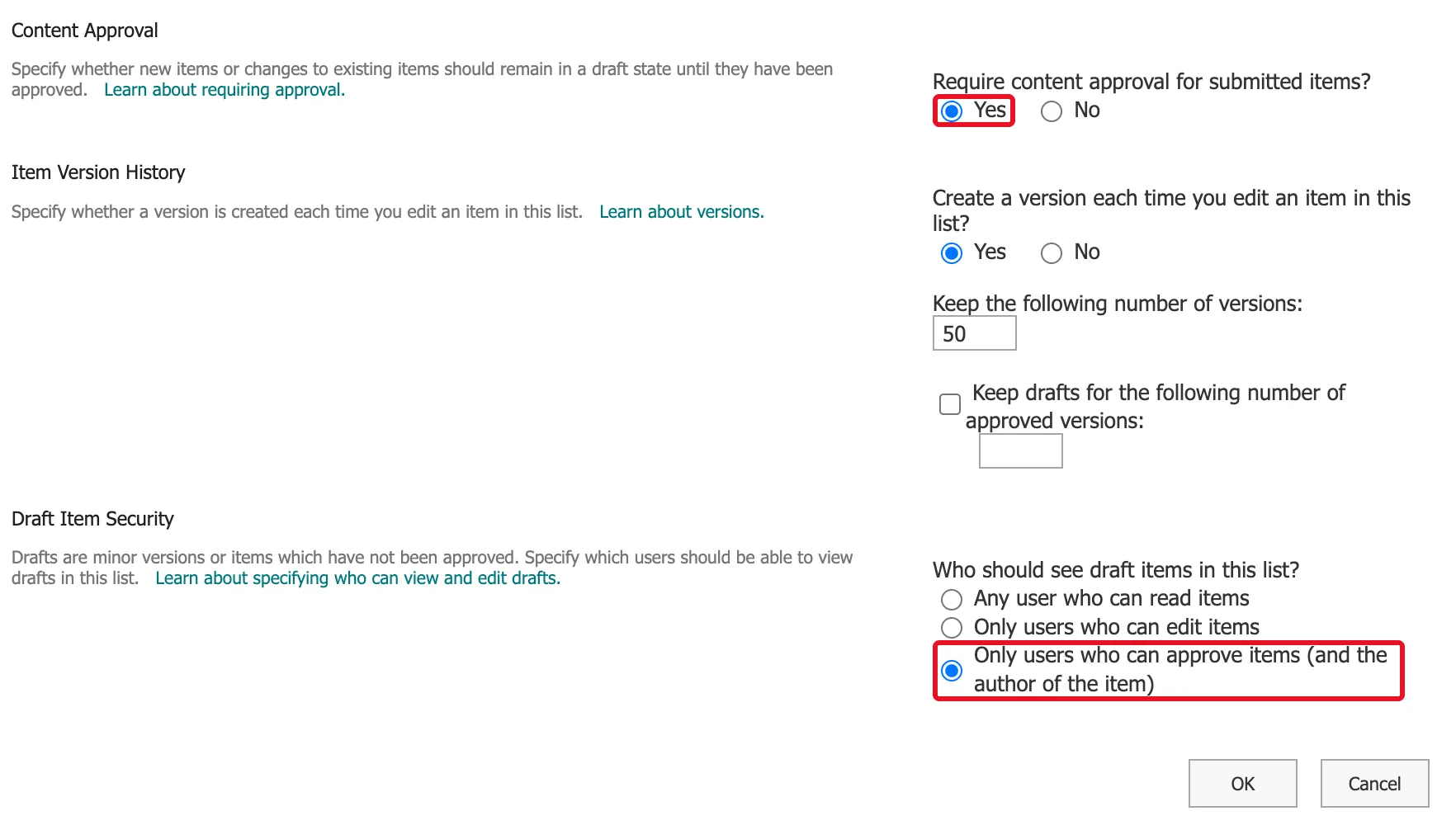
That's the one this list needs, so it stayed. To choose another, select it before you save.
Step 4: Save with OK
Select OK at the bottom of the page.
How It Combines with Other Permissions
Draft Item Security narrows who sees drafts; it never widens access. Someone who can't open an item at all still can't see its draft. The OvertimeEntries list also limits every person to the items they created (How to Let Users See Only Their Own Items in a SharePoint List), so the two settings together leave a pending entry visible to its author and to the people who approve.
Microsoft's Require approval of items in a list or library warns about the widest choice: "If security in the site library is configured to allow any user to read items, then anyone who has Read permissions to the site can see all items in the list or library, whether the items are in Approved status."
Common Mistakes
| Mistake | What happens | Do this instead |
|---|---|---|
| Choosing Any user who can read items for private data | Readers see items before anyone approves them | Use one of the stricter choices |
| Looking for the setting before turning on approval | The choices are greyed out | Select Yes for content approval first |
| Expecting it to hide approved items | It only covers drafts | Use permissions for approved items |
Troubleshooting
| Symptom | Likely cause | Fix |
|---|---|---|
| The choices are greyed out | Content approval is No | Select Yes |
| Readers still see pending items | The choice is Any user who can read items | Pick a stricter choice and select OK |
FAQ
Can the author always see their own draft?
With the third choice, yes: it names "the author of the item" alongside approvers.
Does a library have the same setting?
Microsoft's article lists the same three choices for libraries, under the library's Versioning settings.
Conclusion
Versioning settings → Draft Item Security → choose who sees items that aren't approved yet → OK. With content approval on, Only users who can approve items (and the author of the item) keeps pending items between their author and the approvers.
Additional Resources
- Require approval of items in a list or library
- Enable and configure versioning for a list or library
