How to Choose When a Text Input Updates in Power Apps with TriggerOutput

Other formulas read a modern text input through its Text property. TriggerOutput decides when Text changes: on every key, when the user leaves the box, or after a short pause in typing.
The Three Values
| Value | Name in Studio's Properties pane | When Text updates |
|---|---|---|
TriggerOutput.Keypress | Key press | On every keystroke. The default. |
TriggerOutput.FocusOut | Focus out | Only when focus leaves the box. |
TriggerOutput.Delayed | Delayed | After a short delay. |
The descriptions are from Microsoft's Text input modern control page. It suggests Keypress for immediate feedback, such as search and filters, FocusOut for validation, and Delayed for expensive operations, and notes that a text input added to a form starts with Delayed.
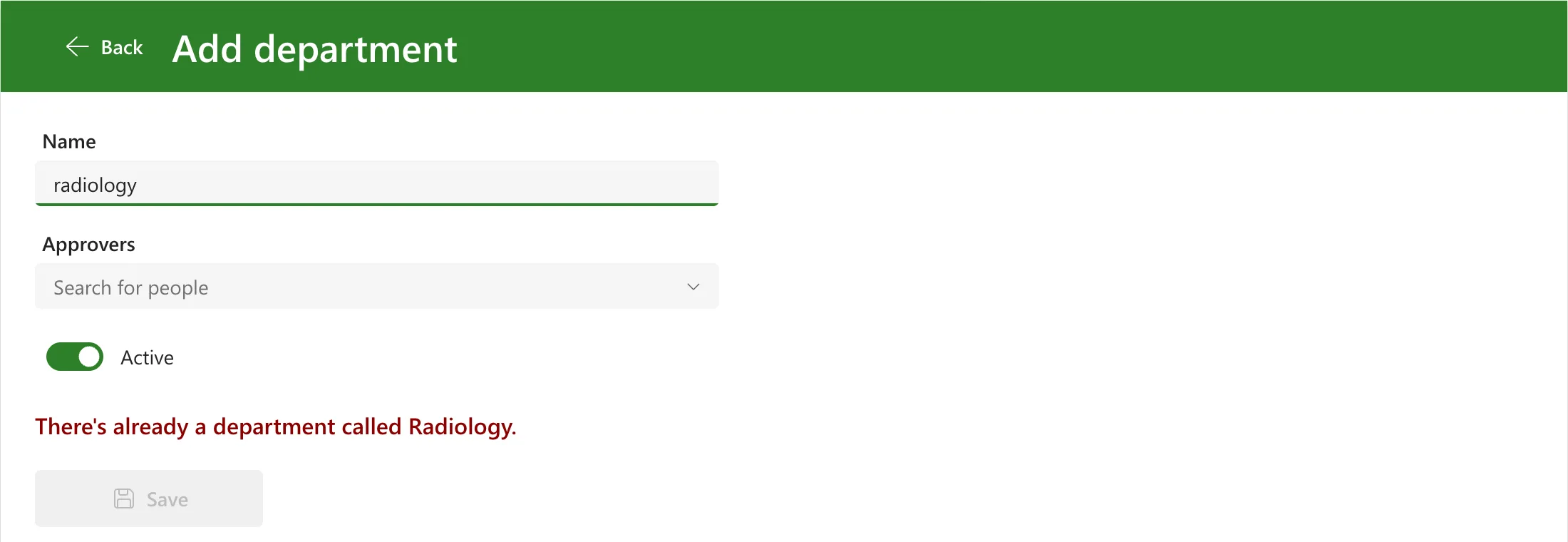
The example below is a box for a department's name, checked against a SharePoint list of departments so that a name isn't used twice.
Prerequisites
- A modern text input (How to Add a Multi-Line Text Input in Power Apps). The example's,
txtNameED, is a single line.
Step 1: Set TriggerOutput
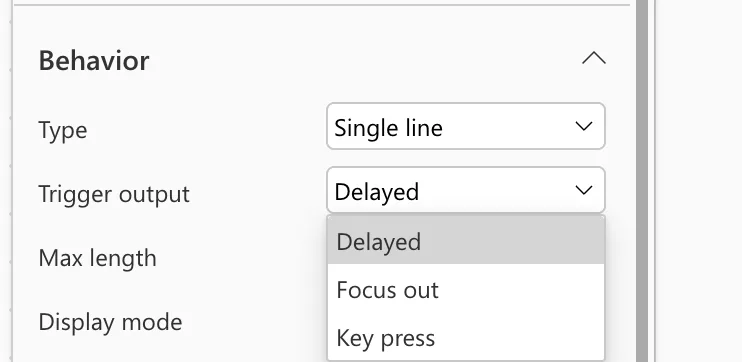
Select the text input. In the Properties pane, Behavior has Trigger output, with Delayed, Focus out and Key press:
Or set it in the formula bar:
TriggerOutput.Delayed
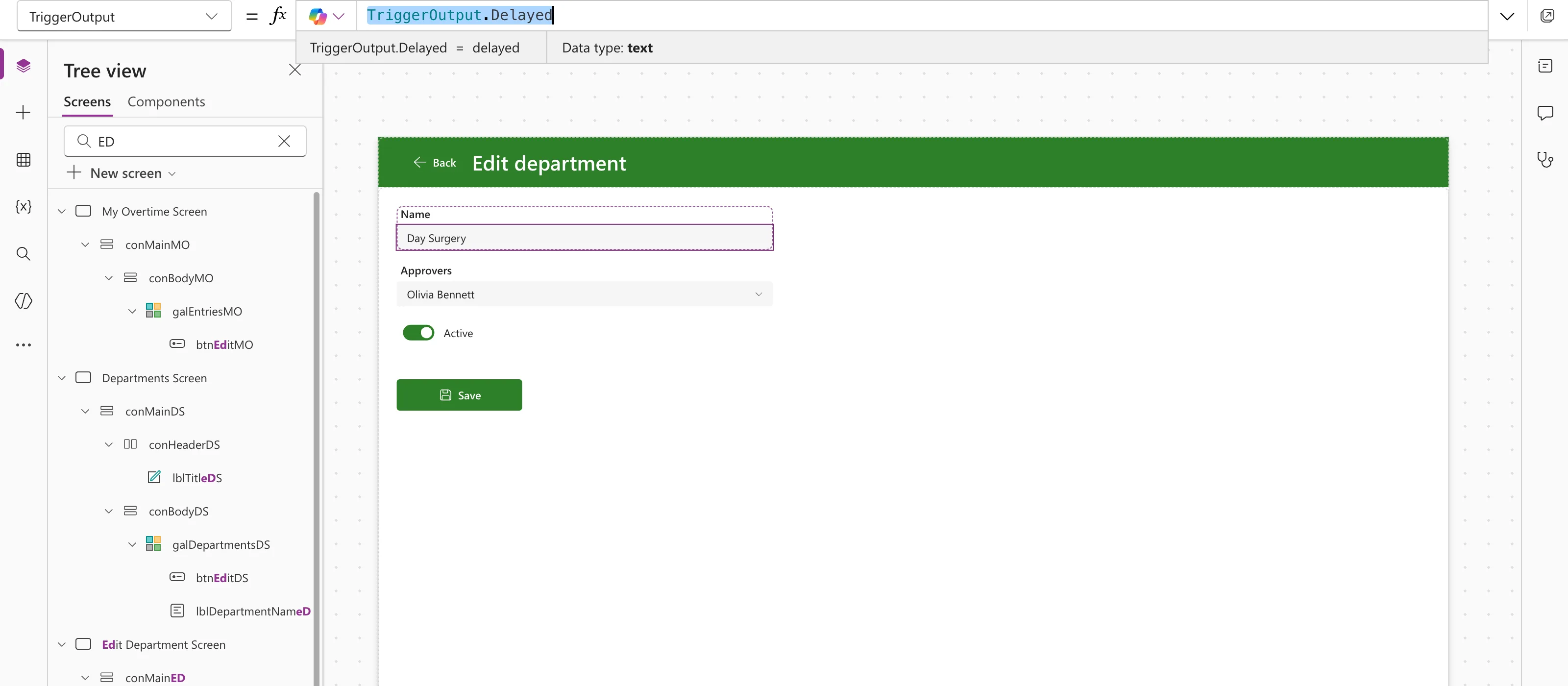
The strip shows the value as text, delayed. Studio's own description of the setting, which screen readers announce for the list, says Delayed updates after a half-second delay, and gives filtering as a use.
Step 2: Choose the Value
Ask what reads Text:
- Key press when something should follow every key, such as a character count (How to Limit Text Length and Show a Character Count in Power Apps) or a button that turns on with the first letter (How to Disable a Button Until a Text Box Has Text in Power Apps).
- Delayed when what reads it is expensive, such as a check that asks SharePoint. In the example, a function looks the typed name up in the Departments list and a label shows what it found. With Delayed, the lookup waits for a pause instead of running for every letter.
- Focus out when nothing needs the text until the user has finished with the box. Microsoft's page suggests it for validation.
The example's check after typing radiology, a name already in the list:
Common Mistakes
| Mistake | What happens | Do this instead |
|---|---|---|
| Focus out on a box with a live character count | The count changes only when the user leaves the box | Key press |
| Key press on a box that drives a lookup in a data source | Text changes with every key, and so does everything that reads it | Delayed |
FAQ
Does the combo box have TriggerOutput?
Not any more. Microsoft's page for the modern combo box says its TriggerOutput was replaced by DelayOutput, which holds back the box's SearchText until the typing pauses (How to Add a People Picker in Power Apps).
How long is the delay?
Microsoft's page says a short delay. Studio's description of the setting says half a second.
Conclusion
TriggerOutput sets when a text input's Text changes: Key press for anything that follows each key, Delayed for checks that cost a call to a data source, and Focus out for things that can wait until the user leaves the box.
Additional Resources
- Text input modern control: TriggerOutput and its values.
