How to Choose the Connections Run-Only Users Use in Power Automate

When you share a flow with run-only users, each connector in it runs either with the person's own connection or with yours. Set it per connector under Connections Used, in the flow's Run only users settings: Provided by run-only user, or Use this connection.
Microsoft's Share a cloud flow article puts it in one line: As an owner, you can specify whether run-only users need to provide their own connections or you can use a connection already defined in the flow.
The choice decides what the flow can reach for each person. The example is Get Waiting Approvals, a flow the Overtime Timesheet app runs for approvers. It needs both kinds:
| Connector | Choice | Why |
|---|---|---|
| Office 365 Users | Provided by run-only user | Get my profile (V2) must return the person running the flow |
| SharePoint | Use this connection (the owner's) | Approvers can't open other people's overtime entries in SharePoint; the flow reads them and returns only what each approver should see |
Prerequisites
- A flow you own, with the Power Apps (V2) trigger or another manual trigger (How to Create a Flow That Power Apps Can Run in Power Automate).
Step 1: Open the Run-Only Settings
Open the flow's details page (How to Run an Instant Cloud Flow in Power Automate shows how). On the Run only users card, select Edit.
Step 2: Read the Connections Used Section
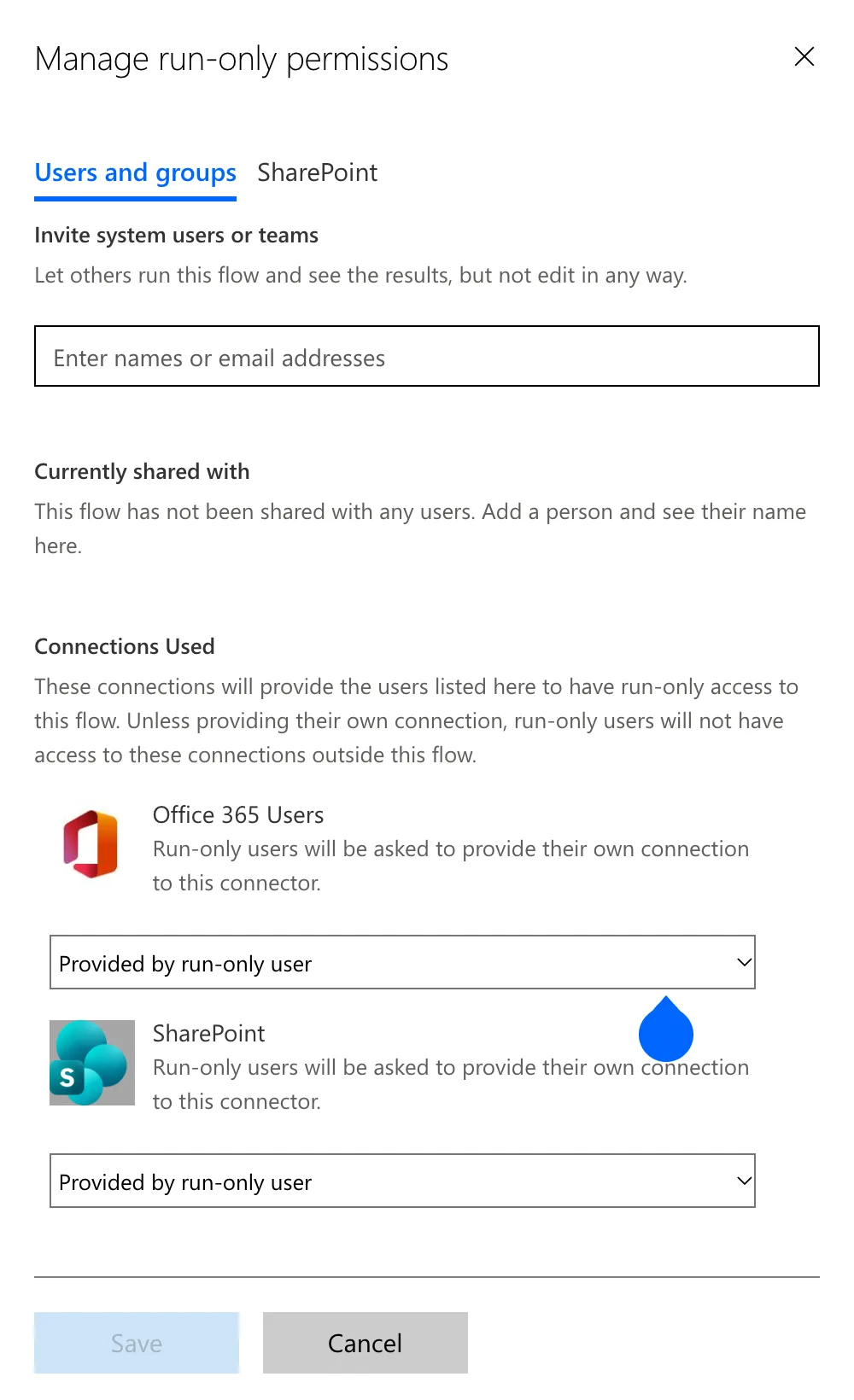
The Manage run-only permissions panel lists every connector the flow uses under Connections Used. Both started as Provided by run-only user:
Step 3: Choose for Each Connector
Open a connector's list and pick:
- Provided by run-only user: the action runs as the person who starts the flow, with their own connection and their own permissions.
- Use this connection (account): the action runs with your connection, as you.
I left Office 365 Users on Provided by run-only user and set SharePoint to Use this connection:
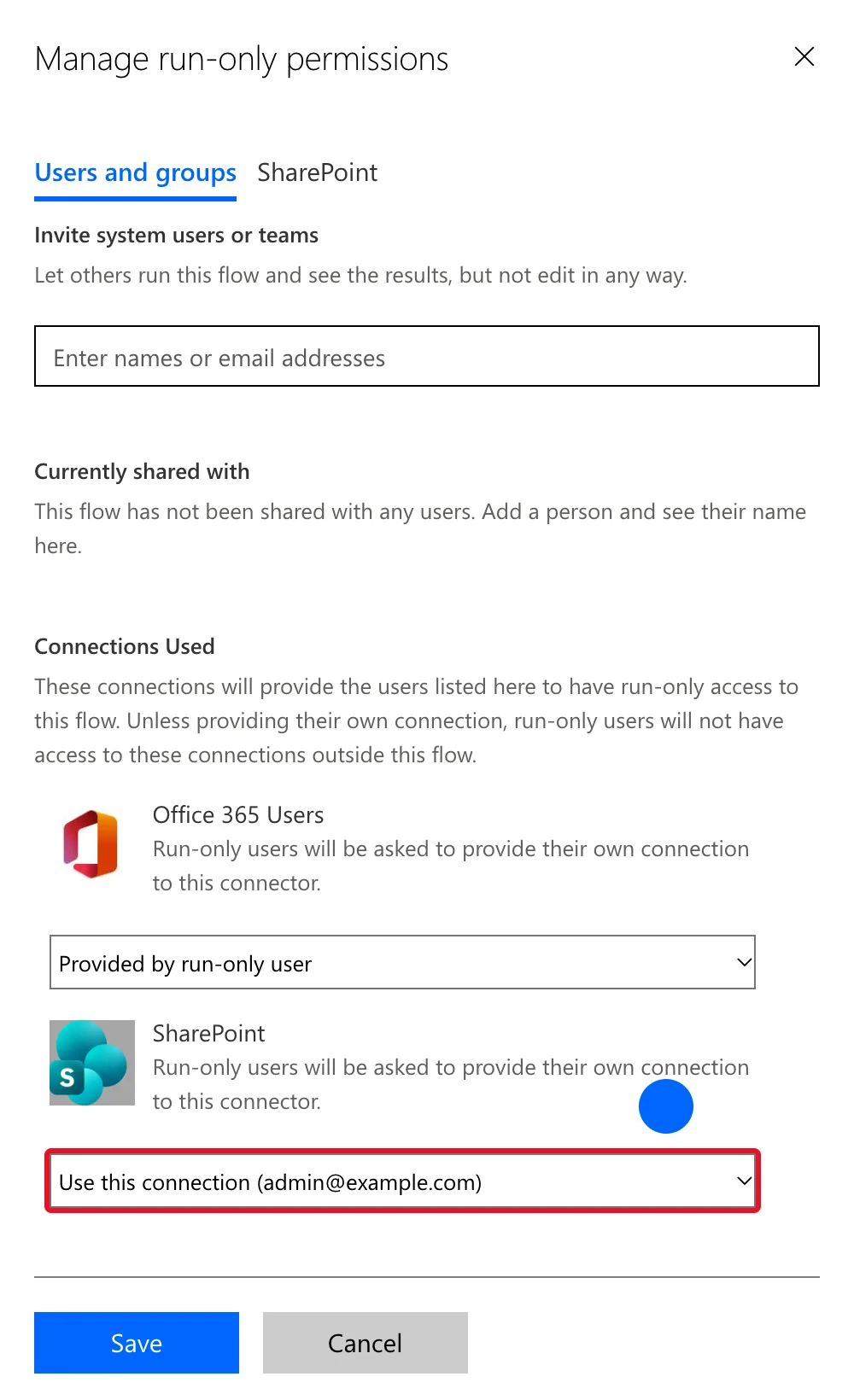
The hint under SharePoint still said run-only users would be asked for their own connection. It changes only after saving.
Step 4: Confirm and Save
Choosing your own connection brings up a confirmation:
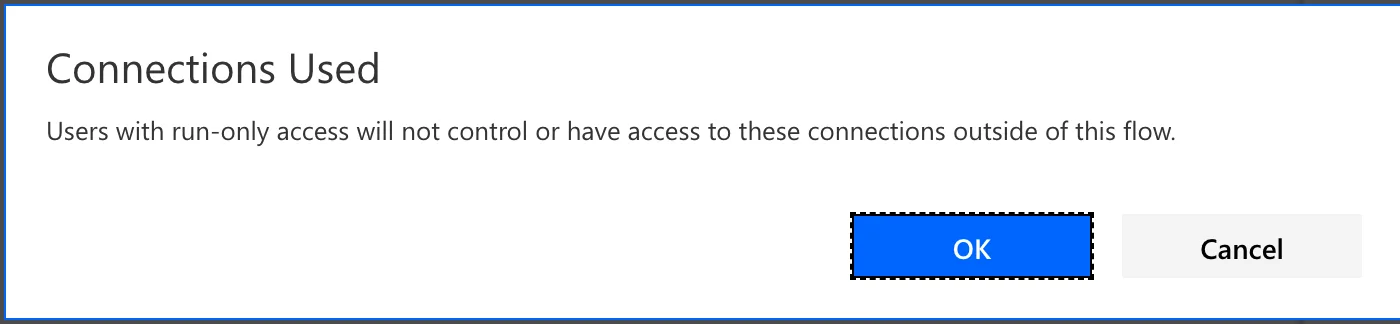
Select OK, then Save. When I opened the panel again, the hint under SharePoint read Access to this connection is provided by the owner of the flow.
What the App's Users See
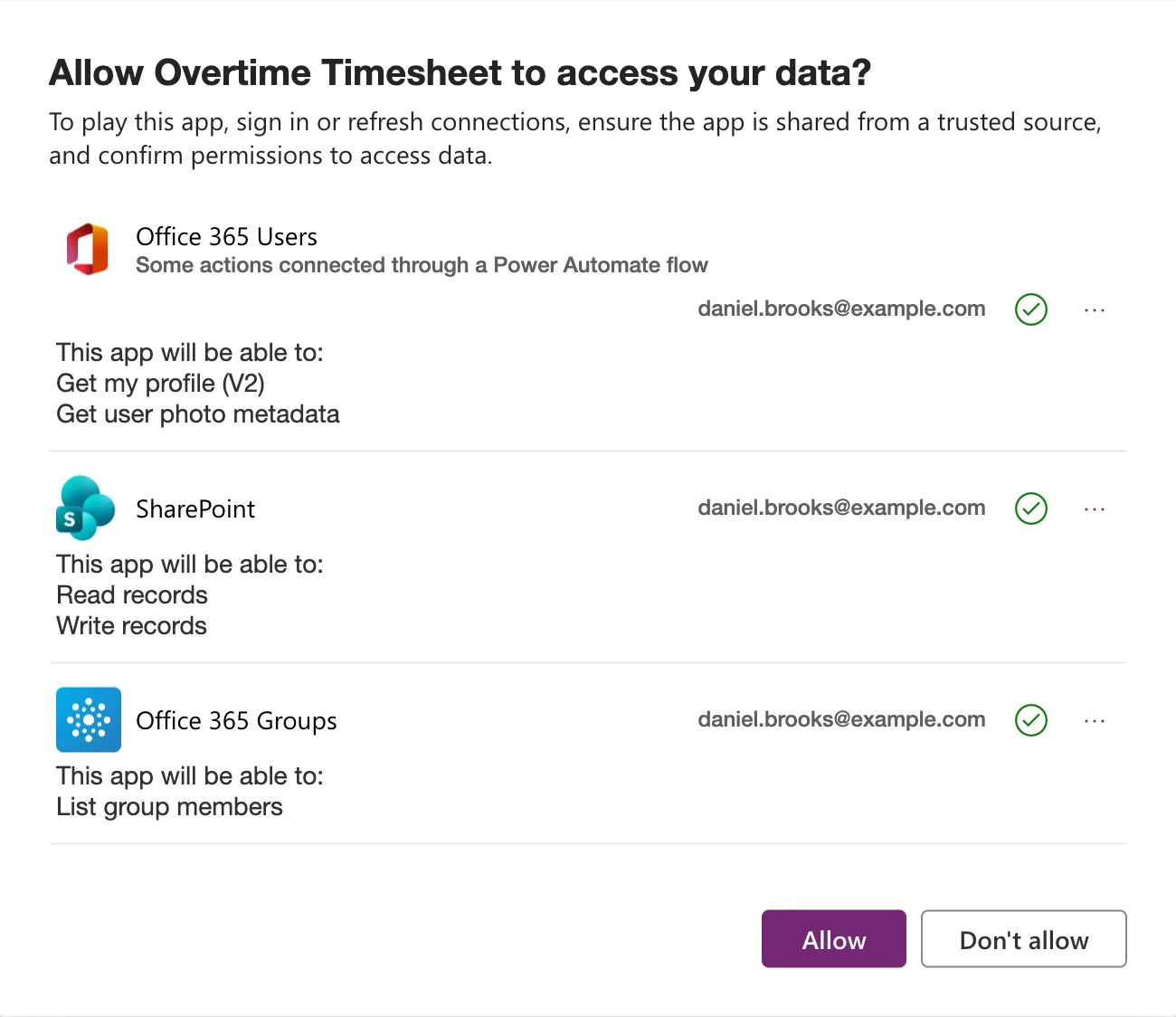
The first time someone opens the app, it asks them to allow its connections (How to Open a Shared Canvas App for the First Time in Power Apps). Office 365 Users was listed with Some actions connected through a Power Automate flow and the action the flow uses, Get my profile (V2). The flow's SharePoint connection wasn't listed, because it's the owner's. The SharePoint entry is for the app's own data sources:
Using Your Own Connection Safely
With your connection, the flow can read everything you can, for anyone who runs it. So the flow itself must decide what each person gets:
- Identify the person in the flow, with their own connection, never from a value the app sends. Microsoft's Power Automate pane article warns that values an app passes to a flow can be seen as network traffic, and to validate them in the flow.
- Return only what that person may see. Here, only the entries in the departments they approve, and only seven fields of each.
- Own the flow with an account meant for it. In production, a service account rather than a person, so the flow doesn't depend on one employee's account.
Common Mistakes
| Mistake | What happens | Do this instead |
|---|---|---|
| Your connection for Get my profile (V2) | Every run sees you as the caller | Provided by run-only user |
| The user's connection for data they can't open | They get only what SharePoint lets them see | Your connection, with the flow filtering |
| Your connection, returning everything | People see data they shouldn't | Filter in the flow by who the caller is |
| Judging by the hint before saving | It still shows the old choice | Save and open the panel again |
Troubleshooting
| Symptom | Likely cause | Fix |
|---|---|---|
| The flow always sees the owner as the caller | Office 365 Users uses the owner's connection | Provided by run-only user |
| Users must allow SharePoint for the flow | SharePoint is Provided by run-only user | Use this connection, if that's the design |
| Save is greyed out | Nothing has changed yet | Change a connection or add a person |
FAQ
Does this change whose license the flow uses?
No. Microsoft's licensing FAQ says who needs a license is independent from whose connections the flow uses. An instant flow runs on the license of the person who starts it.
Can run-only users use my SharePoint connection elsewhere?
No. The confirmation says users with run-only access will not control or have access to these connections outside of this flow.
Conclusion
Under Connections Used, choose for each connector whether it runs as the person or as you. Identify the caller with their own connection, read protected data with yours, and make the flow return only what each person may see.
Additional Resources
- Share a cloud flow with run-only permissions
- Understand flow ownership and access
- Known issues with Power Apps V2 trigger
