How to Check Whether a File Exists with File.Exists in C#

Reading a file that isn't there stops your app with an exception. File.Exists lets you ask first: it returns true when the file is there and false when it isn't, without throwing.
Microsoft's reference: File.Exists determines whether the specified file exists. It returns true if the caller has the required permissions and path contains the name of an existing file; otherwise, false.
Syntax
bool <exists> = File.Exists(<path>);

if (File.Exists(<path>))
{
    <statements that use the file>
}
| Part | What it is |
|---|---|
<path> | The file to look for: a full path, or a relative one such as settings.txt |
File.Exists | Returns true when a file with that path is there, and false otherwise |
<exists> | A bool variable that keeps the answer |
if (File.Exists(<path>)) | The usual pattern: run the statements only when the file is there |
A relative path is checked in the folder the app runs from. The reference: Relative path information is interpreted as relative to the current working directory.
The Example
A console app called FileExists writes settings.txt, checks for it and for backup.txt, which it never creates, and reads backup.txt only if it's there.
Prerequisites
- The .NET 10 SDK.
dotnet --versionprints a version that starts with10.0.
Step 1: Create a Console App
dotnet new console -n FileExists
cd FileExists
The template "Console App" was created successfully.

Processing post-creation actions...
Restoring /Users/you/source/FileExists/FileExists.csproj:
  Determining projects to restore...
  Restored /Users/you/source/FileExists/FileExists.csproj (in 41 ms).
Restore succeeded.
dotnet new console -n FileExists creates a folder named FileExists with a project file and a Program.cs, and cd moves into it. Everything this example uses is part of .NET, so there's no package to add. Open the folder in VS Code, or FileExists.csproj in Visual Studio.
Step 2: Write the Code
Replace everything in Program.cs. First, a file to find:
// Create one file, so the check has something to find.
File.WriteAllText("settings.txt", "theme=dark");
File.WriteAllText creates settings.txt in the folder the app runs from, which is the project folder with dotnet run.
Then the two checks:
// File.Exists answers true or false.
Console.WriteLine($"settings.txt exists: {File.Exists("settings.txt")}");
Console.WriteLine($"backup.txt exists: {File.Exists("backup.txt")}");
Each call returns a bool, and the interpolated string prints it as True or False.
Then the pattern you'll use most:
// Check first, and read the file only when it's there.
string path = "backup.txt";
if (File.Exists(path))
{
    Console.WriteLine($"Read {path}: {File.ReadAllText(path)}");
}
else
{
    Console.WriteLine($"{path} isn't there, so the app starts without it.");
}
The if runs File.ReadAllText only when the file is there. Otherwise the else branch runs, and the app goes on without it.
Step 3: Run It
Run it in VS Code's terminal, or press Ctrl+F5 in Visual Studio:
dotnet run
settings.txt exists: True
backup.txt exists: False
backup.txt isn't there, so the app starts without it.
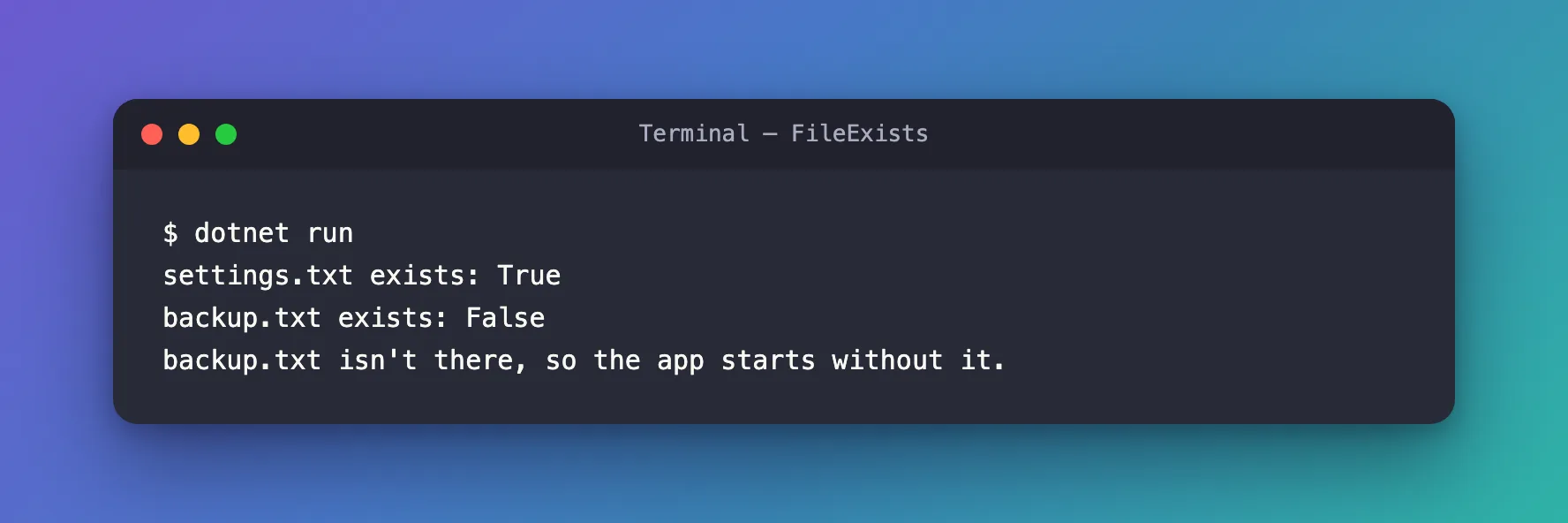
File.Exists returned True for settings.txt, which the app had just written, and False for backup.txt, which was never created. Because the check said False, the if skipped the read and the else branch ran, so the missing file caused no error.
The Complete File
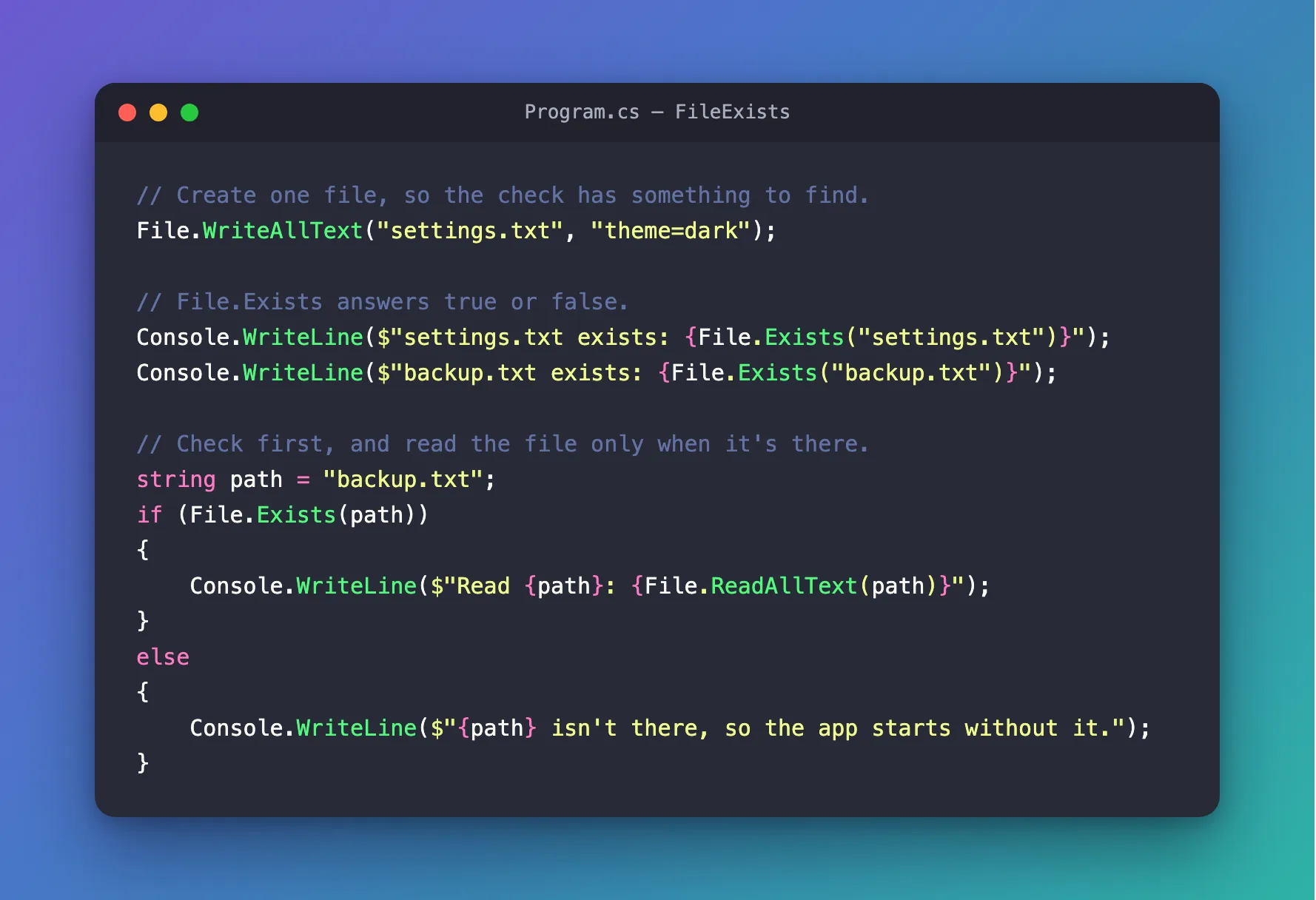
// Create one file, so the check has something to find.
File.WriteAllText("settings.txt", "theme=dark");

// File.Exists answers true or false.
Console.WriteLine($"settings.txt exists: {File.Exists("settings.txt")}");
Console.WriteLine($"backup.txt exists: {File.Exists("backup.txt")}");

// Check first, and read the file only when it's there.
string path = "backup.txt";
if (File.Exists(path))
{
    Console.WriteLine($"Read {path}: {File.ReadAllText(path)}");
}
else
{
    Console.WriteLine($"{path} isn't there, so the app starts without it.");
}
Common Mistakes
| Mistake | What happens | Do this instead |
|---|---|---|
Checking a folder with File.Exists | File.Exists("photos") returned False for a folder that was there. The reference: If path describes a directory, this method returns false. | Use Directory.Exists("photos"), which returned True. Path.Exists answers for both: it returned True for the folder and for settings.txt |
| Reading a file without checking | File.ReadAllText("backup.txt") stopped the app with Unhandled exception. System.IO.FileNotFoundException: Could not find file '/Users/you/source/FileExists/backup.txt'. | Check with File.Exists first, as the example does |
| Expecting an error for a bad path | File.Exists(null) and File.Exists("") both returned False, with no error | Check a path from a setting or a user yourself. The reference: Don't use the Exists method for path validation; this method merely checks if the file specified in path exists. |
FAQ
Does False always mean the file isn't there?
No. It can also mean the app couldn't check. The reference: If the caller does not have sufficient permissions to read the specified file, no exception is thrown and the method returns false regardless of the existence of path. And: The Exists method returns false if any error occurs while trying to determine if the specified file exists.
Can the file disappear after File.Exists returns true?
Yes, if something else deletes or moves it in between. The reference: Be aware that another process can potentially do something with the file in between the time you call the Exists method and perform another operation on the file, such as Delete. Where other programs touch the same files, still be ready for a FileNotFoundException when you read.
Conclusion
File.Exists(path) returns true or false without throwing, so put it in front of a read when a file may be missing. It returns false for a folder, so use Directory.Exists there, and it checks only that a file is there, not that the path is valid.
Additional Resources
- File.Exists — what it returns and when.
- Directory.Exists — the check for folders.
- Path.Exists — one check for files and folders.
