How to Check the Installed Version of a Python Package with uv

Before you follow a guide, report a bug or upgrade, you need to know exactly which version of a package your project runs. In a uv project the answer is in the project's own environment, not in your computer's Python. This guide gives the syntax of four ways to read it first, then uses each one on a small hello-world project, with real output from uv 0.13.8.
Syntax
Each method is a single command. Replace <package> with the package's name, the one you gave uv add, and <tool> with a command:
uv pip show <package>
uv tree --depth 1
uv run <tool> --version
uv run python -c "from importlib.metadata import version; print(version('<package>'))"
| Method | What it shows | Works for |
|---|---|---|
uv pip show <package> | One package's version, where it's installed, what it needs and what needs it | Any installed package |
uv tree --depth 1 | Every package your project added, with its version | Your project's own list |
uv run <tool> --version | The version a tool reports about itself | Packages that come with a command |
importlib.metadata | The version, read from inside Python | Any installed package |
In uv's command reference, uv pip show [OPTIONS] [PACKAGE]... takes one or more package names. uv tree [OPTIONS] takes only options, and --depth sets how many levels of the tree it shows.
Prerequisites
- A uv project with packages added. The example uses the
hello-worldproject from How to Add a Package to a Python Project with uv: it has Rich, a package that draws boxes and colors in the terminal, plus pytest and Ruff as development tools. - A terminal in the project folder. Every command here works the same in Terminal (macOS), PowerShell (Windows) and Linux shells.
Method 1: uv pip show
Give it the package's name:
uv pip show rich
Name: rich
Version: 15.0.0
Location: /Users/you/source/hello-world/.venv/lib/python3.15/site-packages
Requires: markdown-it-py, pygments
Required-by: hello-world
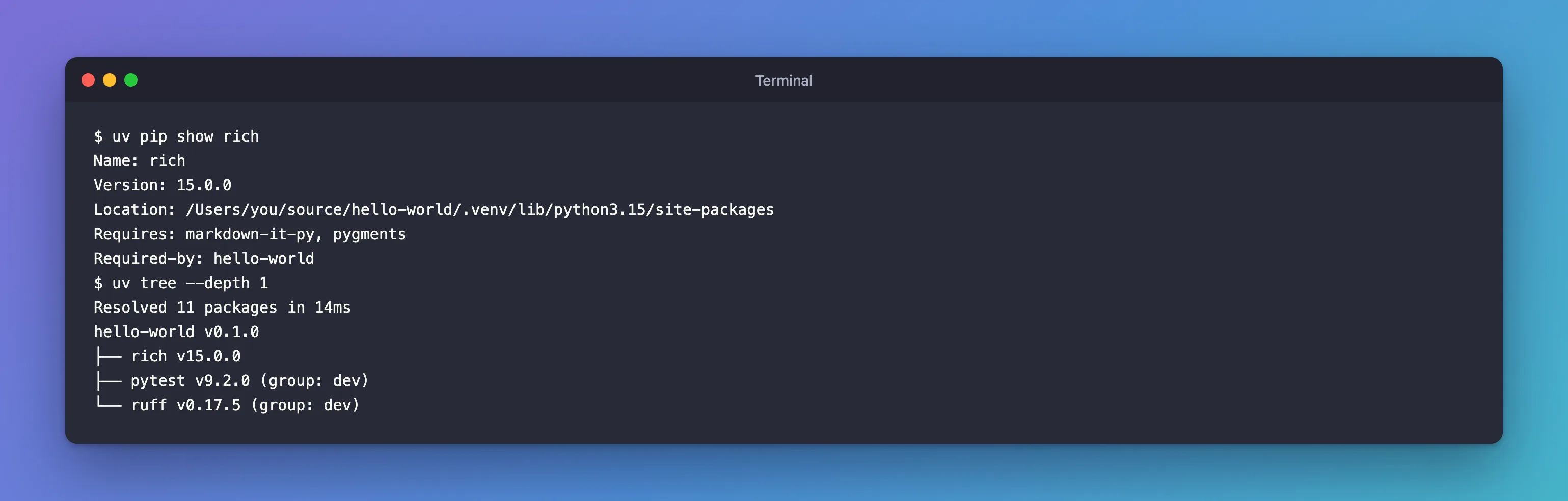
- Version is the installed version.
- Location proves it's the project's
.venv, not your computer's Python. - Requires lists the packages it depends on, and Required-by who needs it: here, your own project.
Method 2: uv tree
To see every package you added, with its version, at once:
uv tree --depth 1
Resolved 11 packages in 14ms
hello-world v0.1.0
├── rich v15.0.0
├── pytest v9.2.0 (group: dev)
└── ruff v0.17.5 (group: dev)
--depth 1 shows only your direct dependencies, the ones listed in pyproject.toml, and (group: dev) marks the development tools. Without --depth, uv tree also shows what each of them needs:
uv tree
Resolved 11 packages in 4ms
hello-world v0.1.0
├── rich v15.0.0
│   ├── markdown-it-py v4.3.0
│   │   └── mdurl v0.1.2
│   └── pygments v2.21.0
├── pytest v9.2.0 (group: dev)
│   ├── iniconfig v2.3.1
│   ├── packaging v26.3
│   ├── pluggy v1.7.0
│   └── pygments v2.21.0
└── ruff v0.17.5 (group: dev)
Method 3: The Tool's Own Command
Packages that come with a command usually report their version with --version. Run it through uv run, so it's the project's copy that answers:
uv run ruff --version
uv run pytest --version
ruff 0.17.5
pytest 9.2.0
Rich is used from code and installs no command of its own, so for Rich use one of the other methods.
Method 4: From Python
Python's built-in importlib.metadata module reads the version of any installed package. Give version() the package's name, the one you installed it with:
uv run python -c "from importlib.metadata import version; print(version('rich'))"
15.0.0
You'll often see __version__ suggested instead. It only works when the package defines it. pytest does:
uv run python -c "import pytest; print(pytest.__version__)"
9.2.0
Rich doesn't:
uv run python -c "import rich; print(rich.__version__)"
Traceback (most recent call last):
  File "<string>", line 1, in <module>
    import rich; print(rich.__version__)
                       ^^^^^^^^^^^^^^^^
AttributeError: module 'rich' has no attribute '__version__'
Common Mistakes
| Mistake | What happens | Do this instead |
|---|---|---|
Asking your computer's Python, as in python3 -c "import rich" | ModuleNotFoundError: No module named 'rich', even though the project has it | Start the command with uv run |
Reading pyproject.toml | You see a range such as rich>=15.0.0, not the installed version | Use uv pip show or uv tree |
Relying on __version__ | AttributeError: module 'rich' has no attribute '__version__' for packages that don't define it | Use importlib.metadata's version("rich") |
Troubleshooting
| Symptom | Likely cause | Fix |
|---|---|---|
warning: Package(s) not found for: requests | The package isn't installed in this project, or the terminal is in another folder | cd into the project, or add the package with uv add |
uv tree lists more than you expected | Without --depth 1 it shows every package's own dependencies too | Add --depth 1 |
FAQ
Which method should I use?
uv tree --depth 1 for an overview of your project, uv pip show <package> for one package's details, --version when you want the answer from the tool itself, and importlib.metadata from inside your own code.
Is the version in uv.lock the installed one?
uv.lock records the version uv will install. After uv sync or uv run, the environment matches it, so yes in practice; uv pip show checks the environment itself.
How do I check uv's own version?
uv --version. This guide used uv 0.13.8.
Conclusion
uv pip show rich gave Rich's version, location and dependencies, and uv tree --depth 1 listed all three packages the project added. ruff --version and pytest --version answered from the tools themselves, and importlib.metadata read Rich's version from Python, where rich.__version__ doesn't exist. All agree: Rich 15.0.0, pytest 9.2.0 and Ruff 0.17.5.
Additional Resources
- uv pip show reference — the options of
uv pip show. - uv tree reference — the options of
uv tree, including--depthand--package. - importlib.metadata — Python's documentation for reading installed packages' details.
- Version specifiers — what ranges such as
>=15.0.0mean.
