How to Check If the Current User Is in a SharePoint Person Column in Power Apps

A SharePoint list often names people in a Person column: a department's approvers, a project's owners, a request's reviewers. A canvas app can find the items that include the signed-in person by comparing their email with the column's Email values. With a column that allows several people, it takes one extra step to keep SharePoint's delegation rules happy.
The example is the Overtime Timesheet app. Its Departments list has an Approvers column that allows several people, and the app needs to know which departments the signed-in person approves overtime for.
Prerequisites
- A list with a Person column: How to Add a Person Column to a SharePoint List. The example's column allows multiple selections.
- The list in your app: How to Connect a Canvas App to SharePoint Lists with Environment Variables.
- The Office 365 Users connector, for the person's email: How to Add the Office 365 Users Connector to a Canvas App in Power Apps.
The Data
The Departments list has a Department name, the Approvers for it and an IsActive flag. Olivia Bennett approves for the Emergency Department, and Daniel Brooks for Radiology:
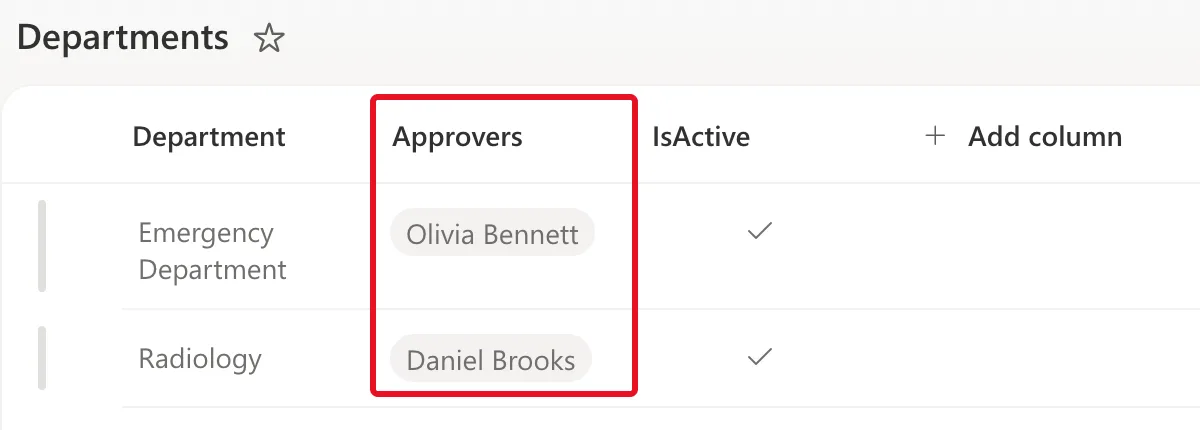
In Power Apps, a Person column is a record with fields such as DisplayName and Email. When it allows several people, it's a table of those records, so Approvers.Email is a single-column table of every approver's email.
Step 1: Get the Signed-In Person's Email
In App.Formulas, read the email once, from the person's Microsoft 365 profile:
MyProfile = Office365Users.MyProfileV2({'$select': "id,displayName,givenName,mail,userPrincipalName,jobTitle,department"});
MyEmail = Coalesce(MyProfile.mail, MyProfile.userPrincipalName);
mailis the person's email address, the value SharePoint keeps in a Person column's Email.Coalescefalls back to the sign-in name,userPrincipalName, for an account with no email address. How to Replace Blank Values in Power Apps with Coalesce explains it.
Step 2: Find the Items That Include the Person
For a column that allows several people:
MyApproverDepartments = With(
    {ActiveDepartments: Filter(Departments, IsActive = true)},
    Concat(Filter(ActiveDepartments, MyEmail in Approvers.Email), Department, ", ")
);
IsApprover = !IsBlank(MyApproverDepartments);
Read from the inside out:
Filter(Departments, IsActive = true)runs on SharePoint and returns the active departments.Withkeeps them in the app asActiveDepartments.MyEmail in Approvers.Emailis true for each department whose approvers include the person.inignores capital letters, soOlivia.Bennett@…andolivia.bennett@…match.Concat(…, Department, ", ")joins the matching departments' names into one text, such asEmergency Department, or empty text when there are none.IsApproveris true when that text isn't blank.
Why not one Filter on Departments? SharePoint can't run in on a multi-person column, and filtering the list directly gives the delegation warning The Highlighted Part of This Formula Might Not Work Correctly on Large Data Sets. Returning a table instead of text gives a second one: The Named Formula Is Not Delegable…. Both posts explain the reasons.
Because the in step runs in the app, it sees at most the active items SharePoint returned, up to the app's data row limit (500 by default). That's right for a short list such as departments, not for a list that keeps growing.
Step 3: Check It for Someone Else
The maker approves no department, so for them MyApproverDepartments is empty. To see the formula work for an approver without signing in as one, replace MyEmail with that person's email for a moment. In the example, a label's Text takes the first approver of the Emergency Department, Olivia Bennett, straight from the list, so no email address needs typing:
With(
    {ActiveDepartments: Filter(Departments, IsActive = true)},
    Concat(
        Filter(
            ActiveDepartments,
            First(LookUp(Departments, Department = "Emergency Department").Approvers).Email in Approvers.Email
        ),
        Department,
        ", "
    )
)
The label shows Emergency Department:
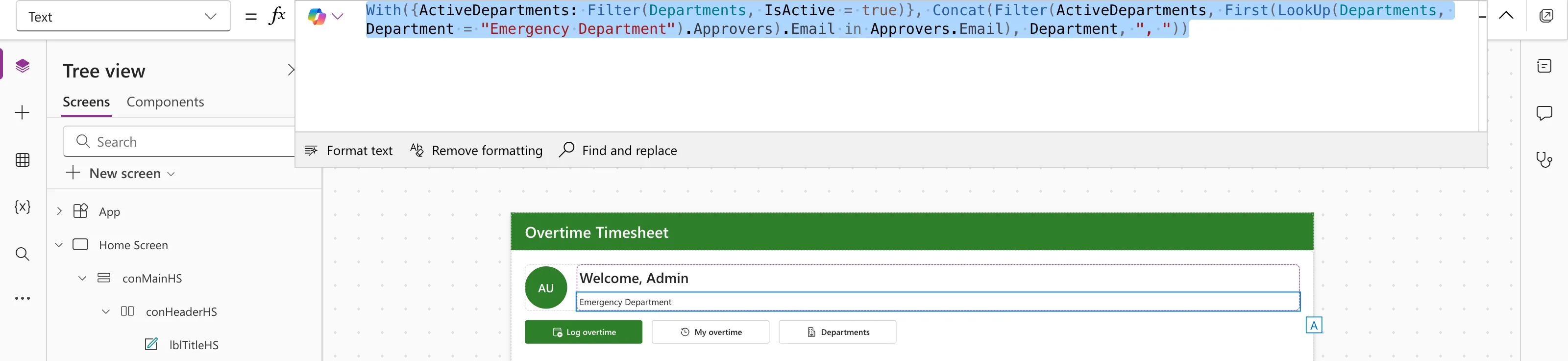
Put the label's own Text formula back afterwards.
A Column That Allows Only One Person
With a single-person column, the column is one record, not a table, and its Email can be compared with =. Microsoft's SharePoint delegation notes say Email and DisplayName are the delegable fields of a Person column, so a filter such as Filter(Projects, Owner.Email = MyEmail) can run on SharePoint, for any size of list. The example's column allows several people, so it uses the steps above.
Common Mistakes
| Mistake | What happens | Do this instead |
|---|---|---|
Filtering the list with in directly | Delegation warnings, and missed items past the data row limit | Filter what SharePoint can first, then use in on the result |
| Comparing DisplayName | Two people can share a name, and names change | Compare Email |
Using = against a multi-person column's emails | = can't compare one email with a table of emails | Use in |
| Using this for a list that keeps growing | Items past the data row limit are never checked | Keep it for short lists, or use a single-person column with = |
Troubleshooting
| Symptom | Likely cause | Fix |
|---|---|---|
| An approver isn't found | The item's IsActive is No, or their profile has no mail and their sign-in name differs from their email | Check IsActive, and compare MyEmail with the email in the column |
A delegation warning on in | in is applied to the list instead of the result of With | Filter ActiveDepartments |
| The text lists the same department twice | The list has two items with that name | Make the name column unique |
FAQ
Can I get the approvers' names instead?
Yes. Concat(LookUp(Departments, Department = "Radiology").Approvers, DisplayName, ", ") joins one department's approvers' names. Use the email for checks and the name for display.
Does the person need permission to read the list?
Yes. The app reads it as the signed-in person. In the example, everyone who uses the app can read Departments.
Conclusion
Get the signed-in person's email once, filter the list on SharePoint for what it can do, and check MyEmail in Column.Email on the result inside With. Returning the matching names as text gives you both a line to show and, with IsBlank, a true/false to show or hide things.
Additional Resources
- Connect to SharePoint from a canvas app: Person columns and delegation.
- Operators: in and exactin:
inignores case,exactindoesn't. - Understand delegation in a canvas app: the data row limit and collections made by With.
