How to Check If the Current User Is in a Security Group in Power Apps

Apps often show different things to different people: reports for payroll staff, a settings screen for admins. When those people are in Microsoft Entra security groups, a canvas app can ask the Office 365 Groups connector who's in a group and check whether the signed-in person is one of them. One named formula per group does it.
The example is the Overtime Timesheet app, which checks two groups: Overtime Payroll and Overtime Admins.
How It Works
- Who's signed in.
Office365Users.MyProfileV2()returns the person's profile, includingid: their Object ID in Microsoft Entra. - Who's in the group.
Office365Groups.ListGroupMembers(groupId, {'$top': 999}).valuereturns the group's members, each with the same kind ofid. - The check.
intests whether the person'sidis among the members'ids.
Prerequisites
- The groups, with their members: How to Create a Security Group in the Microsoft Entra Admin Center and How to Add Members to a Security Group in the Microsoft Entra Admin Center.
- Each group's Object ID, where the app can read it. The example keeps them in a SharePoint list: How to Store App Settings in a SharePoint List for Power Apps. Its named formulas
PayrollGroupIdandAdminsGroupIdhold the two IDs. - Both connectors in the app: How to Add the Office 365 Users Connector to a Canvas App in Power Apps and How to Add the Office 365 Groups Connector to a Canvas App in Power Apps.
Step 1: Get the Signed-In Person's ID
In App.Formulas, the example already reads the person's profile once, for the whole app. Make sure id is among the selected fields:
MyProfile = Office365Users.MyProfileV2({'$select': "id,displayName,givenName,mail,userPrincipalName,jobTitle,department"});
'$select' asks only for the listed fields, and any field left out comes back blank, so a missing id would make every check below false. How to Get the Current User's Profile and Job Title in Power Apps (MyProfileV2) explains it.
Step 2: See Who's in the Group
Before writing the check, look at what the connector returns. Select any text control on the screen and set its Text to the members' names, joined with commas:
Concat(Office365Groups.ListGroupMembers(PayrollGroupId, {'$top': 999}).value, displayName, ", ")
The Overtime Payroll group has one member, Leo Martin, and Studio's formula preview and the label both show him:
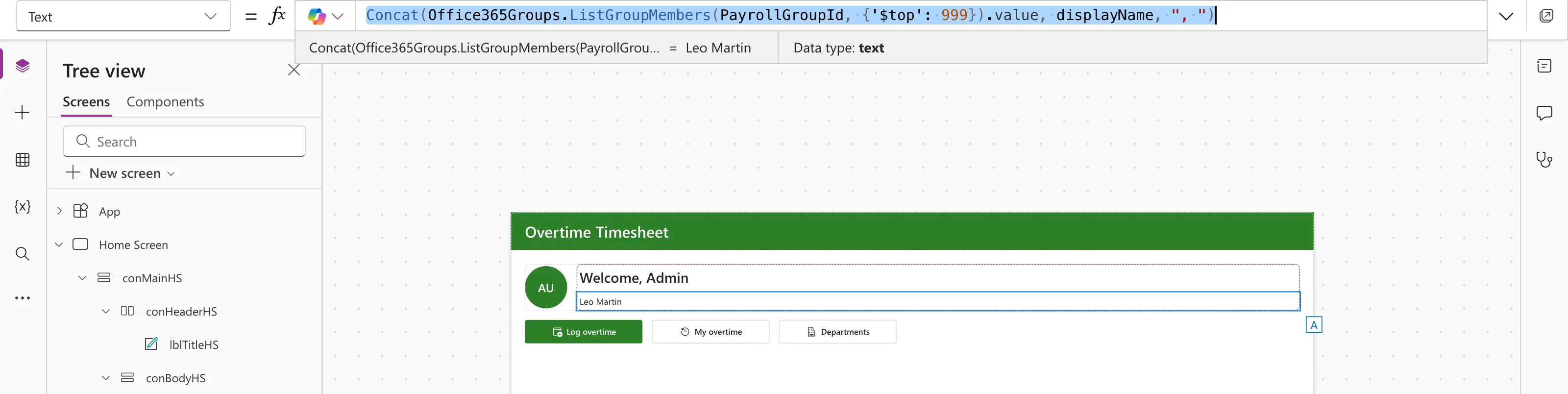
That confirms the group ID and the connection work. Put the control's own Text formula back afterwards.
Step 3: Write the Check as a Named Formula
Add one named formula per group to App.Formulas:
IsPayroll = IfError(
    MyProfile.id in Office365Groups.ListGroupMembers(PayrollGroupId, {'$top': 999}).value.id,
    false
);
IsAdmin = IfError(
    MyProfile.id in Office365Groups.ListGroupMembers(AdminsGroupId, {'$top': 999}).value.id,
    false
);
.value.idturns the members into a single-column table of their IDs.inis true whenMyProfile.idis one of them.{'$top': 999}asks for up to 999 members. Without it, the connector returns 100, and a member beyond the first 100 would be missed.IfError(..., false)treats any failure as "not in the group": a blank group ID, a missing connection, a network error. The app then shows less, never more. How to Handle Errors in Power Apps with IfError covers it.
Named formulas are calculated when something needs them, so the app asks for a group's members only when a control uses the result.
Step 4: Use It
Wherever a control is only for one group, set its Visible to the named formula. In the example, the Home screen's Departments button is for admins:
IsAdmin
Signed in as the app's maker, who is in Overtime Admins and not in Overtime Payroll, the preview shows IsAdmin = true, and the Departments button is on the screen:
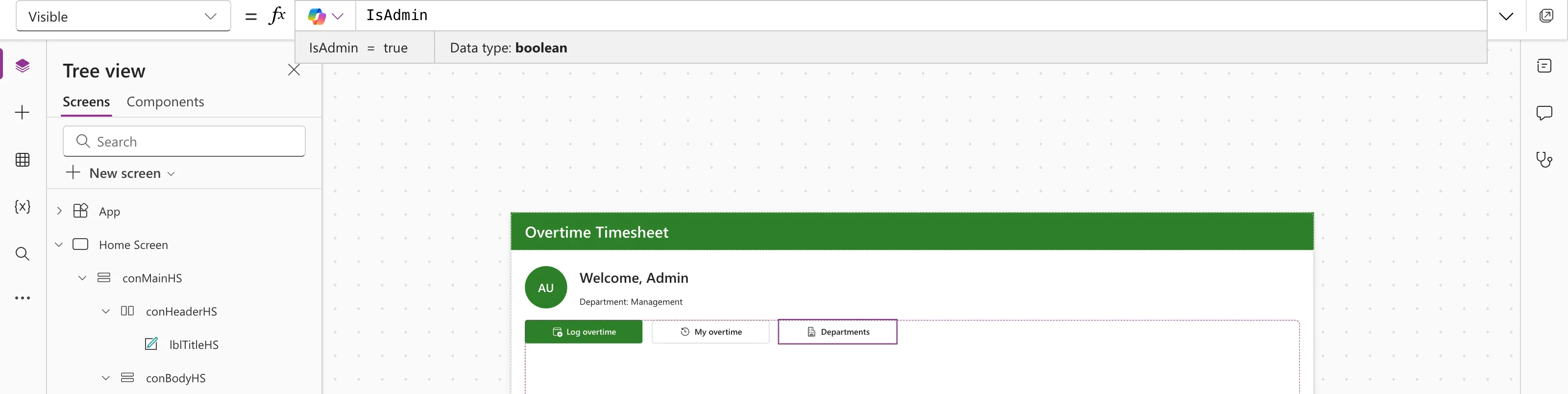
In Studio's Variables pane, IsPayroll is false for the same person. How to Show or Hide a Control in Power Apps with Visible has more on Visible.
Why Compare IDs
A person's Object ID never changes. Their email and sign-in name can change, for example when they change their name, and display names aren't unique. Comparing IDs keeps the check right through all of that.
Hiding a Button Isn't Security
Visible decides what the app shows; it doesn't decide what the person may read or change. Anyone in your organization can build their own app against the same data, with their own permissions. Protect the data where it lives: in the example, SharePoint permissions decide who sees which overtime entries (Part 3). The group check only keeps the app tidy for each role.
Limits
- 999 members per call. For a bigger group, Microsoft's connector reference describes paging with
@odata.nextLink, which this guide doesn't cover. - Nested groups. The reference doesn't say whether members of a group inside the group are included. Add people to the group directly.
- 100 calls per 60 seconds per connection. Two named formulas make two calls when the app needs them, far below the limit.
Common Mistakes
| Mistake | What happens | Do this instead |
|---|---|---|
Leaving id out of '$select' | MyProfile.id is blank, and every check is false | Include id |
Leaving out {'$top': 999} | Members beyond the first 100 are treated as outsiders | Always pass $top |
| Comparing emails or display names | Renamed people fail the check, and names can repeat | Compare ids |
| Relying on hidden buttons for privacy | The data is still readable by other means | Protect the data source too |
Troubleshooting
| Symptom | Likely cause | Fix |
|---|---|---|
| The check is false for a member | The group ID is wrong or blank, or the person is only in a group nested inside it | Show the members as in Step 2, and check the ID |
| The members' names show, but the check is still false | MyProfile has no id | Add id to '$select' |
| The check is false for everyone | The call fails, and IfError returns false | Remove IfError for a moment and read the error in Studio |
FAQ
Does this need Dataverse or premium licenses?
No. Office 365 Users and Office 365 Groups are both standard connectors.
Does it work for Microsoft 365 groups?
The connector was built for Microsoft 365 groups, and List group members takes any group's ID. The example uses security groups, which work too.
Can I use one formula for several groups?
Yes, but one named formula per group keeps each check readable and lets each control use exactly the one it needs.
Conclusion
MyProfile.id in Office365Groups.ListGroupMembers(groupId, {'$top': 999}).value.id, wrapped in IfError(..., false) and kept in a named formula, tells a canvas app whether the signed-in person is in a security group. Use it to tailor the app to each role, and keep the data itself protected where it's stored.
Additional Resources
- Office 365 Groups connector reference: List group members,
$top, paging and limits. - Office 365 Users connector reference: MyProfileV2 and its fields.
- Operators: in and exactin: membership tests on tables.
