How to Check If Custom Apps Are Allowed in Microsoft Teams

Two places in the Teams admin center decide whether custom apps, the apps your organization makes itself, work in Teams: the Custom apps section of Org-wide app settings, and Upload custom apps in the app setup policy. This post checks both, without changing anything.
The example is a test organization where people add canvas apps from Power Apps to Teams, and an admin uploads them to the organization's app catalog.
Prerequisites
- The Teams Administrator or Global Administrator role, to open the Teams admin center.
Which Setting Matters for What
Microsoft's custom apps article lists which setting controls each way a custom app reaches people:
| How the app reaches people | What controls it |
|---|---|
| A person uploads an app package in Teams, for example with Add to Teams from Power Apps | Let users interact with custom apps in preview (org-wide), Upload custom apps (setup policy) and the team's own setting |
| An admin uploads it in the Teams admin center | The app's status and availability on the Manage apps page |
Step 1: Open the Org-Wide App Settings
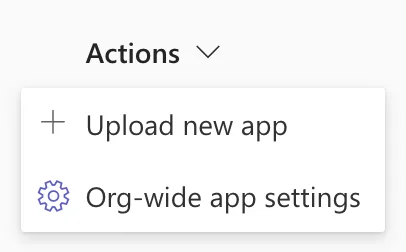
At admin.teams.microsoft.com, go to Teams apps > Manage apps. Select Actions > Org-wide app settings:
Step 2: Read the Custom Apps Section
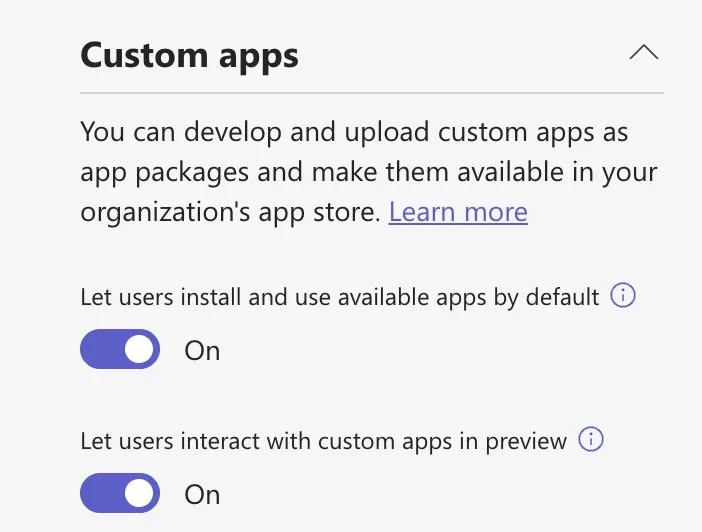
The settings open in a panel. Expand Custom apps: You can develop and upload custom apps as app packages and make them available in your organization's app store. It has two switches:
| Switch | What it does |
|---|---|
| Let users install and use available apps by default | Makes newly added custom apps available to everyone, unless you change an app's availability yourself, as Microsoft's app centric management article explains |
| Let users interact with custom apps in preview | Lets people use custom apps that they or a colleague upload in Teams |
In my organization both were On. Close the panel without saving.
Step 3: Check the App Setup Policy
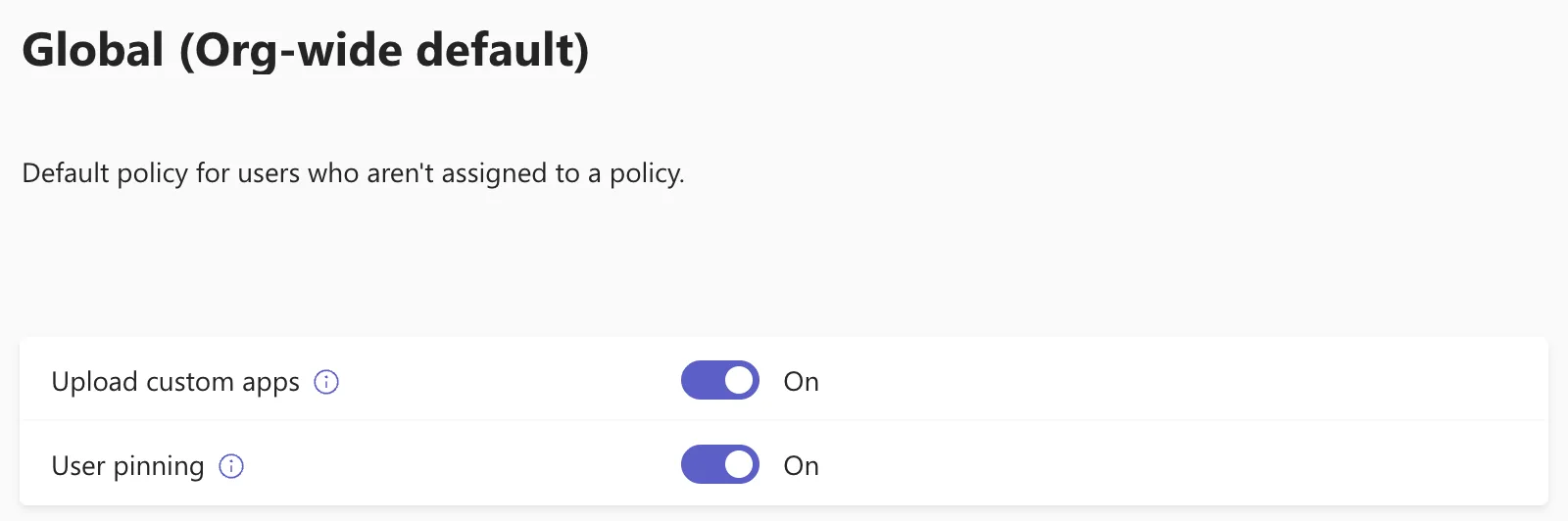
Go to Teams apps > Setup policies and select Global (Org-wide default), the Default policy for users who aren't assigned to a policy:
| Switch | What it does |
|---|---|
| Upload custom apps | Lets people with this policy upload custom apps in Teams |
| User pinning | Lets people pin apps to their Teams app bar |
Both were On. If some people have another setup policy, check that one too. Leave with Cancel.
The Result
With these settings, people in my organization could add a canvas app to Teams from Power Apps, and could pin it. An app uploaded by the admin was governed by its own availability instead.
Common Mistakes
| Mistake | What happens | Do this instead |
|---|---|---|
| Checking only the global setup policy | People on another policy may not be able to upload | Check the policies people actually have |
| Turning a switch off to test it | Everyone's apps are affected | Read the settings; change them only on purpose |
| Leaving with Save | Changes you didn't mean get saved | Leave with Cancel |
Troubleshooting
| Symptom | Likely cause | Fix |
|---|---|---|
| Org-wide app settings is greyed out | The admin center was still setting up app management | Wait; mine showed a banner saying it could take up to 30 minutes |
FAQ
Do these settings control apps an admin uploads?
Not the upload itself. An app uploaded in the admin center is available to whoever its Available to setting lists (How to Make a Teams App Available to Specific Users in the Teams Admin Center).
Can I allow custom apps for only some people?
Yes. Microsoft's article describes turning Upload custom apps off in the global policy and on in a policy assigned to those people.
Conclusion
In the Teams admin center, read Custom apps under Manage apps > Actions > Org-wide app settings, then Upload custom apps in the setup policies. Together they say whether people can add custom apps in Teams.
Additional Resources
- Manage custom apps in Microsoft Teams admin center
- Use setup policies to manage, install and pin agents and apps for users
