How to Check If a User Is in a Security Group in Power Automate

A flow often needs to know who it's working for: a payroll officer sees every department's figures, an approver sees only their own. When the roles are Microsoft Entra security groups, the flow can list a group's members and look for the person among them. Three actions give a plain true or false.
The example is Get Overtime Report, a flow of the Overtime Timesheet app. It checks whether the person who ran it is in the Overtime Payroll group, and returns every department's overtime if they are.
Prerequisites
- The group's Object ID.
Step 1: Get the Group's ID
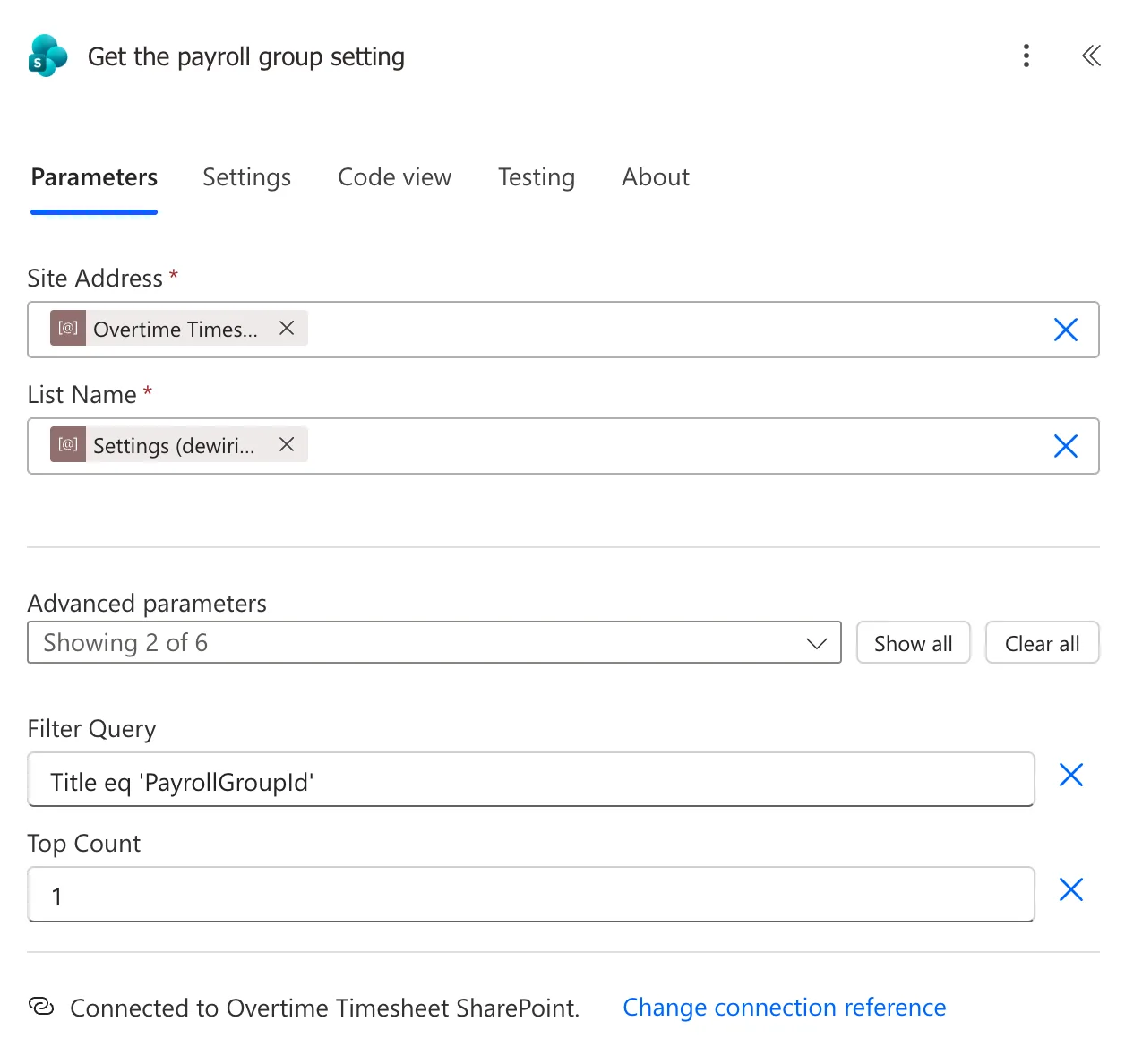
The example reads the ID from the Settings list with Get items, named Get the payroll group setting: Filter Query Title eq 'PayrollGroupId' and Top Count 1 (How to Filter SharePoint Items with a Filter Query in Power Automate):
If you'd rather type the ID into the next action, skip this step.
Step 2: List the Group's Members
Add List group members from the Office 365 Groups connector. I named it List the payroll members.
-
Group Id: the group's Object ID. Here, an expression that takes the Value of the first setting found (How to Get the First Item of an Array in Power Automate):
List the payroll members → Group Idfirst(body('Get_the_payroll_group_setting')?['value'])?['Value'] -
Top, under Advanced parameters:
999. Microsoft's Office 365 Groups connector reference says it takes from 1 to 999, default is 100. Without it, a group with more than 100 members could leave the person out.
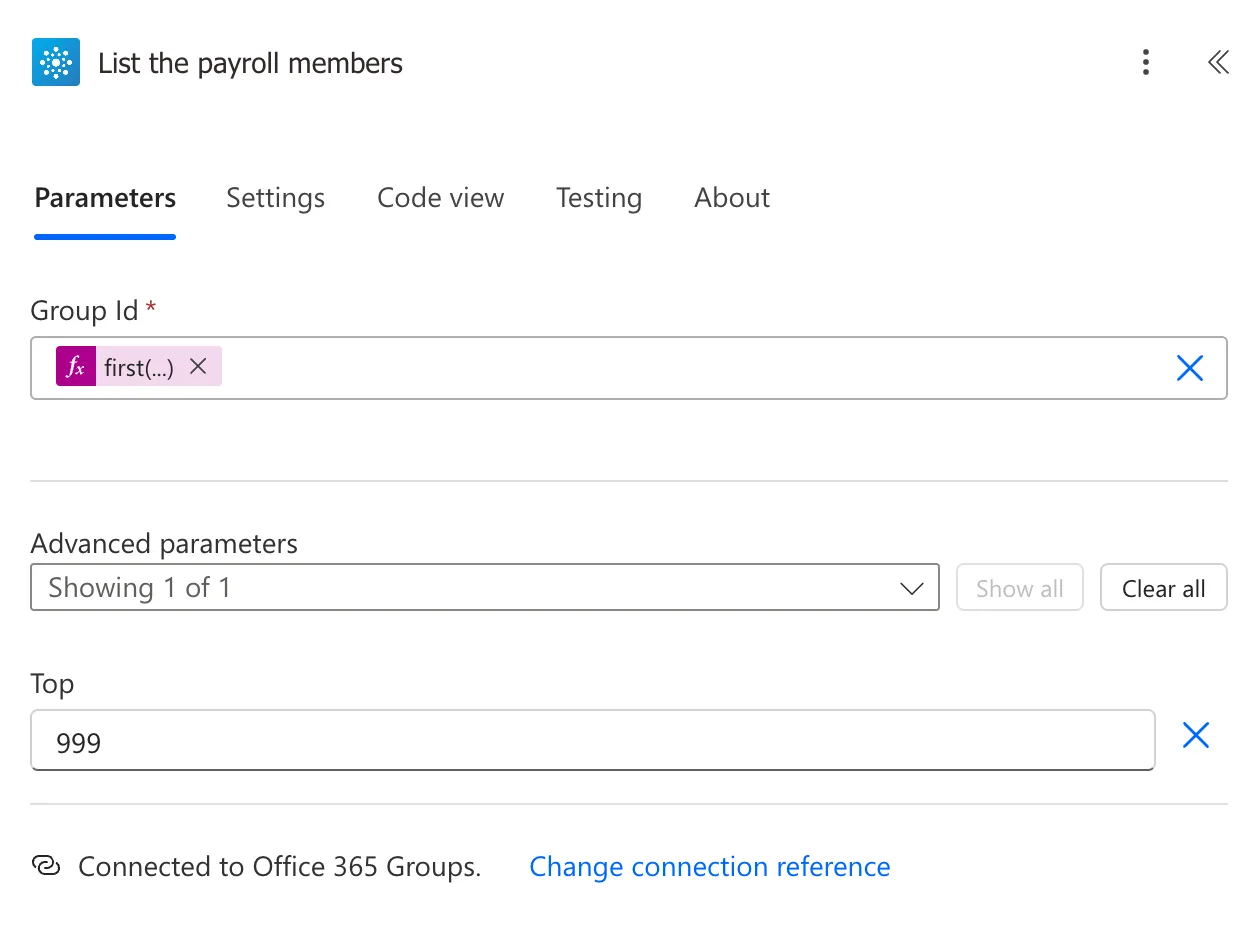
The action returns the members in value, each with an id: their Object ID, the same kind of ID Get my profile (V2) returns.
Step 3: Keep the Member Who Is the Person
Add Filter array (How to Filter an Array in Power Automate), named Caller in payroll:
- From: value of List the payroll members.
- The condition: the member's id is equal to the Id of Get the caller.
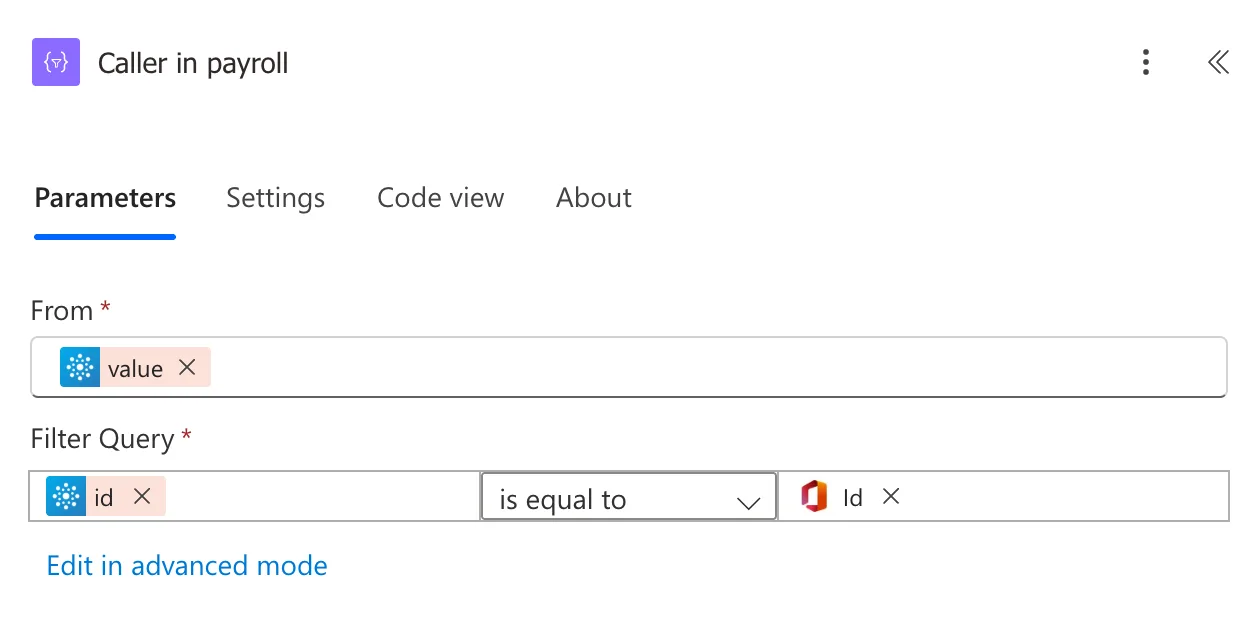
In Code view, the condition reads @equals(item()?['id'], outputs('Get_the_caller')?['body/id']). The output holds one member if the person is in the group, and none if not.
Step 4: Turn the Result into True or False
Add Compose (How to Use the Compose Action in Power Automate), named Is payroll, with this expression in Inputs (How to Add an Expression in Power Automate):
greater(length(body('Caller_in_payroll')), 0)
length()counts the items Filter array kept: 1 or 0 (How to Count the Items in an Array in Power Automate with length).greater()istruewhen the first number is larger than the second, here when at least one member matched (How to Use the greater() Function in Power Automate).
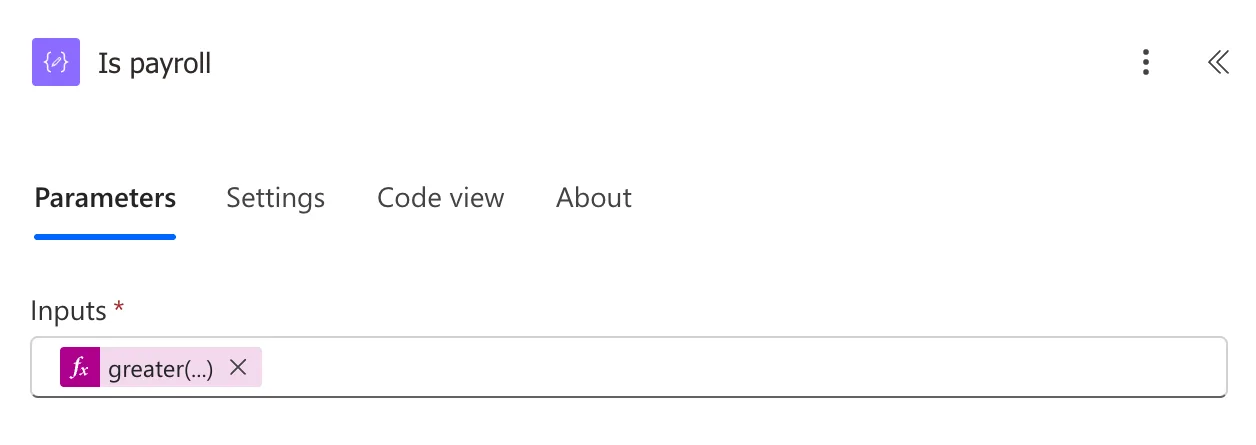
Later actions use outputs('Is_payroll'). In the example, the filter that picks the entries the person may see starts with it: payroll sees everything (How to Use the or() Function in Power Automate).
The Result
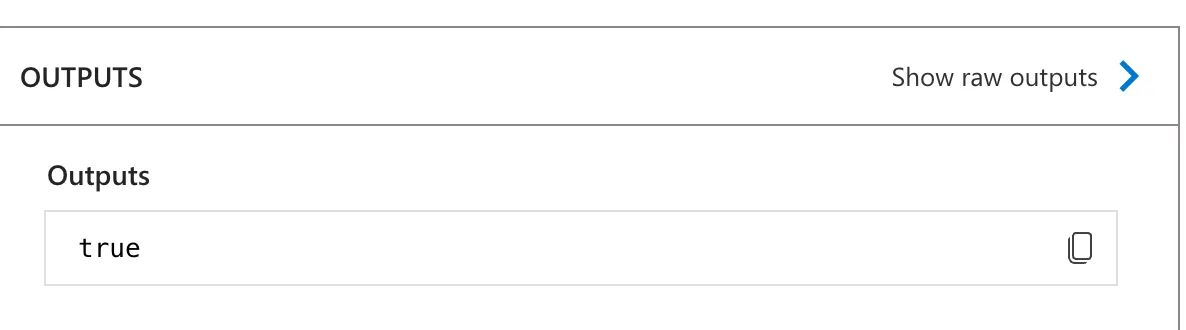
When Leo Martin, who is in Overtime Payroll, opened the app's Reports screen, Is payroll was true:
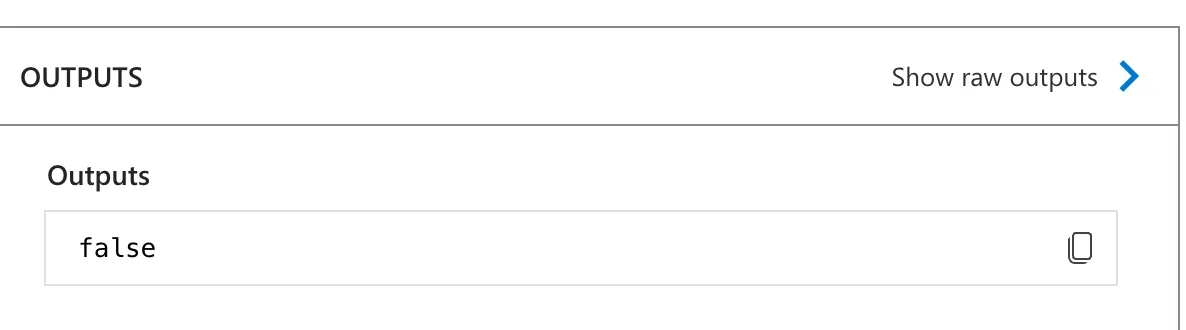
When Daniel Brooks, an approver who isn't in the group, opened it, it was false:
Common Mistakes
| Mistake | What happens | Do this instead |
|---|---|---|
| Leaving Top at its default | Only the first 100 members are checked | Top 999, or turn on pagination for larger groups |
| Comparing names instead of IDs | Two people with the same name match | Compare the Object ID, id |
Comparing emails without toLower() | A capital letter stops a match | Compare IDs, which don't change |
| Putting the group ID in every flow | Moving to another environment means editing each flow | Keep it in one setting |
Troubleshooting
| Symptom | Likely cause | Fix |
|---|---|---|
Always false | The group ID is wrong, or the person is in a group nested inside it | Check the ID; the action lists direct members only |
| The expression won't save | A bracket is missing | Count them; Code view shows the saved text |
Always false for one person who is in the group | Get the caller returned someone else, for example the flow owner | Run Get my profile (V2) with the person's own connection (How to Choose the Connections Run-Only Users Use in Power Automate) |
FAQ
Does it check groups inside the group?
No. Microsoft Graph's List group members returns a group's direct members and isn't transitive. Add people to the group itself.
What if the group has more than 999 members?
The connector reference says to turn on the action's Pagination setting and give a threshold to get more than 1,000.
Who needs access to the group?
Whoever owns the connection the action runs with. In the example, run-only users run the flow with the maker's Office 365 Groups connection, so they don't need any access of their own.
Conclusion
To check a person against a security group in a flow, list the group's members with List group members and Top 999, keep the member whose id matches with Filter array, and turn the count into true or false with greater(length(...), 0).
Additional Resources
- Office 365 Groups connector: List group members
- Microsoft Graph: List group members
- Reference guide to functions in expressions: greater, length, equals
