How to Check for Overlapping Times in Power Apps

Two time ranges overlap when each one starts before the other ends. In a formula, that's StartTime < NewEnd && EndTime > NewStart. Put it in a LookUp on your list and you get the first entry that clashes with a new one, or blank when the time is free.
The example is the Overtime Timesheet app. Logging the same hours twice would get them paid twice, so the Log overtime screen won't save a shift that overlaps one the person has already logged.
The Rule
An existing entry runs from StartTime to EndTime; the new shift from s to e. They overlap when:
StartTime < e && EndTime > s
The two comparisons cover every way of overlapping: the new shift inside the old one, around it, or across either end. Each case has the old entry starting before the new one ends and ending after it starts.
The comparisons are strict, < and >, so a shift that starts at the very minute another ends doesn't count as overlapping. For back-to-back shifts, that's what you want.
Prerequisites
- Dates and times to compare: How to Combine a Date and a Time in Power Apps with DateTime. Both sides must be full dates and times, or a night shift's finish is on the wrong day.
- LookUp to find a record: How to Check if a Record Exists in Power Apps.
- With: How to Use the With Function in Power Apps.
The example's OvertimeEntries list already held this entry for the person signed in: 24/10/2026 22:00 to 25/10/2026 06:00, 8 hours.
Step 1: Find a Clashing Entry
I put each formula into a text control's Text for a moment, so Studio's preview strip shows the result. A new shift from 23:00 on 24 October to 02:00 on the 25th:
With(
    {s: DateTime(2026, 10, 24, 23, 0, 0), e: DateTime(2026, 10, 25, 2, 0, 0)},
    LookUp(OvertimeEntries, EmployeeEmail = MyEmail && StartTime < e && EndTime > s).Hours
)
EmployeeEmail = MyEmailkeeps the search to the signed-in person's own entries. MyEmail is a named formula in the app (How to Use Named Formulas in Power Apps).StartTime < e && EndTime > sis the overlap rule..Hoursreads a column of the entry it finds, to show which one it is.
It finds the 8-hour entry:

Step 2: Check a Shift That Doesn't Clash
A shift from 06:00 to 08:00 on 25 October starts the minute the old one ends. IsBlank turns the LookUp into true or false:
With(
    {s: DateTime(2026, 10, 25, 6, 0, 0), e: DateTime(2026, 10, 25, 8, 0, 0)},
    IsBlank(LookUp(OvertimeEntries, EmployeeEmail = MyEmail && StartTime < e && EndTime > s))
)
true: nothing clashes.

Step 3: Tell the Person Which Entry Clashes
The app checks every shift in its ShiftProblem function, which returns the first problem with a shift as a sentence (How to Create a User-Defined Function in Power Apps). The overlap is one of its checks. With keeps the clashing entry as Clash, and the message shows its start and finish:
Clash: LookUp(OvertimeEntries, EmployeeEmail = MyEmail && StartTime < Ends && EndTime > Starts)
!IsBlank(Clash), $"This overlaps the overtime you logged from {Text(Clash.StartTime, "dd/mm/yyyy hh:mm")} to {Text(Clash.EndTime, "dd/mm/yyyy hh:mm")}.",
On the screen, the 23:00 to 02:00 shift shows the message in red, and Save stays disabled until the times change (How to Validate a Form Without an Edit Form in Power Apps):
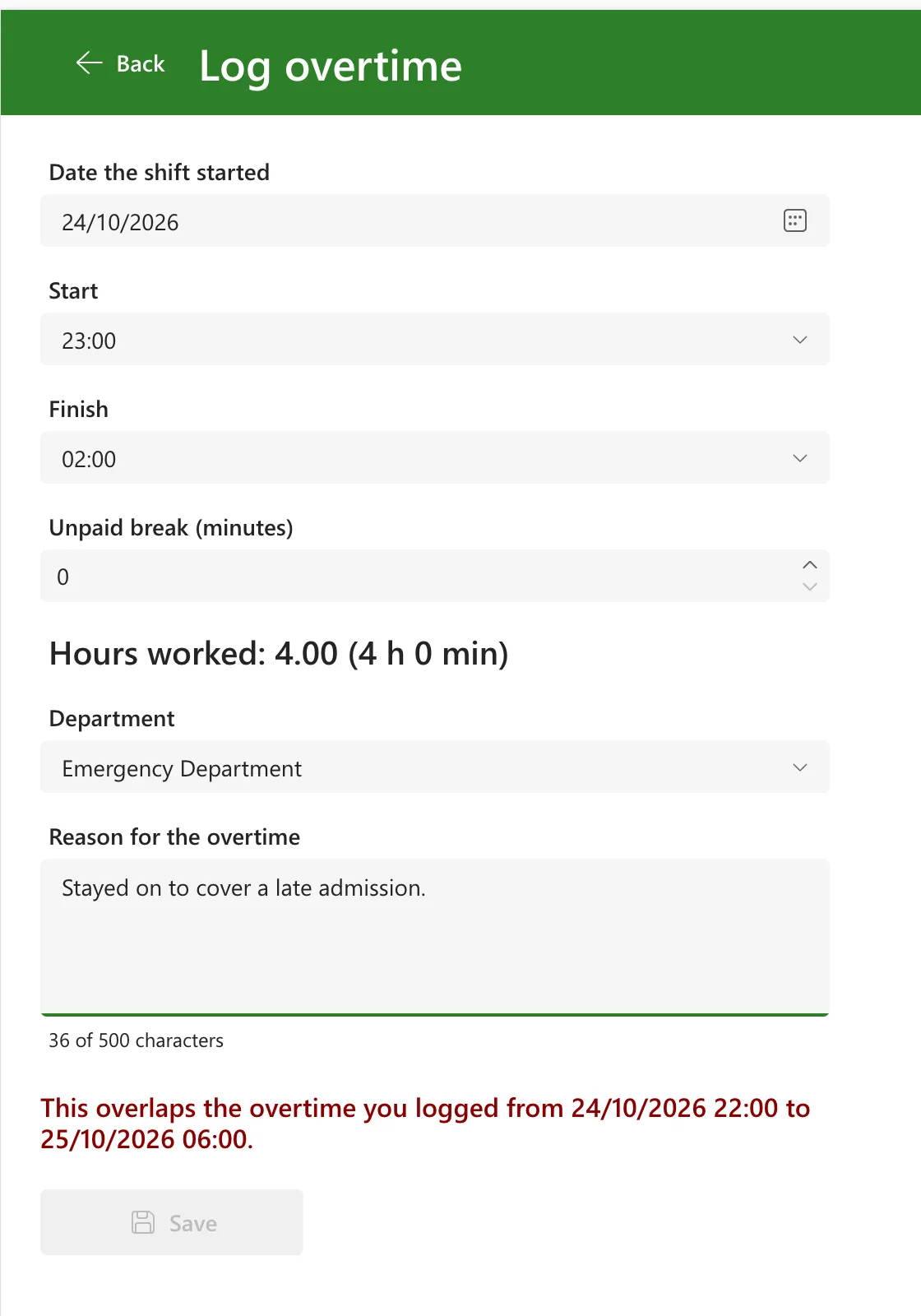
Naming the clashing entry's times lets the person find it, rather than guess what's wrong.
Step 4: Keep It Working as the List Grows
Delegation. Every part of the condition can be worked out by SharePoint itself, according to Microsoft's SharePoint delegation table: = on a text column, < and > on date and time columns, LookUp, and conditions joined with And (&&). Studio showed no delegation warning on any of these formulas. With a non-delegable condition, the app would search only the first rows of the list (What Is Delegation in Power Apps?).
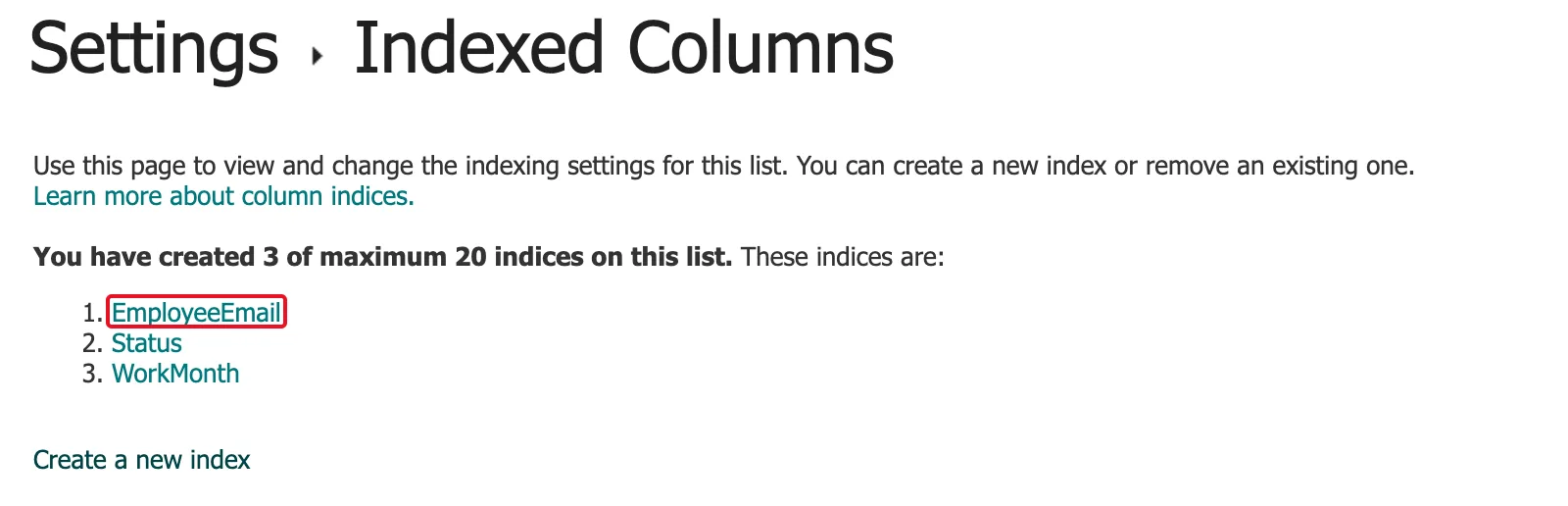
An index. SharePoint blocks a query that has to work through more than about 5,000 items. The condition filters first on EmployeeEmail, so I indexed that column in the list's Indexed columns settings (How to Index a Column in a SharePoint List):
Common Mistakes
| Mistake | What happens | Do this instead |
|---|---|---|
<= and >= | A shift starting the minute another ends is reported as a clash | Strict < and > |
| Checking only whether the new start falls inside an old entry | A new shift that starts earlier and runs across an old one gets through | Use both comparisons of the rule |
| Comparing times of day without dates | Night shifts that cross midnight compare wrongly | Compare full date and time values |
| Leaving out the person's email | Anyone who can see other people's entries is blocked by their shifts | Filter on EmployeeEmail = MyEmail |
Troubleshooting
| Symptom | Likely cause | Fix |
|---|---|---|
| A delegation warning on the LookUp | A function on a column, such as Text or Lower, in the condition | Compare the columns as they are |
| No clash found for a shift that clearly overlaps | The email stored on the entries differs from MyEmail, or the new shift's finish is on the wrong day | Check both values in a text control |
| The message's times differ from the ones the person entered | Their device is in a different time zone from the one the entry was made in | Times show in each device's time zone; check its setting |
FAQ
Does this stop every duplicate?
It stops them in the app. An entry added another way, such as straight into the SharePoint list, isn't checked by the app's formula.
Why LookUp and not Filter?
One clashing entry is enough to refuse the shift, and LookUp returns the first match, so the message can name it.
What about editing an entry?
The entry being edited overlaps itself, so the check has to skip it. SharePoint can't run ID <> on its ID column, so filter the clashes in SharePoint and skip the edited entry in memory: How to Exclude the Item Being Edited from a LookUp in Power Apps.
Conclusion
LookUp(List, Person = Me && StartTime < NewEnd && EndTime > NewStart) finds an entry that overlaps a new one; blank means the time is free. Keep the comparisons strict, compare full dates and times, show which entry clashes, and index the column you filter on first.
Additional Resources
- Connect to SharePoint from a canvas app: delegable functions: what SharePoint works out itself.
- Filter, Search, and LookUp functions: LookUp returns the first record that matches.
