How to Check an Item Hasn't Changed During an Approval in Power Automate

An approval can wait for hours, and the item it's about can change in the meantime. After Start and wait for an approval, read the item again, compare its version number with the one the flow started with, and stop the run if they differ. An approver's answer then only ever decides the version they saw.
The example is the approval flow of the Overtime Timesheet app. Staff can correct an overtime entry while its approval waits; each save starts a new run and a new request, and the old request mustn't decide the new entry.
Prerequisites
- A flow triggered by the SharePoint item, with an approval in it (How to Run a Flow When a SharePoint Item Is Created or Modified in Power Automate and How to Send an Approval Request in Power Automate).
- Versioning on the list, which SharePoint lists have by default (How to See the Version History of a SharePoint List Item).
Why the Version Number
Every edit to an item gives it a new version number, and the trigger's outputs include the version that started the run, {VersionNumber}. If the item's version after the approval is the same, nobody changed it while the approval waited.
Step 1: Read the Item Again After the Approval
After Start and wait for an approval, add a Get item on the same list with the trigger's ID. I named it Get the entry now (How to Get a SharePoint List Item by ID in Power Automate).
Step 2: Compare the Versions
Add a Condition, Check the entry is unchanged (How to Add a Condition in Power Automate): the version from Get the entry now is equal to the trigger's:
| Left | Operator | Right |
|---|---|---|
outputs('Get_the_entry_now')?['body/{VersionNumber}'] | is equal to | triggerBody()?['{VersionNumber}'] |
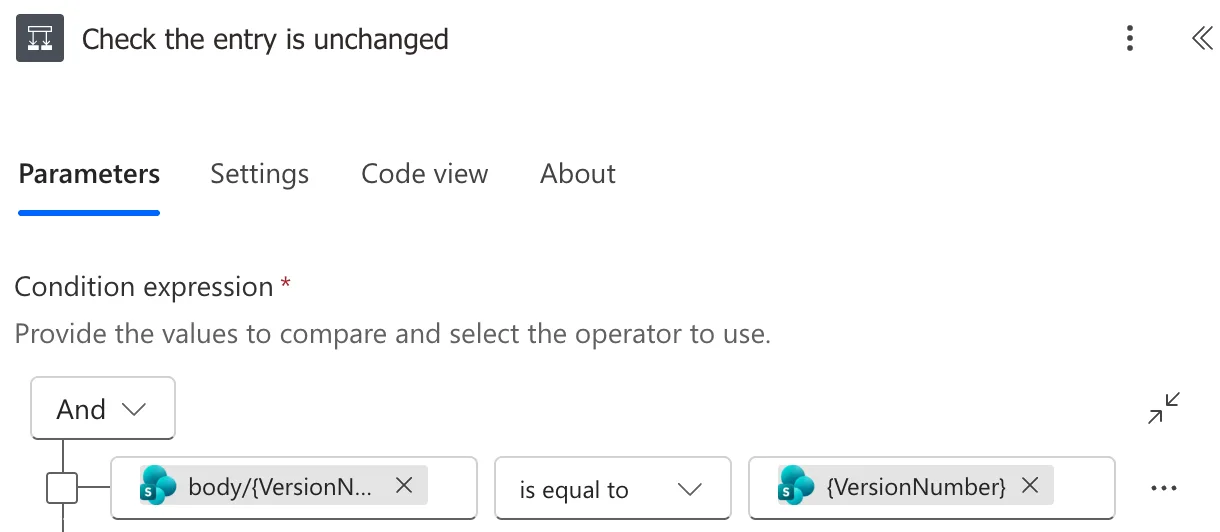
Step 3: Act Only on an Unchanged Item
- True: record the decision (How to Update a SharePoint List Item in Power Automate) and everything that follows.
- False: Terminate with the status Cancelled, named Stop: the entry changed (How to Stop a Flow Run with Terminate in Power Automate).
The Test
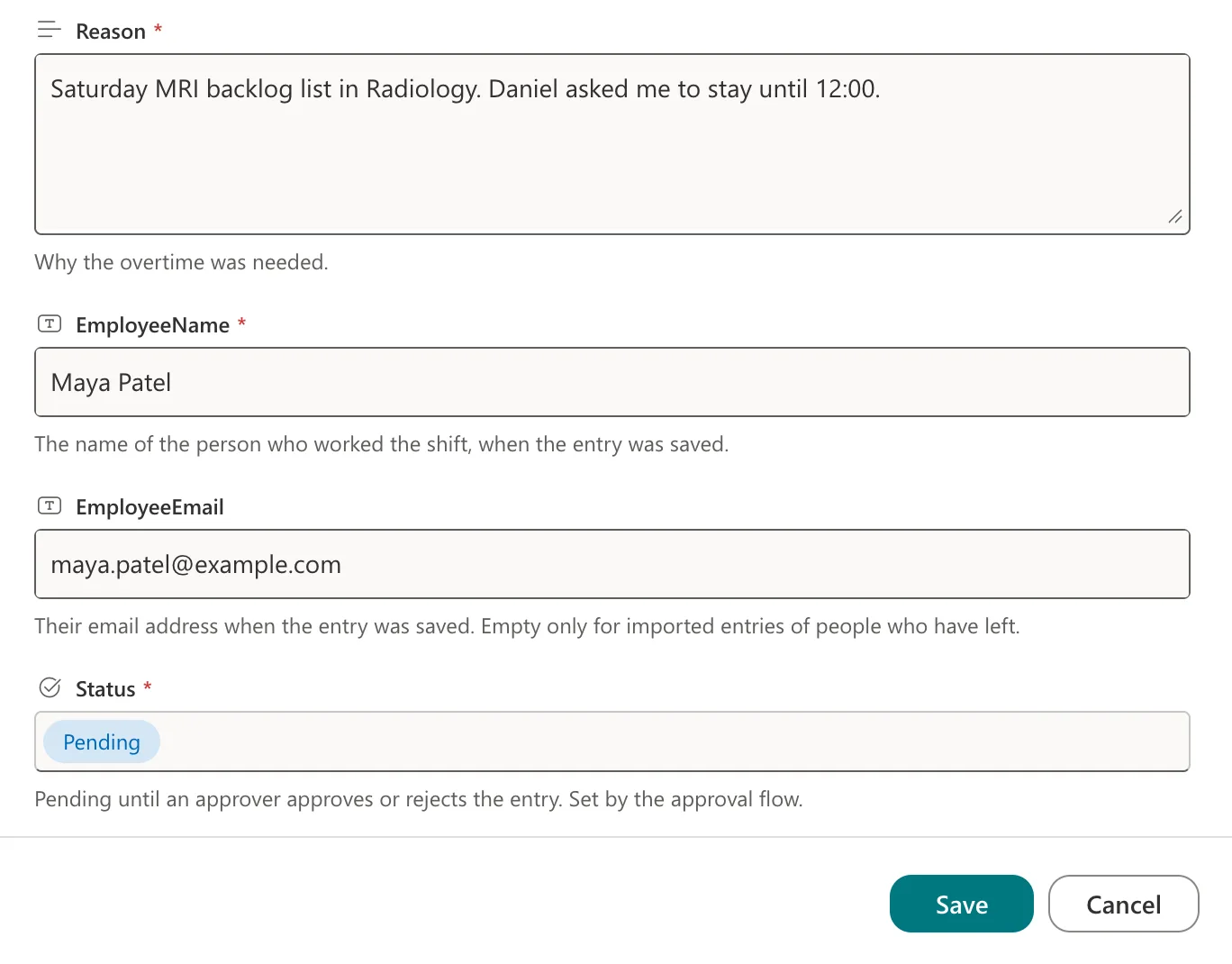
Maya Patel corrected her rejected entry in SharePoint, adding the detail her approver had asked for, and set Status back to Pending:
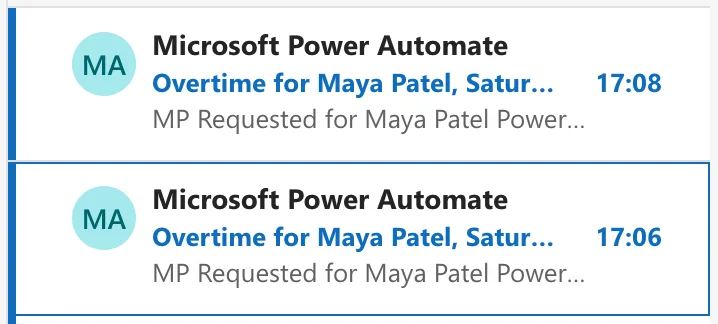
A request reached Daniel Brooks at 17:06. Before he answered, Maya edited the entry again, adding the number of scans, and a second request arrived at 17:08:
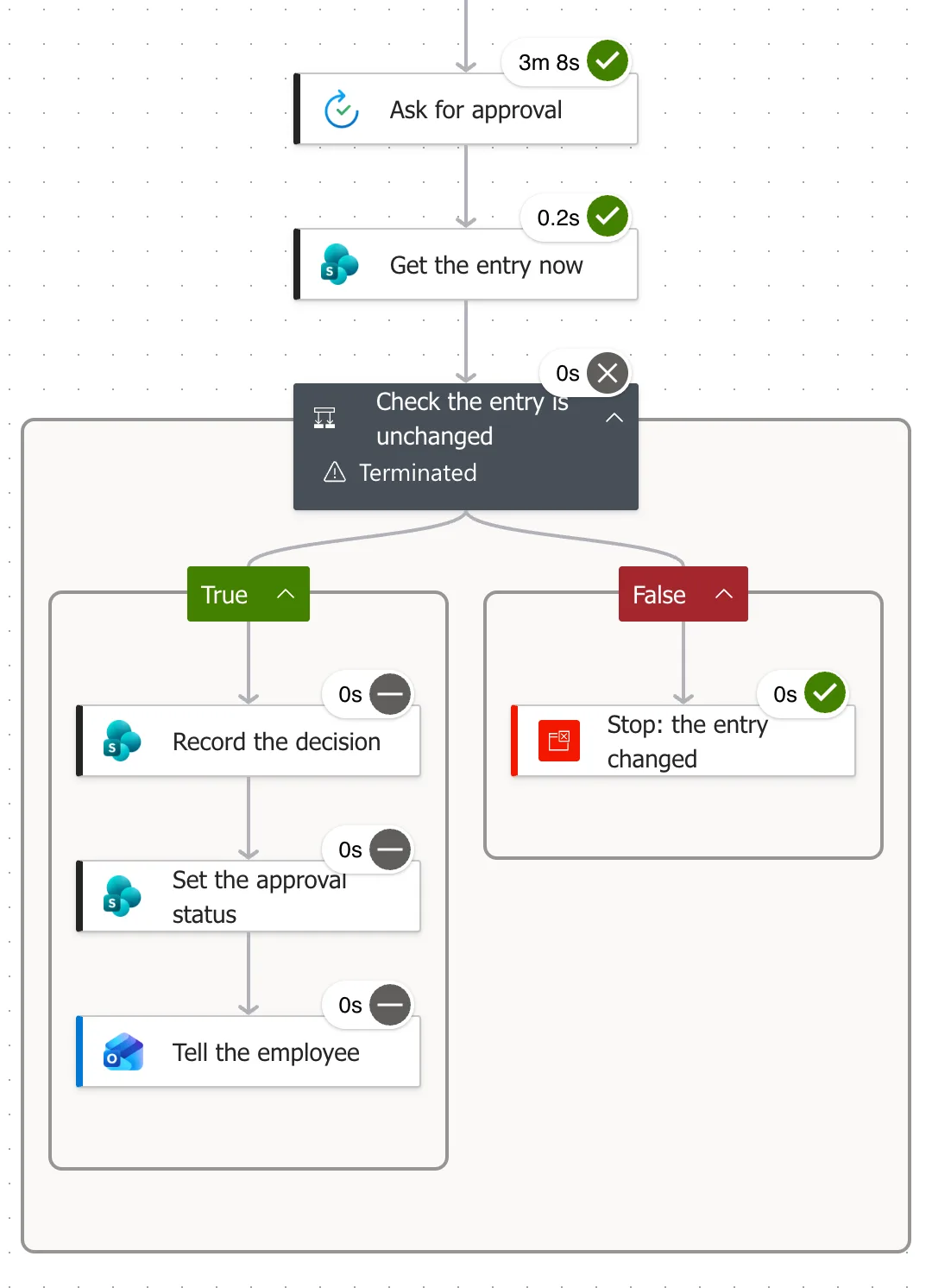
Daniel approved the older request first. That run's trigger had version 4.0 of the entry, and Get the entry now read version 5.0:


So the condition was false, the run stopped, and nothing was recorded:
Then he approved the newer request, whose run found the version unchanged and recorded the approval:

What the Approver Sees
Nothing tells the approver that their answer to the old request was ignored: in Outlook, it showed as approved like any other. The newer request is the one that counts, so approvers should answer the latest request for an item. The flow's run history shows the cancelled run (How to See a Flow's Run History in Power Automate).
Common Mistakes
| Mistake | What happens | Do this instead |
|---|---|---|
| Recording the decision with the trigger's values | Changes made during the wait are overwritten | Read the item again first |
| Comparing Modified dates | Works, but versions are simpler to compare | {VersionNumber} |
| No check at all | An old answer decides the new version | Compare versions before recording |
Troubleshooting
| Symptom | Likely cause | Fix |
|---|---|---|
| Every run is cancelled | The flow updates the item before the check | Check before any update |
| The check never fails, even after edits | Comparing the trigger's version with itself | The left side must come from Get the entry now |
| An approver's answer had no effect | The item changed after their request | Expected; they answer the newer request |
FAQ
Isn't the ETag the same idea?
Yes, for SharePoint's approval itself: Set content approval status takes the item's ETag (How to Approve or Reject a SharePoint Item in Power Automate). The version check covers the whole decision, including the columns the flow writes.
What if two approvers answer two requests at once?
Each run checks its own version. Only the run whose version is still the item's current one records a decision.
Conclusion
After an approval, read the item again and compare its {VersionNumber} with the trigger's. Equal: record the decision. Different: stop the run with Terminate, and let the newer request decide.
Additional Resources
- SharePoint connector: Get item: reading the item again.
- Workflow actions and triggers: Terminate action: stopping the run.
