How to Check a User's Permissions in SharePoint

"Why can she see this?" and "why can't he open that?" have the same answer in SharePoint: Check Permissions. On any Permissions page, it shows the permission levels one person has on that site, list or library, and the group each one comes through.
This guide checks two people on the Overtime Timesheet series site: Aisha Khan, a staff nurse, and Leo Martin, the payroll officer. Each list there has its own permissions, so the answers differ from list to list.
Prerequisites
- Owner of the site, or someone else who can see the Permissions page.
Step 1: Open the Permissions Page
For a list, open it, then Settings → List settings → Permissions for this list. For a library, Settings → Library settings → More library settings → Permissions for this document library. For the whole site, Settings → Site permissions → Advanced permissions settings.
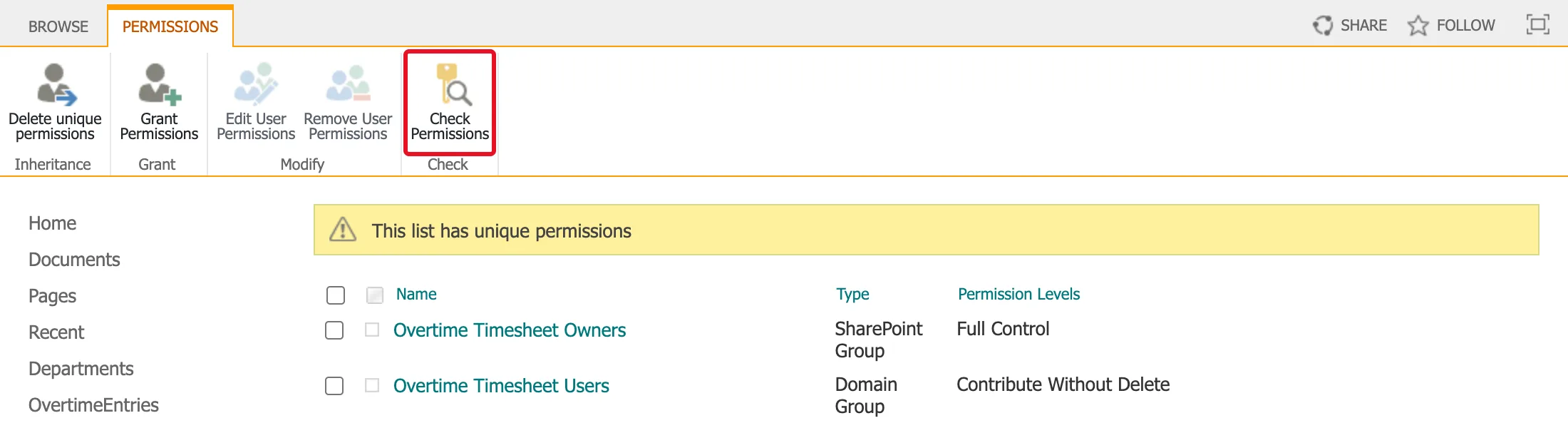
Step 2: Select Check Permissions
Check Permissions is on the ribbon of every Permissions page, inheriting or not:
Step 3: Enter the Person and Check Now
The dialog says: "To check permissions for a user or group, enter their name or e-mail address." Type a name in User/Group, pick the person from the suggestions, and select Check Now.
Step 4: Read the Result
For Aisha on the OvertimeEntries list:
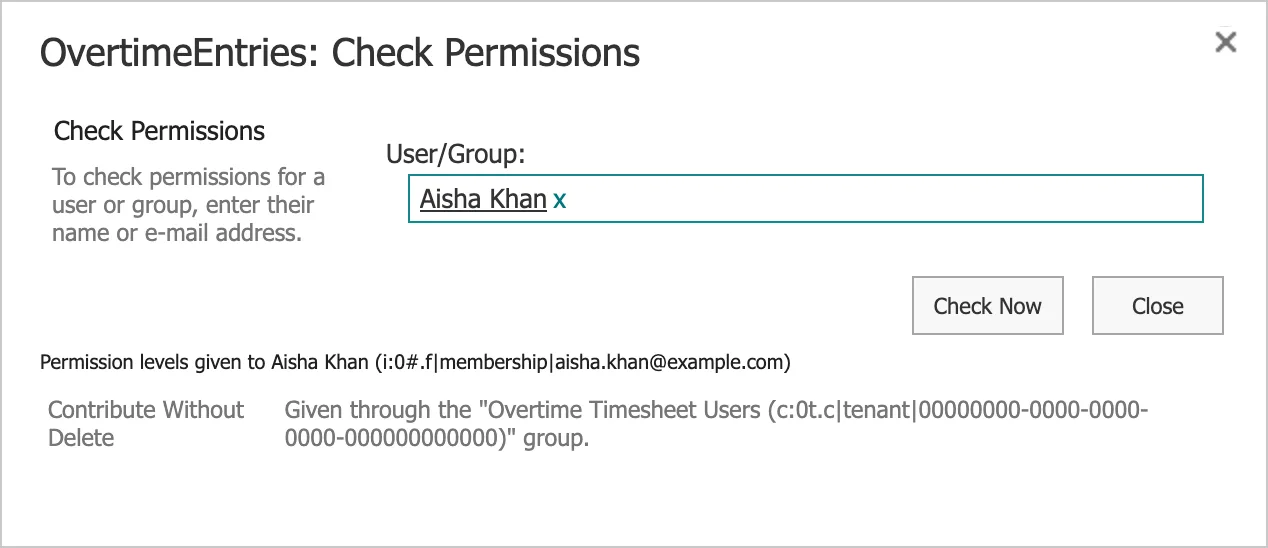
The result has three parts:
- Permission levels given to Aisha Khan (i:0#.f|membership|aisha.khan@example.com): the person, with the claim SharePoint uses for her account.
- Contribute Without Delete: the level she has on this list.
- Given through the "Overtime Timesheet Users (c:0t.c|tenant|…)" group: where it comes from. Here it's a Microsoft Entra security group, shown with its own claim.
A Person with No Access
The same check on the Payroll Exports library, which only payroll can open:
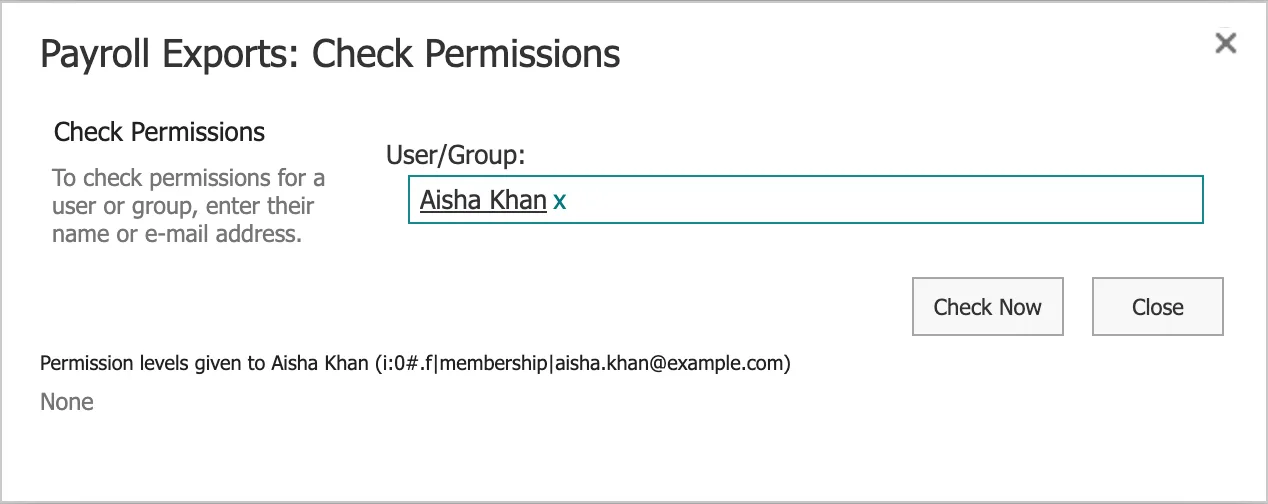
None means she has no permission on this library at all. That matched what she saw when she opened its address: "You need access."
A Person with Read
Leo, the payroll officer, on the same library:
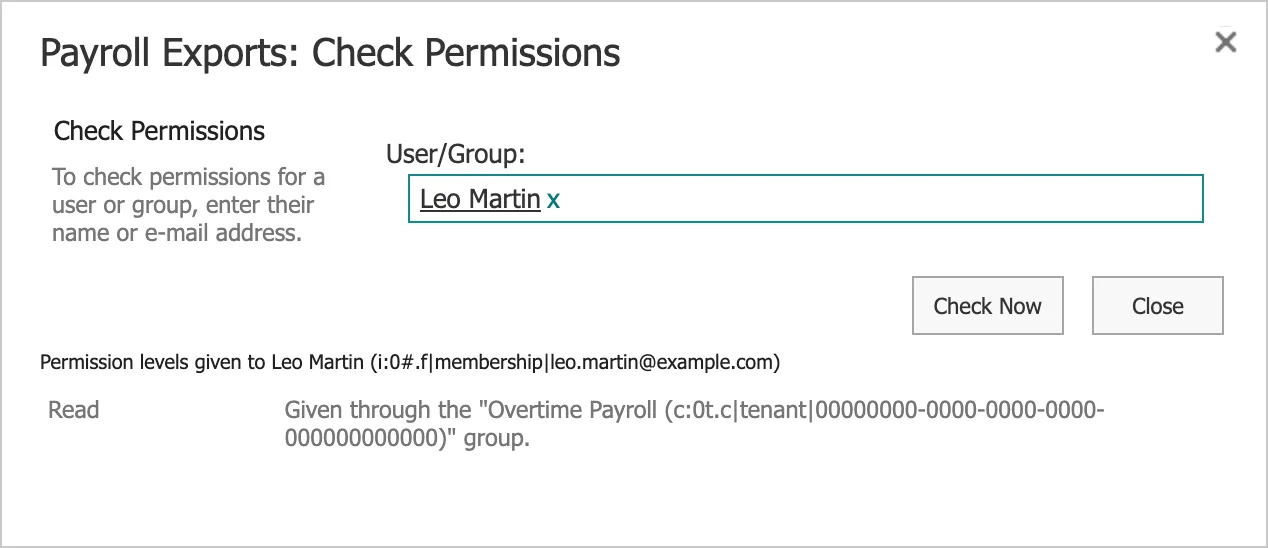
Read, through the Overtime Payroll group: he can open and download files, but not add or change them.
What Check Permissions Doesn't Show
- Item-level settings. On a list where people only see their own items, Check Permissions still shows the person's level on the list. Which items they can open is decided by the list's Advanced settings: How to Let Users See Only Their Own Items in a SharePoint List.
- Drafts. Whether someone sees items waiting for approval is a list setting: How to Choose Who Can See Draft Items in a SharePoint List.
Common Mistakes
| Mistake | What happens | Do this instead |
|---|---|---|
| Checking on the site when the list has its own permissions | The answer is for the site, not the list | Check on the list's own Permissions page |
| Reading only the level | You don't learn which group to change | Read the "Given through" line |
| Changing permissions for one person | It breaks the pattern of group-based access | Change the group's membership in Microsoft Entra |
Troubleshooting
| Symptom | Likely cause | Fix |
|---|---|---|
| The person isn't suggested | Name mistyped, or the account doesn't exist | Type their email address |
| None for someone who should have access | They aren't in the group, or the group isn't on this list | Check the group's members, then the list's Permissions page |
| A level you didn't expect | It comes through a group you didn't think of | Read the "Given through" line |
FAQ
Can I check a group instead of a person?
Yes: the dialog accepts a user or a group.
Does Check Permissions change anything?
No. It only reads permissions.
Conclusion
On the Permissions page of the site, list or library, select Check Permissions, enter the person and select Check Now. The result shows each level they have there and the group it comes through.
Additional Resources
- Access Denied or You need permission errors in SharePoint Online
- Customize permissions for a SharePoint list or library
